Frequently asked questions
Quick answers for encoder modes and missed reps, app stability, estimated 1RM, subscriptions, legacy encoders, webinars, language, and device compatibility.
Short answers to the questions the support team receives most often. Each answer links to the full checklist when there is more to check.
Encoder
My encoder is giving me slow reps
The encoder is probably in DOWN mode, so it measures the eccentric (lowering) phase instead of the concentric (lifting) phase. To return it to UP mode:
- Power on the encoder.
- Pull the tether by hand for exactly three repetitions.
- Press and hold the right button below the screen for eight seconds.
When the encoder is set up correctly and switched on, the screen shows the Vitruve logo, then BTXXX, and finally GO.
If you want to see both the eccentric and concentric phases, keep the encoder in UP mode and turn on the Eccentric phase option in the app instead. You do not need to change anything on the encoder for that. See Encoder buttons and screen.
The encoder is not reading repetitions
If you perform reps and nothing appears on the screen, or some reps appear and others do not, the exercise probably has a ROM Filter configured that is too restrictive. Lower the ROM Filter for that exercise and that athlete, then try again.
If lowering the filter does not help, check that the encoder is connected and marked active. See My reps, velocity, or 1RM look wrong and My device will not connect.
My encoder only measures the lowering phase
If the encoder shows DOWN or records only the lowering (eccentric) phase, it is in DOWN mode. The encoder's mode takes precedence over the app's Eccentric phase setting, so turning that setting off does not fix it.
- Older Vitruve Encoder with clicking buttons: follow Switch to UP.
- Encoder with flat touch-sensitive buttons: use the same three pulls, then touch and hold the right button area. See Touch-sensitive buttons.
- Vitruve Force, or an encoder that still records only the lowering phase after these steps: contact support with your order number and a short video of the device doing a few reps.
If the display or button does not respond, do not force it. Report a faulty device.
Estimated 1RM
The app is not giving me an estimated 1RM
There are two common causes:
- No load-velocity profile exists for that athlete and exercise. Create one for that athlete and exercise. See Create equations and manage 1RM.
- The 1RM Filter is set to a lower velocity than you are lifting at. The filter discards 1RM estimates from reps faster than the selected velocity. For example, if it discards estimates for lifts faster than 0.60 m/s and you lift at 0.70 m/s, no estimate is generated. Set the filter to a higher velocity.
Estimate your 1RM with loads similar to those used to create your profile. For example, if the profile was created with loads between 70% and 90% of 1RM, estimate your daily 1RM with loads in that same range. Estimating with much lighter loads, such as 50% of 1RM, gives very inaccurate results.
My estimated 1RM is lower than the load I am lifting
Sometimes the app estimates your 1RM at, for example, 200 lb, but you can lift that weight for 2 reps, or the estimate is even lower than the load on the bar. Check two things:
- Lift as fast as possible. The estimate assumes maximal intended velocity on every rep.
- The profile must fit you. The app calculates the estimate from the rep's velocity, the load, and the equation from your load-velocity profile for that exercise.
An estimate like this usually means the equation, and therefore the load-velocity profile, is not well adapted to you: you reached a velocity lower than the 1RM velocity the profile uses.
For example, the generic bench press profile sets the 1RM velocity at 0.18 m/s, so your 1RM is the load you lift at 0.18 m/s. If you lift a heavy load at 0.15 m/s, slower than that reference, the app interprets it as lifting above 100% and the estimate is wrong.
To correct it, either create a full load-velocity profile for yourself, or change the profile's 1RM velocity to your lowest achievable velocity if you know it. See Check the 1RM velocity reference.
App
The app crashes, freezes, or is unusually slow
- Update Vitruve from the App Store or Google Play, then close and reopen it.
- Confirm your device meets the minimum requirements, and restart the device if the problem continues.
- If the issue persists, sign out and back in. Before reinstalling, check Pending workouts on the device where you recorded; unsynced sessions may still be there.
- Reinstall only after checking for pending workouts. Reinstalling can clear locally stored app data.
When contacting support, include your device model, operating-system version, app version, what you were doing when the problem occurred, and a screenshot or short screen recording.
My subscription is paid but the app says it expired
Check that you are signed in with the email used for the purchase and have selected the organization linked to the plan. Then sign out and back in and check Organization → Subscription if your role allows it. A plan bought in the app through Apple or Google Play activates automatically. A plan bought from Vitruve, including one bundled with an encoder, is activated on your account by the Vitruve team, so it does not appear until they have done so. If the plan still appears expired, contact support with your purchase confirmation and the account email. Follow Activate or renew your subscription for the full checklist.
My workout shows an error when I tap Finish
Keep the recording device's local data intact. Check for an active session and Pending workouts, retry on a stable connection, and save a JSON recovery file for a record that needs attention. Do not uninstall the app while the session might still be pending. Follow Find a missing workout.
Orders and plans
Where is my order or tracking number?
Tracking is emailed when the order ships. Check your checkout email and spam folder, then compare the carrier's latest update with the shipping estimate. For a delay, wrong address, missing parcel, or missing accessory, follow Fix a delayed or missing delivery.
My encoder broke. Do I need to send it back?
Try the symptom checks and start a claim with your order details and a photo or video. Keep the device until the team confirms whether it needs to be returned; return instructions can depend on the case. See Warranty and claims.
Do I need a paid subscription to use the encoder?
No. The encoder is a one-time purchase and works for individual training with the Free app. Paid plans are subscriptions you renew, usually yearly, and add features such as team management and other eligible workflows. See Choose a plan and check the current offer for prices and limits.
Does my old Speed4lifts encoder work with the current app?
The current Vitruve app connects to encoders over Bluetooth only. An original Speed4lifts encoder that works only over Wi-Fi cannot connect to it. If your encoder can start in Bluetooth mode (its screen shows BTXXX), it can connect; see The encoder does not appear in Bluetooth.
Can I watch a webinar I missed?
Recent webinars have been recorded and published on Vitruve's YouTube channel. Past sessions are listed on the webinars page. Not every live session has a replay. If you cannot find a recording, ask support for that event's recording or materials.
How do I change the app language?
In the current Vitruve app, open Settings → Display & Appearance → Language and choose the language. See Set units, language, and appearance.
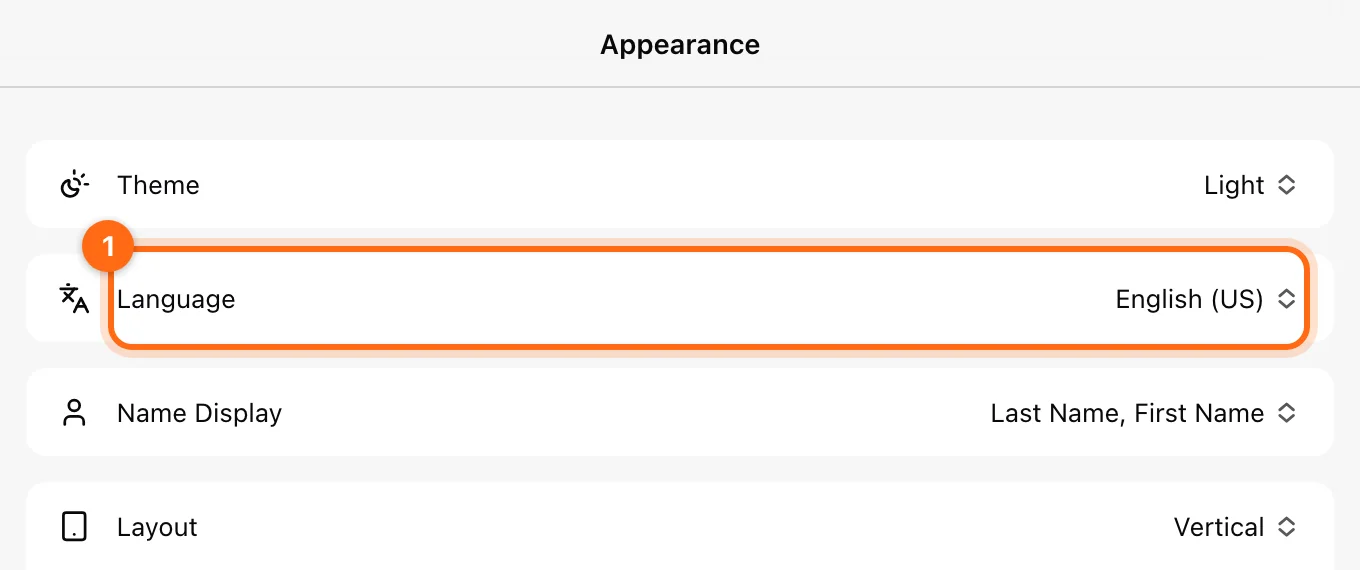
The legacy Speed4lifts apps use the language set on your phone or tablet, so change the device's language settings to change them. See Legacy apps.
What are the minimum phone and tablet versions?
The current Vitruve mobile app requires iOS 15.0 or later on iPhone and iPad, and Android 12 or later on Android phones and tablets. On a computer, use the web app in a Web Bluetooth-compatible browser, such as Chrome or Edge, to connect devices.
Older support articles list iOS 12.1 and Android 6.0. Those were the minimums for earlier app versions; if your device cannot install the current app, update its operating system or use another device.