Perform a structured or mixed workout
Understand prescription tables, manual completion, the active-set marker, supersets, and combining lifting, jumps, sprints, and reaction work.
Use Training → Workout to perform an editable, complete session. Its exercises can use None, VBT, Jump, Sprint, or Reaction recording. Those exercise types can coexist in one workout and one saved History entry.
Load the structure
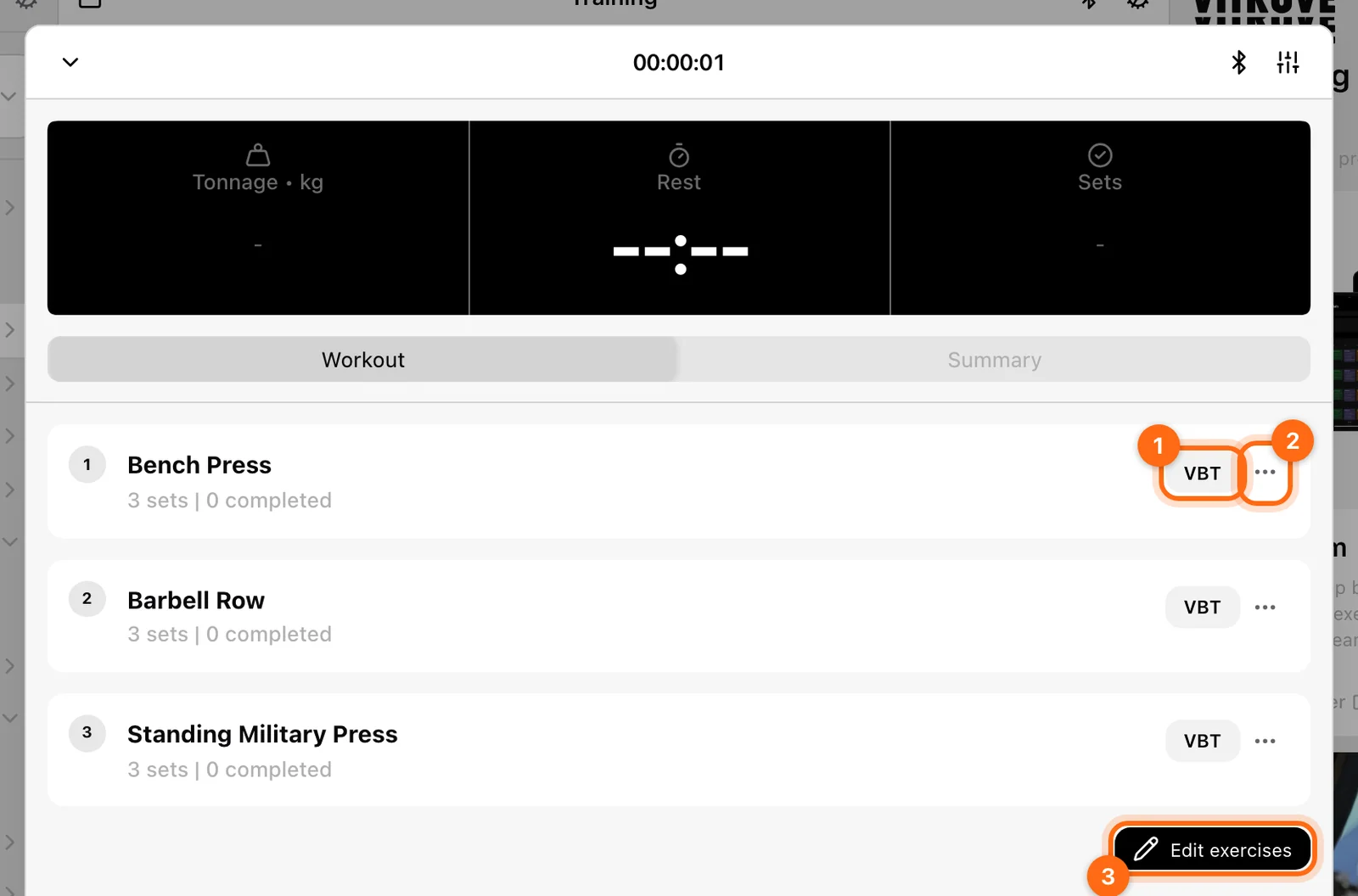
Choose today’s session, Calendar, Use a template, or Add exercises. The initial structure can contain blocks, ordinary exercises, and supersets. Select an exercise header to expand its group.
An expanded group owns the current recording target. Finish or resolve a live set before opening another group; changing the visible exercise is not a way to move an in-flight recording safely.
Understand the prescription table
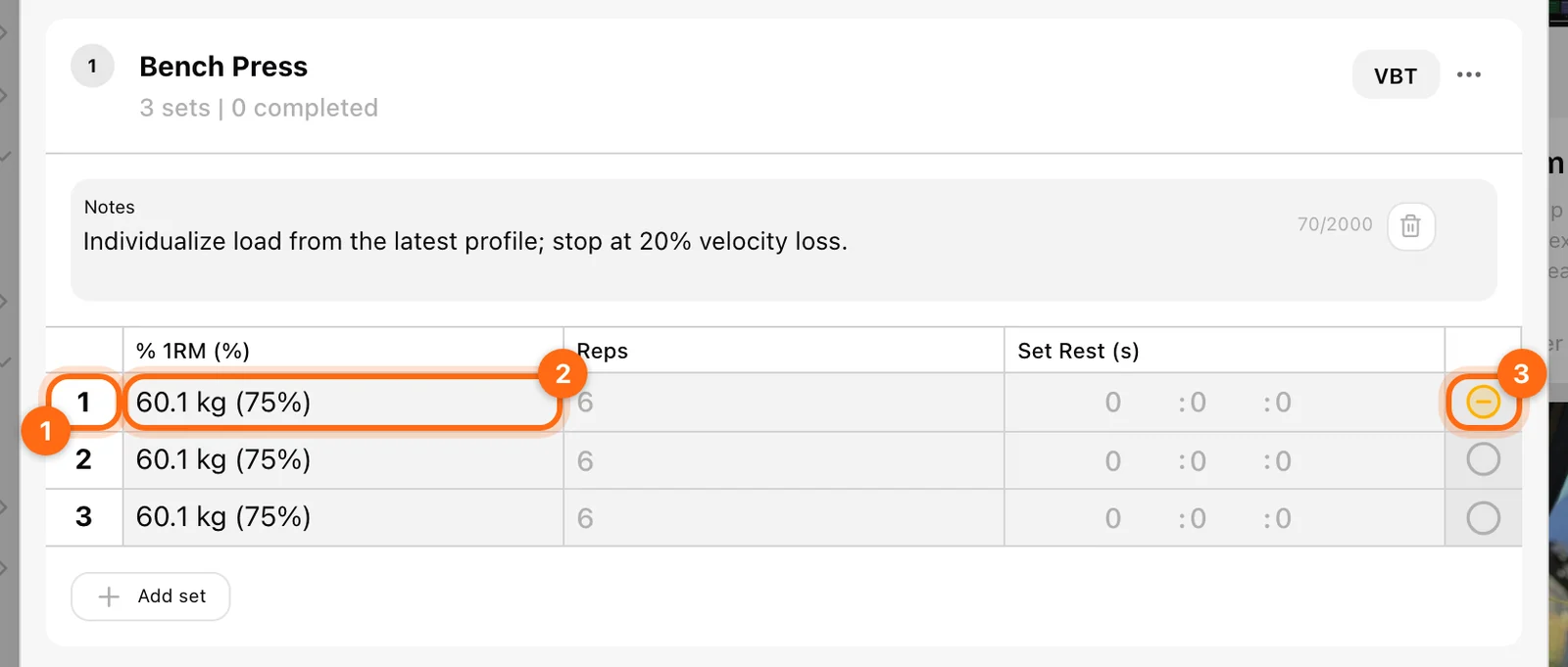
Each set row contains:
- Its number, which opens the set menu.
- The available value cells, with the prescribed target as a placeholder when appropriate.
- A completion/target circle at the right.
Enter what you actually performed in editable cells. For Range/Top parameters, the displayed lower/upper target is guidance, while the executed field is the actual result. % 1RM cells are read-only target displays: if an athlete’s 1RM is known, the app shows the corresponding target load; otherwise it can show the raw percentage.
Manually complete ordinary sets
For an exercise with hardware set to None, enter the performed values and select the completion circle. A completed set has a checkmark and contributes to the completed-set summary.
Untouched single-value prescriptions can become the executed values when you mark complete. For example, if the target was five reps but you performed four, enter four before completing the set.
Clearing completion removes executed values. On a measured set, the app warns that uncompleting also removes collected data—cancel if you only wanted to select a different target.
Choose how the exercise is recorded
Use the exercise header’s hardware control to choose the recording modality. Its options are None, VBT, Jump, Sprint, and Reaction, with eligible feature access. Jump/Reaction provide algorithm choices in their submenus.
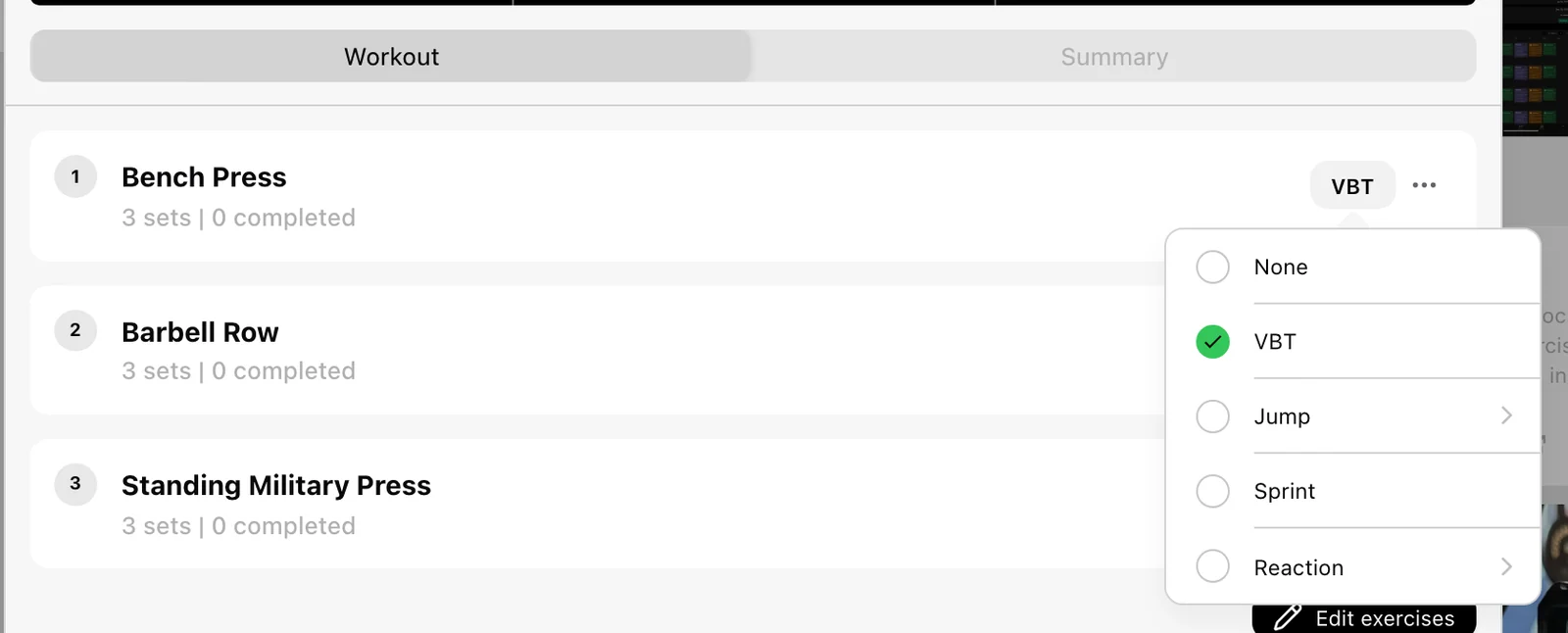
The exercise name does not lock its hardware modality. Check both the prescription’s recording type and its columns. Changing the recording type does not automatically prove the set parameters are appropriate to the new flow; use ⋯ → Prescriptions to review them.
If an older or incomplete prescription displays Select algorithm, choose the intended option before recording. The app does not silently guess a jump or reaction algorithm.
Target the right set
For hardware work, the right-hand marker has three useful states:
| Marker | Meaning |
|---|---|
| Empty circle | An incomplete row that is not the current device target. |
| Highlighted minus-circle | The set currently receiving the next measurement. |
| Completed check | A set marked/performed as complete. |
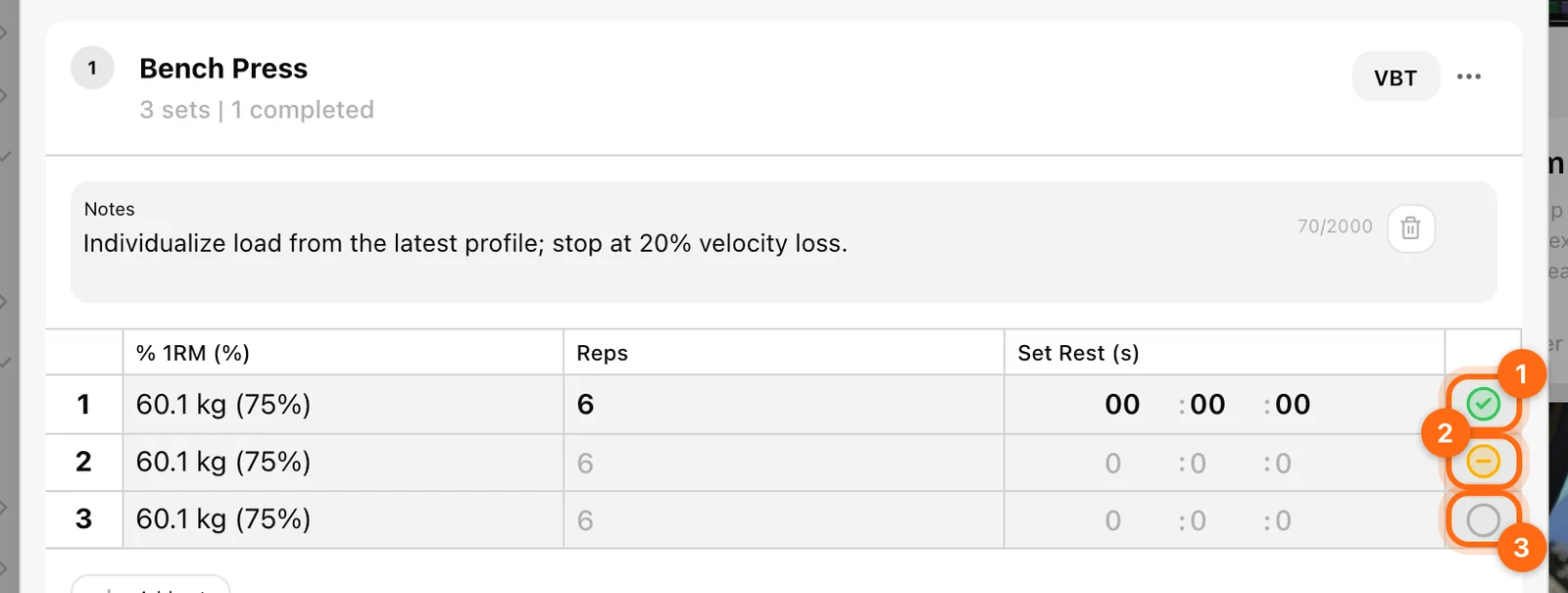
Select an incomplete, non-target marker to make that row the target. Selecting the already active target marks it complete manually. That second action is not a request to begin measuring.
The app can advance to the next incomplete hardware set after a result lands. Recheck the marker instead of assuming every measured set must belong to the first row.
Record according to modality
| Type | How capture starts | Setup to check |
|---|---|---|
| VBT | First measured rep with the group expanded. | Active encoder, target row, actual load, metric. |
| Jump | Start, then get-ready countdown. | Compatible Force encoder, algorithm, body weight, added load. |
| Sprint | The gate device’s start event. | Active Speed device, available segments, distances, trigger method. |
| Reaction | Start, then get-ready countdown. | Active Speed device, algorithm, gates, duration, no-go settings when relevant. |
Use the recording display’s Finish or its appropriate save/stop prompt to commit the captured set. Saving partial jumps, laps, or reaction events is different from discarding them.
Work through a superset
Exercises in a superset share a group and use labels such as 2a / 2b. The hardware target can move between its members. The header names the target exercise when needed, and the Start control follows the target for jump/reaction work.
To attend a different member, select that member’s incomplete set marker. Check the header’s load now belongs to that exercise before changing it. Do not start another athlete or member while the existing recording display is unresolved.
Read the changing header
With no measured group open, the header summarizes Tonnage, Rest, and completed Sets. With a measured exercise targeted, it changes to context-specific controls:
- VBT: Load, Rest, 1RM, with suggested-load/calculator information where available.
- Jump: Load, Rest, best-set information, and separate Body weight.
- Sprint: Load, Rest, and configured Distance.
- Reaction: average/best set information rather than a weight field.
These changes reflect the exercise being attended, not a new workout.
Rest timing
Rest is measured from the most recently completed set. A positive prescribed Set Rest takes precedence where present; otherwise the configured training rest timer is used. Without an active rest countdown, the card can count elapsed time up instead. Before any completed set, --:-- is expected.
Rest does not save the whole workout, and Auto finish set is a separate idle-recording setting.
Change the session carefully
Use Add set to append a row; it copies the preceding row’s structure/targets, so review it. Use Edit exercises to reopen the selection/reordering flow. An exercise’s ⋯ provides Notes, Prescriptions, History, Switch exercise, video, Settings, template saving, and available correction actions.
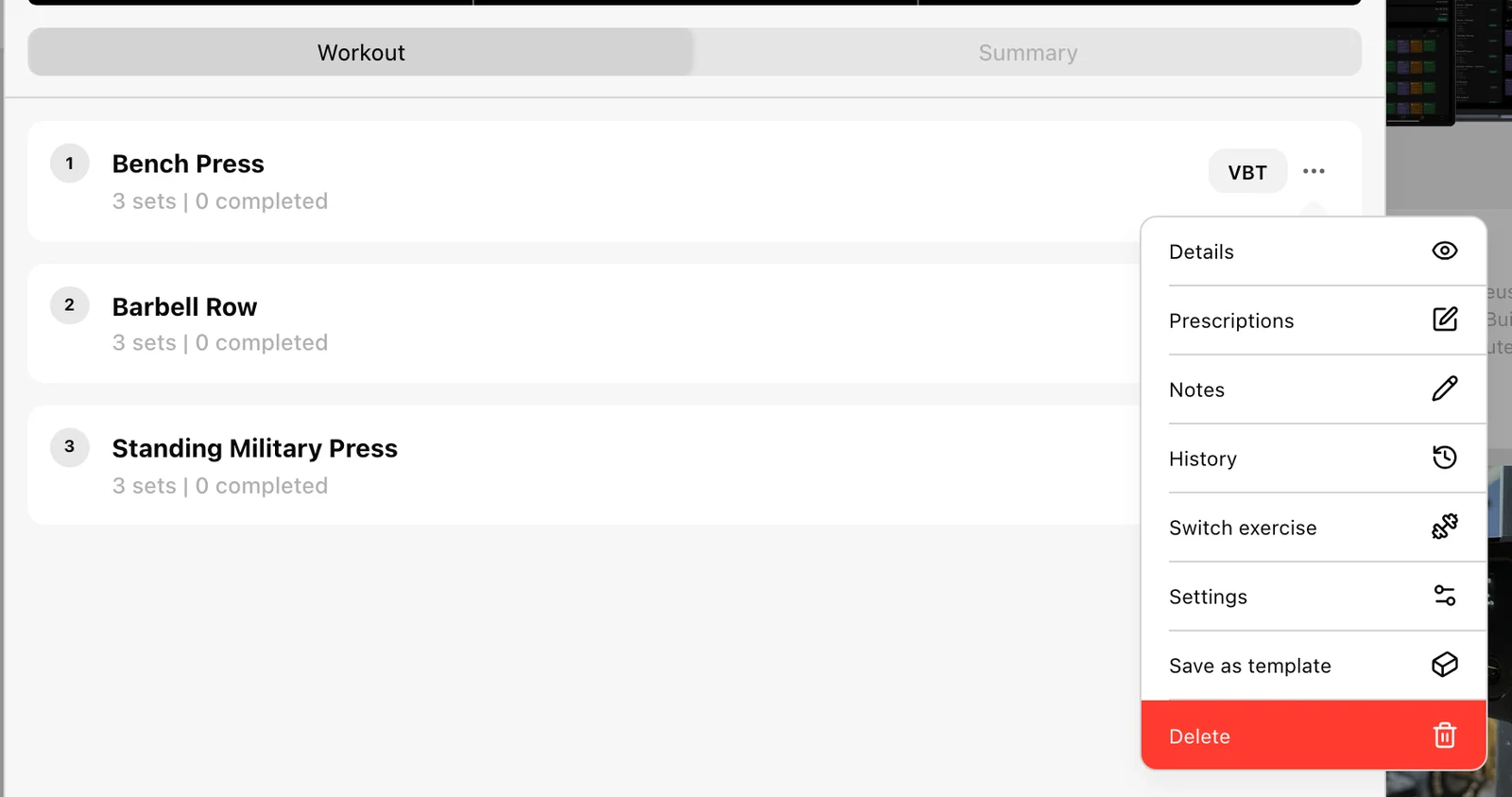
Delete an exercise or set only when you intend to remove its work. A Delete in this active workout is different from deleting the movement from the organization’s library.
Finish the whole session
Review Summary, name/RPE, and the actual recorded sets. Use the footer’s Finish, confirm the athlete scope, allow processing, and verify in History. Continue with Review and corrections if something needs fixing first.