Configure training settings
Control local versus cloud settings, rest and idle timers, wellness prompts, default prescriptions, manual 1RM, and modality-specific feedback.
Training settings tailor sessions to your goals, preferences, and coaching needs. Open them from any of these places:
- Settings → Training: on web or desktop, the sidebar cog; on mobile, More (...) at the bottom right, then Settings → Training.
- The cog in the Training header.
- The cog inside a VBT session or other supported recording screen, so you can adjust while training.
The general settings are shared across recording modalities; VBT, Jumps, Sprints, and Reaction also have their own options.
Choose the scope first: Use Cloud
- Use Cloud off: the device uses its local training setup.
- Use Cloud on: settings are stored/shared for this organization. Other devices also need Use Cloud on and an internet connection to pick up changes.
An Owner or Coach needs shared-settings permission to edit the cloud setup. You can switch the device back to local settings when you need independent station behavior.
If a change affects every station unexpectedly, check whether you edited the shared cloud settings. If it affects no other station, compare Use Cloud and organization selection on each device.
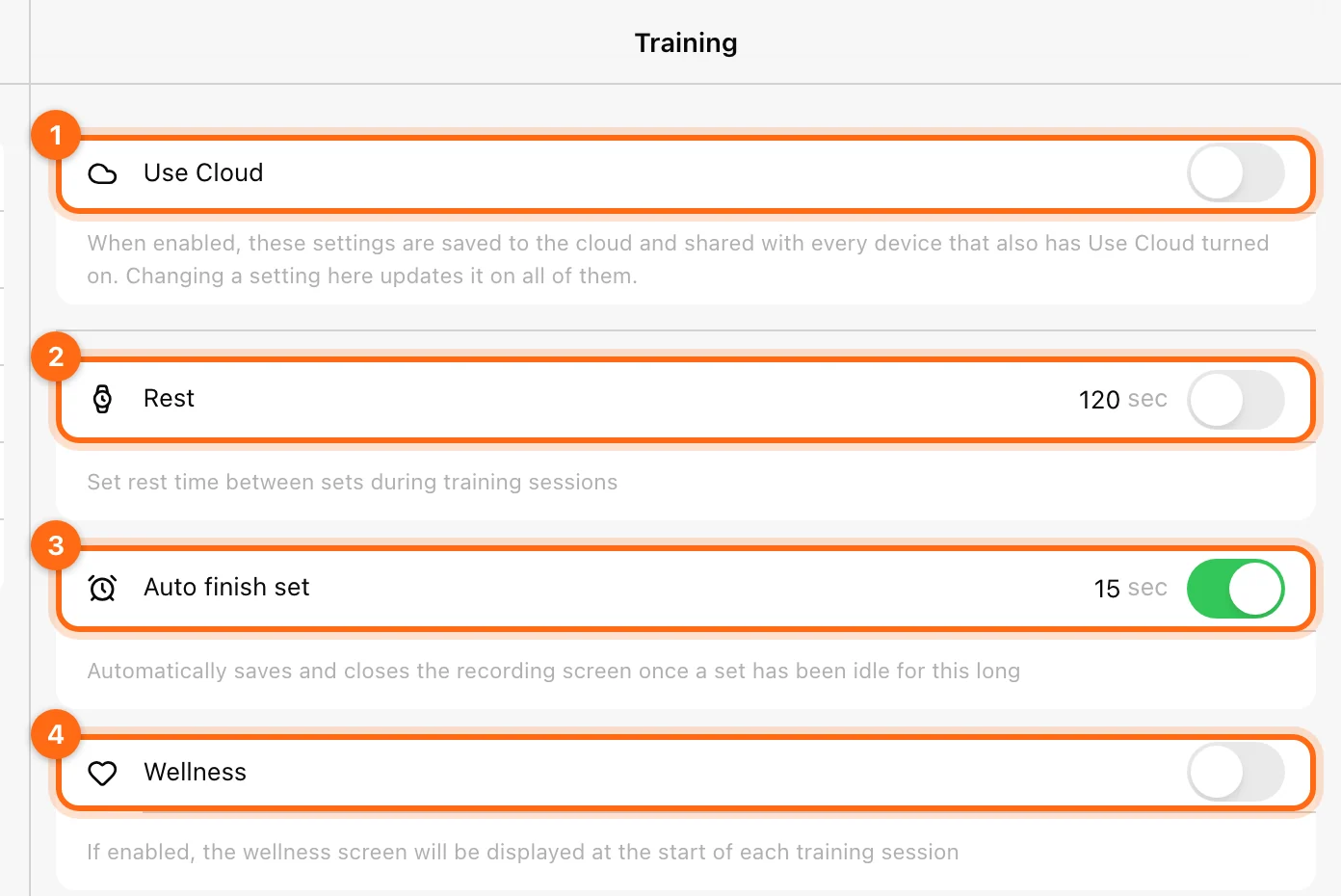
General controls
| Control | Purpose |
|---|---|
| Rest | Enables and sets the between-set rest timer in seconds. |
| Auto finish set | Saves and closes a recording screen after the set is idle for the configured seconds. |
| Wellness | Shows the questionnaire at the beginning of training. |
| Default Prescriptions | Chooses parameters used to seed newly added exercises. |
| Override 1RM | Uses manually entered 1RM where one exists for the exercise. |
| Enter 1RM Manual by Exercise | Records exercise-specific manual values. |
How the rest timer looks during training
With Rest set, the Training header counts down from your rest time after each set. It turns to a warning colour in the last 15 seconds and to red once the rest time is over. With Rest off, the same card counts up the time since the last set.
Older support articles describe the timer turning red 5 seconds before the end and announcing the athlete's name. Follow what the current app shows.
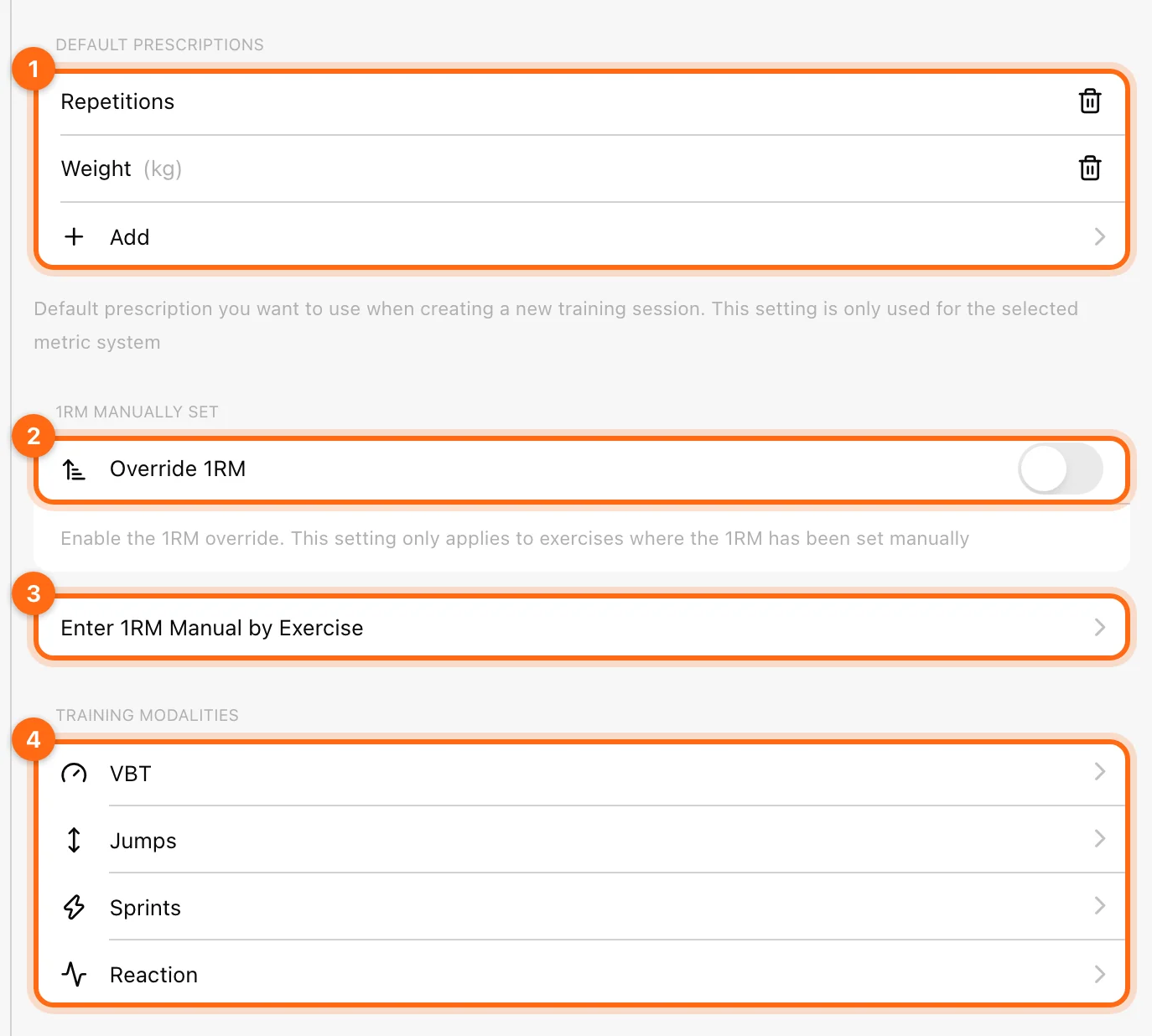
Default prescriptions are a starting structure for new additions. Each modality has its own Default Prescriptions list, and a default applies only to the selected metric system. They do not mean every existing workout’s targets have been rewritten.
Open the modality settings
The Training modalities area provides VBT, Jumps, Sprints, and Reaction as available. Open the modality you are configuring; a velocity display setting is not automatically a sprint timing setting.
- VBT: primary/secondary/set metrics, eccentric phase, voice, velocity loss, ranges, and compatible calibration. See the VBT details below.
- Jumps: the available jump metrics and prescription defaults; RSI Modified and 10/5 Jump RSI workouts use protocol-fixed metrics.
- Sprints: beeps, trigger method, run-in, gate/split distances, metrics, and defaults.
- Reaction: game difficulty/no-go probability, available metrics, and defaults.
VBT options in detail
| Option | What it does |
|---|---|
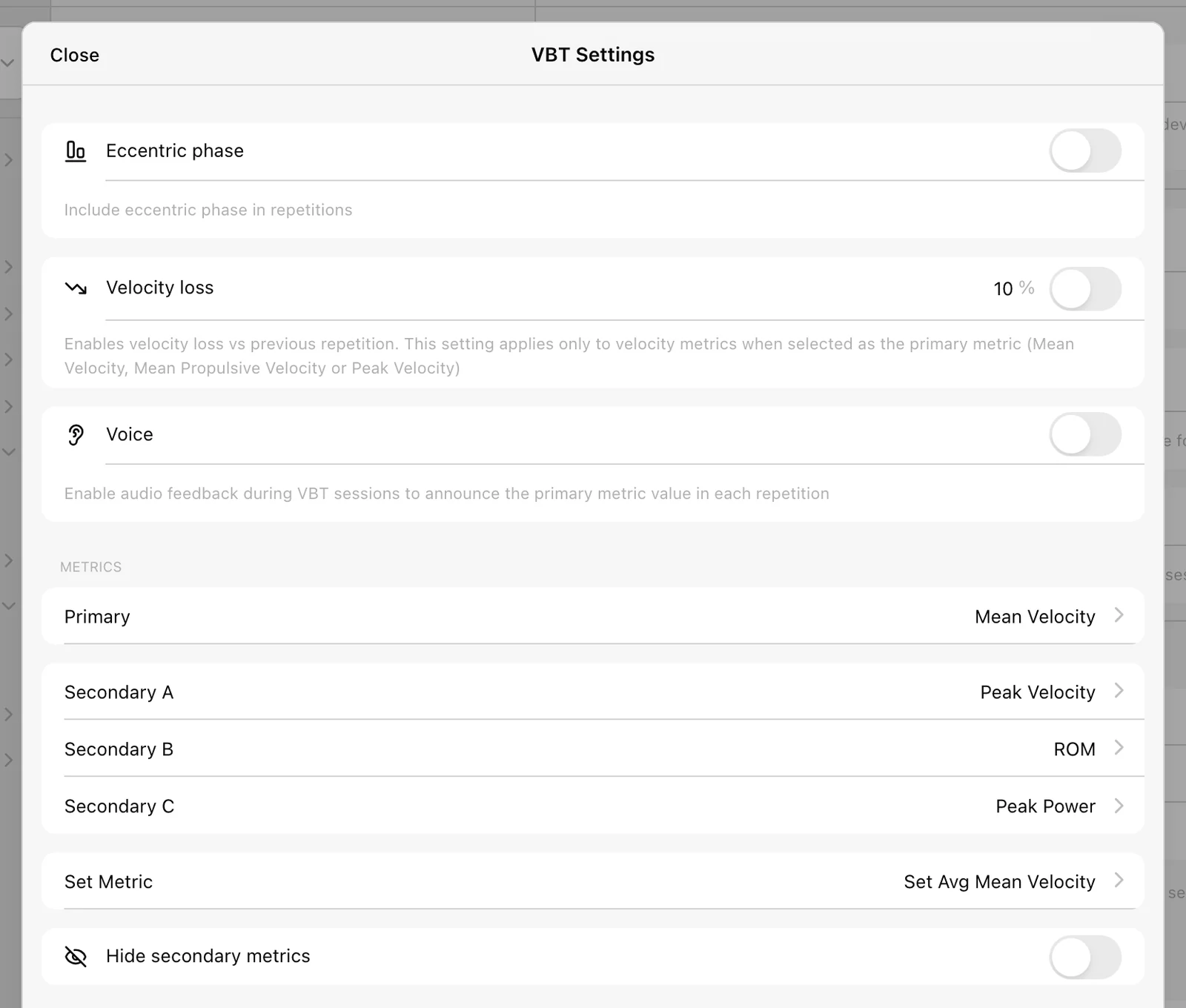
| Metrics | Choose the Primary metric, the Secondary metrics, and the Set Metric, in the order you want them shown. Hide secondary metrics keeps the screen simple. |
| Eccentric phase | Includes the eccentric (lowering) phase in repetitions, so you see metrics for both the lifting and lowering phases. |
| Velocity loss | Tracks fatigue within a set and gives feedback when the loss reaches your threshold. Works only when the primary metric is Mean Velocity, Mean Propulsive Velocity, or Peak Velocity. |
| Voice | Audio feedback that announces the primary metric value after each repetition. |
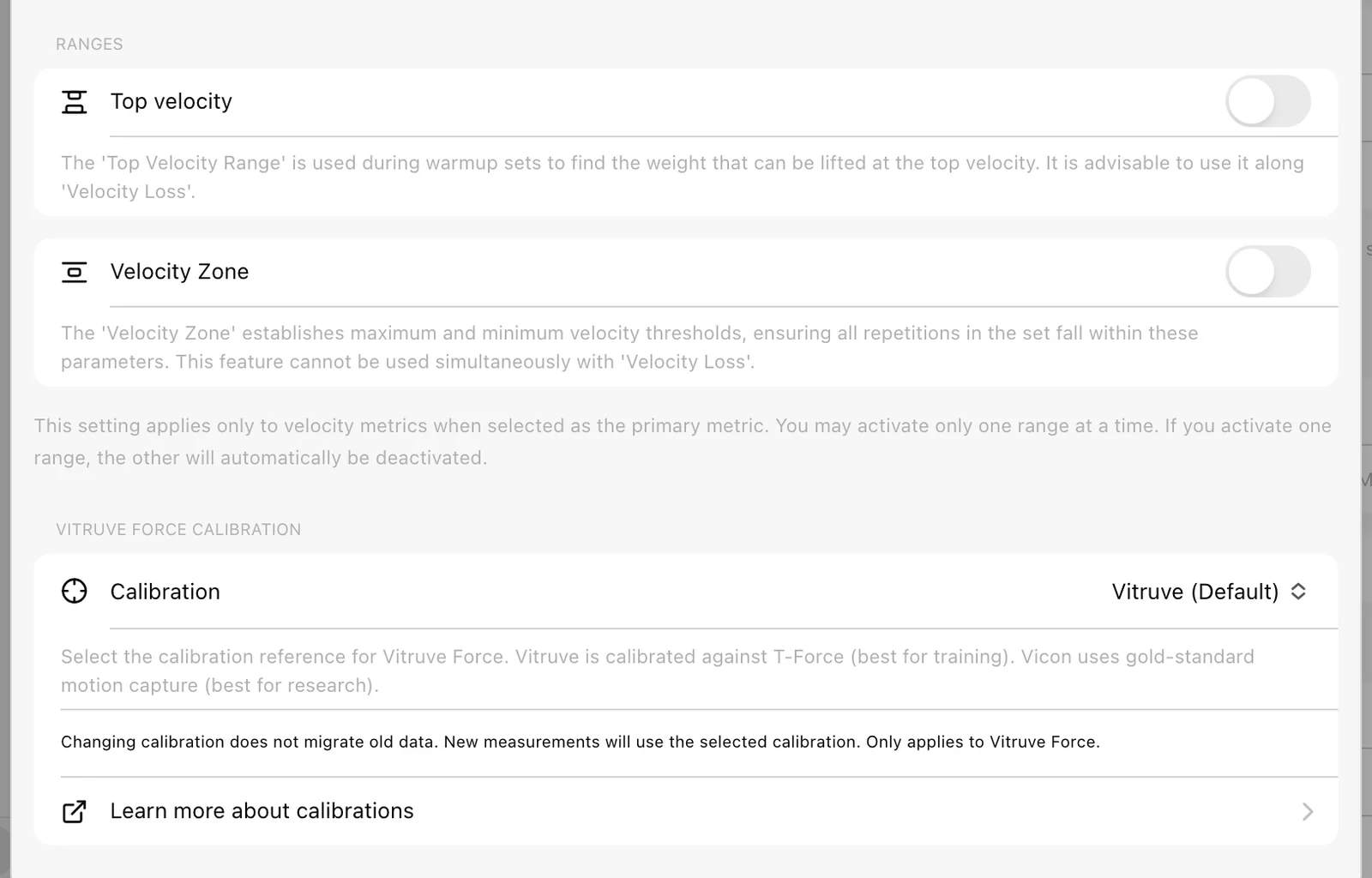
| Top velocity (range) | For warm-up sets: checks the fastest rep, usually the first, against a range to find the right load. Too fast, add weight; too slow, reduce it. Best used together with Velocity loss. |
| Velocity Zone (range) | Sets minimum and maximum velocity so all reps in the set stay inside them. A rep outside the zone triggers a beep and is shown differently in the rep chart. Cannot be used together with Velocity loss. Older support articles call this Set Range. |
Ranges apply only to velocity primary metrics. Only one range can be active at a time: turning one on turns the other off. For worked examples and conflict rules, see Velocity feedback.
Auto finish set is useful when you are not close to the device or often forget to finish a set. Wellness helps coaches collect a wellness form from athletes before each session.
Choose Force calibration deliberately
For a compatible Force encoder, Vitruve Force Calibration offers Vitruve (Default) and Vicon. The setting determines the calibration used for new relevant measurements; changing it does not recalculate past data.
Keep the same calibration for comparisons, or record that you changed it when interpreting a trend. It follows the same local/cloud scope as other training settings.
Check the result
Test the change in the modality you intended. Verify the active device, metric, timer, and athlete. Finish and review the test workout if you need a persistent record; Quick Tracking is an unsaved check.
Experiment with these settings to find what works for your goals or your athletes' plans, and keep shared stations on Use Cloud for consistency across a team.
For detailed VBT combinations, see Velocity feedback. For manual 1RM, see Equations and 1RM.
Set units, language, and appearance
Understand organization defaults and personal unit overrides, then customize theme, language, name order, layout, and keep-awake behavior.
Use the passcode and manage app storage
Protect selected screens on a shared device and understand when clearing local app storage is appropriate.