Build workouts, blocks, and supersets
Create a complete session, organize exercises into blocks, group supersets, and prepare it for training.
By the end: you will have a named workout template containing exercises and set targets, ready to use directly or schedule in a phase.
1. Create the workout
Open Builder → Templates → Workouts, select +, and enter a name. The new workout starts with a block you can edit.
On a wide screen, the template list and editor appear side by side. On a smaller screen, open the selected workout to reach its editor.
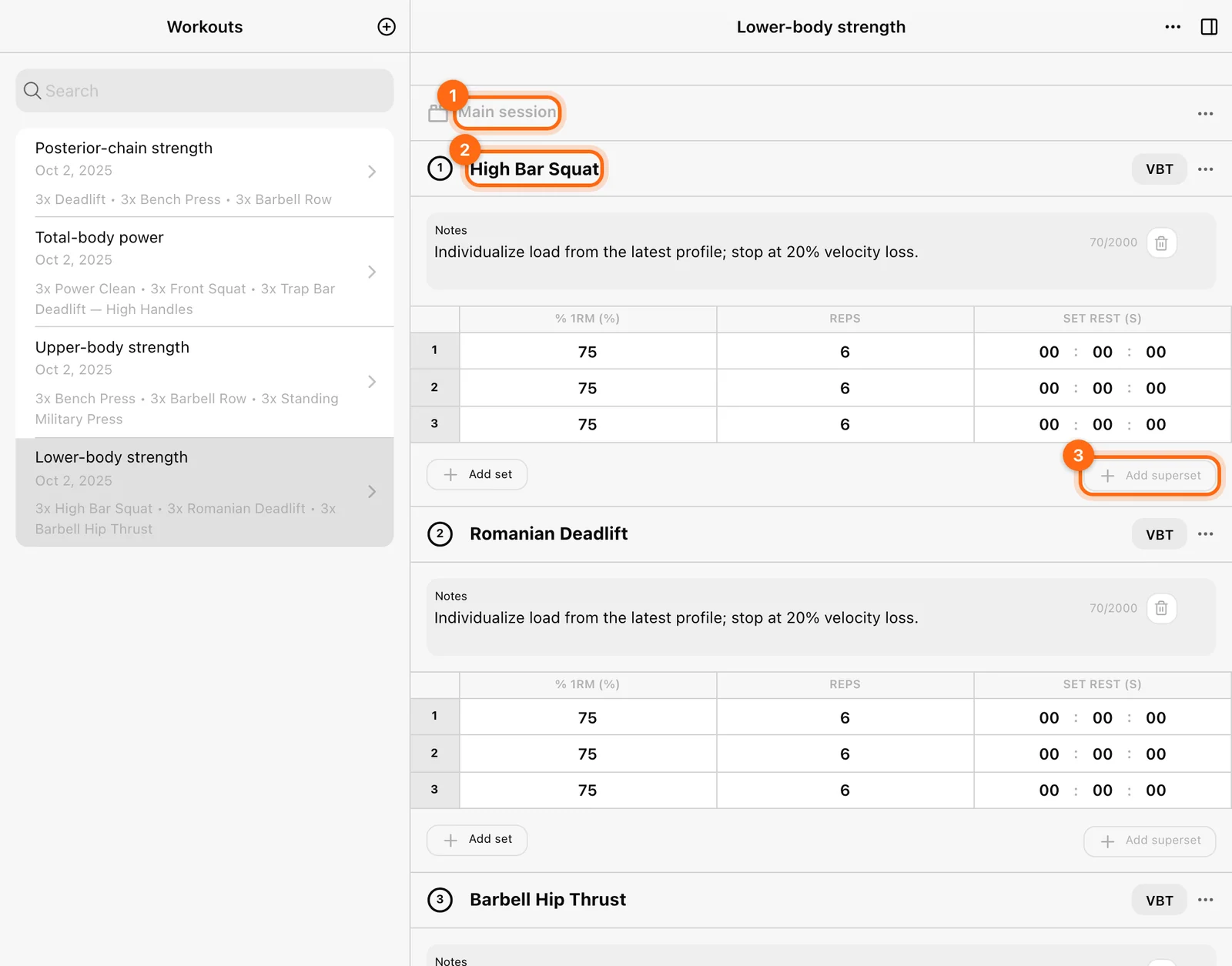
2. Organize blocks
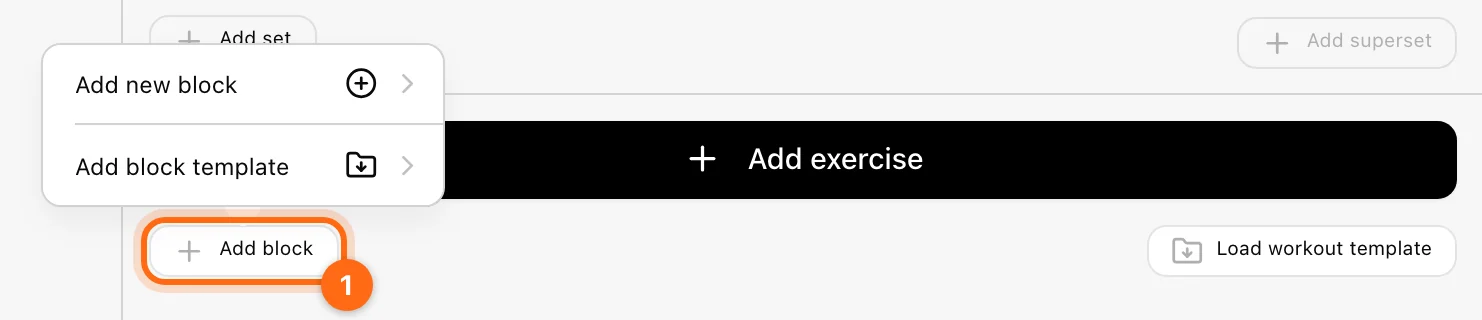
Use Add block to choose Add new block or Add block template. Blocks are useful for sections such as warm-up, main lifts, accessories, and cooldown.
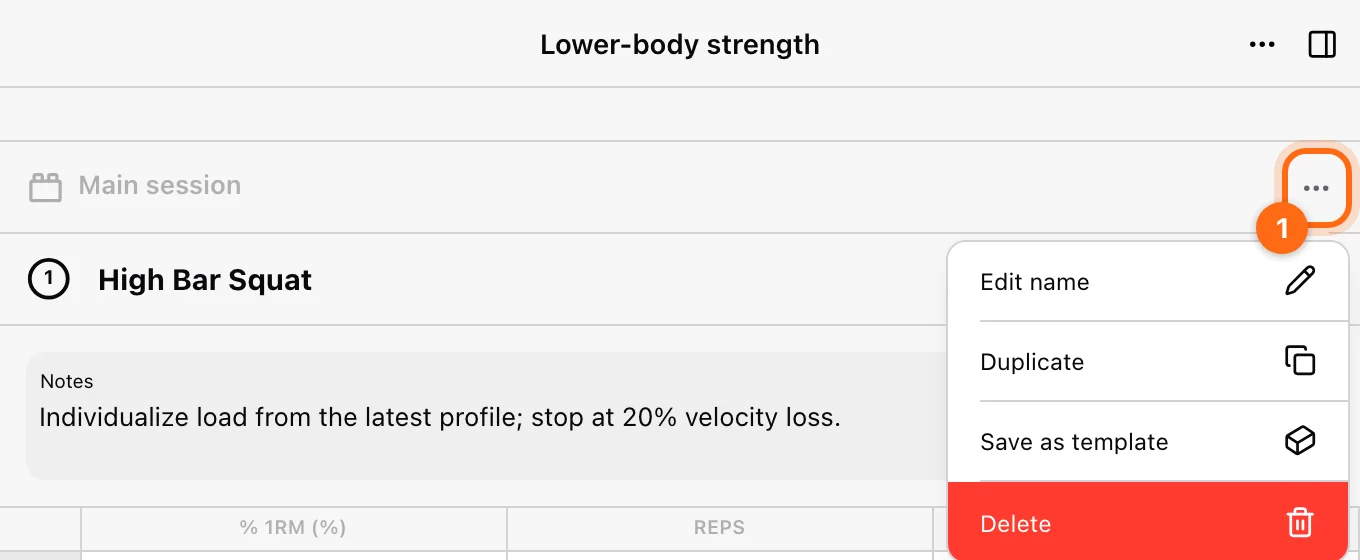
Use the block’s drag handle to reorder it. Its ⋯ menu includes actions such as Edit name, Duplicate, Save as template, and Delete. A block saved as a template can be inserted into other workouts.
3. Add an exercise
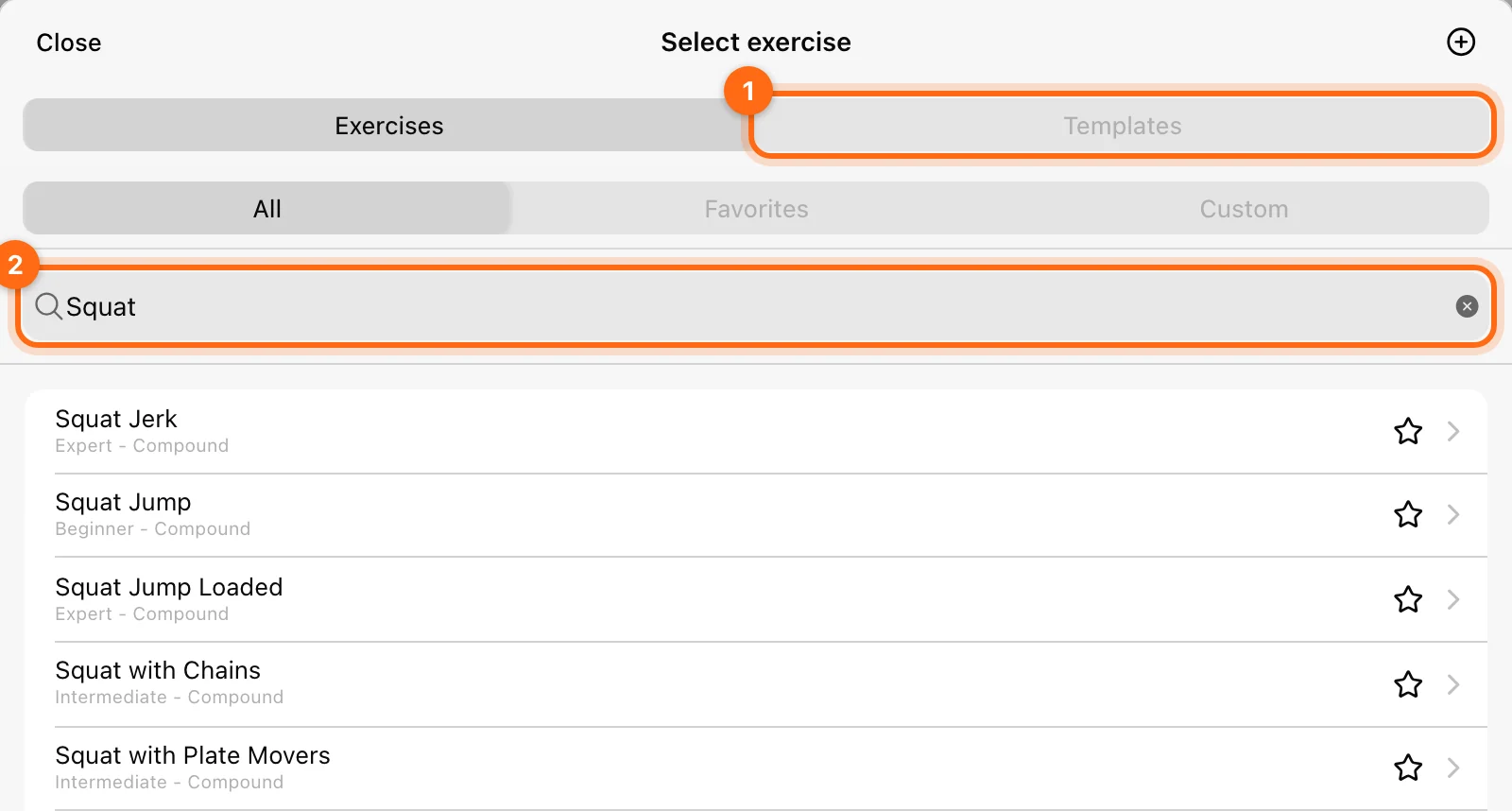
Inside a block, select Add exercise. Search the movement library or choose an available exercise/superset template. Review the exact movement variation before selecting it.
Newly added exercises use the organization’s default prescription setup. Defaults are only a starting point; check every set’s values before assigning the workout.
Use Prescriptions to select columns such as Reps, Weight, % 1RM, Set Rest, and velocity targets.
4. Build a superset
An exercise group with one movement displays as a single exercise. Add a second movement into that same group to make a superset.
- On a single exercise, use Add superset to add another exercise to its group.
- Inside a superset, use Add exercise to superset for additional movements.
- Reorder movements within the group using their drag controls.
- Check the order labels, such as 1a, 1b, and 1c.
Adding a second exercise elsewhere in the block does not necessarily place it in the same superset. Confirm the shared visual grouping.
5. Add notes and review targets
Open an exercise’s ⋯ menu for Notes, Prescriptions, Switch exercise, Watch video (when the movement has a video), and other available actions. Explain any setup or execution instruction your athlete needs before recording.
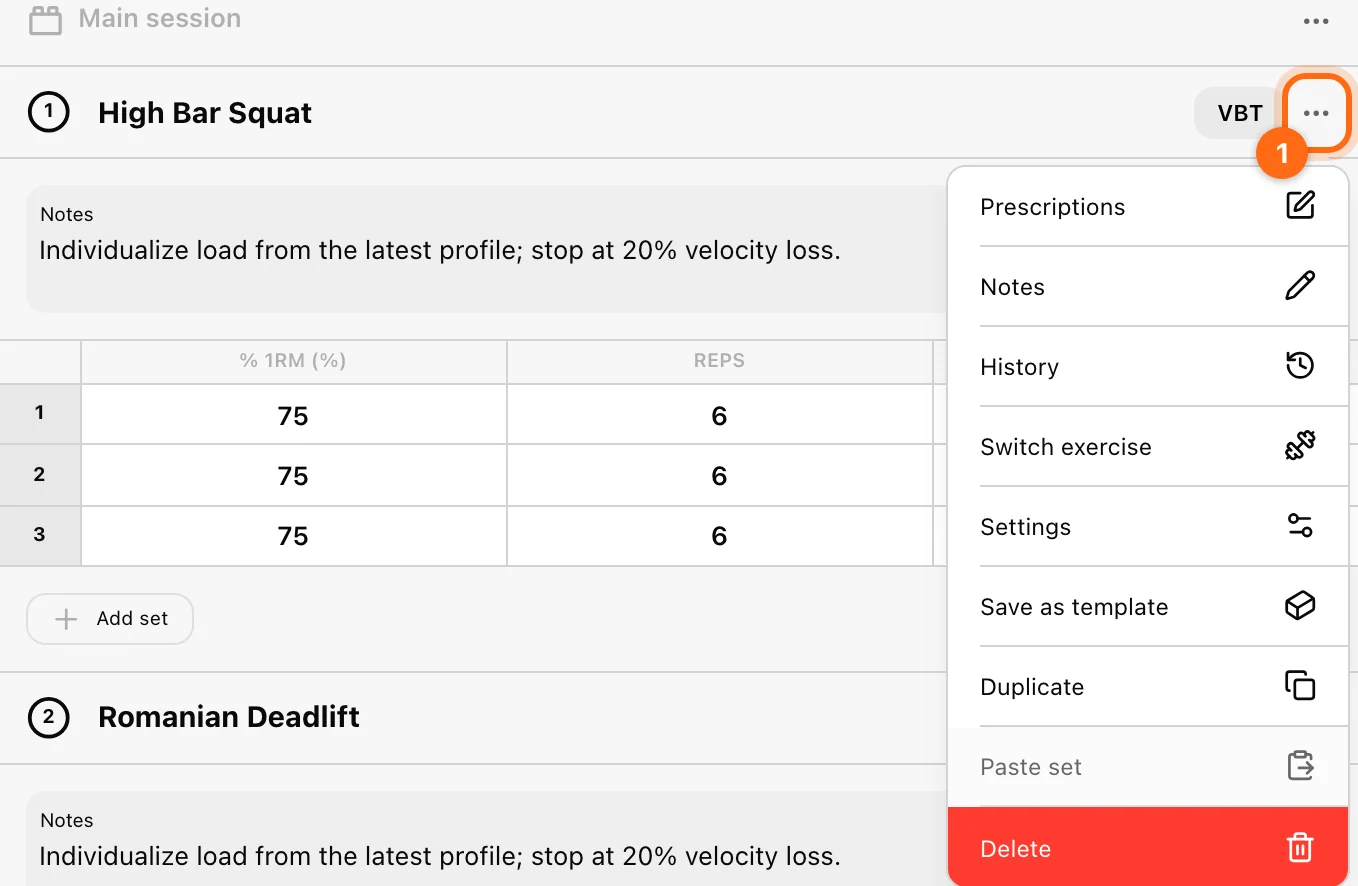
Check:
- The correct movement and variation.
- A sensible number of set rows.
- Load and rest units.
- Whether each target is a single value or range.
- Whether the chip next to the exercise name shows VBT for a velocity-based prescription.
6. Use the completed workout
For a one-off session, open Training → Workout → Use a template and select it. For dated delivery, schedule it in a phase and assign a Live Program.
A template does not contain performed repetitions. Recording from a template creates the session record you later review in History.
If an exercise or block disappears
Check whether you deleted the contextual item or loaded a replacement template. Use copies for experimental edits and review replacement confirmations. An empty workout can appear on a calendar with an empty-workout warning; add exercises before expecting usable prescriptions.
Related guides
Prescribe set targets · Schedule phases · Assign a live program
Create and reuse templates
Learn what each template level stores, how to copy it, and why saving a template does not assign a workout.
Prescribe sets, load, rest, and velocity
Use the set table and actual app parameter names to prescribe repetitions, percentage loading, velocity targets, and fatigue limits.