A feature or athlete is missing
Check organization, role, Coach Mode, selection, staff assignments, plan, add-ons, and platform in the right order.
Do not assume you need to recreate the organization or buy a different plan immediately. Missing access often comes from the current workspace or training context.
1. Select the intended organization
The same account can be an Owner in one workspace and an Athlete in another. Check the organization name on the device where the feature is missing.
2. Check the membership role
An Athlete role does not manage team rosters or create coaching templates. Coach and Owner have different administrative capabilities. Your Account Profession is not the membership role.
Ask the Owner to check how you joined if the role is wrong. Athlete and coach invitations originate from different pages.
3. Turn on Coach Mode where eligible
Find the toggle in the web sidebar footer or mobile More. Roster management, Coach Live, and multi-athlete context require it.
The individual Free/One context does not grant team Coach Mode just because you are a coach by profession. A team plan and a coaching role are required.
4. Select athletes
If the message is No athletes selected, use the pencil in the athlete strip. Select the intended roster, then choose the active avatar for recording.
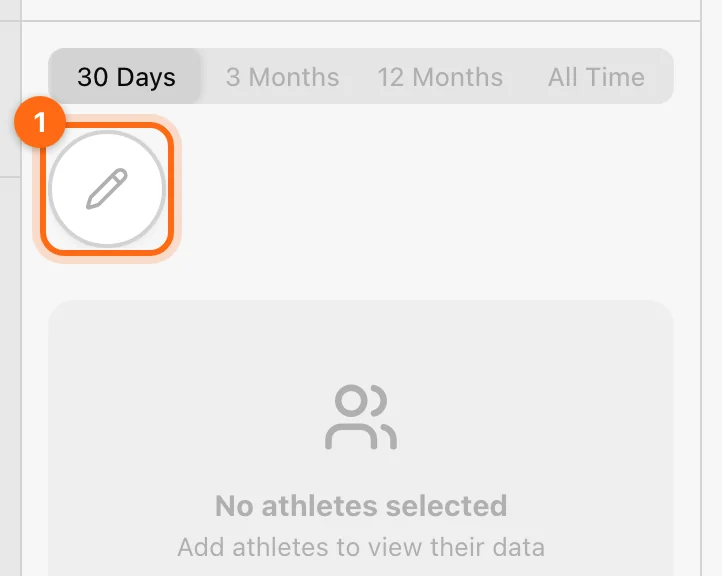
An empty selection does not mean there are no profiles in Athletes.
5. Check coach assignments
If another staff member sees an athlete you cannot, ask the Owner to open Coaches → your profile → Assigned athletes → Edit. Your visibility can be restricted there.
Check team filters and pending invitations too. Creating a duplicate profile is not a fix for restricted access.
6. Check plan and feature access
Ask the Owner to check Organization → Subscription. Confirm that the relevant resource limit has not been reached.
- Coach invitations, messaging, security, injury reports, exports, and Intelligence have their own requirements.
- Timing Gates is a separate organization feature for Sprint and Reaction.
- History/export date windows can differ between plans.
- Labs checks the coaching role as well as its plan access, and appears only in Coach Mode.
Use Plan and feature access for the current mapping.
7. Check screen and platform
The Devices Settings entry is native-only, but the Training Bluetooth manager is also accessible in compatible web browsers. Some Labs matrices need a 1024 px or wider window. A Builder side panel can be unavailable on a narrow screen while the full-page assistant remains the appropriate route.
Match the symptom
| Symptom | Most useful check |
|---|---|
| Athletes/Teams navigation absent | Coach Mode, coaching role, and team plan. |
| Invite Coach action absent | Owner role and staff-invitation access. |
| Intelligence absent | Owner role and AI feature access. |
| AI connectors absent, or an assistant says access was refused | Owner or Coach role and AI-connector access in that organization. See AI connectors. |
| Sprint/Reaction absent | Timing Gates feature. |
| All Time greyed out | Organization data-window permission. |
| Only one athlete absent | Coach assignment, filters, and membership. |
| Labs says role unavailable | Role in the selected organization. |
If all checks match, report the exact missing feature with organization, role, plan, screen, and device.
I cannot find my workout
Locate a recent session by checking context, filters, active work, pending uploads, and cross-device conflicts before starting over.
My reps, velocity, or 1RM look wrong
Check recording context, units, active hardware, metric, filters, equations, and manual overrides before changing the data.