Manage athletes and staff
Build a roster people can use, organize meaningful groups, and give each coach the right access.
Choose your organization and turn on Coach Mode before roster work. Athlete and team management require a team plan; staff invitations and messaging have their own feature requirements.
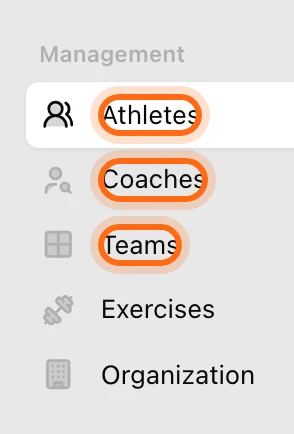
Start with the person, then the grouping
- Create or invite athletes.
- Organize them into teams.
- Invite staff and choose their athlete visibility.
- Use team messaging where available.
- Find and create exercises, then configure exercise settings for ROM, filters, and equations.
The distinctions that matter
| Action | What changes |
|---|---|
| Create an unregistered athlete | Adds a coach-managed training profile, without a login or email invitation. |
| Invite an athlete | Gives a person a way to join and use their own account. |
| Add to a team | Adds a grouping inside the organization. |
| Remove from a team | Changes grouping; the person remains in the organization. |
| Remove a registered member | Ends their organization membership; their account survives. |
| Delete an unregistered athlete | Permanently deletes the coach-managed profile and associated data. |
Roles at a glance
Each person in an organization has one role that defines what they can do:
| Role | Description | Typical permissions |
|---|---|---|
| Athlete | Trains and views their own data | Records workouts, reviews own History, completes wellness and equations. No access to other people’s data. |
| Coach | Manages athletes and teams | Creates training programs, runs sessions, and tracks progress for visible athletes. |
| Owner | Full administrative control | Manages the organization, subscription, coaches, and integrations. |
Some actions, such as inviting coaches or API access, also depend on the subscription plan. See Roles and permissions and Plan and access.
To change the email used by a coach or the Owner, follow Change a coach or Owner email.
If the roster is empty
An empty selection and an empty organization are different things. Check Coach Mode, the selected organization, athlete filters, and your coach assignments before creating duplicate profiles. See Missing access.