Record and update injury reports
Add an injury record for an athlete, update its recovery status, and keep it separate from training prescriptions.
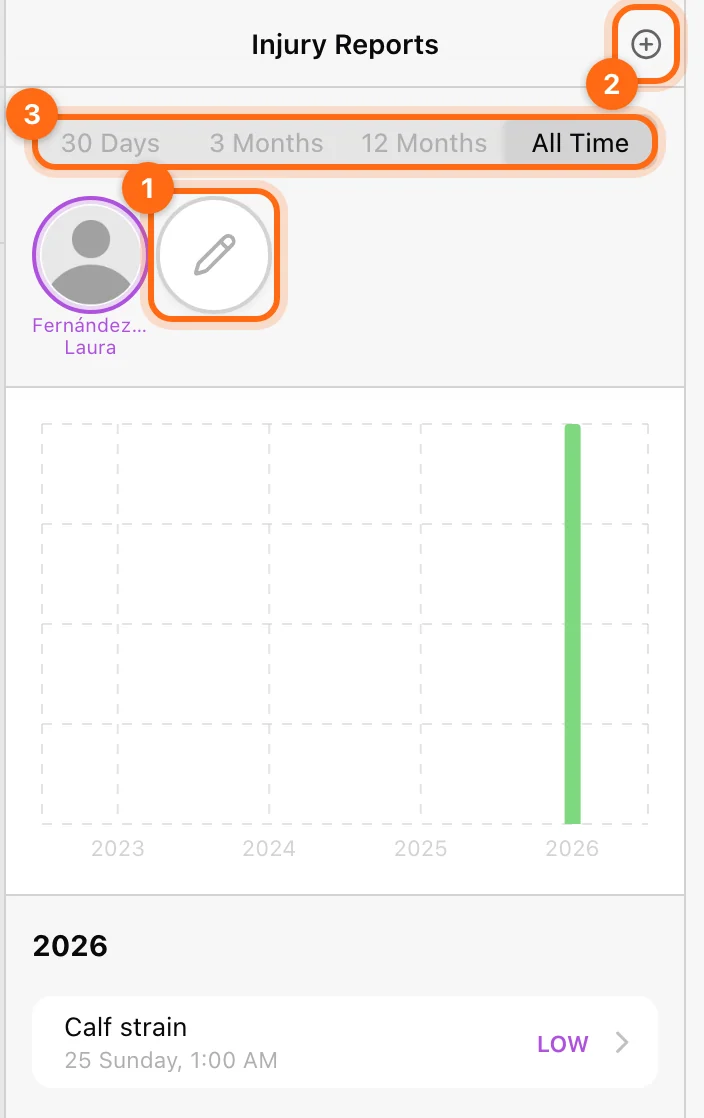
Open Injury Reports (web sidebar: Tests → Injury Reports) in Coach Mode. Recording and editing require an Owner or Coach role and an organization plan that includes injury reporting, currently Professional.
Create a report
- Choose the athlete in your active selection.
- Open Injury Reports and select +.
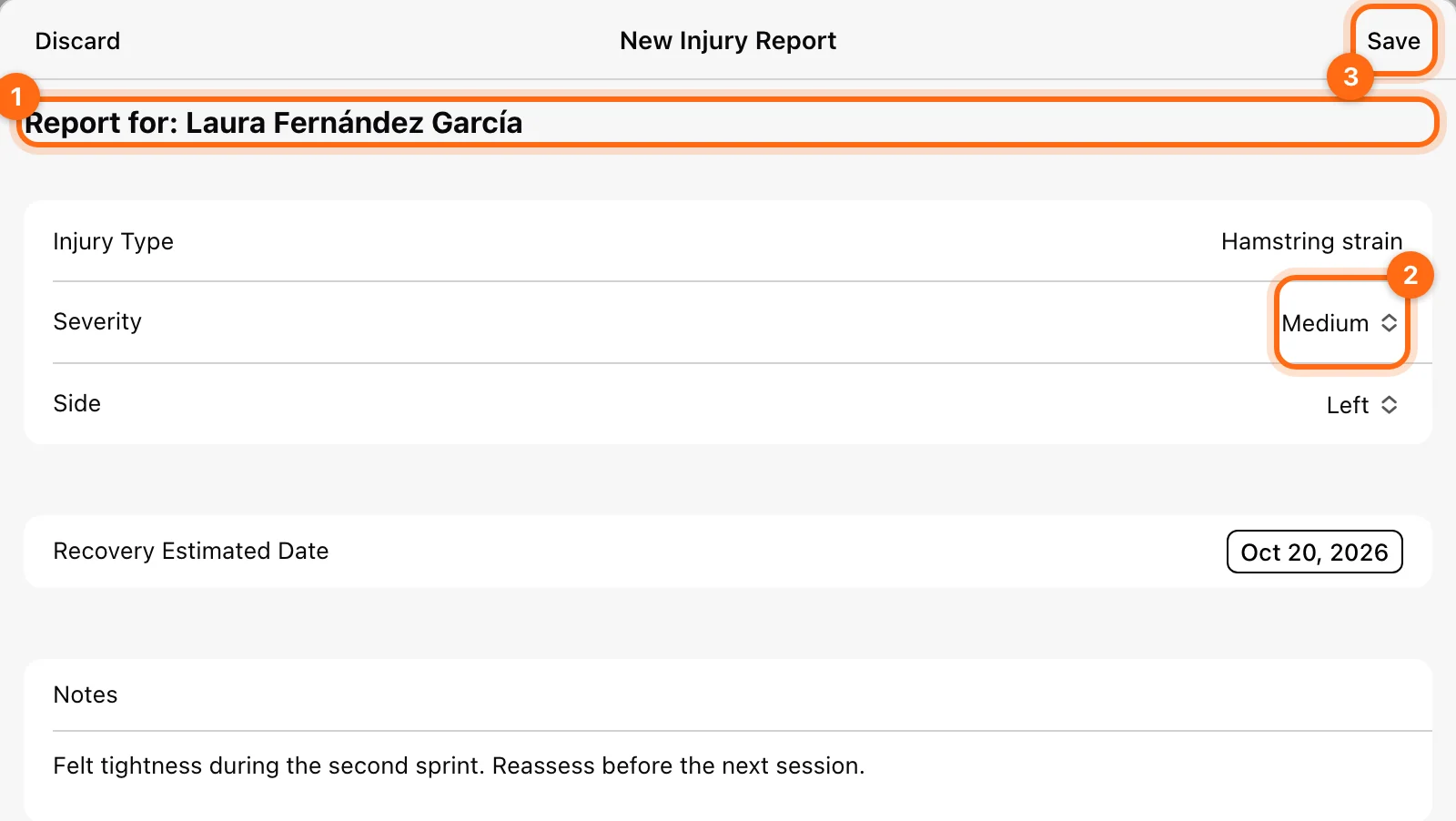
- Verify Report for before filling the form.
- Enter Injury Type, Severity, Side, Recovery Estimated Date, and Notes.
- Save and review the resulting report.
| Field | Use |
|---|---|
| Injury Type | A clear free-text description. |
| Severity | Low, Medium, or High, using your staff’s consistent interpretation. |
| Side | Left, Right, or Not applicable. |
| Recovery Estimated Date | The expected date you want recorded. Review the form’s initial date rather than accepting it automatically. |
| Notes | Context your staff needs to understand the record. |
Update recovery
Open the report and edit its available details. Use Recovered to mark the record resolved when appropriate, then save.
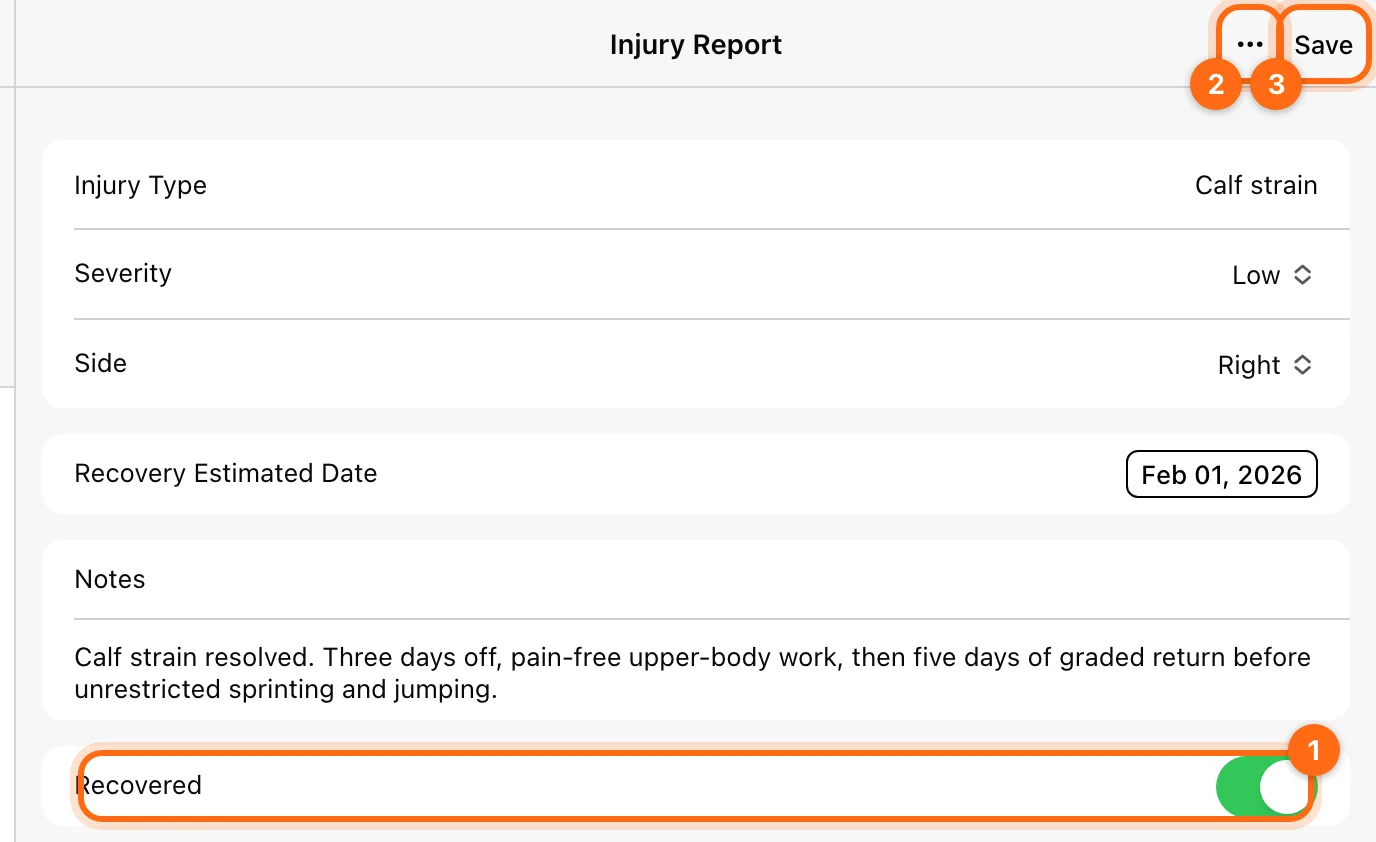
The recovery label and estimated date describe the record. They do not automatically modify the athlete’s workout prescription, remove them from a program, or change their calendar. Make any training-plan change separately in the relevant live program.
Review or remove a report
Use the athlete selection and date controls to find the intended record. Read the details rather than relying only on a severity label.
Use ⋯ → Delete only for a record you intend to remove, and confirm the athlete and report first. A record marked Recovered can remain useful history; deleting is a separate choice.
If the page or action is missing
Check organization, Coach Mode, role, and injury-report feature access. If another staff member can use it but you cannot see the athlete, ask the Owner to check your athlete assignments. Follow Access troubleshooting.