Monitor workouts with Coach Live
Choose a monitoring roster, read latest active workouts, preview a session, and understand individual or batch finishing.
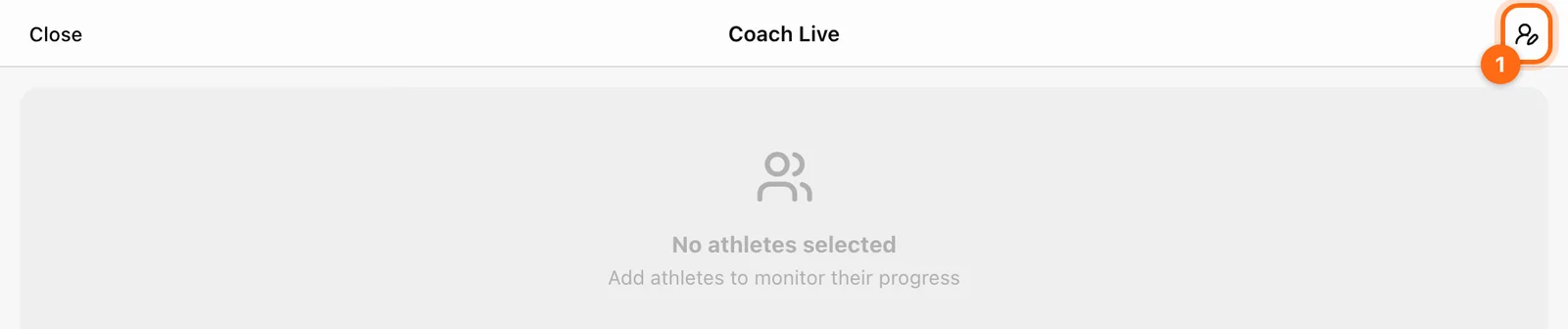
Training → Coach Live monitors selected athletes’ active workouts in the current organization. It appears in Coach Mode. Use it to watch the floor when recording happens on different stations; use Group training to rotate athletes through your own recording device.
Choose the monitoring roster
Open Coach Live and select its athlete control (a person with a pencil, at the top right). Search or filter the available roster, choose the people you want to watch, and select Close.
This selection is saved per organization for Coach Live. It is separate from the athlete strip used to record sets in other Training modals. Changing one selection does not prove the other has changed.
Read the active-workout cards
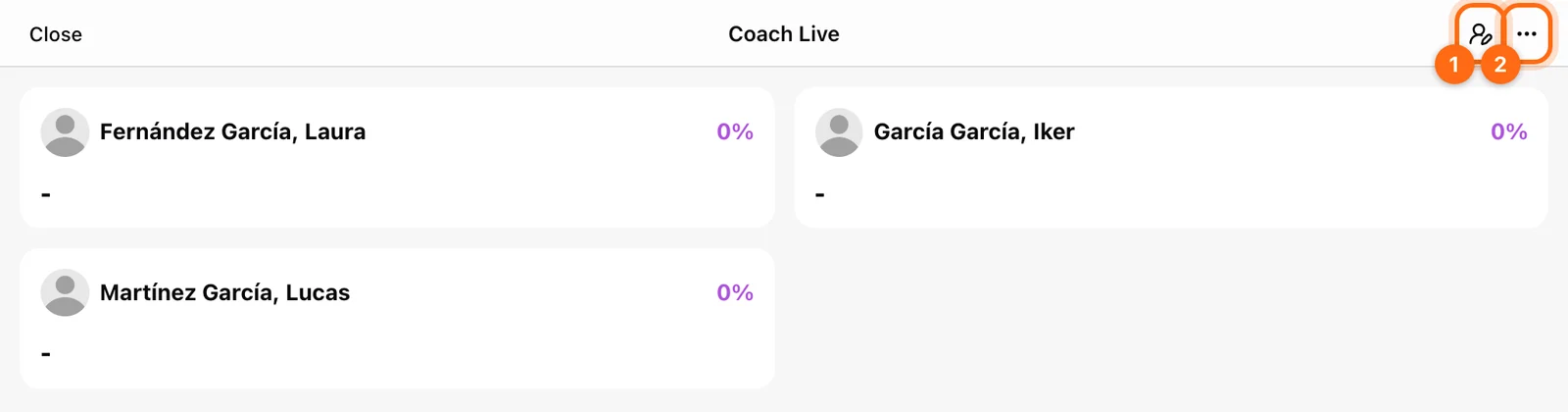
The view requests the latest active workout for each selected athlete, refreshing approximately every 20 seconds while open. It is a cloud view, not the raw Bluetooth stream from each device.
Review the athlete name, session, recorded versus target values, and available exercise/set summaries. An athlete recording offline may have newer local work than you can currently see here.
| State | Meaning | Next check |
|---|---|---|
| No athletes selected | The monitoring selection is empty. | Add athletes with Coach Live’s own selector. |
| No active workouts | No current cloud-active workout was returned for the selection. | Check whether they have begun/finished, are in another organization, or have unsynced local work. |
| Athlete/load error | A result could not be read. | Check connection, access, and the affected athlete rather than assuming a blank card is zero work. |
Preview an athlete’s workout
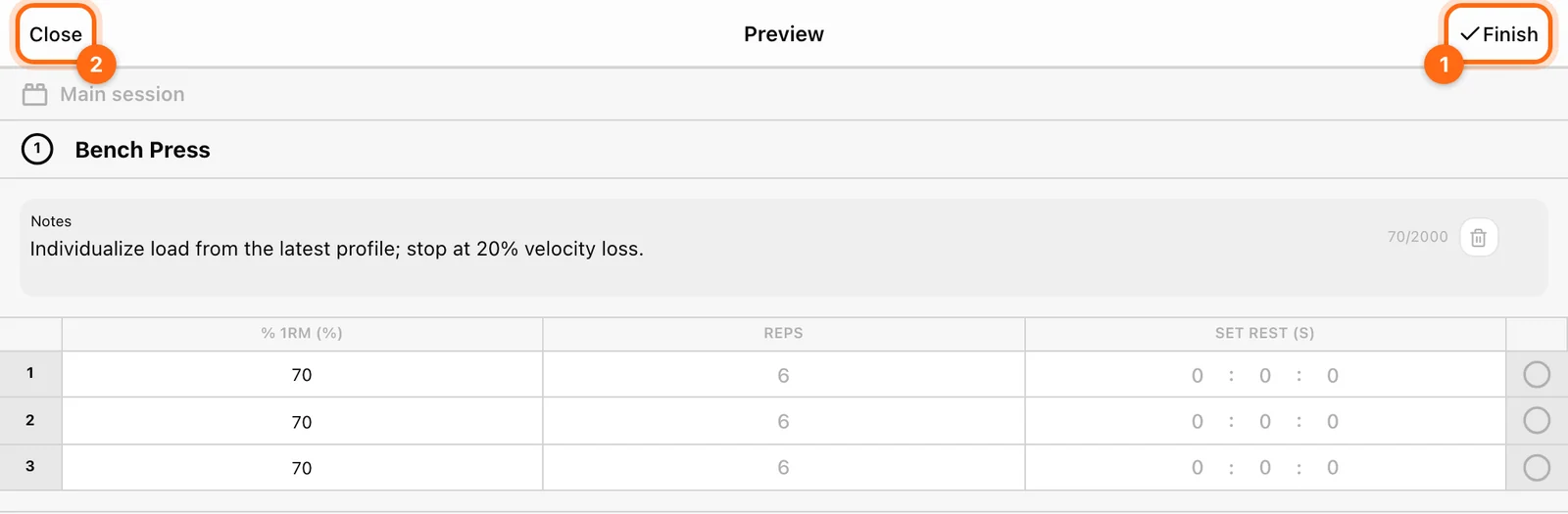
Select the relevant card to open Preview and inspect the workout. Check the athlete, exercise, and values before taking a finishing action.
Its Finish control finishes that active workout after confirmation. This is a remote action against the cloud session, not just a way to close the preview. Use Close when you only want to leave the view.
Finish the monitored group
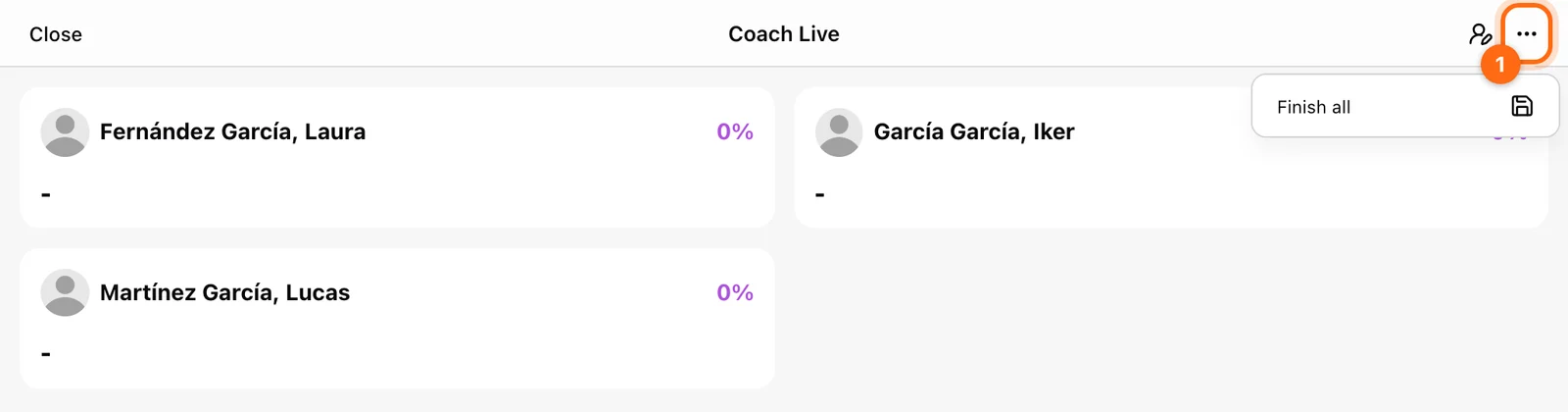
Coach Live’s ⋯ → Finish all requests a batch finish for the selected athletes’ active workouts. Review the monitoring roster before confirming.
Read the result message:
- Finished … workouts: the reported number completed.
- Finished … of … workouts — … failed: partial success. Successfully finished workouts stay finished; the failed ones remain for review/retry.
Do not assume a partial batch failed for everyone. Check the refreshed cards and individual errors before retrying.
Coach Live currently provides finishing controls. For whole-workout discarding, use the appropriate recording workflow or the active-workout controls in History; do not look for a Coach Live Discard all action.
Coordinate with the recording station
Before remote finishing, confirm the athlete’s station has committed its latest work. If another device still has unsaved progress, it can later show Workout ended on another device and need a copy-resolution choice.
Use Offline and sync to preserve that copy, and allow the background-processing indicator to finish before closing the app.
Train several stations on one tablet
Use Split View, Slide Over, extra windows, or Android dual apps to run two Vitruve windows side by side, each with its own encoder.
Finish, discard, or resume a workout
Separate closing a screen, finishing a recorded set, reviewing Summary, saving the whole workout, and waiting for upload.