Understand Owner, Coach, and Athlete roles
See what each organization role can do, how invitations assign roles, and why profession, Coach Mode, and subscription are separate.
Your role is your membership in a particular organization. Vitruve uses three roles: Owner, Coach, and Athlete. The same account can hold different roles in different workspaces.
Owner: runs the workspace
The Owner has organization administration as well as the permitted coaching capabilities. Their responsibilities include workspace identity/defaults, subscription information, staff invitations and assignments, ownership, and owner-only integrations or keys.
They can invite coaches and determine which athletes each coach may see where the organization has those features. They can also transfer ownership or delete the organization through the corresponding controls.
An Owner still needs the organization’s plan/feature access. Being Owner does not unlock every paid surface or create an unlimited roster.
Coach: programs and supervises visible athletes
A Coach can perform the supported coaching work for the athletes they can access: roster/team management, planning, workout recording, results review, and enabled coaching features.
An Owner can restrict a coach’s athlete visibility through Coaches → their profile → Assigned athletes. Two coaches in the same organization can therefore have different visible rosters.
A Coach does not gain organization administration simply by enabling Coach Mode. Staff invitation/removal, coach assignment administration, ownership, subscription management, API keys, and owner-only export integrations remain Owner responsibilities.
Athlete: follows and records their own training
An Athlete works with their own permitted training context: prescribed workouts, personal recording, History, wellness responses, and equations. They can participate in enabled conversations and connect their own permitted wearable context.
Athlete membership does not manage other people’s profiles, coaching templates, team assignments, staff, or organization settings. It does not grant peer-training data just because the person belongs to the same team.
Compare common actions
Every “Yes” below also requires the organization’s relevant feature access; roster work uses Coach Mode and permitted athlete visibility.
| Action | Athlete | Coach | Owner |
|---|---|---|---|
| Record and review own workouts | Yes | Yes, in personal context | Yes, in personal context |
| Follow own assigned program | Yes | Yes | Yes |
| Complete personal wellness and equations | Yes | Yes | Yes |
| Select and record for other athletes | No | Visible athletes | Organization athletes within access |
| Manage athletes and teams | No | Yes | Yes |
| Build coaching templates and live programs | No | Yes | Yes |
| Create chats, leaderboards, or injury reports | No | With feature access | With feature access |
| Edit shared training settings | No | With permission | With permission |
| Invite/remove coaches | No | No | With staff-management access |
| Control a coach’s athlete assignments | No | No | With assignment-management access |
| Edit organization identity/defaults or subscription | No | No | Yes |
| Transfer ownership or delete organization | No | No | Yes, through confirmed controls |
| Manage partner export keys or API access | No | No | With feature access |
| Use Intelligence | No | No | With AI feature access |
| Connect an AI assistant (AI connectors) | No | Visible athletes, with feature access | With feature access |
Viewing a template you are allowed to use is different from having permission to create/edit the organization’s template library. Likewise, opening a chat is different from creating one.
Role is not Profession
Profession on Account describes you—Athlete, Coach, Physio, or Other. Changing it does not change your membership permissions.
If you choose Coach as your profession but joined through an athlete invitation, you remain an Athlete in that organization. The administrator must use the appropriate membership process.
Role is not Coach Mode
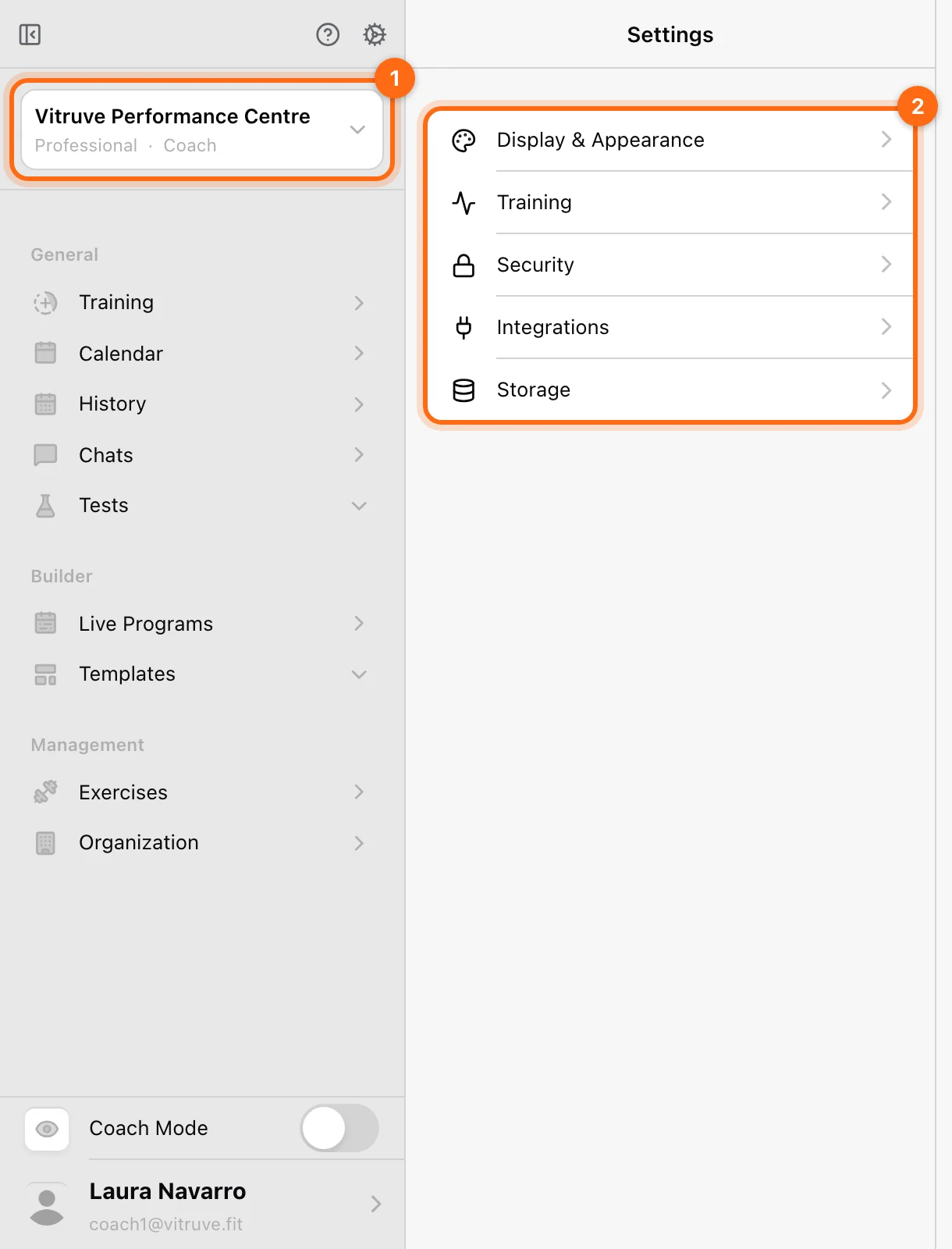
Coach Mode changes who you are currently working with. An eligible Owner/Coach can turn it off to record their own training and on to work with selected athletes. An Athlete cannot turn that display context into a Coach membership.
See Coach Mode and athlete selection.
Role is not the plan
The role and the organization’s plan must both permit an action. Examples:
- A Coach in a team plan can manage visible athletes but cannot create Owner-only API keys.
- An Owner in a personal One workspace still has no team Coach Mode.
- An Owner needs the enabled AI feature to use Intelligence.
- A Coach on a Professional plan can connect an AI assistant, but it only reads the athletes that Coach can see.
- An Athlete’s History window follows the selected organization’s access, rather than their job title.
How roles are assigned
An invitation from Athletes assigns Athlete membership. An invitation from Coaches assigns Coach membership. Those flows are separate; there is not a universal role dropdown in the athlete invite.
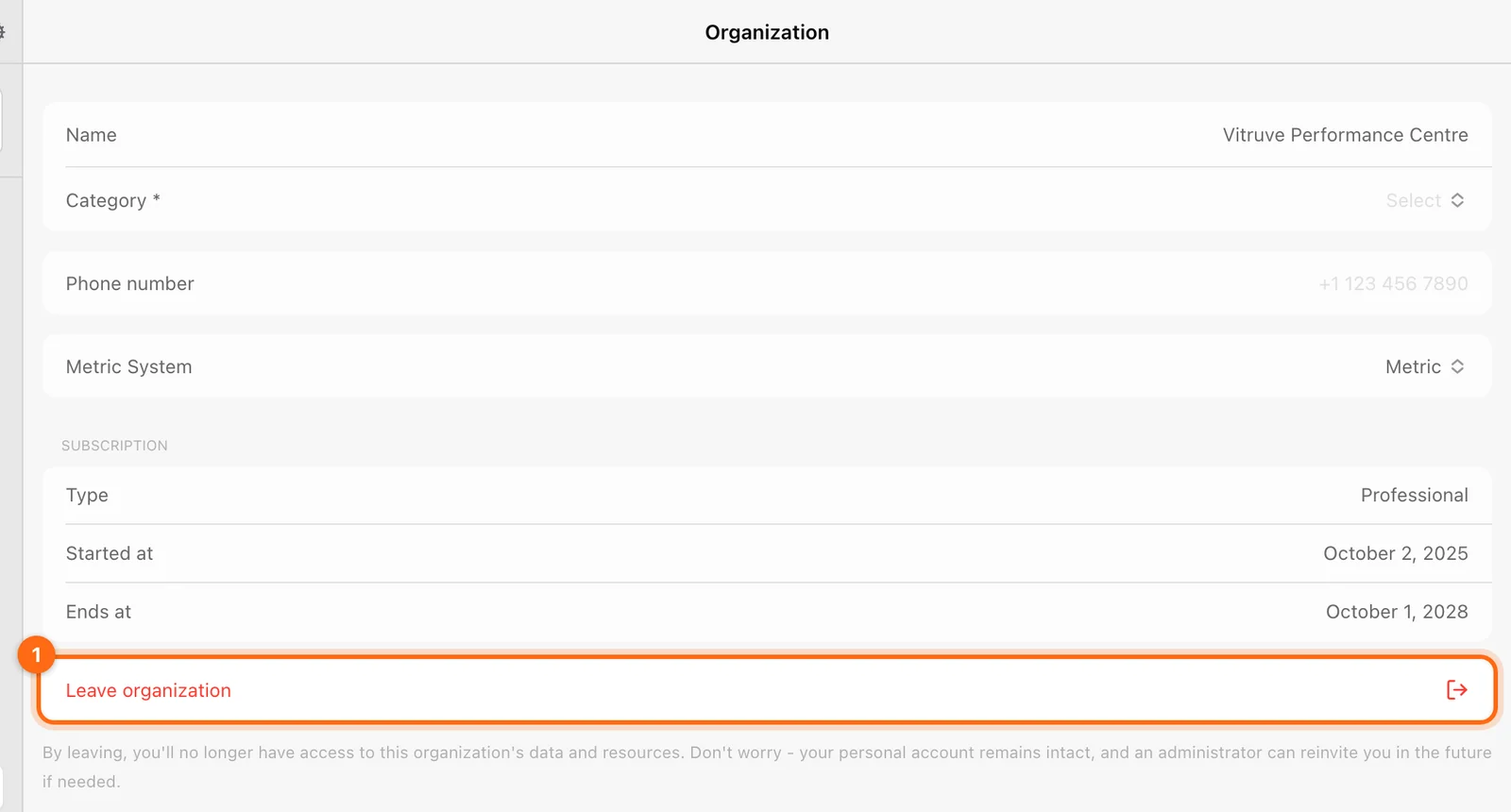
Ownership transfer uses Organization → Transfer ownership, with an eligible verified member. The previous Owner becomes Coach after the transfer. See Transfer organization ownership. Use it for a real administrative handover, not to give a staff member ordinary training access.
Allow Vitruve Support access is a separate support-investigation mechanism managed by an Owner. It is not the normal staff-role workflow.
Registered and unregistered are not extra roles
A coach-created unregistered athlete is a supervised profile with no personal login. A registered athlete has their own account. Both concern athlete identity/access state; neither is a fourth administrative role.
Registered members are removed from the organization rather than having their whole personal account deleted by a coach. Unregistered profiles have a destructive Delete action. See Athletes.
If your role looks wrong
Check the Organizations selection view and the email used for your invitation. Ask the Owner to review membership before creating a duplicate account or profile. Use Access troubleshooting when role, plan, or assigned-athlete scope differs from what you expected.