Find and review workout History
Use date windows, name search, exercise filtering, active-workout recovery, and completed-session details correctly.
History lists completed sessions and can also show Active Workouts that have not been finished. On web, the list and selected session can appear side by side. On mobile, selecting a session opens its detail page.
Use History for long-term monitoring: it holds every recorded session in the organization that your role can see, with loads, sets, and measured metrics.
Open History
- Web: select History in the left-hand menu.
- Mobile or tablet: tap the History icon in the main tab bar.
Before you record anything, the list shows “No workouts yet — Complete a workout to see it in your history”.
Find the session
- Select the correct organization.
- In Coach Mode, choose the relevant athlete or athletes with the athlete selector (the edit/pencil control at the top). Use its Athletes tab for individuals or its Teams tab to select a whole team, and check the
selected of totalcount. - Open History.
- Choose 30 Days, 3 Months, 12 Months, or All Time, within the available access.
- Clear or apply the name search and exercise filter.
- Select the workout to inspect its detail.
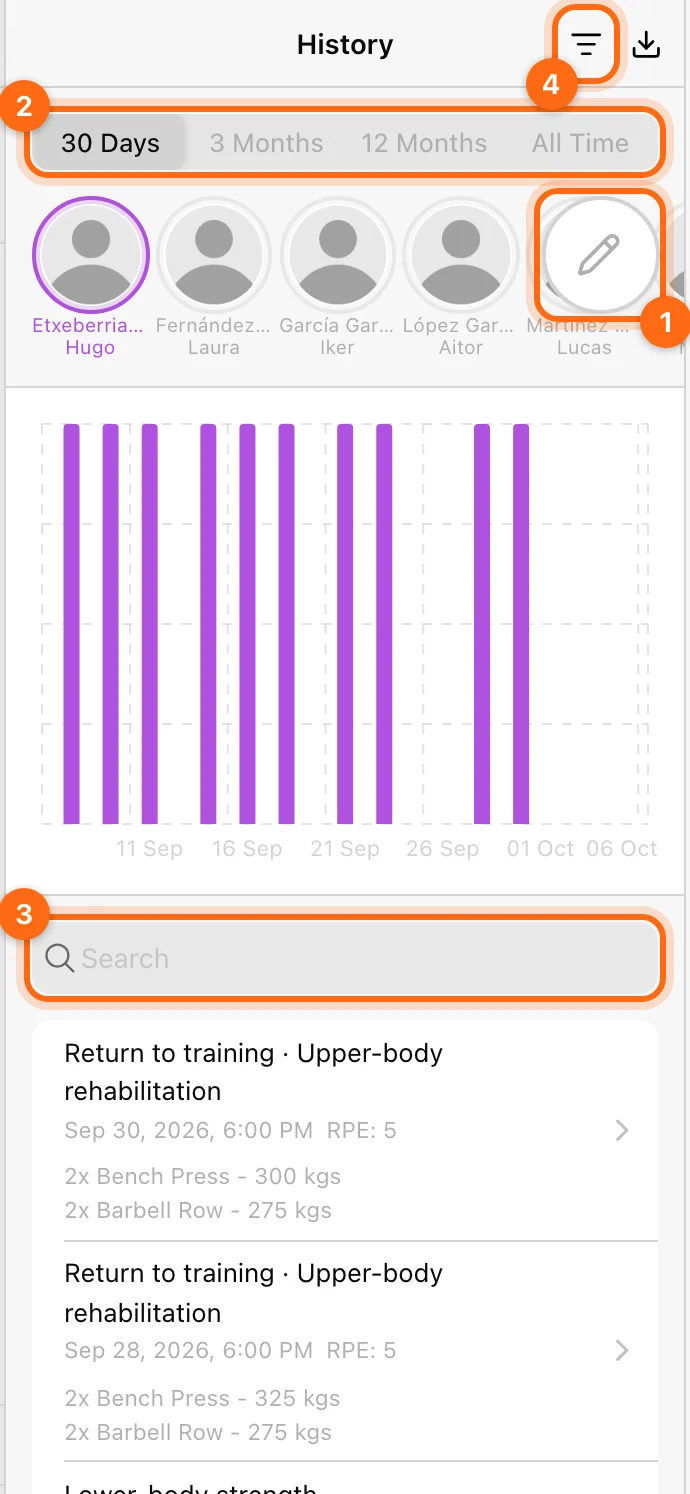
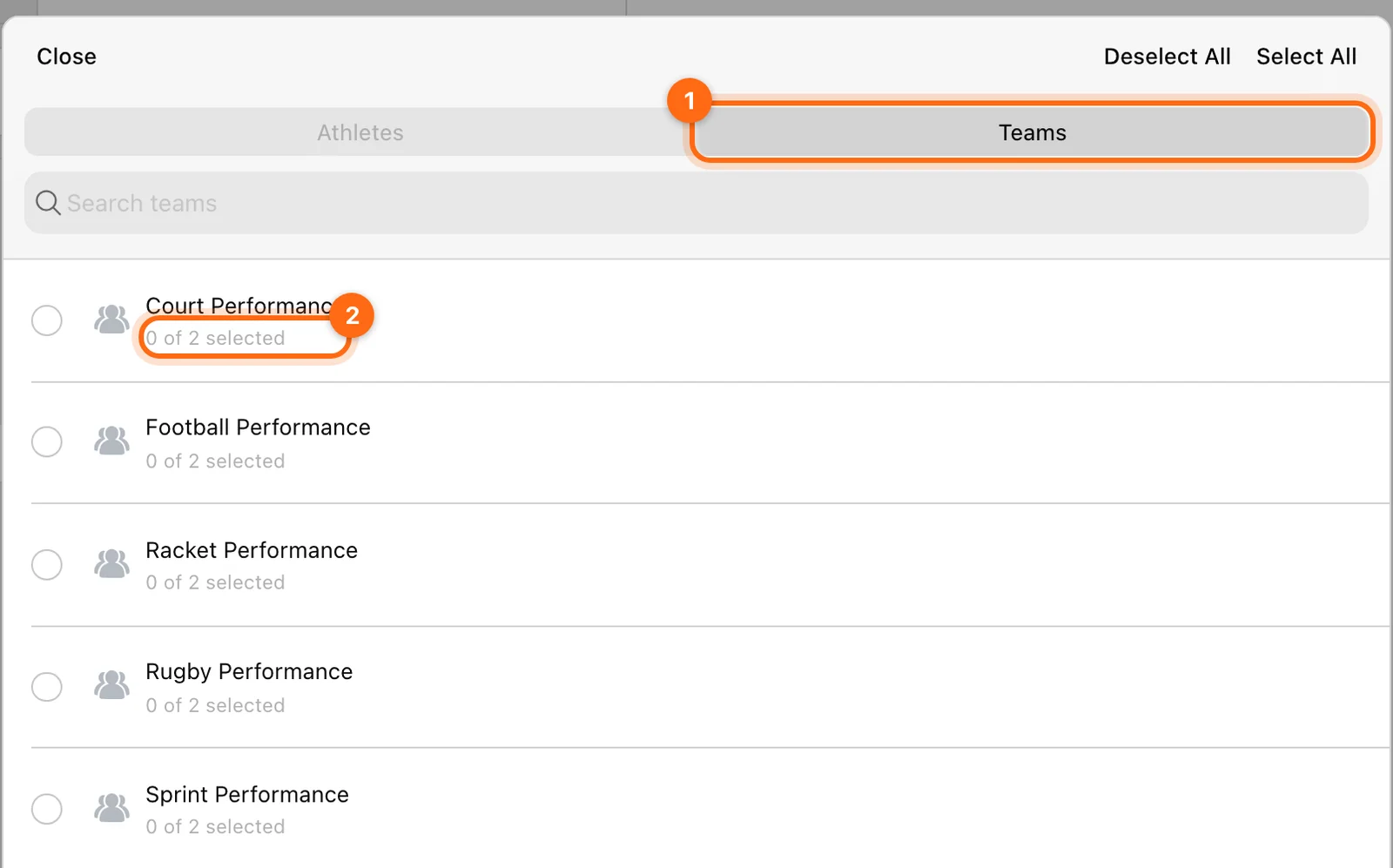
Older entries load as you continue through the list. Do not assume the first visible screen contains every session in the chosen range.
Older help articles name these windows Week, Month, Year, and All-time; the current app uses the four labels above.
Search names; filter exercises
- The search bar matches workout names, not exercise names.
- The exercise filter narrows the list to workouts containing the selected exercise.
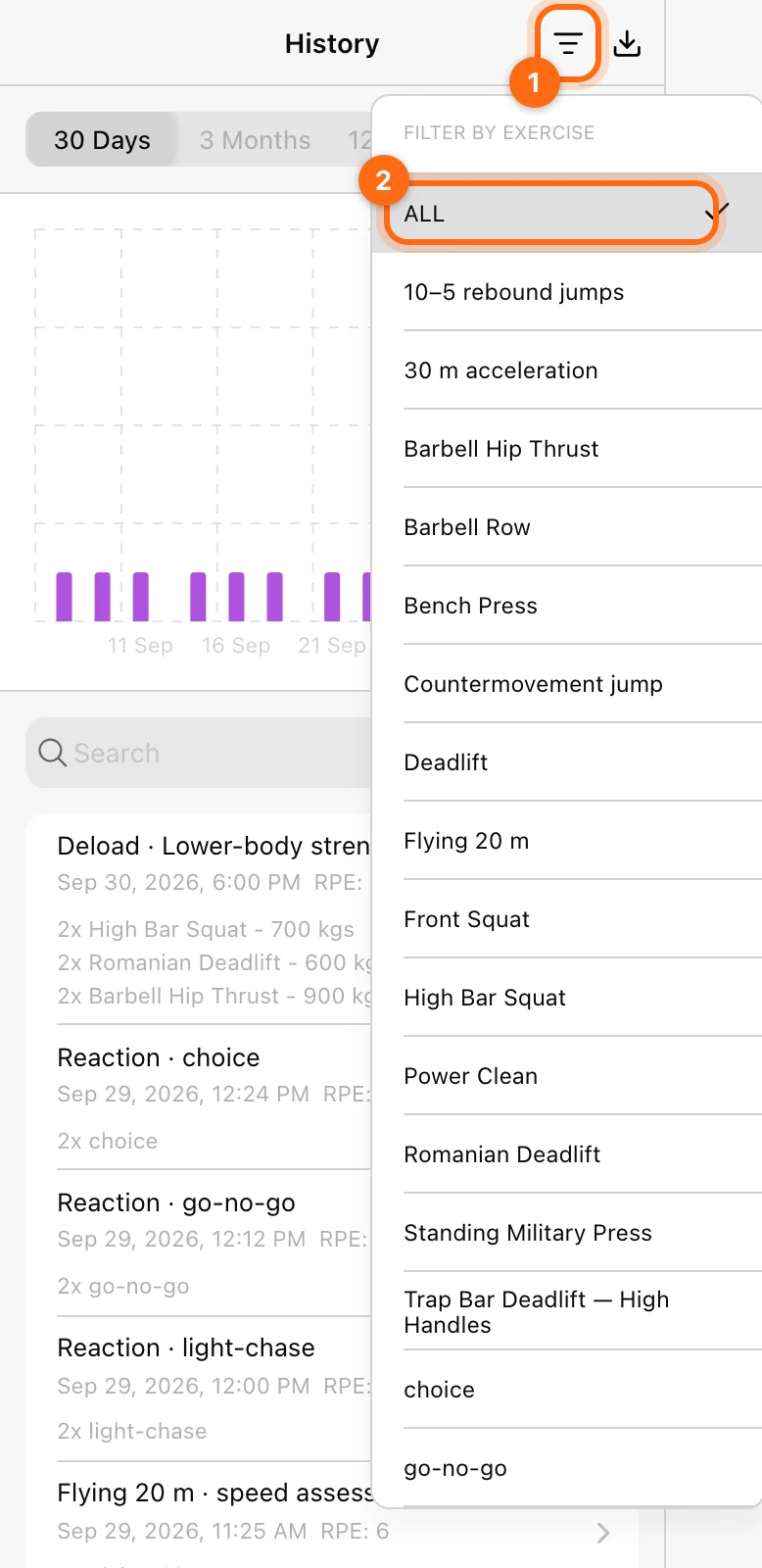
If you type “bench press” but the workout is named “Upper body A”, name search may hide it. Use the exercise filter instead, or clear both controls while troubleshooting. “No matching workouts” means the current search or filter hides everything; clear it before assuming the sessions are gone.
Search does not match team names. To review one team’s sessions, select that team in the athlete selector instead.
Read the list and chart
Each workout row summarizes its name, date/time, available RPE, and exercises. Tonnage and set summaries describe recorded work. The chart groups workout counts across the selected period; it is not itself a graph of bar velocity.
Jump, sprint, and reaction workouts appear here with their recorded exercises, sets, and events. Use the same session review flow as other completed workouts.
Open the session detail
The top of the session shows its Name, Started at, Completed at, Duration, and Perceived Exertion (RPE). Below it:
| Tab | What to inspect |
|---|---|
| Workout | Exercises, sets, recorded values, and measured results. |
| Wellness | The associated questionnaire. The Workout/Wellness switch only appears when the workout has one. |
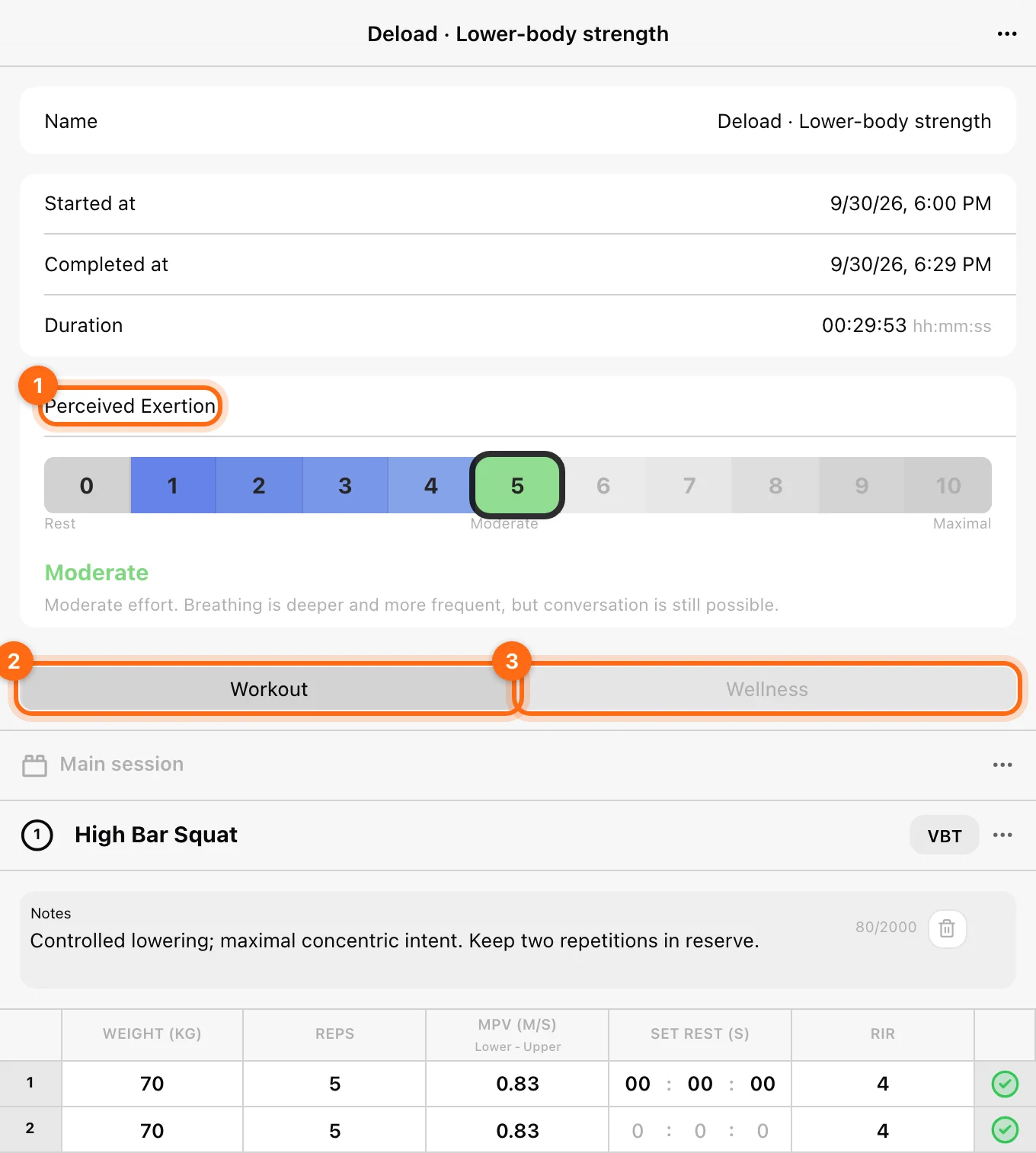
Expand the set/rep details available for the workout’s modality. Use the displayed unit and metric name when interpreting a number.
Edit or export a completed session
The session’s ⋯ menu offers Edit name, Download as, Export series, and Delete where available.
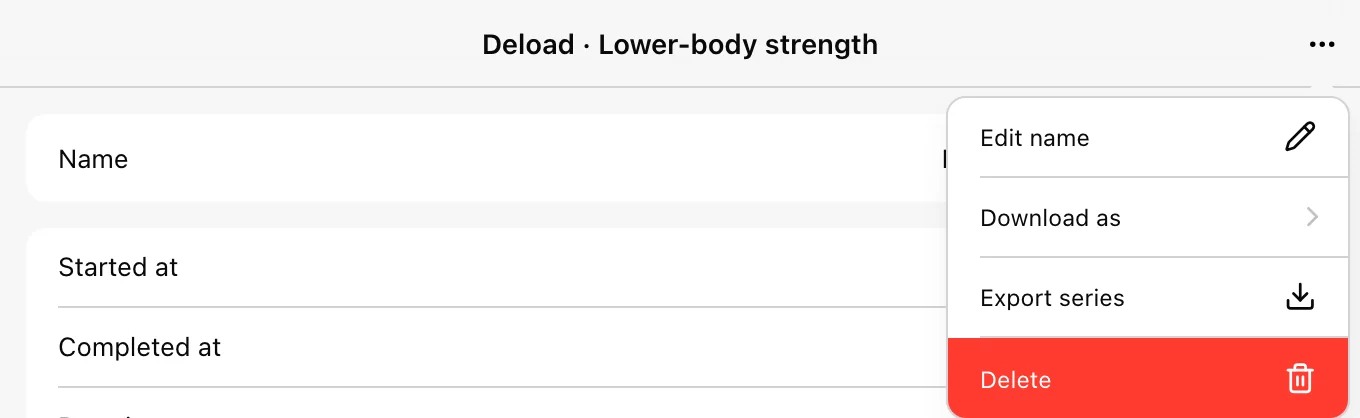
- Rename the workout to make it easier to find.
- Change RPE under Perceived Exertion at the top of the session if you need to correct the session rating.
- Use the available inline set-value controls for supported corrections, for example a weight that was entered incorrectly. See Review and correct a workout for the correction controls.
- Export using the appropriate workflow.
Editing a manual value is different from recreating the original device signal. Do not assume every measured repetition can be rewritten or transferred to another athlete afterward.
Deal with Active Workouts
Open an active workout’s ⋯ menu:
- Finish: choose Completion time, then Finish Workout.
- Delete: discard the active workout after confirmation.
Check the contents before finishing a leftover session. If another device has unsaved work, check that device’s Pending workouts before making a conflicting finish/discard decision.
Delete a completed workout
Open the completed record and choose ⋯ → Delete, then confirm “Are you sure you want to delete this workout? This action cannot be undone”. This is a destructive action for that session. Deleting the visible result does not recover or undo the original recording. Removing sets or a session is permanent; export the data first if you might need it.
Use History before planning the next block
Before you plan a new training phase, review History to:
- Evaluate fatigue trends, such as falling velocity at familiar loads.
- Adjust intensity based on the athlete’s estimated 1RM history.
- Identify plateaus or performance peaks.
For charts of trends across athletes, metrics, and exercises, use Labs analytics. For a file you can analyze elsewhere or keep for reports, use Export data.
If the range is unavailable
A greyed-out range reflects the organization’s permitted history window. Check Plan and feature access. If a recent finished session is missing, follow Missing workout troubleshooting.