Find and create exercises
Use library search, favorites, and custom exercises without confusing movements with reusable prescriptions.
The exercise library stores every exercise available in your organization, both built-in and custom. Open it here:
- Web or laptop: Management → Exercises in the left sidebar.
- Mobile: More, then Exercises under Management.
The steps are the same on both once you are in. This library is different from Builder → Templates → Exercises, which contains saved exercise prescriptions.
Find a movement
Use the All, Favorites, and Custom tabs. Search by movement name, trying a shorter term or common alternative if the first search is empty. Check that the Filter at the bottom of the list is not restricting it to Main only, Jumps, Sprints, or Reaction.
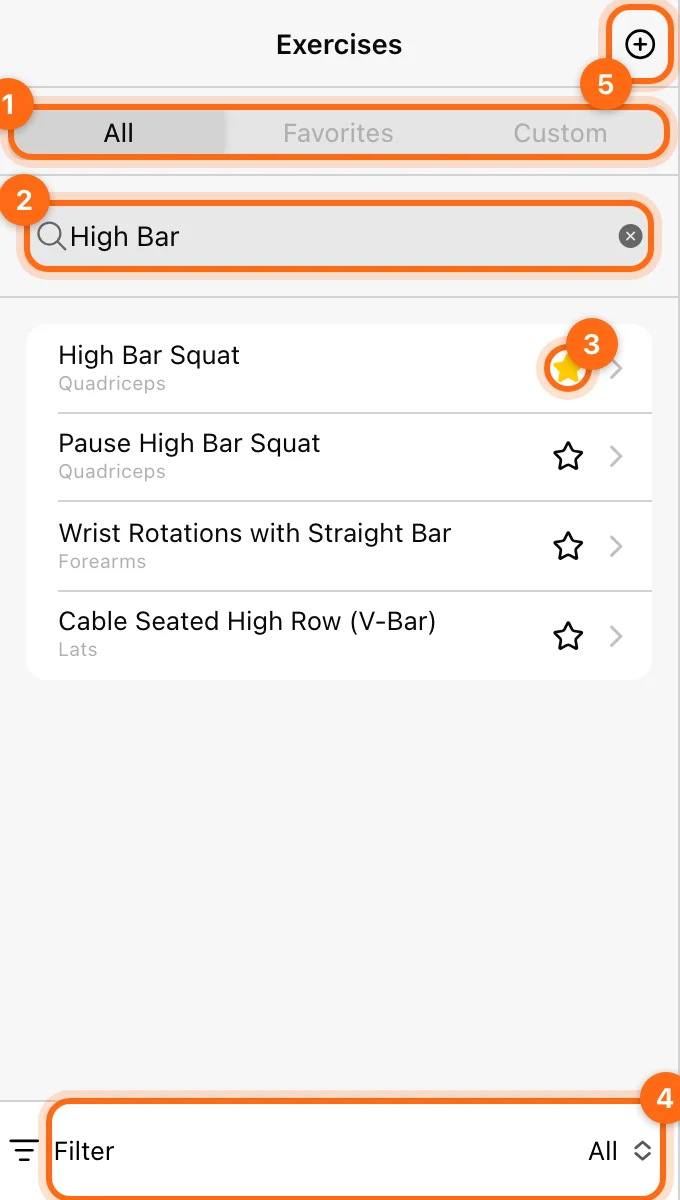
Open a movement to review its instructions and properties. Select the star next to its name in the list to make it easier to find under Favorites. Favorites also have their own list in the exercise picker during training, so you reach your usual movements quickly. Favorites are a shortcut to a movement, not a new copy of it.
In a workout editor, Add exercise opens the picker. Make sure you choose the exact variation you intend: two similar names can represent different exercises with different histories and settings.
Built-in versus custom
- Built-in exercises: provided by Vitruve; their library identity and base properties are not editable or deletable by your organization.
- Custom exercises: created for your organization; Owners and Coaches with permission can edit their properties and delete them.
A custom exercise with the same name as a built-in exercise is still a separate movement. Naming does not merge their history.
Create a custom exercise
Always try to use a built-in exercise first. If you cannot find a movement, search for alternative names before you create a new one. For example, search "RDL" and "Romanian".
- Open Exercises and select +.
- Enter the required Name.
- Fill the relevant Equipment, Category, Force, Level, and Mechanic fields.
- Select Primary Muscles and Secondary Muscles as appropriate.
- Write practical Instructions.
- Under Exercise type, turn on Jump, Sprint, or Reaction if the exercise belongs to one of those workouts. Leave all three off for a lifting (VBT) exercise. Only one type can be on, and Sprint and Reaction need the Timing Gates feature.
- Save and open the exercise to review its setup.
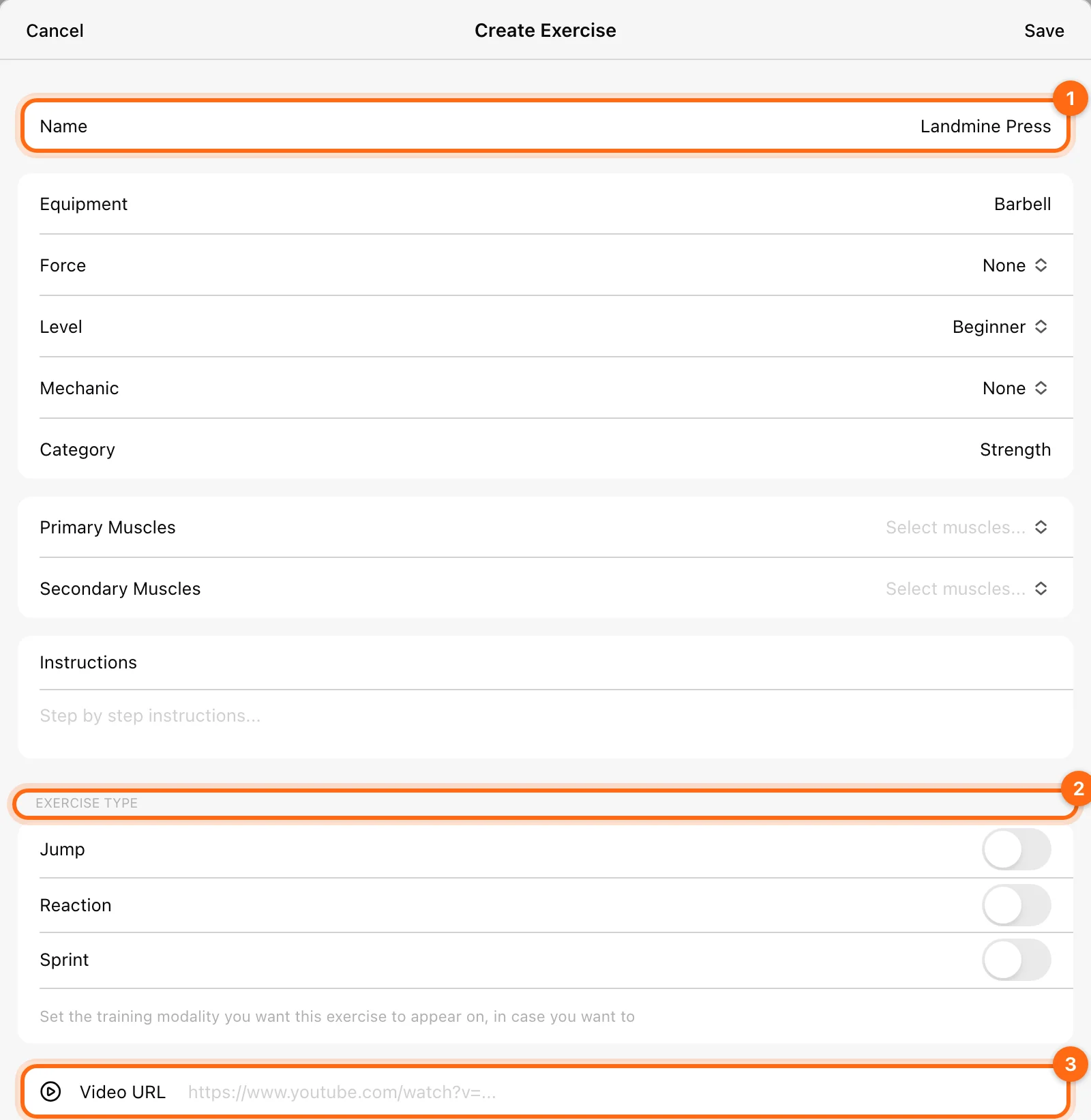
The new exercise appears in the Custom tab. Star it if you want it under Favorites too.
Use one consistent naming convention across your organization, for example an equipment prefix and full movement name. Search first to avoid dividing an athlete’s record between unnecessary duplicates.
Add a demonstration video
Open the exercise and use its Video URL controls where your access permits. Supported sources are YouTube and Vimeo. A link to a general file-sharing page or unrelated website is not a supported exercise video URL.
Video metadata is separate from the movement’s base properties. A read-only built-in movement does not necessarily mean every organization-level video setting is unavailable.
Configure movement-specific recording
Open the exercise’s Settings for ROM, 1RM filters, and equations. These are configured separately from the basic create form. See Exercise settings.
Edit a custom exercise
- Open the Custom tab.
- Select the exercise.
- Change the fields and save.
Built-in exercises cannot be edited or deleted.
Be deliberate about deletion
To delete a custom exercise, open it from Custom, select Delete exercise, and confirm. The app warns that this action cannot be undone.
Deleting a custom movement affects the associated training data and cannot be undone through the app. Recreating its name makes a new exercise; it does not restore the old identity or record. Use an edit to correct a name instead of deleting and recreating the movement.
Keep the library useful
- Tailor the list to your athletes or your own training with custom exercises.
- Star your go-to movements so they are quick to find in sessions.
- Avoid duplicates and unused exercises so the picker stays clean during training.
Related guides
Prescribe the movement · Fix an exercise-picker problem · Measurement filters