Create an account and accept invitations
Set up your login, verify your email, choose Athlete or Team, join a coach’s organization, and avoid duplicate athlete profiles.
Your account is your login and personal profile. Your organization is the workspace containing the training plan, roster, and recorded data. You can use the same account in different organizations, and it works on every device: phone, tablet, web, and desktop.
You do not need a device or an invite code to sign up. If you have not installed the app yet, see Download Vitruve and check compatibility.
Create your login
- Open app.vitruve.fit, the desktop app, or the installed Vitruve app.
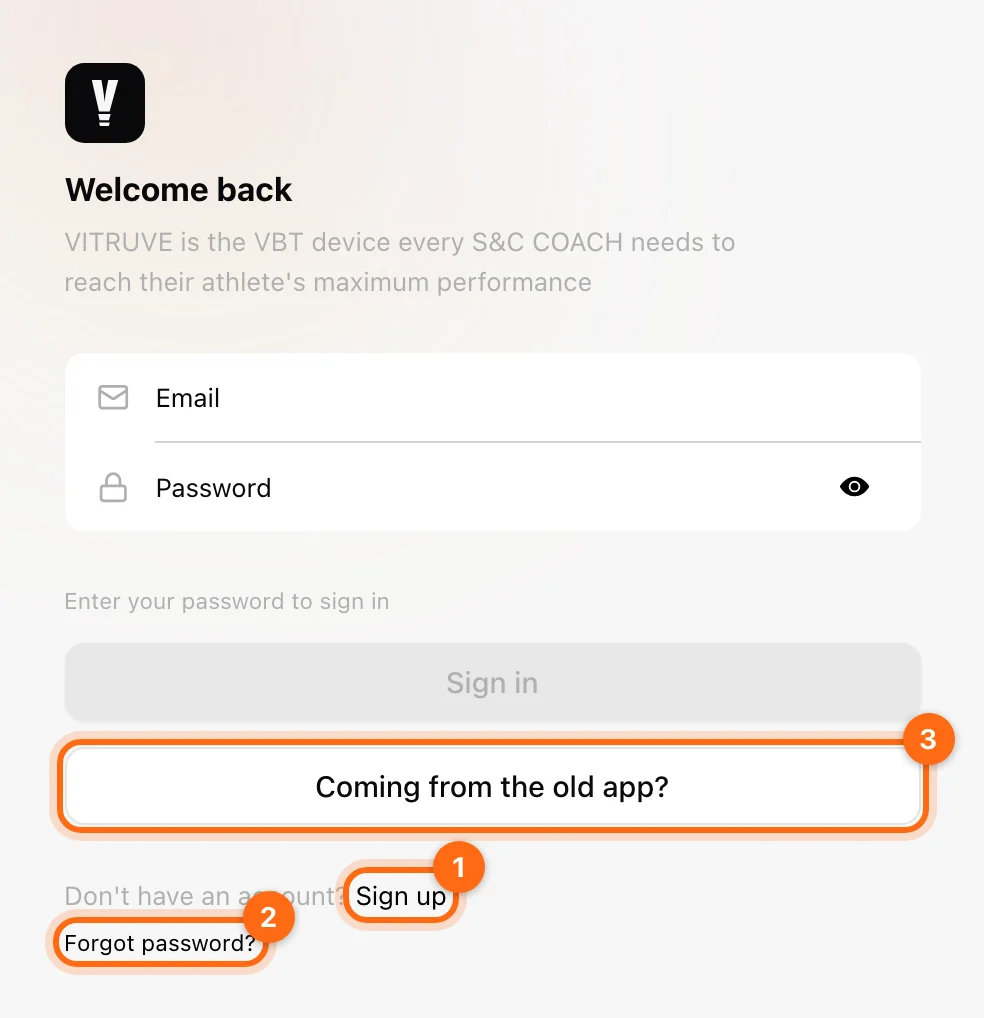
- On the sign-in screen, select Don't have an account? Sign up.
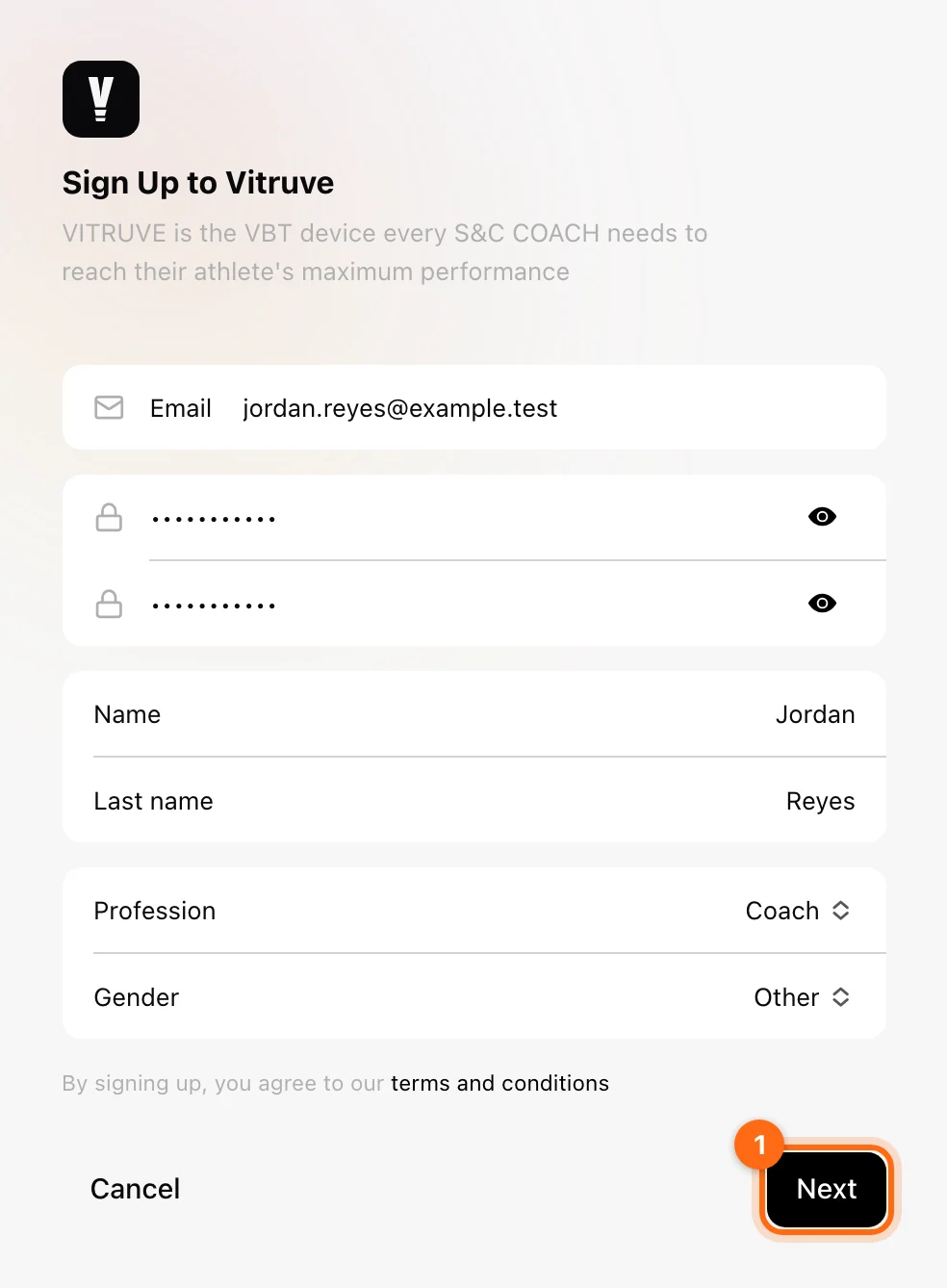
- Fill in the Sign Up to Vitruve form:
- Email: the address you will sign in with.
- Password and Repeat password: at least 8 characters, with at least one letter and one number. Both must match.
- Name and Last name.
- Profession: Athlete, Coach, Physio, or Other.
- Gender: Male, Female, or Other.
- Read the Terms and Conditions linked on the form, then select Next.
- Open your inbox and find the email from support@vitruve.fit. It contains a 6-digit verification code that is valid for 15 minutes.
- Enter the code on the Verification Code screen and select Verify. If it expired or did not arrive, select Send a new code.
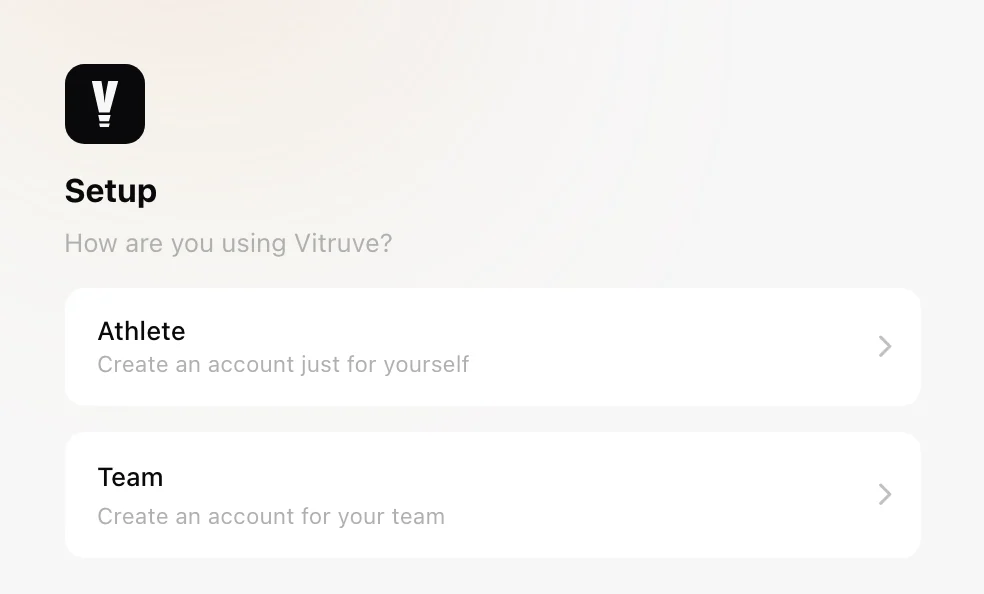
- On Setup → How are you using Vitruve?, choose Athlete or Team (see below).
Use an email you can access: verification, invitations, and password recovery all rely on it. If you already have a Vitruve account, choose Sign in rather than making another one.
Your Profession describes you. It does not give you the Coach role in any organization. See Owner, Coach, and Athlete roles.
Choose Athlete or Team
Whichever you choose, you get an organization. With Athlete it is just for you; with Team it is shared with your athletes and staff.
| Choice | Best for | What happens |
|---|---|---|
| Athlete ("Create an account just for yourself") | Personal, individual training and tracking. | Vitruve creates a personal organization named Personal, with metric units, on the free tier. The installed app can then show subscription options; you can continue without buying anything. |
| Team ("Create an account for your team") | Coaches, gyms, clubs, and training groups. | Opens Create your organization, where you enter the team's details. |
Set up a team organization
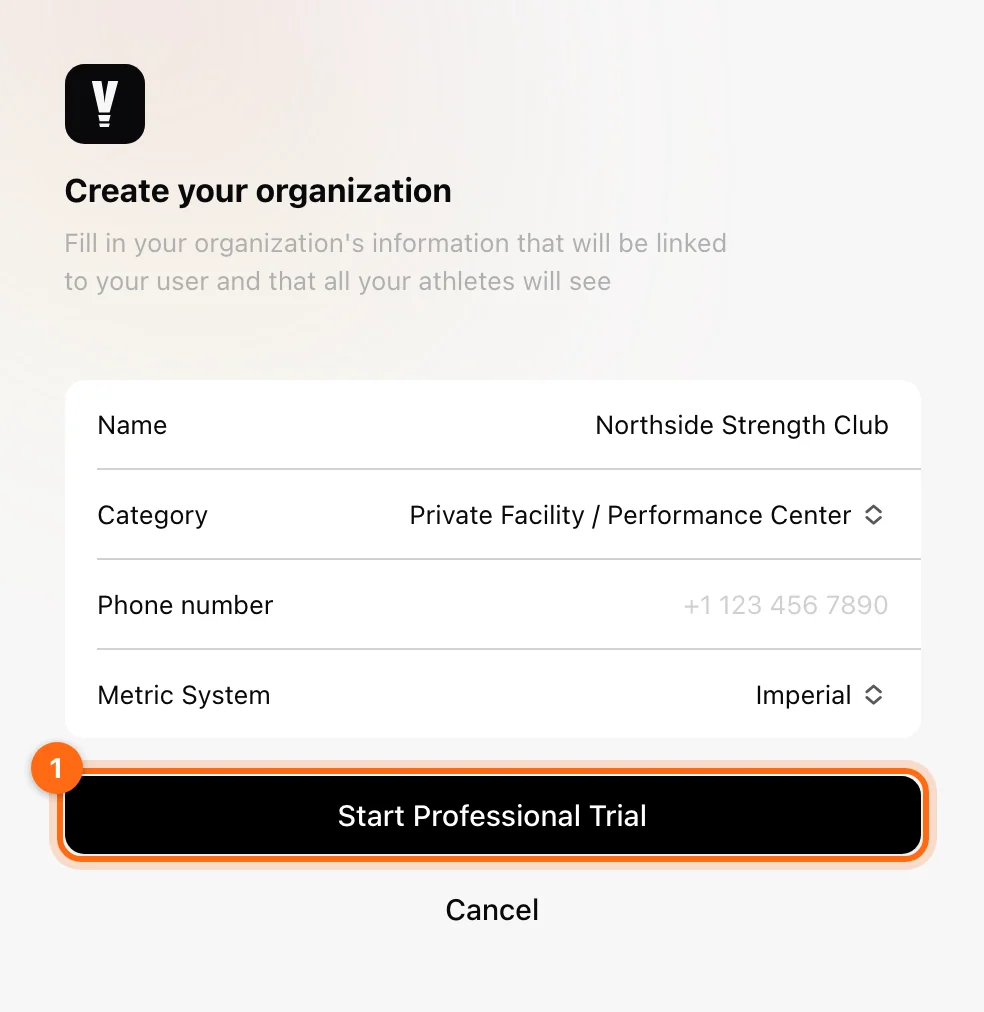
On Create your organization, fill in the details that will be linked to your account and shown to your athletes:
- Name: your organization's name.
- Category: College & University, High School / Secondary, Professional Team / Club, Federation / NGB, Private Facility / Performance Center, Independent Coach / PT, Clinical & Rehab, Tactical, Individual Athlete, or Academic / Research.
- Phone number (optional).
- Metric System: the default units for the organization (Imperial is preselected).
Then select Start Professional Trial. It creates the organization with a 14-day free trial of team features, before you choose a paid plan, and appears only if your account has not used a trial before. Cancel returns to the sign-in screen.
You become the Owner of the organization you create. You can change name, category, phone number, and units later in Organization settings.
Check: you reach the main app with your organization selected. Open the Organizations selector to confirm its name and your role.
Forgot your password?
- On the sign-in screen, enter your email and select Forgot password?. Reset Password opens with that email filled in.
- Select Haven't received the code? Send a new one. Vitruve emails a verification code from support@vitruve.fit.
- Enter the Code, a New password, and Confirm new password.
- Select Reset Password, then sign in with the new password.
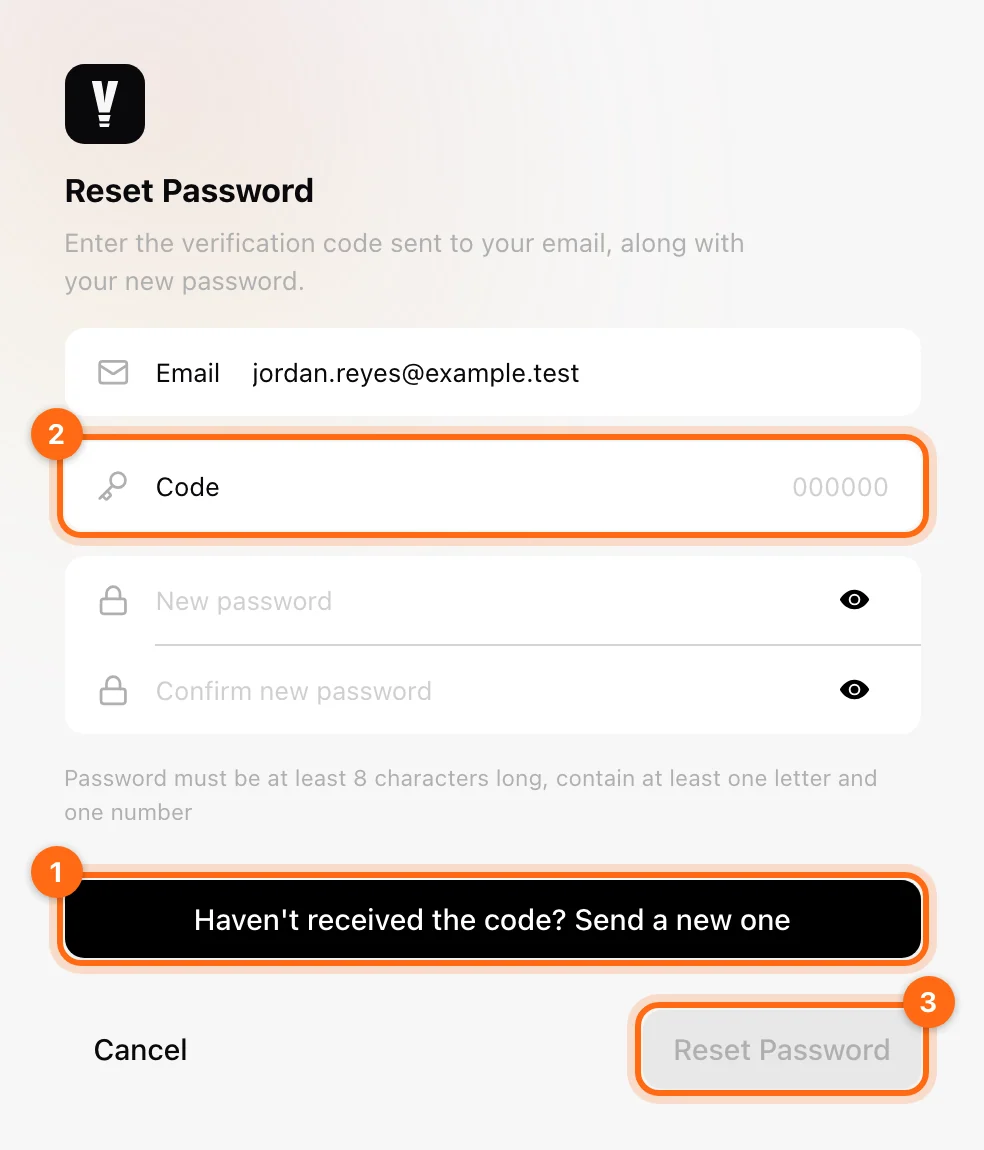
To change a password you already know, use Account → Change password instead. See Manage your account.
Join an organization by email
An invitation grants membership in the organization that sent it. It does not move workouts you already logged in a different organization.
You usually receive an email when someone invites you. If you cannot find it, the invitation is still stored in the app.
- Open the invitation email and follow its link, or open the app directly.
- Sign in with the account using that invited email, or complete registration if needed.
- To find a pending invitation in the app, open Account → Invitations. On web, Account is the avatar row at the bottom of the sidebar; on mobile, open More and tap your account card.
- Select the invitation, then select Accept.
- Select the organization you joined and confirm its name before training.
Once accepted, you join with the role the invitation assigned and get the features of that organization's plan. An invite from Athletes grants athlete access; an invite from Coaches grants coach access.
Older support articles describe the invitation list under Settings → Invitations. In the current app it is under Account → Invitations.
Join with a QR code or invitation link
If your coach shares a QR code, scan it with your phone’s camera and open the link. Complete the sign-in or registration steps in the join flow. QR invitations can have an expiry and a maximum number of joins. An expired or deactivated code needs to be replaced by the coach.
If a coach already created your profile
A coach-created, unregistered profile exists for supervised training. It has no independent login, even if an email was entered when it was created.
Ask the coach to use Send Invitation Email on that profile. This is the appropriate route to give you access to the existing profile. Tell them before creating a duplicate profile with a similar name.
Coming from the old app
If you used the previous Vitruve app (Speed4Lifts or Vitruve Teams), you register your existing account once instead of creating a new one:
- On the sign-in screen, select Coming from the old app?.
- On Welcome to the new Vitruve, select Continue with registration.
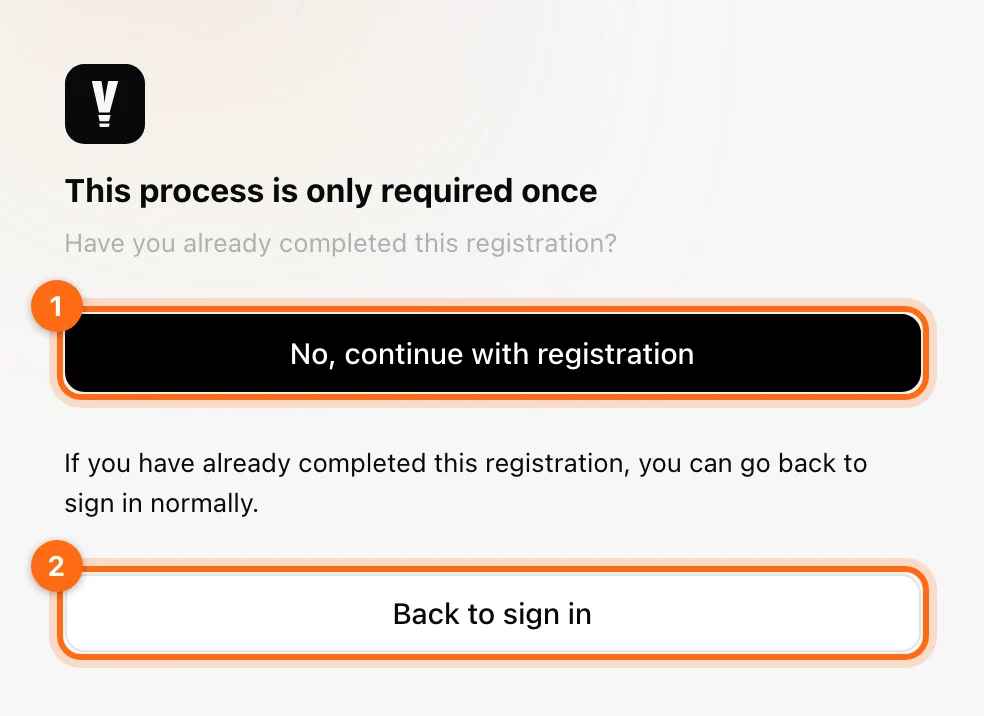
- On This process is only required once, select No, continue with registration. If you have already completed it in the past, select Back to sign in and sign in normally.
- Enter the email address you used on the previous platform and select Send verification code.
- Enter the Verification Code from your email, then set and confirm a new Password for the new platform.
- Select Finish registration. When you see All Set!, select Sign In.
Use this route for an existing Speed4Lifts account rather than assuming a fresh account will contain its history. For the previous apps themselves, see Legacy apps.
If verification or an invitation does not arrive
- Check the spelling of the email, including any accidental spaces.
- Check spam or junk, and search for mail from support@vitruve.fit.
- Request a new code if 15 minutes have passed since the first one.
- Confirm that you are signing in with the email that was invited.
- Open Account → Invitations: the invitation can be there even if the email never arrived.
- Ask the coach to check pending invitations and resend if appropriate.
- For a QR join problem, ask whether the link has expired, reached its join limit, or been deactivated.
If it still fails, contact support with the email, organization name, and exact message shown. Do not include your password or verification code.
Next step
Follow the athlete quickstart or coach quickstart.