Your first session as an athlete
Join the right organization, find your prescribed workout, record the work, and confirm that the session was saved.
By the end: you will have a completed workout in your organization’s History, under your own athlete profile.
Before you begin
- Sign in to your Vitruve account.
- If you train with a coach, accept their invitation. An account you created independently may open your personal organization instead of your team’s workspace.
- Have your training plan ready. An encoder is only needed for measured velocity data; you can record a normal workout without one.
1. Check your workspace
Check the organization name before recording anything. If your coach’s organization is not available, open Account → Invitations and accept the invitation sent to the email you use to sign in.
If your coach only created an athlete profile for supervised sessions, that profile does not yet have its own login. Ask the coach to send an invitation from the existing profile rather than creating a second athlete.
2. Find your session
Open Training and select Workout.
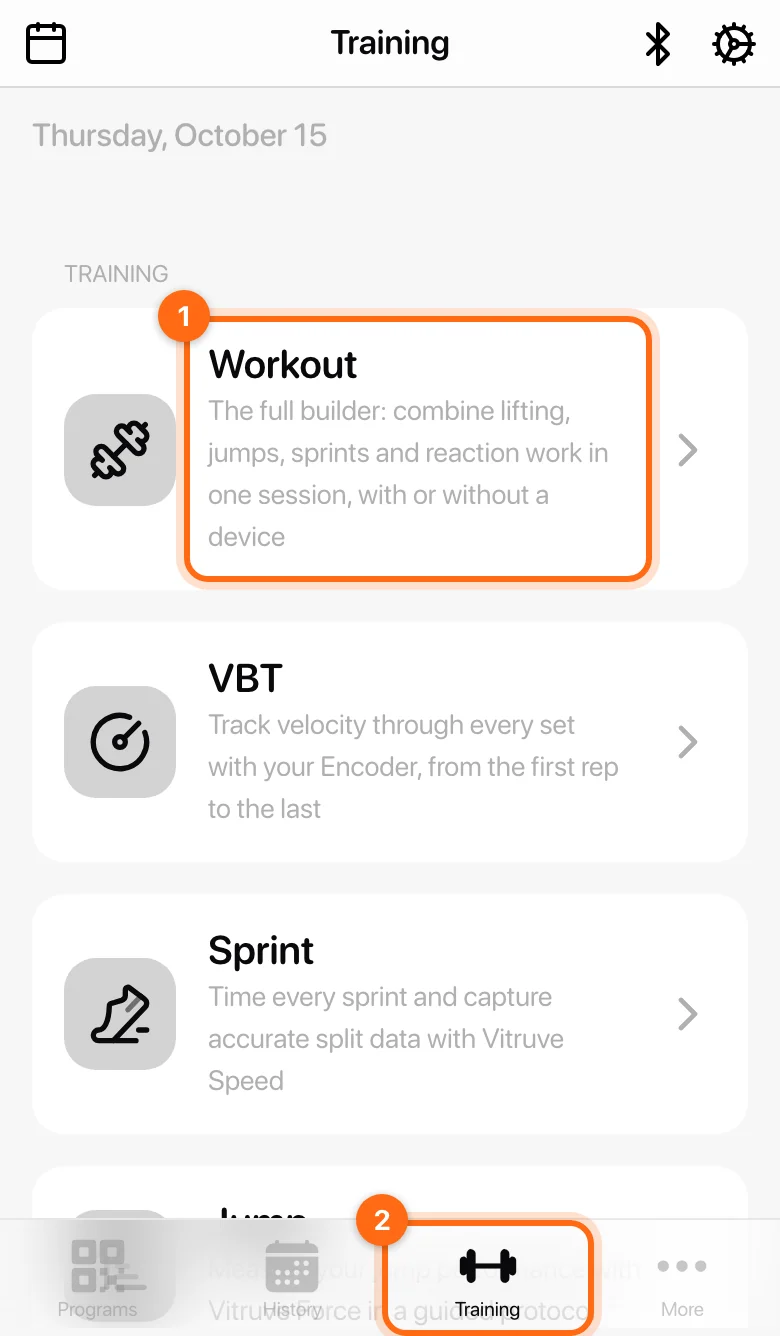
Choose one of the starting options:
| Starting option | When to use it |
|---|---|
| Calendar | Your coach has assigned a live program and you want the prescribed session. |
| Use a template | You want to repeat a saved workout structure available to you. |
| Add exercises | You are recording a session from scratch. |
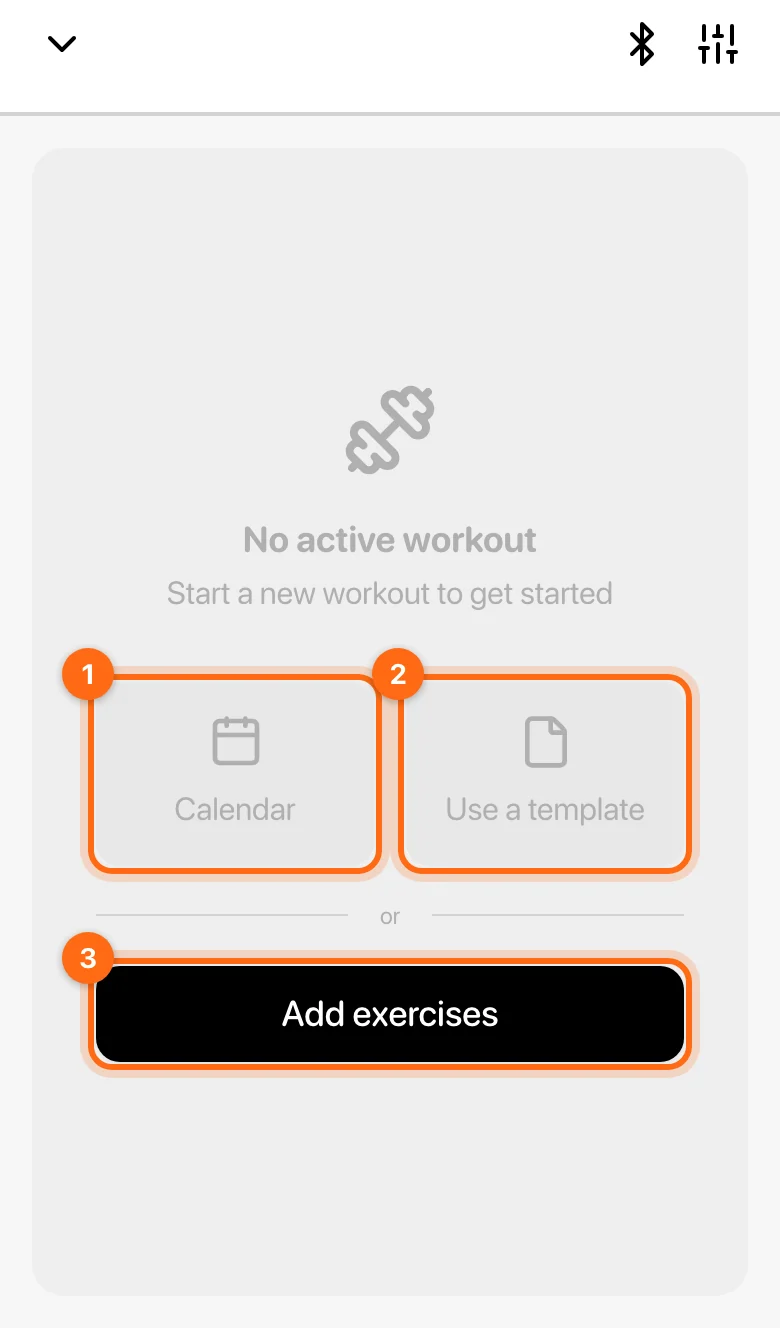
For a coached session, use Calendar first. Review the exercises, sets, and instructions before you start. If there is no session on the expected day, check A scheduled workout is missing.
3. Record what you perform
Open an exercise and enter the completed set values. A prescription is the target; your recorded values are what you actually did. Check the unit beside the load before entering a number.
For velocity-based exercises, connect your encoder, check the selected exercise and load, and record the set on the live display. Keep the app open while measuring. Your coach may have prescribed a velocity target or a fatigue threshold—use those instructions rather than selecting an arbitrary target.
If Wellness appears at the start, complete the questionnaire using the labels shown for each response.
4. Finish and check the result
- Open the Summary tab.
- Set a recognizable workout Name and your session RPE if requested.
- Select Finish in the workout footer and confirm Finish.
- Open History, find the session, and review the exercises and sets.
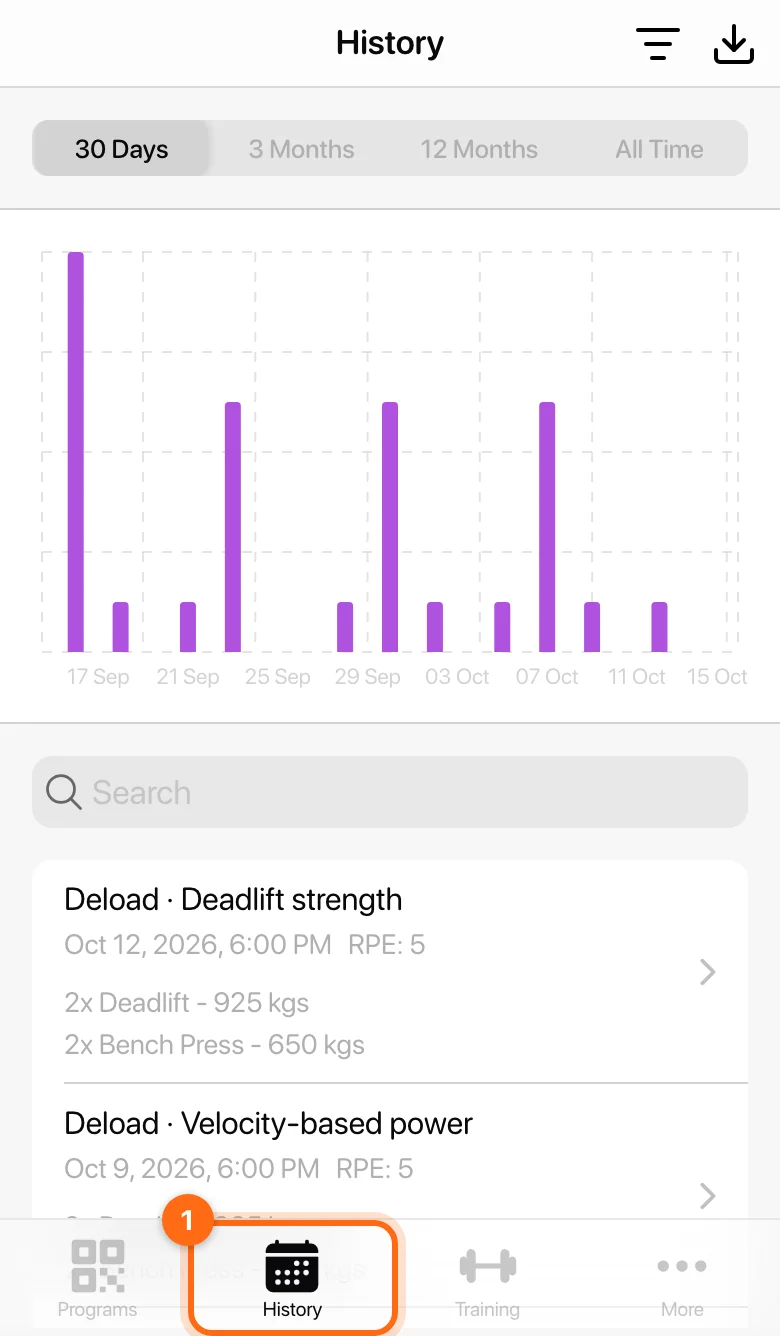
Finish keeps it. Discard removes it.
Discard deletes the in-progress session after confirmation. Do not use it to close a session you want to keep.
If you trained offline, the session may still be in Pending workouts until it uploads. Follow Train offline and sync later.