Connect and select a device
Pair an encoder or Vitruve Speed device, understand Connected versus Active, and control reconnection.
The device manager tells you two different things: whether a device is Connected, and whether it is the Active device that will drive the next measurement. Check both before starting a set.
Before you begin
- Switch the device on and keep it near the phone, tablet, or computer.
- Turn on Bluetooth and allow Vitruve to use it in system settings.
- Stop a current recording before changing the device that drives it.
The installed app is the simplest starting point. Web pairing requires Web Bluetooth support, such as a compatible Chrome or Edge browser. Safari and Firefox do not provide this flow. A web browser needs you to open the chooser explicitly; it does not discover devices in the background.
Connect in the installed app
- Open Training → Bluetooth. You can also use More → Settings → Devices.
- Allow the Bluetooth permission if prompted. On Android, allow the Bluetooth/nearby-device permissions your version requests.
- Discovery starts when the device manager opens. If it has stopped, select Scan.
- Find the device under Encoders or Vitruve Speed. Match its identifier when several devices are nearby.
- Select its row or the Use this device checkbox.
- Wait for Connected and confirm that it appears in Active with its checkbox selected.
On the encoder itself, a flashing green light confirms the Bluetooth connection. See Encoder buttons and screen for what each light means.
The first time you use the app, make sure Bluetooth is turned on in your device settings and that Vitruve has the Bluetooth permission. A denied permission is the most common reason for an empty list.
Other places to connect
You do not have to return to the Training page. The same device manager opens from the Bluetooth button in:
- A workout's header, for example inside VBT, Jump, or Workout.
- The Video live grid.
- A new Equation form, when you are recording a load–velocity profile.
Quick Tracking has no Bluetooth button of its own. Connect from Training → Bluetooth before opening it.
Connect in a compatible web browser
Older help articles say Bluetooth works only on mobile and not at app.vitruve.fit. That is no longer the case in a browser with Web Bluetooth, as described below. The installed app is still the most reliable choice for training.
- Open app.vitruve.fit in a browser supporting Web Bluetooth.
- Open Training → Bluetooth → Scan.
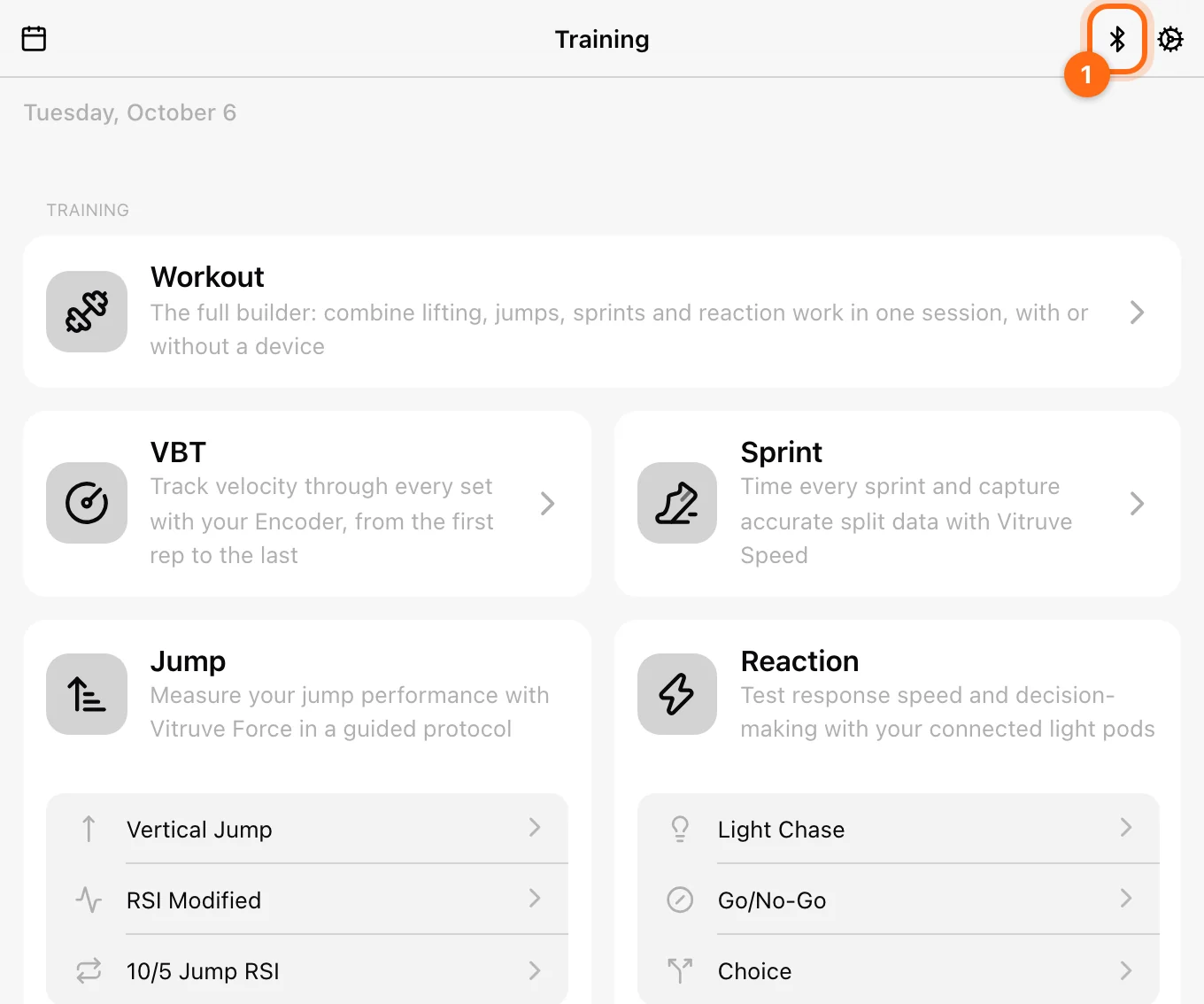
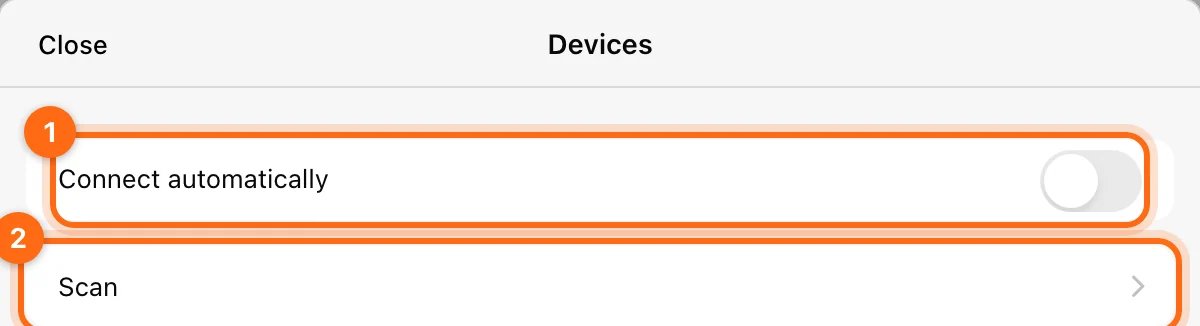
- Select your device in the browser’s Bluetooth chooser.
- If Connect automatically is off, select the device’s row after it appears in the manager.
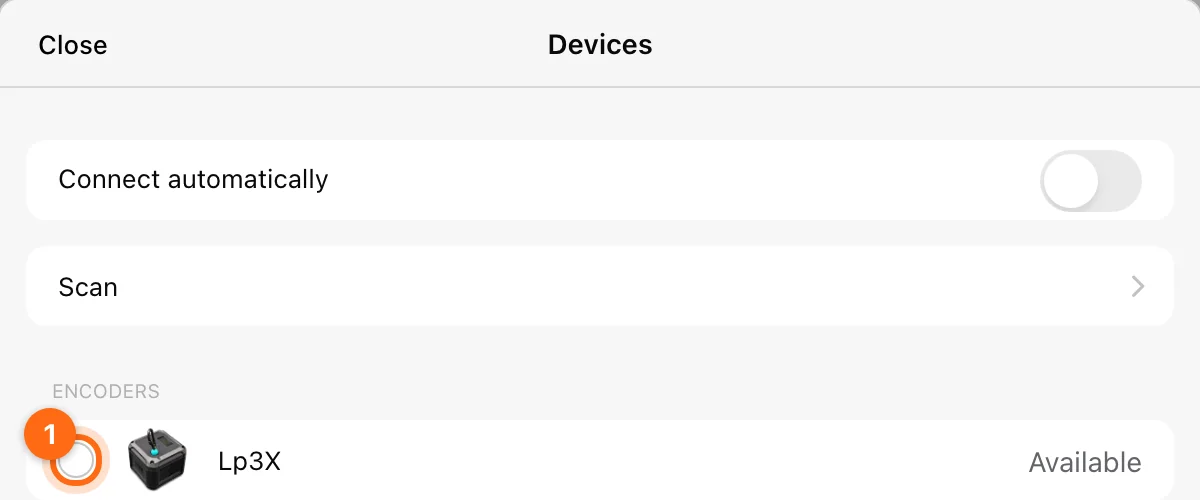
- Confirm Connected and the active checkbox.
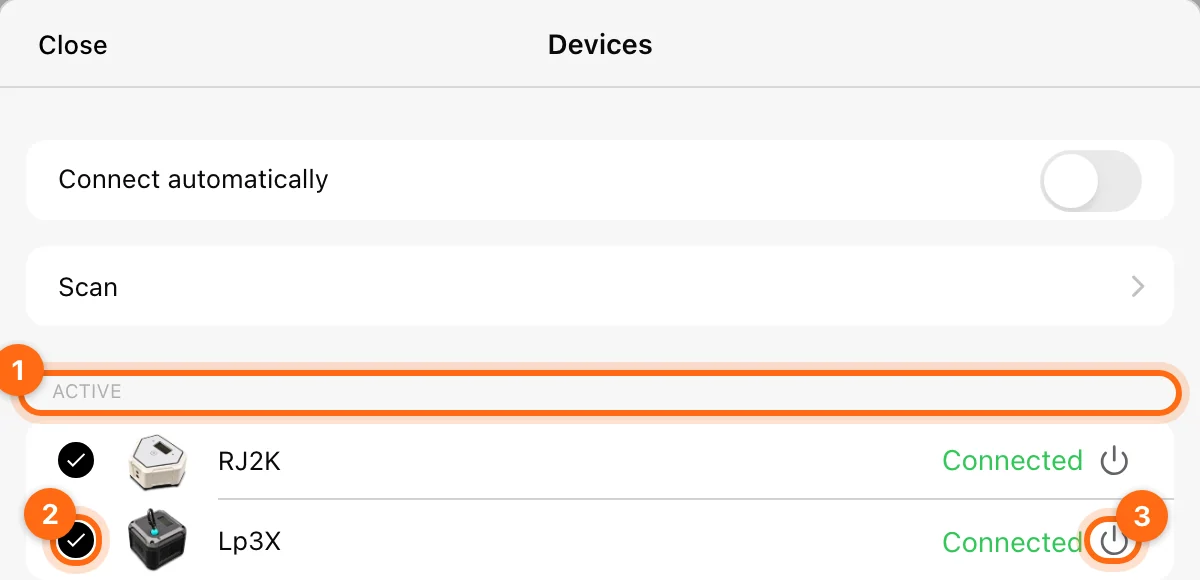
After a browser reload, you may need to use Scan and select the device again. A remembered name alone does not mean the browser has re-established its connection.
Understand the status labels
| Label | Meaning | Your next action |
|---|---|---|
| Available | Discovered and available to select. | Select it to connect and make it active. |
| Connecting… | The app is establishing the link. | Wait for the result. |
| Connected | A Bluetooth link is open. | Check the active checkbox too. |
| Reconnecting… | The app is trying to restore a dropped link. | Wait, tap to retry, or use the power control to stop retries. |
| Disconnected | No open link. | Scan if needed, then select the device. |
The app can keep several devices connected, but selects one active encoder and one active timing-gate device for their respective recording flows. Selecting another device in the same family changes which device drives your next set.
Automatic connection, disconnecting, and forgetting
Turn on Connect automatically in the device manager if you do not want to pair every time. With it on, whenever the app is open and your encoder is switched on, they connect automatically.
Connect automatically reconnects remembered, discoverable devices in the installed app. On web, it connects the device you pick in the browser chooser without requiring a second selection.
- Use the row’s power control to disconnect. Deliberately disconnected devices stay off until you select them again.
- Use Stop reconnecting to stop repeated retries.
- Swipe the row left and use the trash control to forget a device. Then scan and reconnect when needed.
Forgetting a device is a connection-management action; it does not delete your completed workouts.
What you should see next
The Training Bluetooth icon indicates that hardware is connected. Open the relevant training card and confirm that measurements arrive from the device you selected. Devices does not contain a battery-percentage or firmware-update screen.
For an empty scan, handshake error, or dropped connection, follow Device connection troubleshooting.
Download Vitruve and check compatibility
Install the Vitruve app on iPhone, iPad, or Android, open the web app or desktop app, and check device requirements before training.
Overview
Find specifications, setup, controls, accessories, and fixes for Vitruve Force, Vitruve Speed timing gates, and the older Vitruve Encoder.