Download Vitruve and check compatibility
Install the Vitruve app on iPhone, iPad, or Android, open the web app or desktop app, and check device requirements before training.
Vitruve is one app, available on several devices. Your account, organization, and synced training data are the same everywhere you sign in. Pick the device that suits the task:
- Phone or tablet app: for training on the floor, connecting the encoder over Bluetooth, and recording sets.
- Web app or desktop app: for planning programs, managing athletes, and reviewing results on a larger screen.
Install the app on a phone or tablet
- Open the App Store on an iPhone or iPad, or the Google Play Store on Android.
- Search for Vitruve.
- Select the Vitruve app in the results, then tap Get on iPhone/iPad or Install on Android.
- Open the app once it has installed.
- Sign in, or create an account by following Create an account and accept invitations.
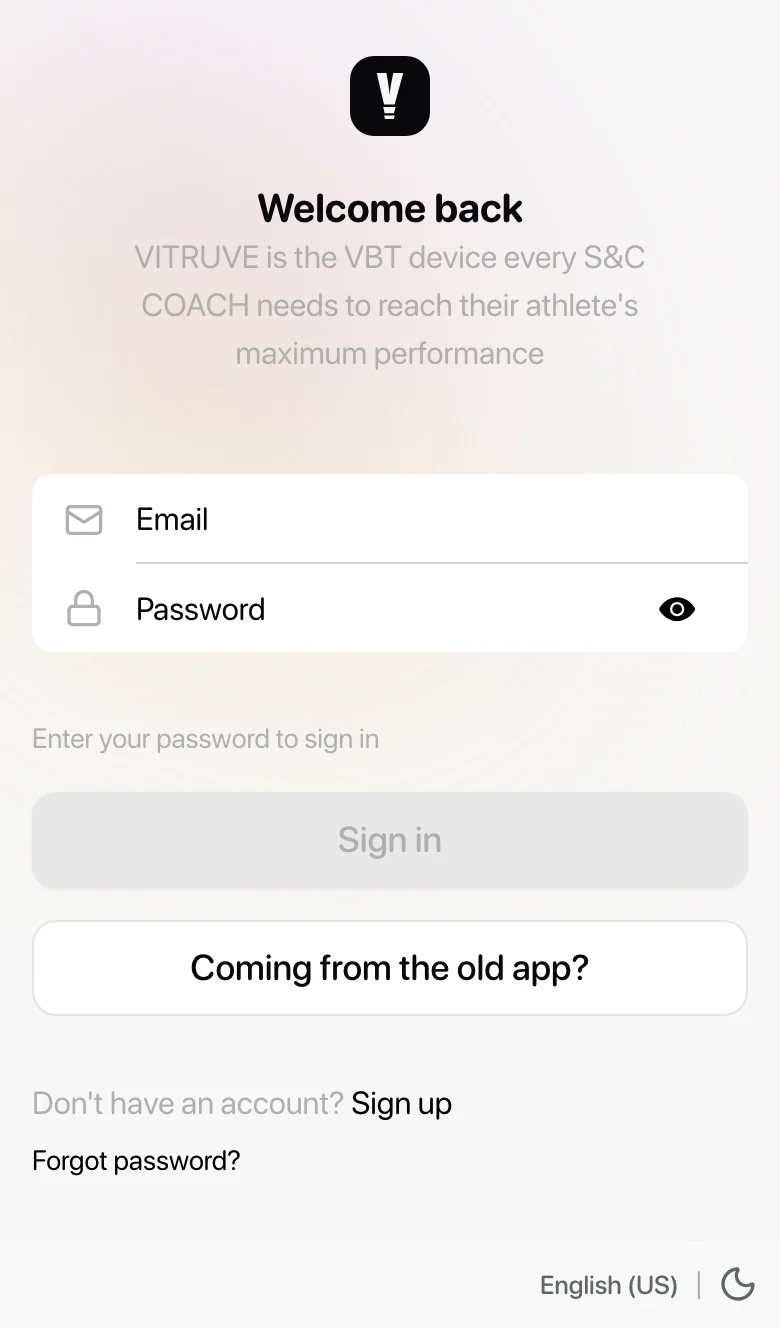
Check: the app opens on the sign-in screen, with Sign in, Sign up, Forgot password?, and Coming from the old app?.
Use Vitruve on a computer
In the browser
- Open a modern browser such as Chrome, Safari, Edge, or Firefox.
- Go to app.vitruve.fit. If you search for it instead, check that the address you open is exactly
app.vitruve.fit. - Sign in with the same email and password you use on your phone.
Desktop app
A desktop app is available for Windows and macOS. It opens the same Vitruve web app in its own window, so menus, data, and features match the browser version.
Compatibility
| Platform | Requirement | Notes |
|---|---|---|
| iPhone and iPad | A recent iOS or iPadOS version. The current app build requires iOS/iPadOS 15 or later. | iPad has a landscape layout close to the desktop one. |
| Android | The current app build requires Android 12 or later. | Phones and tablets. |
| Desktop app | Windows or macOS. | Shows the same app as the browser. |
| Web | A modern, up-to-date browser. | Chrome, Safari, Edge, Firefox. |
For smooth performance, Vitruve recommends at least 4 GB of RAM on any device.
Older version numbers on the support site
Earlier support articles listed iOS 12.1 and Android 6.0 as minimums. Those apply to older app builds. If the store says Vitruve is not compatible with your device, update the operating system if possible, or use the web app on a computer for planning and review.
Permissions the app needs
- Bluetooth is required to connect a Vitruve encoder, Vitruve Force, or timing gates. Allow it when the app asks. If you denied it, enable Bluetooth for Vitruve in the device's system settings.
- Device pairing differs by platform. In the installed app, use Settings → Devices or the Bluetooth icon on Training. In a compatible browser, pairing goes through Training → Bluetooth → Scan and the browser's own device chooser. If the browser says Bluetooth is unavailable, use the installed app. See Connect a device.
Training without an internet connection
You can train without an internet connection. Workouts are kept on the device and uploaded when the connection comes back. Check Pending workouts on Training before signing out, clearing storage, or changing devices. See Offline training and sync.
Connected services
Vitruve can import data from wearables and send training data to partner platforms. Import options include Oura, Polar, Whoop, Fitbit, Garmin, Withings, and Dexcom, plus Apple Health, Google Fit, or Health Connect on compatible devices. Export partners include RockDaisy, TeamBuildr, and FYTT. What you can use depends on your organization's plan and your device. See Connect wearables and external services.
If something does not work
- The app will not install: check the device's operating system version against the table above.
- The app is slow or closes: close other apps, check available memory and storage, and update to the latest app version.
- You see different data on two devices: check that the same organization is selected on both. See What is an organization?.
- Still stuck: contact support with your device model, operating system version, and app version.
Next step
Create an account, then follow the athlete quickstart or coach quickstart.