Vitruve Speed settings and screens
Set Trigger and Role per gate, control detection distance, read the gate's screens, tune advanced settings, and use the external display.
Press the left and right arrows together to open Settings on a gate. The defaults are tested, and most coaches only change Trigger and Detection distance.
Trigger: In-Beam or Break-beam
The trigger decides what moment the gate records.
| Trigger | When it fires | Use it on |
|---|---|---|
| In-Beam | The athlete sets up inside the beam, and the clock starts as they leave it. Captures true first movement. | A start gate, for a standing start. |
| Break-beam | The athlete crosses the beam while already moving. The gate reads their center of mass, so an outstretched arm or a trailing leg does not change the time. | A finish gate, or any gate the athlete runs through. |
The trigger is set per gate, not per session. Choose Apply to all when every gate has the same job, for example a flying sprint where every gate is a split. Override a single gate when its job differs from the rest. Set it once per drill setup, not once per rep.
In the app, the same two options appear in Sprint Settings as In Beam and Middle. See Record sprint workouts.
Role
Role is a node setting that appears once two or more gates are connected.
- Auto: a standard connected gate that works in either running direction. This is the default.
- Spectator: turns a spare gate into a handheld display that mirrors the session. Carry the result around instead of walking back to the hub.
- Trigger: turns a gate into a manual hand start. Use a hand start into a laser finish on another gate, or a hand start and hand stop as a stopwatch.
None of these needs re-mounting. A spare gate can be a second screen or a hand start, whichever the drill needs that day.
Detection distance
Detection distance controls how far out the beam reaches, and therefore what registers.
- Default: 50 in (127 cm)
- Maximum: 118 in (300 cm)
Set it tight so athletes waiting in line, jogging back, or standing near the lane do not trip phantom times. It is shown in the unit system you chose: inches for yards, centimeters for meters. Check it by walking the beam.
What the gate shows
- Ready: armed and waiting. Battery, mode, hub or node, device ID, and gate distance read across the top.
- Running: the beam was crossed. The gate beeps, the LED turns blue, and the clock runs live until the rep closes.
- Complete: a large time, with velocity beside it if a distance was set. Reps over several gates add the trial number, running total, and split per gate.
- Ready again: armed for the next athlete, with the last result still showing.
The gate always shows both time and speed.
Reset a rep
Press the center logo button while the gate reads Running and it resets to Ready. This clears a rep in progress only. A completed rep cannot be deleted on the gate, because a rep on the unit is not attached to any athlete. In the app, where a rep belongs to an athlete, you can delete it. See Review and correct workouts.
Advanced settings
These are data consistency settings. Set them deliberately, once per season, and do not change them mid-season because one rep looked off. Changing them partway through is what makes a season's data hard to compare.
| Setting | What it does | Default | Range |
|---|---|---|---|
| Lockout | A dead window after the beam is crossed, so a trailing limb crossing again cannot corrupt a rep that has started. | 800 ms | 100 to 2000 ms |
| Signal | Filter sensitivity. Too low and noise triggers false reps; too high and real reps are missed. | 1100 | 100 to 5000 |
| Debounce | Frames needed to register a detection. Low enough to catch a fast athlete, high enough to reject noise. | 21 frames | 1 to 40 frames |
| Idle Finish | How long the system waits before closing a rep in which not every gate fired. | 3 seconds | 3 seconds minimum |
| Decimals | Reporting resolution: hundredths or thousandths. | 2 | 2 or 3 |
| LED + Buzzer | The light and sound when the beam is crossed. | On | On or off |
Set Lockout across the whole chain. Lockout can be set per gate, but mixed values make reps inconsistent with each other.
With three or more gates, the system expects every gate to be crossed. If fewer are, it waits for Idle Finish and closes the rep with the splits that did occur.
Thousandths look precise, but at the level of a weekly session they are usually noise. Report at the resolution your decisions use.
The external display
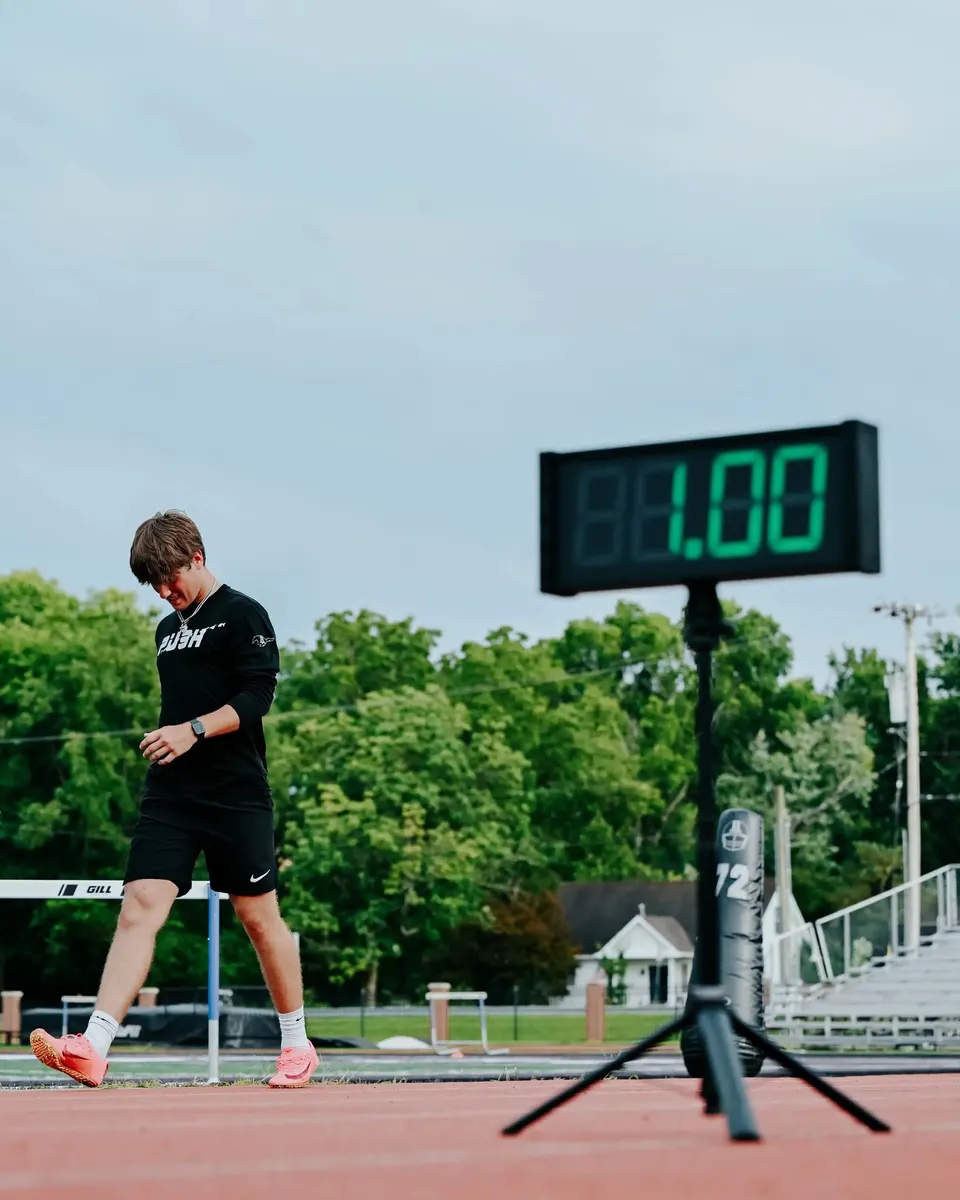
The external display is sold separately. It shows the group either the time (SEC) or the velocity (VEL), never both.
- Switch between time and velocity: hold the side button.
- Colors: red, blue, or green, with adjustable brightness.
- Power: an internal battery with about 10 hours of use, charged over USB-C. It does not need to stay plugged in.
- Connection: it connects to the hub on the same channel automatically.
- Mounting: holes on the back for wall mounting.
Everything on the display is controlled from its own button; it needs no app. Use the gate for full data, and the display for what you want the group to see. Place it where athletes naturally look as they slow down.