Review and correct work during a workout
Inspect sets and events, correct a load, remove a bad rep, use compatible copy/paste, and fix work recorded under the wrong athlete.
Review recorded work while the workout is still active. The Workout tab provides exercise/set detail; Summary provides the whole-session overview and session-level fields. The available edit actions differ by surface and recorded modality.
Inspect a set
In a focused workout, select its set card to expand the chart and individual reps/jumps/splits/events. Use ⋯ → Details for set information and Repetitions for the recorded event breakdown where offered.
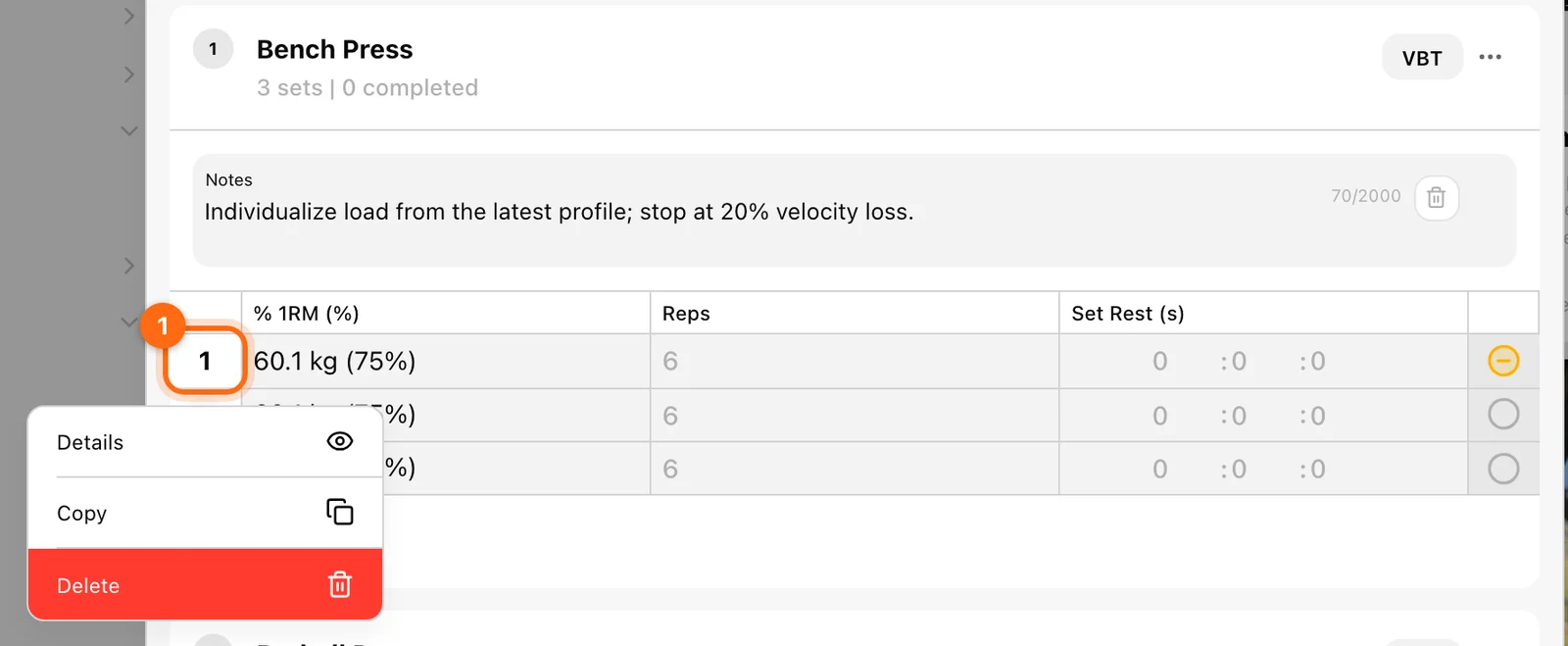
In the full Workout table, select the set number to open its menu. Use Details/Repetitions there, or the exercise’s ⋯ → Details for the modality view.
A chart value depends on the metric named in the view. A set average is not an individual rep, and the best value for a timing metric may be the smallest number.
Correct the entered weight
Use the set’s Change weight control where available. Check that you are correcting the completed set, not changing the header’s load for the next attempt.
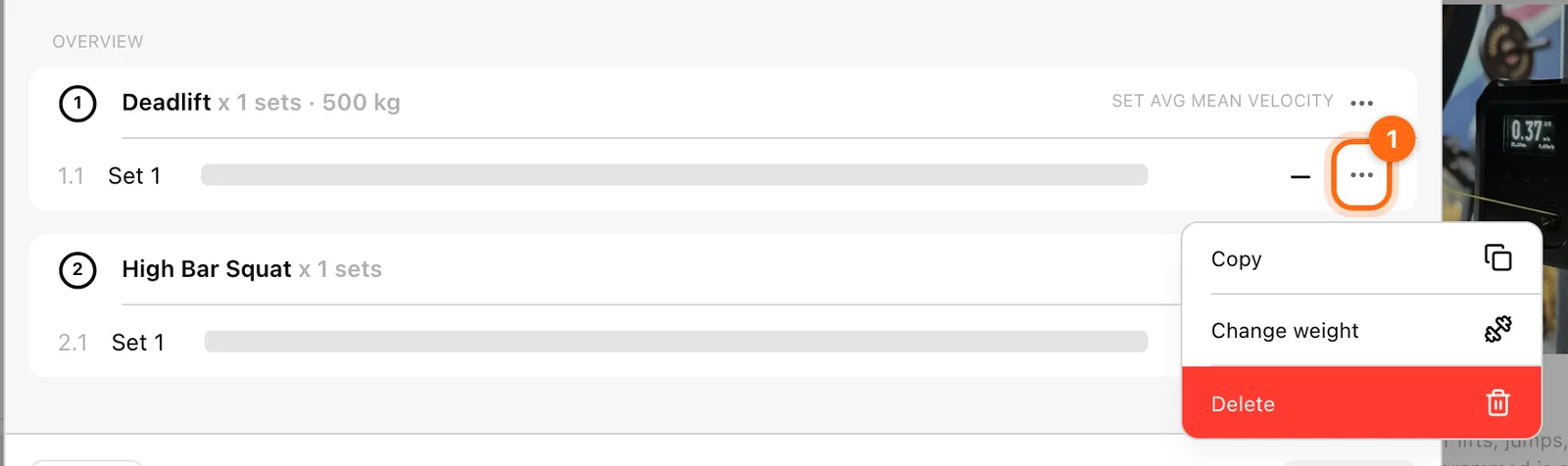
In the full table, editable executed values can also be corrected directly. The metrics provider recalculates supported derived outputs from the corrected input. It does not remeasure the original physical movement.
For jump/sprint work, weight means external load. Changing it does not replace the athlete’s Body weight.
Remove an unwanted repetition
In the Workout view’s supported repetition controls, choose the unwanted recorded rep/event and use Delete, then confirm. The available calculation context recomputes the set from its remaining events.
The Summary → Repetitions view is a read-only inspection/copy surface. Return to Workout for supported repetition deletion rather than expecting both views to offer identical controls.
Use Delete set if the entire set should be removed. Keep a valid session when only one rep needs correcting.
Use Copy and Paste deliberately
The in-session clipboard supports an exercise, a set, or a repetition:
| Copy action | Where to paste | What it copies |
|---|---|---|
| Exercise Copy in Summary | Paste exercise in the destination workout’s Summary. | The exercise and its recorded structure/work. |
| Set Copy | Compatible Paste set action. | The copied recorded set, not a new measured attempt. |
| Repetition Copy | Compatible Paste repetition action. | The selected recorded event. |
Set/rep pasting is restricted by modality and algorithm. A 10/5 jump set is not interchangeable with a different jump algorithm; Go/No-Go is not Choice. The app hides incompatible paste actions.
A copied set or rep is a copy of existing recorded data. Use it to correct attribution or organize an existing record, not to claim an unperformed second attempt.
Correct an exercise recorded under the wrong athlete
When the active workout still contains the work:
- Select the athlete whose workout incorrectly contains it.
- Open Summary and check the exercise and all its sets.
- Use that exercise’s ⋯ → Copy.
- Select the athlete who actually performed it.
- Open the appropriate active workout context and its Summary.
- Use Paste exercise.
- Verify the destination athlete, exercise, values, and recorded events.
- Return to the incorrect source workout and remove the wrongly attributed exercise after verifying the destination.
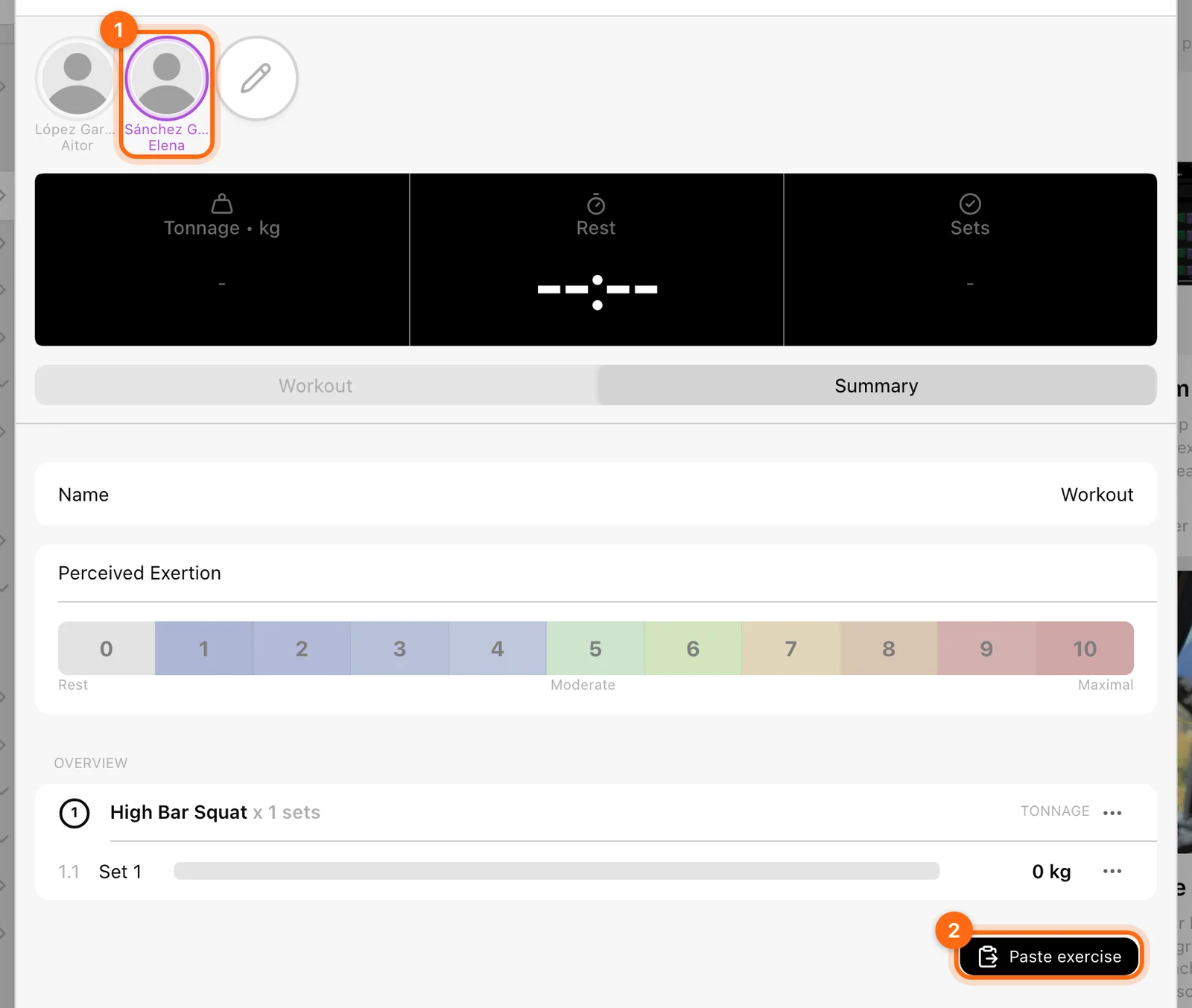
Copy/paste does not remove the original automatically. If both copies remain, totals can include the same performed work twice. If the destination already contains the same exercise under the same recording scope, the copied sets can join it; otherwise they appear as their own exercise group.
Do not assume merely switching the active avatar changes already recorded sets. For a session already finished, check its actual available History controls rather than applying this active-workout workflow blindly.
Do not confuse target selection with clearing completion
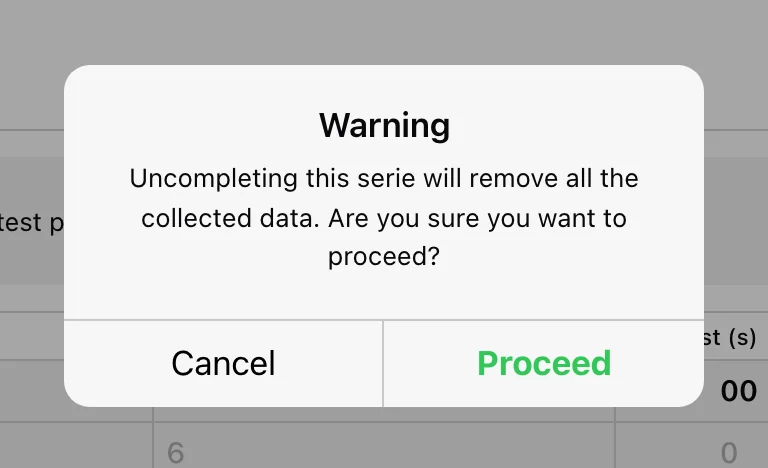
In a structured workout, selecting a non-target incomplete circle moves the next device target. Selecting a completed measured check can offer Uncompleting this serie will remove all the collected data. Cancel if your goal was only to record the next row.
Finish after checking the correction
Open Summary, check Name/RPE and the exercise overview, then finish the intended athlete’s workout. Verify the completed record in History and inspect Pending workouts if the upload is still outstanding.
If the available controls cannot preserve/correct the record, contact support with the source/destination athletes and session details.
Run a load–velocity profile test
Plan and perform the four-load test that creates an RM equation, choose the 1RM velocity, judge the result's quality, and select the profile you train with.
Quick Tracking and Realtime Monitor
Choose between an immediate unsaved readout, a continuous metric stream, and a workout you want to keep.