Find your way around the app
Understand the web sidebar, mobile More tab, Training cards, and the two different Exercises menus.
The web and installed apps share the same underlying workspace. Navigation is arranged differently to fit the screen, and some entries appear only when your role and organization allow them.
On the web
| Area | What you will find |
|---|---|
| General | Training, Calendar, History, and Chats when available. |
| Tests (in General) | Equations, Wellness, and Injury Reports when available. Equations and the wellness questionnaire are also reachable from Training. |
| Builder | Live Programs and the expandable Templates group. |
| Templates | Programs, Phases, Workouts, Blocks, Supersets, and exercise prescription templates. |
| Management | Athletes, Coaches, and Teams (in Coach Mode), the exercise library, and Organization. |
| Sidebar controls | Settings (the cog), Help, your Account, and Coach Mode when available. |
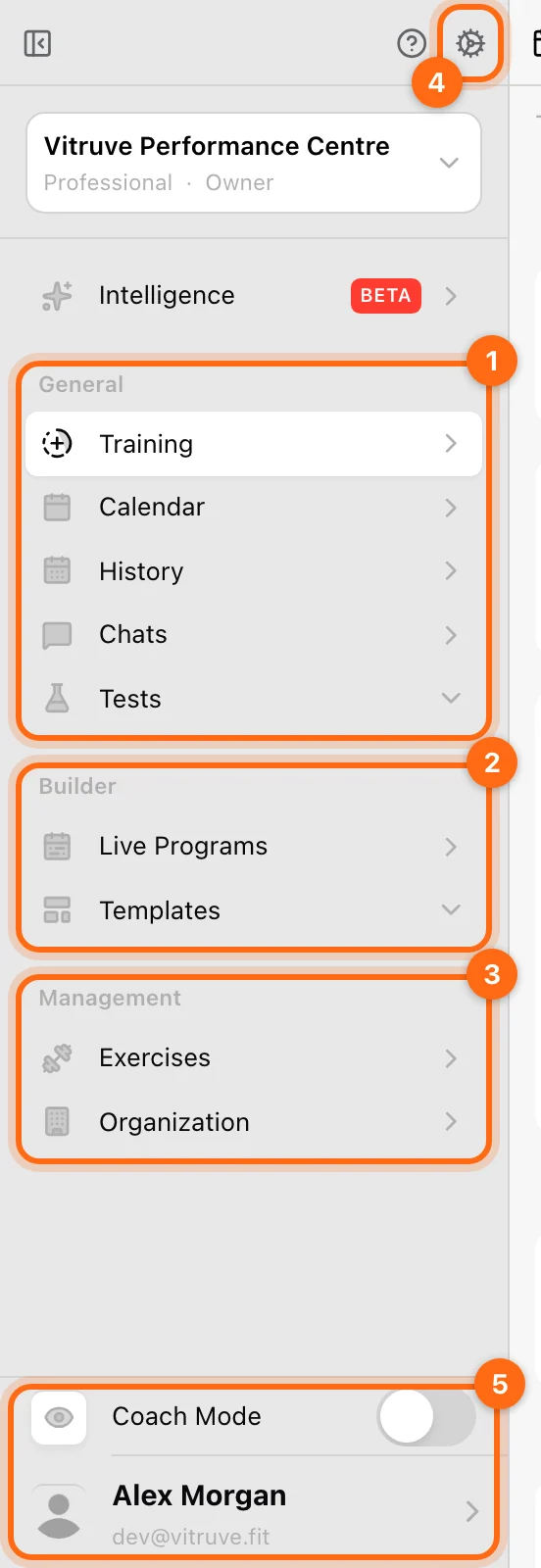
Leaderboards is a separate navigation item, shown in Coach Mode. Intelligence appears when your role and organization include the AI assistant.
The web app also provides Labs for analysis: with Coach Mode on, Owners and Coaches find Profiles, Reports, Insights, Dashboards, and Scoresheet in the sidebar where access permits. Start with Labs analytics to choose the right view.
On mobile and tablet
Use the main tabs (Programs, History, and Training) for day-to-day training and results. Open More (the three-dot tab at the bottom right) for options such as Templates (under Builder), Settings, Account, and Help. Coach Mode is also available on More when your account is eligible.
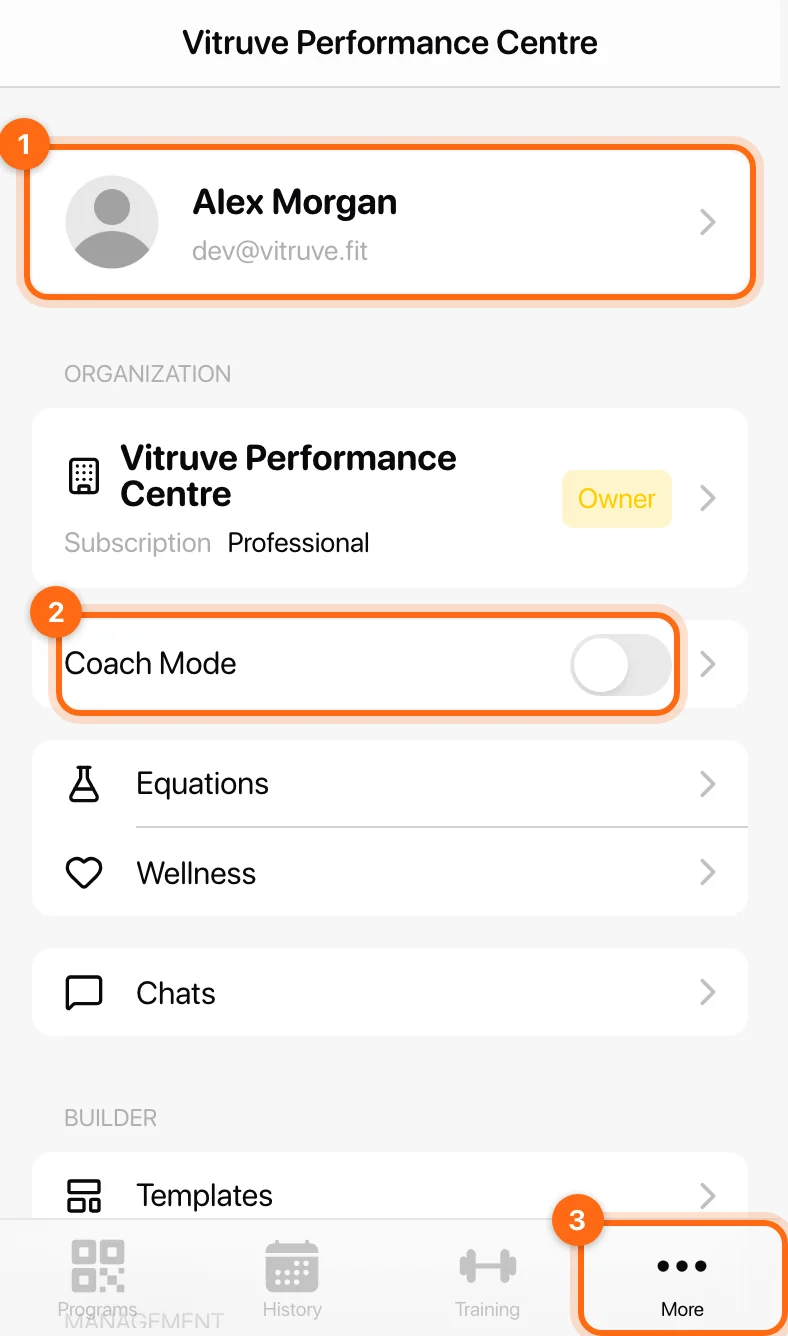
On a larger tablet, the layout can look closer to the web interface. Follow the feature label in the guide rather than looking for a desktop sidebar on a phone.
Two menus named Exercises
| Menu | What it contains | Use it when… |
|---|---|---|
| Management → Exercises | The movement library: names, instructions, favorites, custom movements, and exercise settings. | You want to find or create a movement. |
| Builder → Templates → Exercises | Saved prescriptions: a movement together with its set parameters and target values. | You want to reuse how you prescribe an exercise. |
Changing a prescription’s load is different from editing the movement’s library entry.
Training is a collection of cards
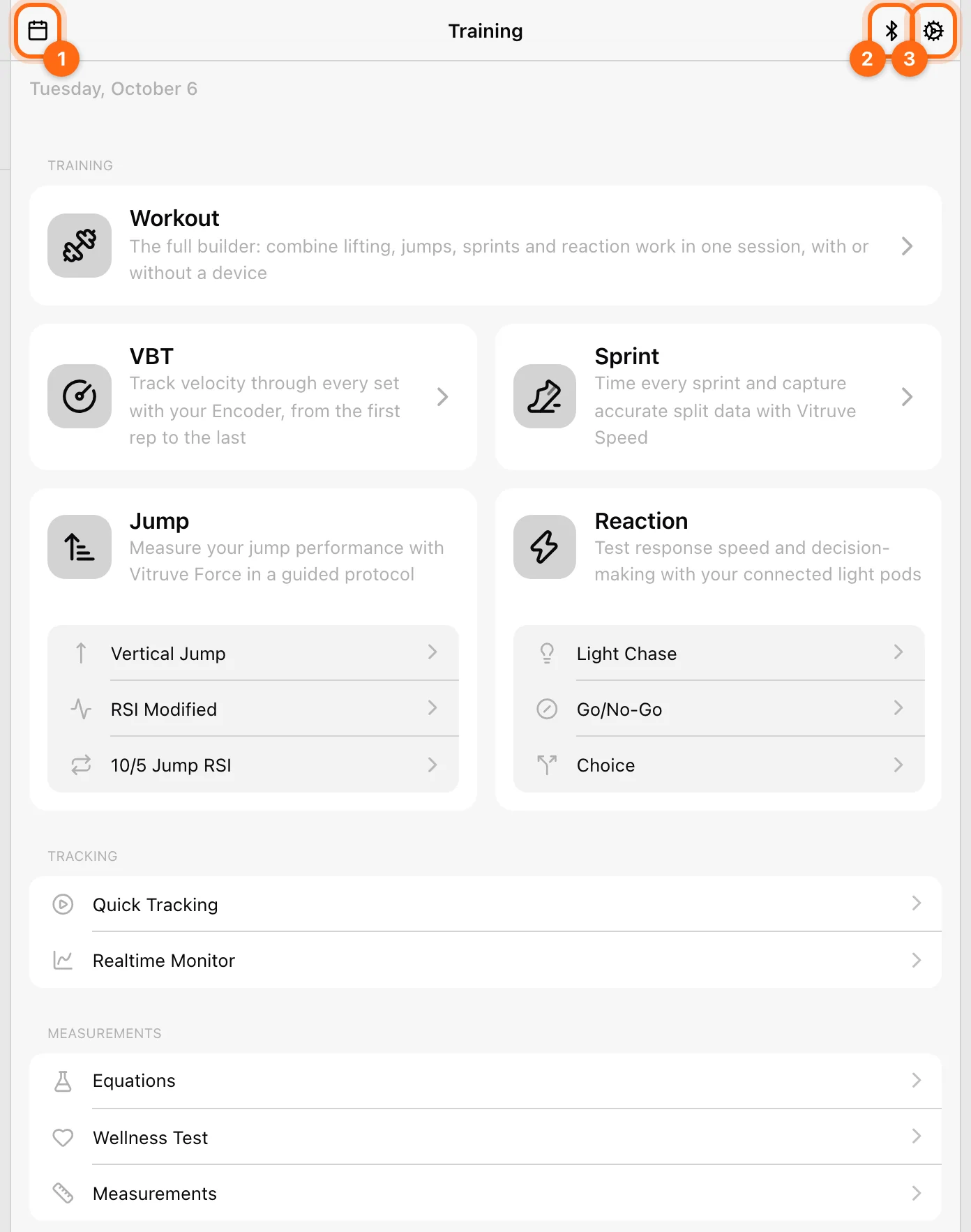
Open Training and select the card matching the task:
- Workout: a complete session, including different kinds of exercise.
- VBT: focused velocity-based lifting.
- Jump, Sprint, or Reaction: a focused workout with its own recorded sets and events.
- Quick Tracking: an immediate live readout without a saved workout.
- Realtime Monitor: a continuous metric stream from a compatible encoder.
- Coach Live: active-athlete monitoring in Coach Mode.
- Equations, Wellness Test, or Measurements: specific measurement tasks.
The Training header contains Calendar, Bluetooth, and the cog for training settings. A cloud button appears when there are Pending workouts to upload or resolve.
Where are jump, sprint, and reaction workouts saved?
Record them from Training, finish their workout, and review the completed record in History. For a single mixed workout, include the modalities under the general Workout flow. Use Training and workouts for the complete guide.
If a navigation item is missing
Check the selected organization, your role, its plan, and Coach Mode. Coaches should also check which athletes the Owner assigned to them. Follow A feature or athlete is missing in that order.
Create an account and accept invitations
Set up your login, verify your email, choose Athlete or Team, join a coach’s organization, and avoid duplicate athlete profiles.
What is an organization?
Understand your Vitruve workspace, how accounts and teams relate to it, where workouts live, and when to switch organizations.