Message athletes and share files
Create a conversation, send training feedback, and find shared files in Chats.
Chats is messaging between people in your organization. It is different from Intelligence, the AI assistant. Chat access requires a plan that includes it, currently Elite or Professional.
Open an existing conversation
Open Chats from General on web or the corresponding option under More on mobile. Select the conversation, read the context, and send your message using the composer.
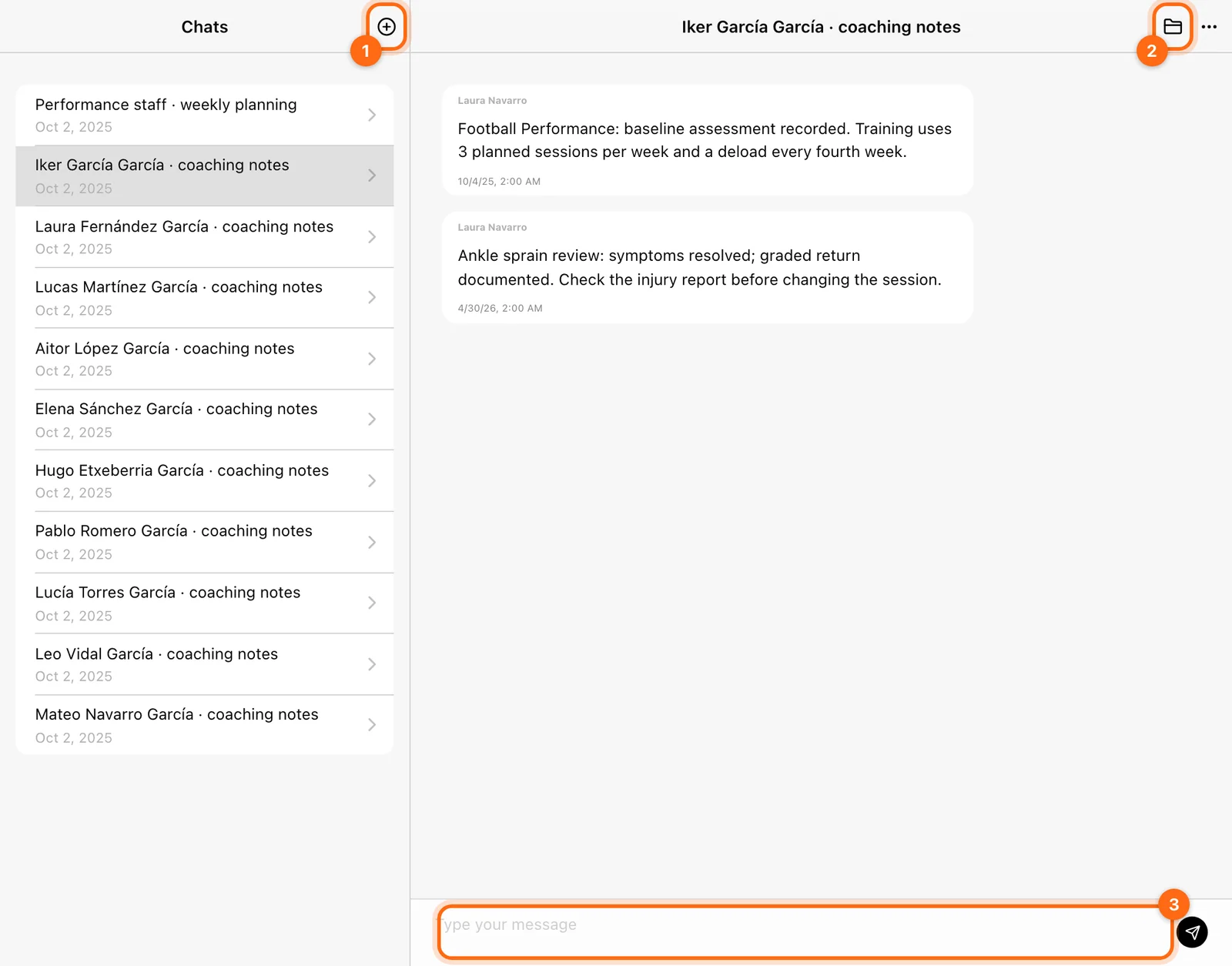
Athletes can participate in available conversations. Creating, renaming, and deleting chats are coaching actions; athletes may see “Chats can only be created by coaches”.
Create a conversation
As an Owner or Coach with access:
- Open Chats and select +.
- Choose the participants with Add athletes.
- Review the generated title and edit it if appropriate.
- Create the conversation.
- Send a clear first message so everyone understands its purpose.
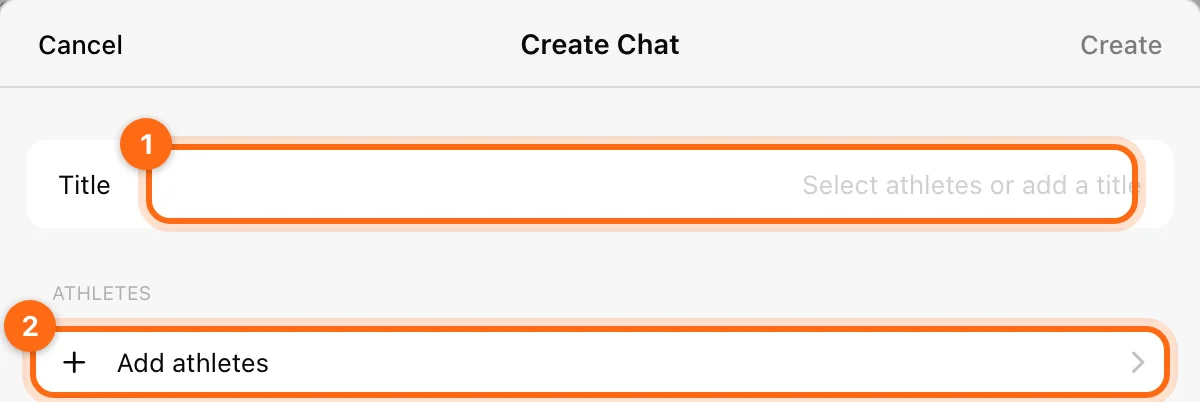
For a group conversation, check the actual participant list. A chat name matching a team does not by itself prove that every current team member is included.
Share or find files
Open the folder in the conversation header to see its Files. Select + there to upload a file: give it a File Name, use Select File, then Save.
Check that the file is the intended version and is available to the right participants. A document sent in Chats does not automatically become a live program or calendar assignment.
Give useful training feedback
When referring to History, include the session date, exercise, and set if relevant. For example, “In Wednesday’s upper-body session, check set 3 of bench before your next workout” is clearer than “Look at your last numbers”.
If a message or file is missing
- Check the organization and conversation participants.
- Confirm internet access; messaging needs a connection.
- Allow the view to refresh and reopen the conversation if needed.
- Check that the upload completed rather than just that a file was selected.
- Confirm that your organization still includes chat access.
If the issue persists, report it with the conversation title, time, and exact symptom.
Invite coaches and control athlete access
Add staff to your organization, manage assigned athletes, change a staff email, and remove staff access without deleting their account or programs.
Find and create exercises
Use library search, favorites, and custom exercises without confusing movements with reusable prescriptions.