Use the training calendar
Find prescribed sessions and completed workouts, switch athletes, and understand what the different calendar items mean.
Calendar brings dated planned workouts and performed workouts into one view. It helps you find what should happen on a day and what has already been recorded. It is where your Builder work becomes a schedule athletes can follow and coaches can review.
How Calendar connects to Builder
Calendar fills itself from what you build:
- Exercises, supersets, and blocks make up each workout.
- Workouts are grouped into phases, and phases into programs.
- A live program gives the program dates and athletes, and its workouts appear in Calendar automatically.
When you add, edit, or delete content in a live program, Calendar shows the change the next time it loads. Pull down to refresh on mobile.
Open and navigate
Open Calendar from the web sidebar or the main app navigation. You can also use the Calendar icon in the Training header.
Use the month arrows to move backward or forward. The monthly grid begins on Monday. Calendar shows one month at a time. Older help articles mention daily and weekly views. For a day-by-day or week-by-week view of a plan, use the previews in the phase editor.
Coaches in Coach Mode use the athlete selector to switch between athletes and see each one's assigned programs and sessions. If nobody is selected, Calendar shows No user selected. Athletes see only their own scheduled sessions and results.
Each day lists the names of the live programs active on it, from their start date to the end of their last phase, followed by that day's workouts.
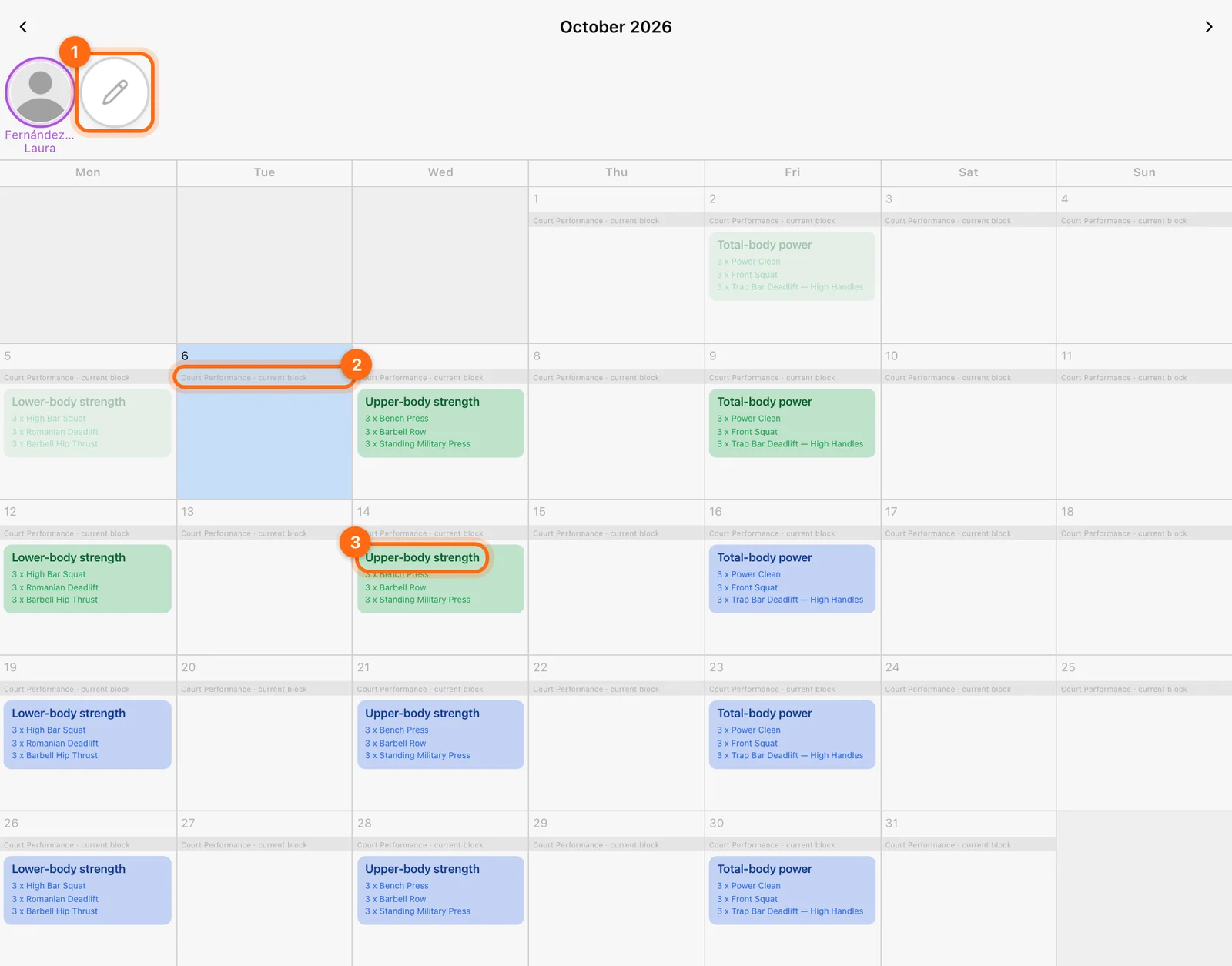
Calendar access depends on the organization’s program access. If the entry is unavailable, check role and plan access.
Recognize the two kinds of item
| Item | Meaning | What opens |
|---|---|---|
| Colored prescribed workout | A session scheduled by a live program. | The prescription preview. |
| Bordered executed workout | A session recorded and completed. | The completed workout preview. |
Prescribed items on past days appear faded.
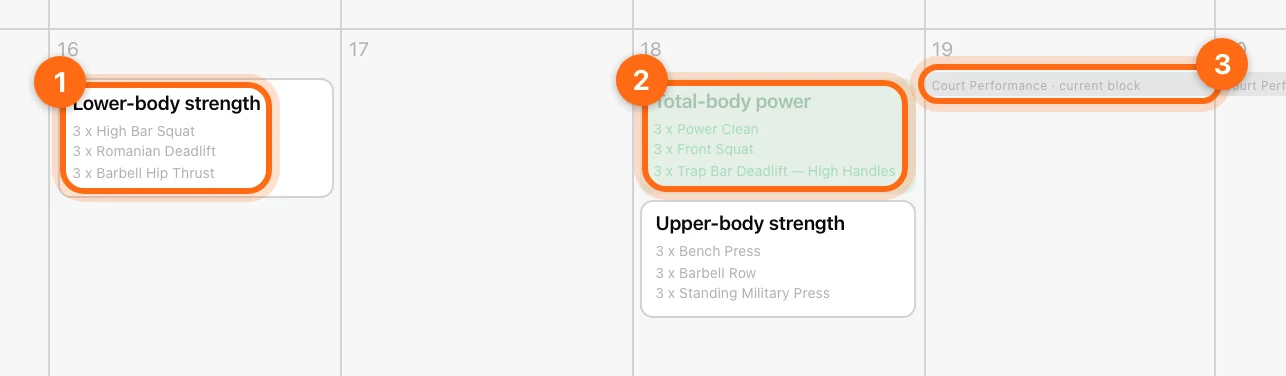
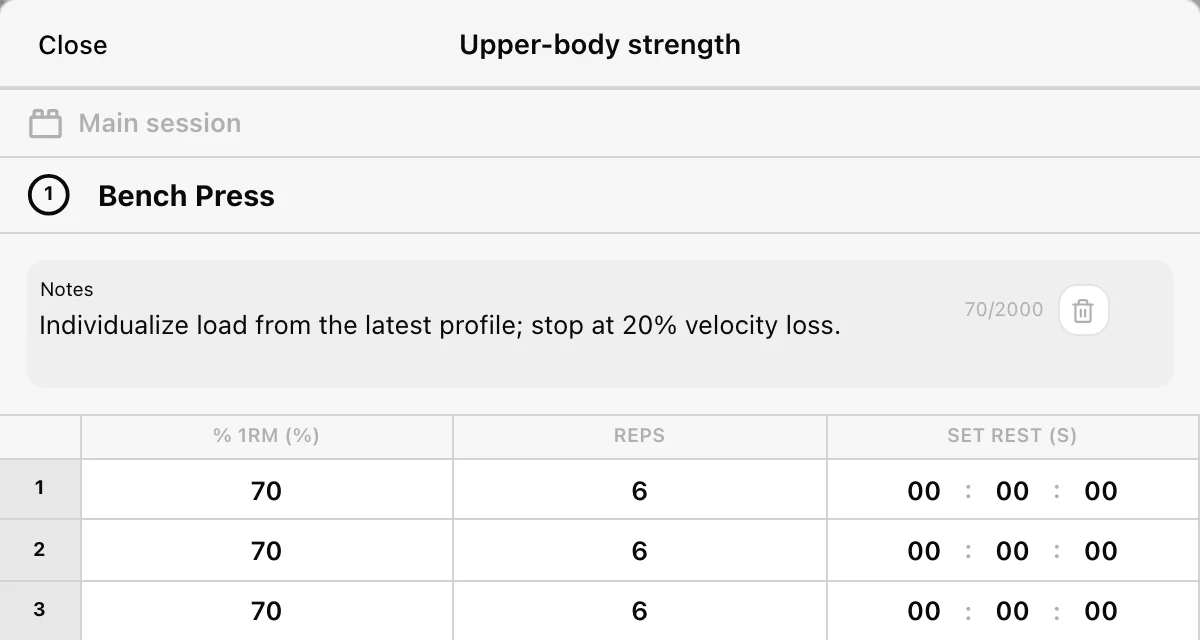
A prescribed item is not an executed result. Opening its preview does not log a workout automatically. Likewise, recording extra work does not necessarily change the original program’s prescription.
Start the prescribed session
Use Training → Workout → Calendar, choose the date and session, and review the loaded exercises. Record what you perform, then finish the whole workout.
If the workout is labelled empty, return to the live program and add exercise content. An empty scheduled item can exist on the correct date without being a usable session.
Review planned versus performed work
Look at both kinds of item when reviewing a training day. Use History for the detailed set/rep breakdown of performed work. A missing executed card can mean the session is still active, pending upload, outside your context, or never recorded—not automatically that the athlete skipped training.
Tips
- Give scheduled workouts a Color in the phase editor so different training blocks or focus areas are easy to tell apart.
- To edit or reschedule a session, open its live program. Calendar previews show the session but do not change the plan.
- Use Live Programs to follow a program's progress and jump to a specific phase.
Change a schedule
Open the relevant Live Program and edit the phase’s scheduled workout. Calendar reflects that dated plan. The calendar is not a substitute for checking the recurring weekday and specific schedule selections in the phase editor.
If you cannot find a session
Check the current organization, athlete, month, live program’s assignments, Monday start date, and phase schedule. Use Scheduling troubleshooting for missing planned work and Missing workout troubleshooting for performed work.
Assign and manage live programs
Turn a reusable plan into dated workouts, assign athletes, edit the active plan, and reuse it without carrying over assignments.
Training and workouts
Understand the Training page, choose your workout flow, record the right athlete’s work, and finish with results you can trust.