Estimate your 1RM during a training session
See a live estimated 1RM while you lift, use the 1RM Calculator to pick a percentage load, and fix a missing or implausible estimate.
Vitruve can estimate your one-repetition maximum (1RM) from bar velocity while you train. You do not need to attempt a maximal lift. The estimate comes from a load–velocity profile, called an equation in the app, for the exercise you are lifting.
Two ways to get a 1RM estimate
- From a load–velocity profile you built beforehand. You run a short test with four progressive loads. See Run a load–velocity profile test.
- Live during an ordinary training session. This guide covers that method. It still needs an equation for the exercise, either a default one or your own.
No equation, no estimate
The app needs the exercise's load–velocity relationship to estimate a 1RM. Without an active equation for that exercise, velocity is still measured but the 1RM card shows no estimate.
1. Make sure the exercise has an equation
- Default equations. Every new organization gets equations for ten common lifts: Deadlift, Sumo Deadlift, Barbell Hip Thrust, Bench Press, High Bar Squat, Low Bar Back Squat, Front Squat, Barbell Row, Pull-Ups, and Standing Military Press. They are already selected, so you can start with no setup. See Default equations.
- Other movements. Create your own profile from Training → Equations, or from the exercise's Settings → Equations. See Run a load–velocity profile test.
Use the exact exercise variation you will train. An equation for Bench Press does not estimate a custom "Close-grip bench" exercise.
2. Start a VBT session with that exercise
- Open Training → VBT, or a Workout exercise set to VBT recording.
- Check the organization and, in Coach Mode, the active athlete.
- Connect the encoder and confirm it is active.
- Select the Exercise that has the equation.
- Enter the actual Load on the bar. The estimate is calculated from load and velocity, so a wrong load gives a wrong 1RM.
3. Read the estimate as you lift
After a set is recorded, the 1RM card in the header shows the estimate. The card shows the highest estimate from this exercise's sets in the current session, so a slower, more fatigued set does not lower the value already shown. That highest value is saved with the workout as the session's 1RM for the exercise.
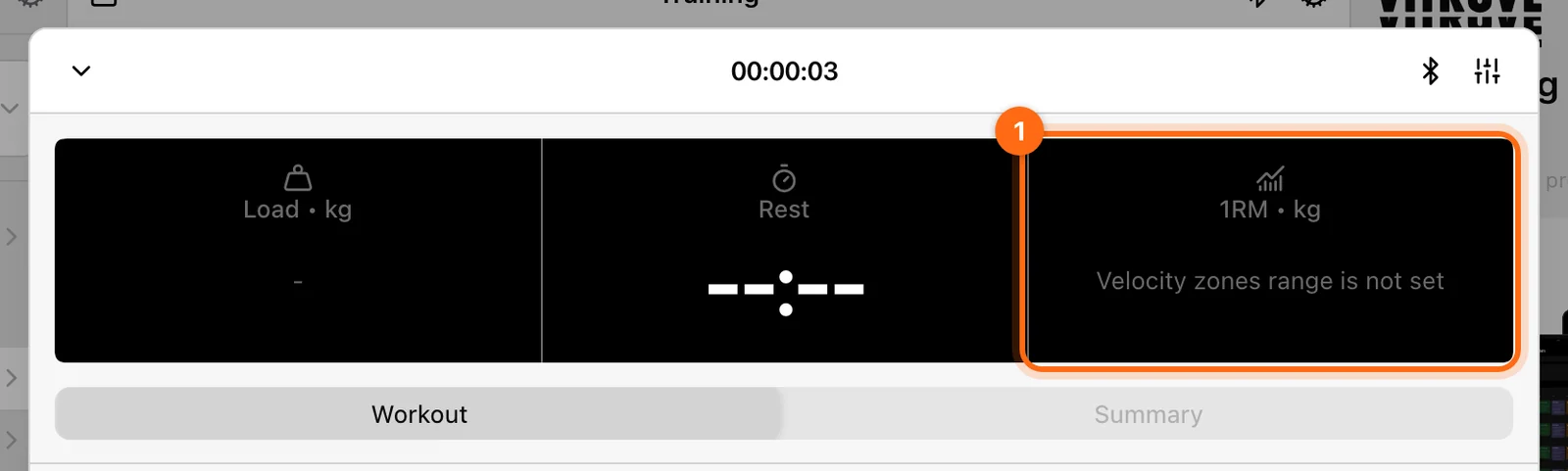
If no estimate can be shown, the card shows a short reason instead of a number. See Why you see no estimate.
4. Optional: choose a load by percentage of 1RM
- Select the 1RM card. The 1RM Calculator opens below the header.
- Drag the slider to the percentage you want. It starts at 80% and moves in 1% steps from 0 to 100%.
- Read the calculated load beside 1RM Calculator.
- Put that weight on the bar, then change Load to match it.
The calculator only gives you information. Moving the slider does not change the Load that is recorded for your next set. Select the 1RM card again to close the calculator.
5. Finish and track it over time
Finish the set, then finish the workout from the footer: Summary → Finish, then confirm. Once the workout is saved, each session's estimate becomes part of the athlete's history for that exercise. Review it in History and Labs.
How accurate is it?
The 1RM Filter is on by default
The 1RM Filter discards 1RM estimates from reps that are faster than a chosen velocity in m/s. Very light, fast reps sit outside the range the profile was built from, so they would give unreliable maximum estimates. You can change the threshold in the exercise's Settings → 1RM Filter, at Organization, Athletes, or Personal level. See Exercise settings.
The equation's metric is used, not your display metric
The estimate always uses the metric the equation was built with, even if your session shows a different Primary metric. For example, the default equations use Mean Propulsive Velocity. If you built a Power Clean profile with Peak Velocity, the app uses Peak Velocity to estimate that lift's 1RM, even while your screen shows Mean Velocity.
A manual 1RM can take precedence
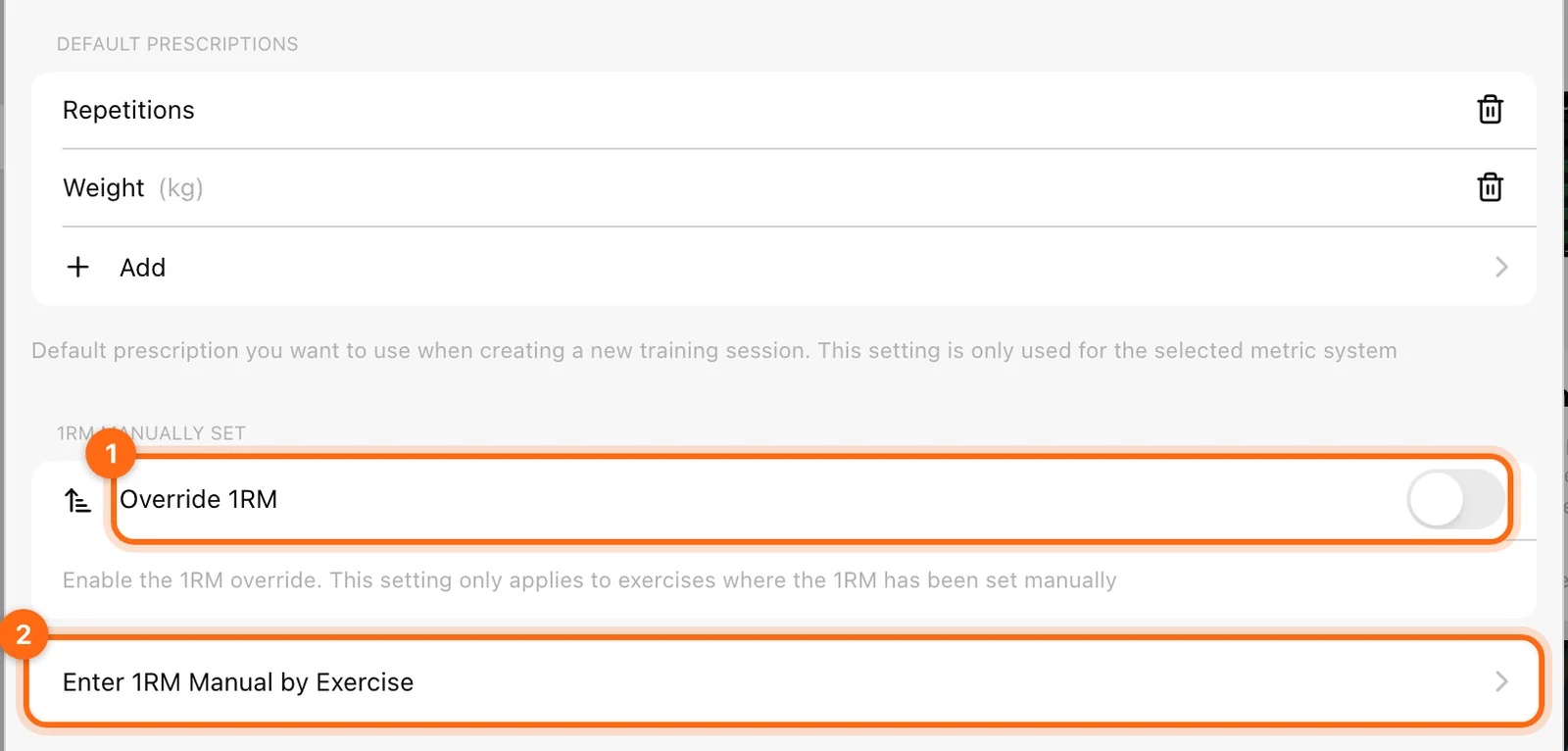
If Override 1RM is enabled in Settings → Training and you entered a manual 1RM for the exercise, percentage targets use that value. See Manual 1RM.
Why you see no estimate
| What you notice | Likely cause | What to do |
|---|---|---|
| There is no equation for this exercise | The exercise has no selected equation for this athlete or organization. | Create one, or select an existing one with its check icon. See Run a load–velocity profile test. |
| Last set highest RM is not calculated | The sets so far gave no usable estimate. The reps may be faster than the 1RM Filter, or the load may be missing. | Check the load. If warm-up reps are legitimately fast, wait for heavier sets, or raise the 1RM Filter threshold carefully. |
| Velocity zones range is not set | No estimate exists yet, and no Top velocity or Velocity Zone range is set. The app checks for that range first, so this message can hide another cause, such as a missing equation. | Check the equation, load, and 1RM Filter as above. Set a range in velocity feedback only if you also want suggested loads. The 1RM estimate itself does not need one. |
| An estimate appears but looks implausible | Wrong athlete, exercise, load unit, or equation metric. | Check those first, then the equation quality. See Measurement troubleshooting. |
Summary
| Step | Action |
|---|---|
| Get an equation | Use a default equation or create your own profile. |
| Start training | Choose that exercise, enter the real load, and lift. |
| Watch the estimate | The 1RM card shows the session's highest estimate after each set. |
| Adjust load | Select the 1RM card and slide to the percentage you want. |
| Keep the result | Finish the workout so the session estimate is saved to history. |
Set velocity feedback and automatic set finishing
Understand velocity loss, Top velocity, Velocity Zone, voice feedback, and the separate idle timer that finishes a set.
Run a load–velocity profile test
Plan and perform the four-load test that creates an RM equation, choose the 1RM velocity, judge the result's quality, and select the profile you train with.