Understand the Training screen
A complete map of the workout cards, tracking tools, monitoring, measurements, athlete selector, and header actions.
The Training page is a starting point for recording and coaching. It shows the date (the installed app also greets you by name) and groups actions into Training, Tracking, Monitoring, and Measurements.
First, check the workspace and person
Your account name (in the sidebar, or the installed app’s greeting) is not the same as the athlete receiving the next set. In Coach Mode, use the athlete strip’s pencil to select your roster and an avatar to choose the current athlete.
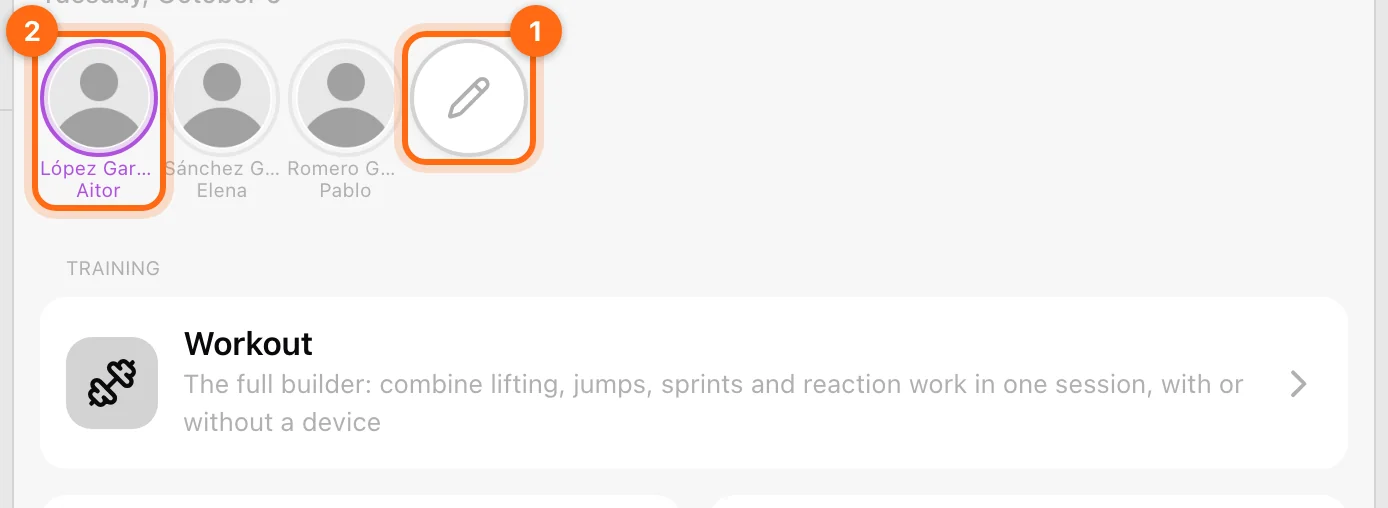
If you see No athletes selected, choose a roster before recording. Use Organizations and Coach Mode if the context is unfamiliar.
The header controls
| Control | What it opens | What it does not do |
|---|---|---|
| Calendar | The calendar for planned and completed sessions. | Opening the calendar alone does not record a session. |
| Cloud / cloud-alert, when present | Pending workouts and their upload/recovery actions. | A finished local session is not necessarily uploaded yet. |
| Bluetooth | The device manager for scanning, connection, and active selection. | A green icon does not prove the correct device is active for every modality. |
| Cog | Training settings. | Settings do not edit your account role or assign programs. |

An organization subscription notice can also appear here. Its information is about the selected workspace, not every organization you belong to.
Training: choose a workout flow
- Workout: the full session editor. Combine ordinary lifting, VBT, jumps, sprints, and reaction work. Start from a plan, template, or your own exercise selection.
- VBT: choose a lift and load, then capture velocity sets with an encoder.
- Jump: choose Vertical Jump, RSI Modified, or 10/5 Jump RSI. These options open separate jump workout flows.
- Sprint: choose an exercise and course setup for runs recorded with Vitruve Speed.
- Reaction: choose Light Chase, Go/No-Go, or Choice for the reaction workout you want.
Jump and Reaction expose their individual options directly in the card. VBT and Sprint open their recording screen directly. Sprint and Reaction appear when the organization includes the Timing Gates feature.
Each flow owns its workout context. If you want all modalities in one saved session, build them under Workout rather than assuming separate focused cards merge their active workouts.
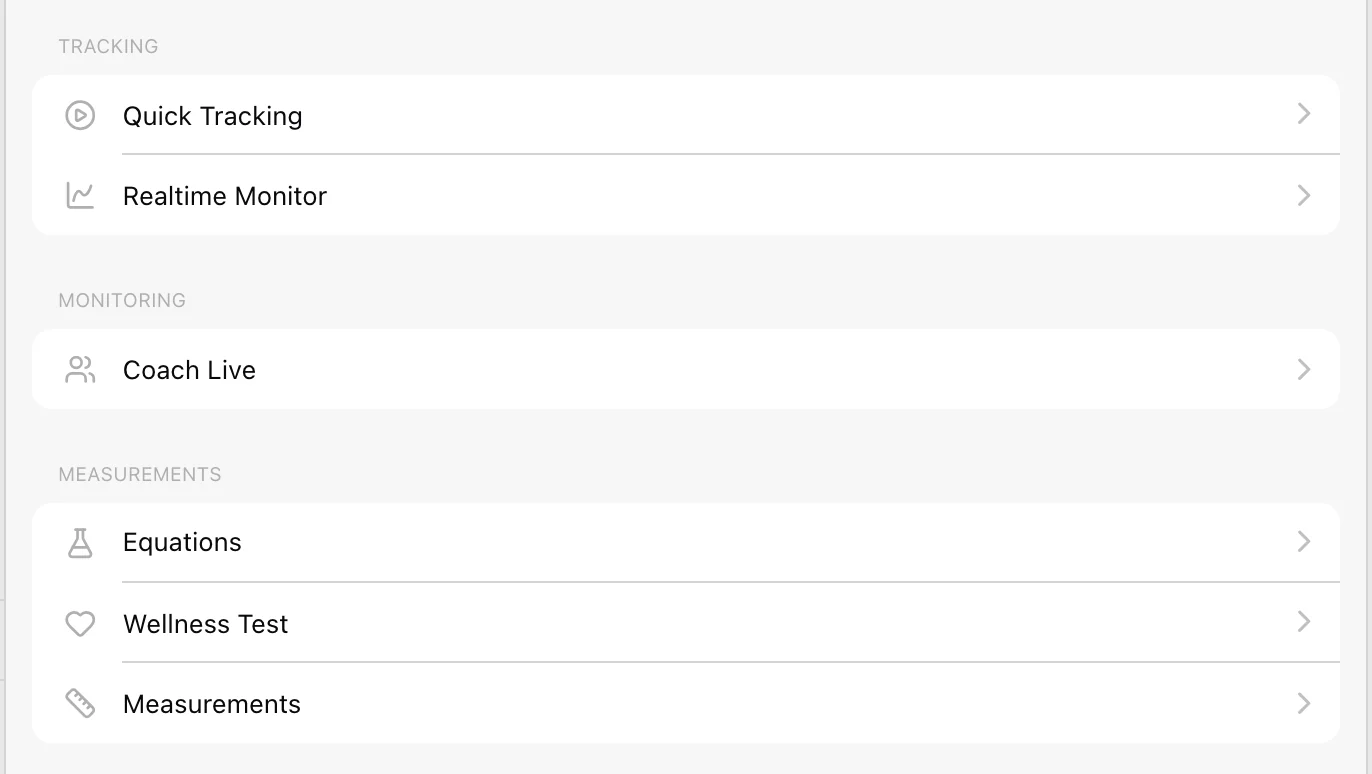
Tracking: immediate readouts
- Quick Tracking: opens a prescription-free encoder display. Useful for an immediate check; it creates no structured workout in History.
- Realtime Monitor: shows recent continuous curves from Vitruve Force. Each chart shows the last ten seconds; its CSV contains the last thirty seconds of the metrics.
Choose a workout flow when you need athlete/exercise-linked saved data.
Monitoring: Coach Live
Coach Live appears in Coach Mode. Select the athletes to monitor inside that view. It reads their latest active workouts from the cloud; its monitoring roster is separate from the athlete strip used to record at your own station.
See Coach Live for its preview, refresh behavior, and finishing controls.
Measurements: other training inputs
- Equations: opens the load–velocity profile area when your access permits it. See Run a load–velocity profile test and Estimate your 1RM during a training session.
- Wellness Test: opens a wellness questionnaire. This is the literal button label in the app.
- Measurements: opens Body Measurements for the active athlete’s weight and height.
These have different records and purposes. A body-weight entry is not a manual 1RM, and a questionnaire response is not an encoder measurement.
Inside a workout
The header’s down-chevron closes the modal; the Bluetooth control opens devices; its settings control opens the relevant training options. The current tabs are Wellness when enabled, Workout, and Summary.
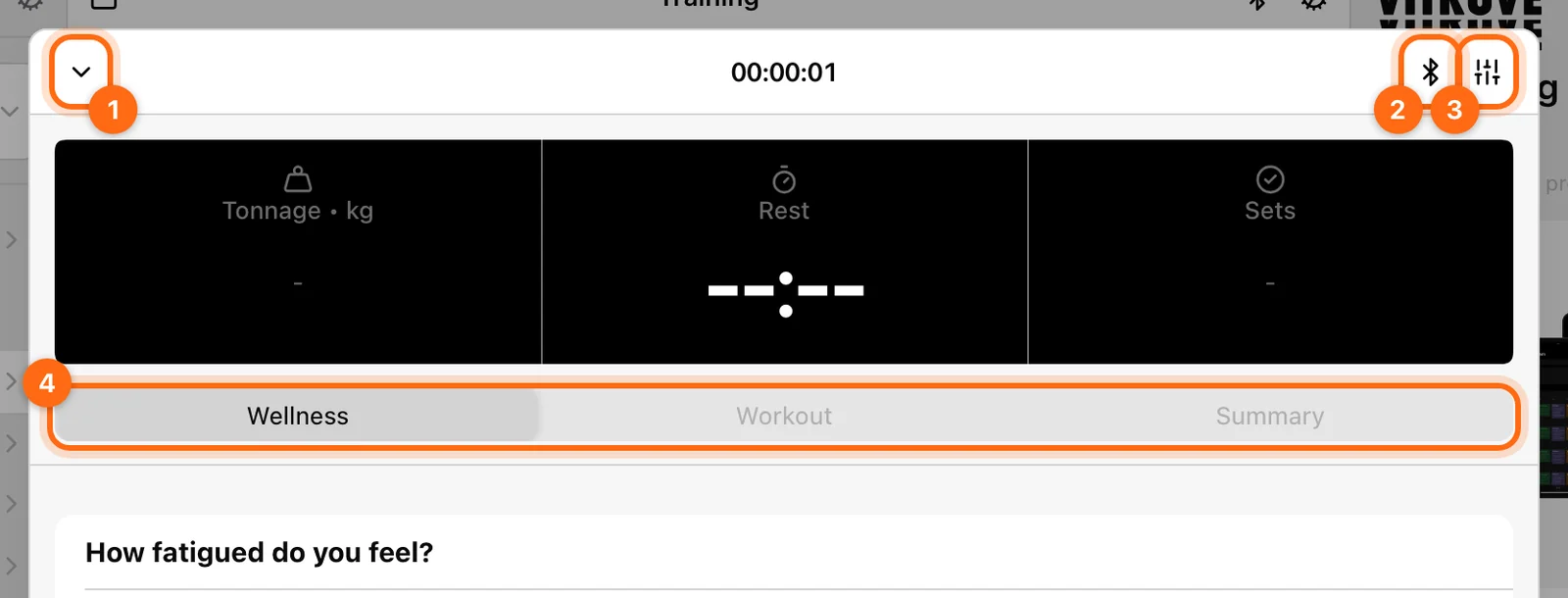
Use the footer’s Finish to keep the whole workout and Discard to remove it. In Coach Mode, these first offer Only this athlete or All athletes. Review the scope before confirming.
The background-processing indicator
A small spinner can appear at the bottom right after a save operation. Selecting it explains that workouts are being processed and asks you not to close the app while it is visible.
Let it finish, then inspect Pending workouts if a cloud control remains. Use Missing workout recovery if the session has not appeared in History.