Configure exercise-specific recording settings
Set ROM filtering, 1RM filtering, and load–velocity equations at the appropriate organization or athlete scope.
An exercise’s recording settings describe how Vitruve treats that movement’s measurements. They are different from its prescribed sets and from the app-wide display preferences.
Open the correct exercise
Open Management → Exercises, select the exact movement, and find Settings. You can also reach exercise settings from the exercise’s contextual menu during planning or training where available.
Settings appears only for lifting (VBT) exercises. An exercise marked as Jump, Sprint, or Reaction under Exercise type has no ROM Filter, 1RM Filter, or equations, because those recordings do not use them.
Check that you are editing the same exercise identity you use in the session. A custom “Back squat” and a built-in variation can have separate settings and histories.
Choose the scope
Settings offers Organization plus Athletes in Coach Mode, or Personal outside Coach Mode:
- Organization: defaults for that movement in the workspace. These settings apply to all users within the organization.
- Athletes: an individual override for a selected athlete, managed by a coach. It overrides the organization-level settings. Select at least one athlete first.
- Personal: your own movement setup in this organization. It applies only to you and overrides the organization-level settings.
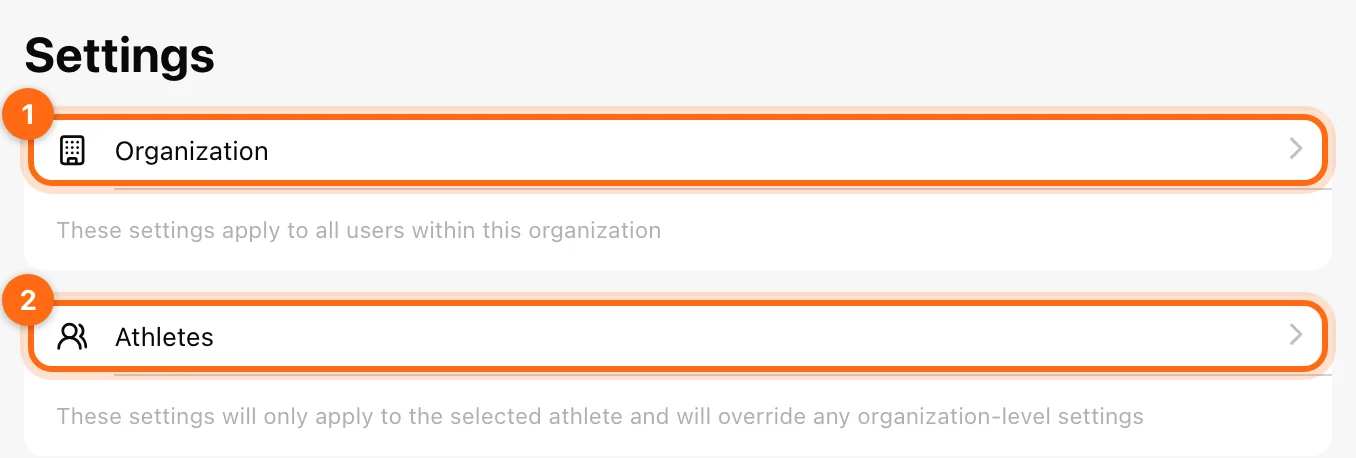
Check the athlete’s override when an organization-level adjustment seems to have no effect. Check organization permissions if you can read a setting but cannot change its shared value.
ROM Filter
ROM is range of motion—the movement distance used to recognize useful repetitions. The ROM filter helps reject small unintended movements or “ghost reps”.
When the ROM Filter is off at Athletes or Personal level, the organization's ROM filter applies.
If it is too restrictive, real reps may be filtered out. If it is too permissive, small movements can enter the set. Adjust it for the actual movement and athlete, then test a short set under the same conditions.
Before changing the filter, check physical setup and tether movement. Software filtering should not be the first attempt to compensate for a device that is moving or an obstructed tether.
1RM Filter
The 1RM Filter discards 1RM estimates from reps that are faster than the selected velocity, in m/s. Very light, fast reps sit outside the range a load–velocity profile was built from, so they give unreliable maximum estimates. The filter is on by default. A blocked estimate is not the same as no measured bar velocity.
If you see no 1RM estimate during warm-ups, the filter is usually doing its job. If heavy, legitimate reps are still filtered, raise the threshold a little and test again. See Estimate your 1RM during a training session.
Check the exercise, metric, entered load, and active equation before adjusting the filter. Increasing a threshold just to make a desired 1RM appear can hide a setup problem.
Equations
Choose the available load–velocity equation for the movement or configure an appropriate individual profile. The Equations list in Settings shows each profile's name, date, and metric. Select the check icon to make one the active profile. Create new equation opens a quick form to create one for this exercise.
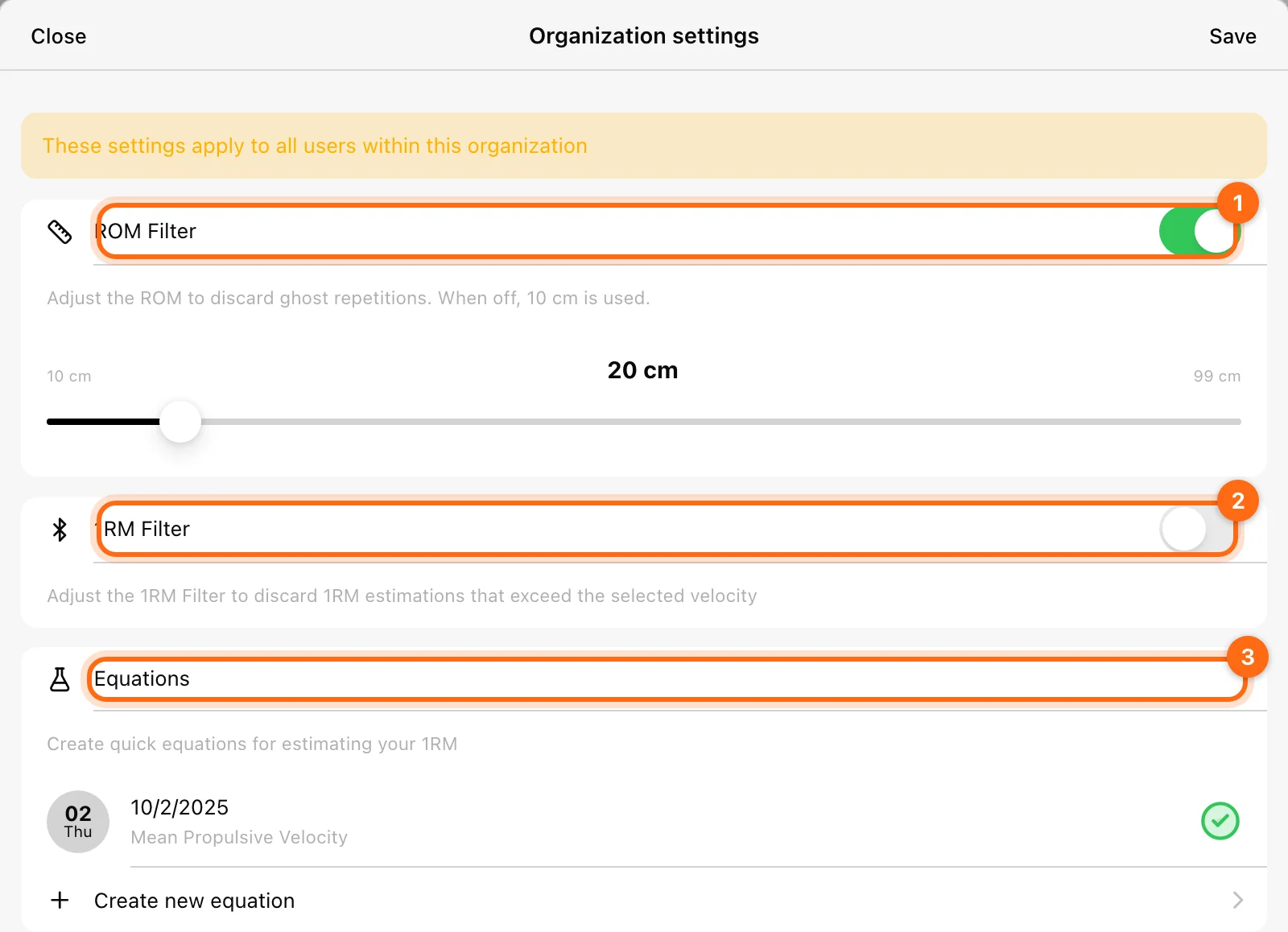
A custom exercise does not automatically inherit a profile because it has a familiar name.
For creation and selection, use Load–velocity equations. For the test protocol itself, see Run a load–velocity profile test.
Default equations
Every new organization gets ten built-in load–velocity equations, so 1RM estimation works from day one with no setup:
- High Bar Squat
- Front Squat
- Low Bar Back Squat
- Bench Press
- Standing Military Press
- Barbell Hip Thrust
- Pull-Ups
- Barbell Row
- Deadlift
- Sumo Deadlift
They are built from published, validated data, use Mean Propulsive Velocity, and are already selected at organization level.
To see one:
- Open Exercises (web: Management → Exercises; mobile: More → Exercises).
- Select one of the exercises above.
- Open Settings → Organization → Equations.
The default equation is already applied there. Use it as it is, or create and select a custom one at any time.
When to create your own equation
The defaults are a good start. Create a custom profile when:
- You train non-standard variations or loads.
- You want personalized tracking based on the athlete's own performance.
- You coach athletes with unusual movement patterns. If percentage loading or suggested loads are missing, also check the organization’s feature access and manual-1RM settings.
Verify the change
Record a short set for the same athlete and exercise. Check whether legitimate reps appear, extra movements are excluded, and the estimate is consistent with the intended metric and profile. Change one setting at a time so you can tell what fixed the problem.
Continue with Unexpected measurements.