Account & settings
Transfer organization ownership
Hand full administrative control of your organization to another registered member, and know what changes for you afterward.
Transfer ownership makes another member of your organization its new Owner. Use it for a real administrative handover, for example when a head coach leaves or the club changes who manages the subscription. It is not the way to give an assistant coach access to athletes.
Before you start
- You must be the current Owner of this organization. The control does not appear for Coaches or Athletes.
- The new owner must already be a member of the organization, as a Coach or an Athlete, with an active (registered and verified) account. Coach-created profiles without their own login are not listed. If the person is missing, invite them first and wait until they accept. See Create an account and accept invitations.
- Finish your own admin work first. Update organization details, invite staff, and make any coach assignments you still need to make while you are Owner.
Transfer ownership
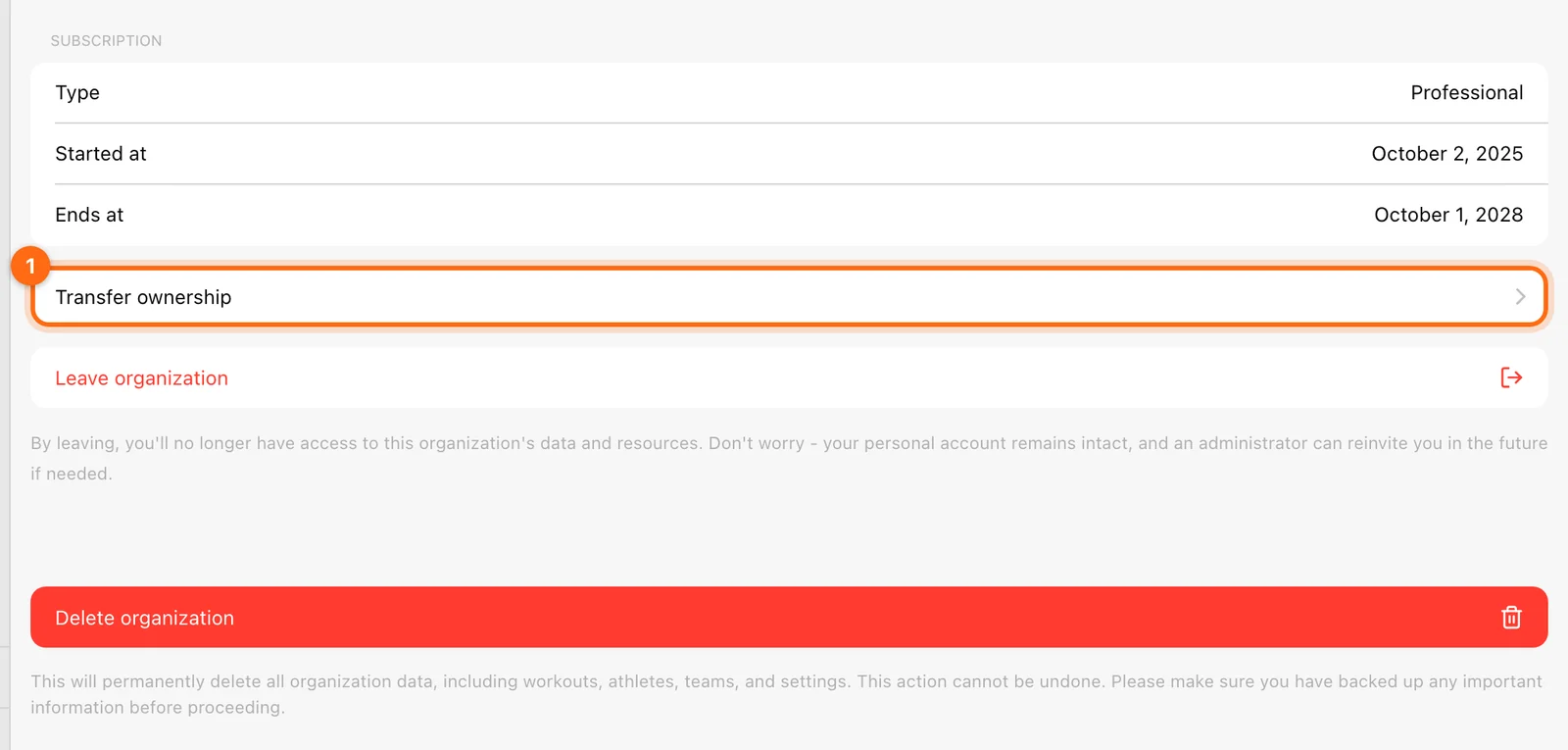
- Open Organization: on web, Management → Organization; on mobile, More (...) at the bottom right, then Management → Organization.
- Select Transfer ownership.
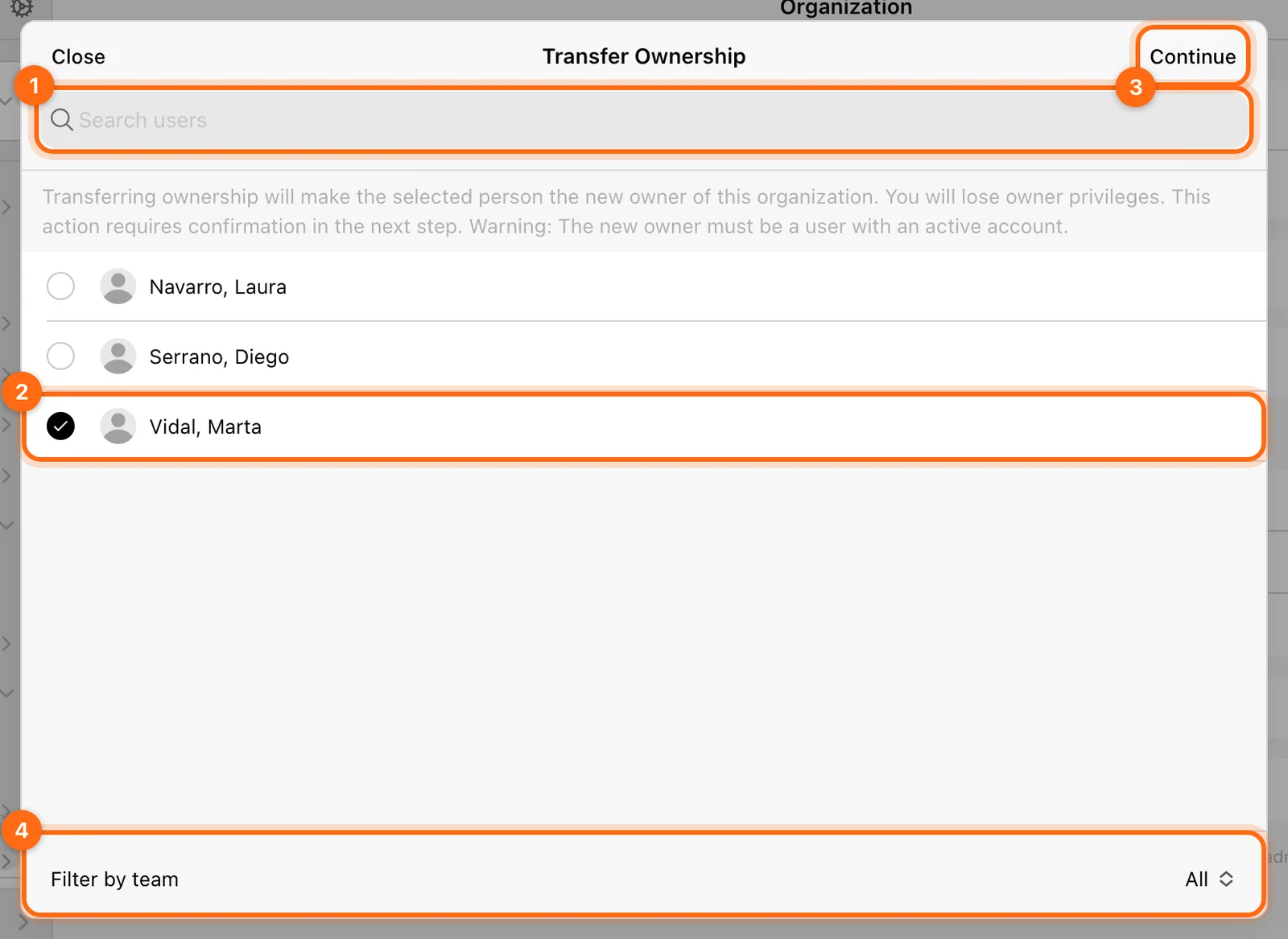
- Read the warning, then find the new owner in the member list. Use Search users or Filter by team to narrow the list.
- Select the person.
- Select Continue at the top right.
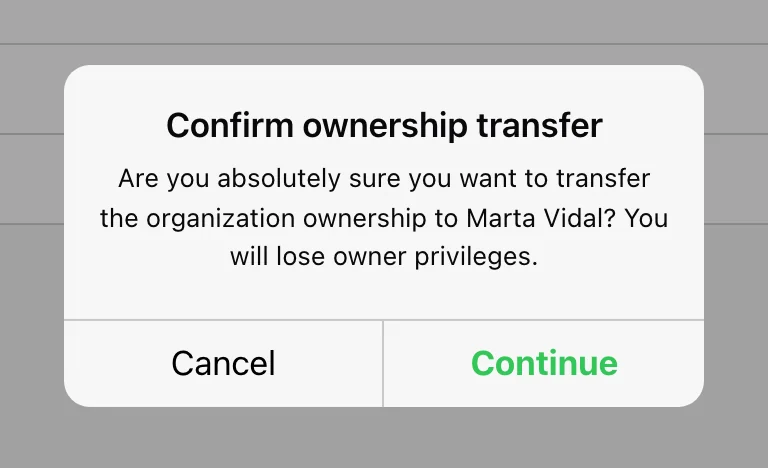
- In Confirm ownership transfer, check the name shown, then select Continue to confirm, or Cancel to stop.
Check: the app shows Ownership transferred and reloads. The new owner now has full administrative control of the organization.
What changes afterward
- The transfer takes effect immediately once you confirm.
- Your role changes to Coach. You lose owner privileges such as editing organization details, managing the subscription, inviting or removing coaches, export integrations, and API keys.
- There is one Owner. The transfer does not create a second owner. To get ownership back, the new owner has to transfer it to you.
- Training data stays in the organization. Athletes, teams, programs, and workouts are not affected.
If something goes wrong
- Transfer ownership is not shown: check that you are the Owner in this organization. Being Owner of your personal organization does not make you Owner of a club workspace.
- The person is not in the list: they need an active account and accepted membership. Ask them to accept the invitation in Account → Invitations.
- "There was an error transferring ownership": check your connection and try again. If it keeps failing, contact support with the organization name and both email addresses.
Related guides
Did this answer your question?