Create and use Vitruve API keys
Generate an API key in Settings, call the Vitruve API with the X-API-Key header, and revoke keys you no longer need.
The Vitruve API lets another system read your organization’s data: retrieve workouts and training data, list the users in your organization, and feed custom dashboards, analysis tools, automations, or your own data warehouse. An API (Application Programming Interface) is the messenger that lets two systems exchange data securely.
It suits coaches, data analysts, and developers who want to take Vitruve data further. To connect a ready-made partner such as RockDaisy, TeamBuildr, or FYTT, create that partner's key in Integrations → Export instead.
Requirements
- You are the Owner of the organization.
- The organization has the Professional plan (called Pro on the support site).
If API Access is not in Settings, one of these is missing. See Plan and access.
Create an API key
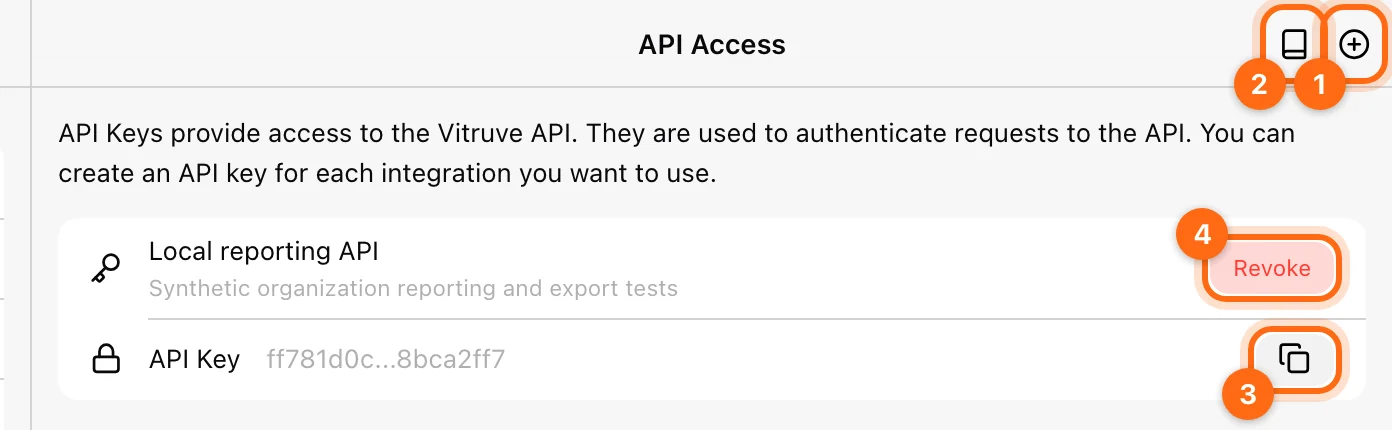
- Open Settings: on web or desktop, the cog in the sidebar; on mobile, More (...) at the bottom right, then Settings.
- Select API Access.
- Select the + button at the top right.
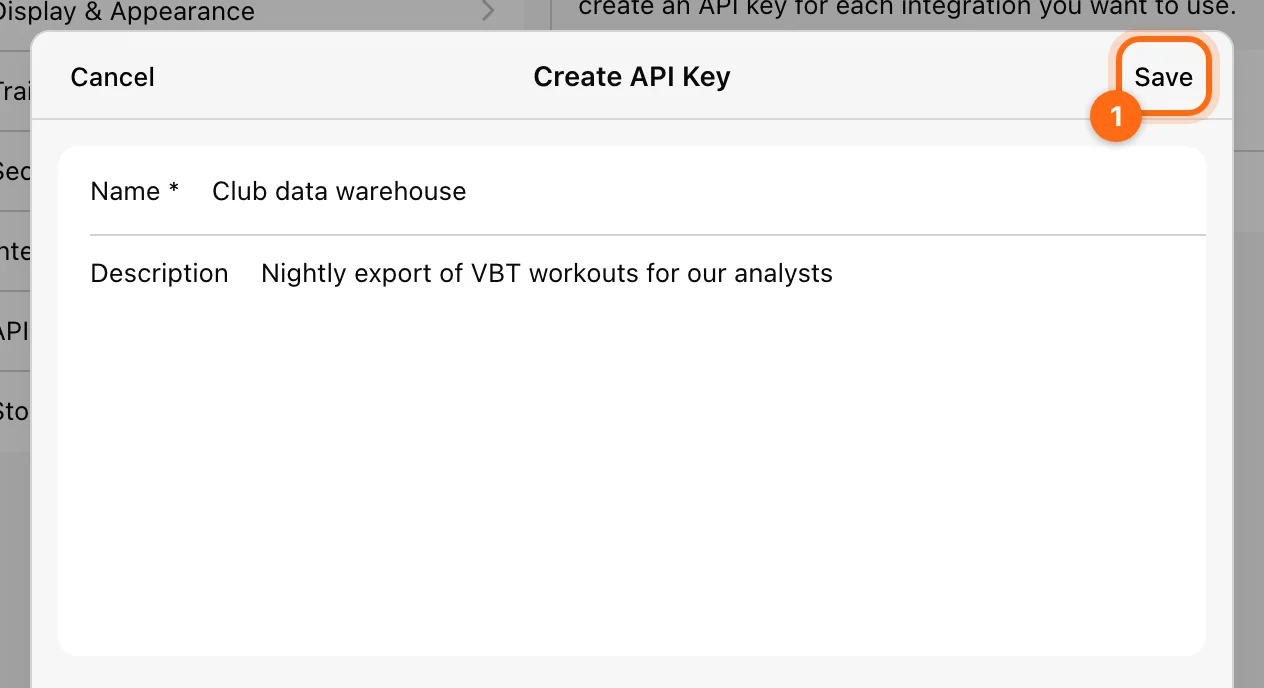
- In Create API Key, enter a Name (required, for example the tool that will use it) and an optional Description.
- Select Save.
Check: the key appears in the list with its name and a shortened value. Use the copy button to copy the full key; the app shows API key copied to clipboard.
Create one key per tool or integration, so you can revoke one without breaking the others.
Treat the key like a password
Anyone with the key can read your organization's data through the API. Store it in the other system's secure settings, never in shared documents or public code.
Read the documentation
The full developer reference, with every endpoint, example responses and error codes, is the Vitruve API reference. New to it? Start with the Quickstart.
Call the API
Every request must include the key in this header:
X-API-Key: your_key_hereEach key is scoped to the organization that created it. The base URL is https://api-next.vitruve.fit/v1, and the API reads with GET and can also create, update and delete athletes, teams, coach assignments, your own exercises, load-velocity profiles and injury reports, as far as your plan allows.
curl "https://api-next.vitruve.fit/v1/athletes?limit=5" \
  -H "X-API-Key: your_key_here"
It covers athletes, coaches, teams, workouts with their sets and repetitions, programs, templates, load-velocity profiles, leaderboards, wellness and injuries. Lists are paginated, and a key may send 30 requests per minute (rate limits).
Common error responses:
| Code | Meaning |
|---|---|
| 401 Unauthorized | Missing, invalid or revoked API key. |
| 400 Bad request | An invalid or unknown parameter. The message names it. |
| 404 Not found | The resource does not exist in your organization. |
| 429 Too many requests | Over the rate limit. Wait Retry-After seconds. |
See Error codes for all of them.
Revoke a key
- Open Settings → API Access.
- Select Revoke next to the key.
- Confirm with Revoke Key.
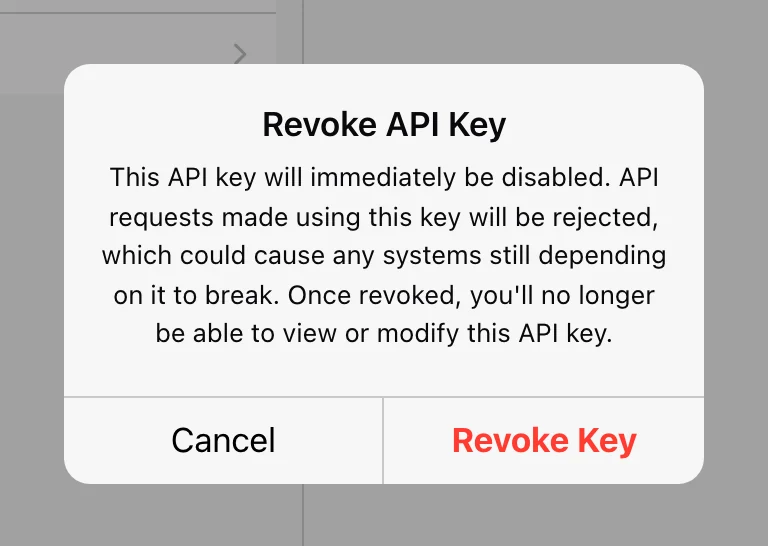
The key stops working immediately: requests using it are rejected, which can break any system still depending on it. You can no longer view or edit a revoked key. Create a new key and update the other system if it still needs access.
If a call fails
- 401: check the header name
X-API-Key, that the key was copied completely, and that it has not been revoked. - 403 "Your plan no longer includes API access": keys follow the plan on every request. They stop working when the organization leaves Professional or its subscription ends, and work again once the plan is restored.
- No workouts returned: workouts list only completed sessions by default. Widen
fromandto, or checkstatus=pending. - The API Access entry disappeared: the plan may have changed, or ownership was transferred. Only the Owner of a Professional organization can manage keys.
For help with the API, write to support@vitruve.fit.
Connect wearables and external services
Use Import for athlete wearable connections, Export for partner platforms such as RockDaisy, TeamBuildr, and FYTT, and API Access for owner-managed keys.
Use Vitruve in your AI assistant
Connect Claude, ChatGPT, or another AI assistant to your organization’s Vitruve data and ask about athletes, workouts, and measurements in plain language.