Coach several athletes in one session
Separate the selected roster from the active athlete, rotate lifters safely, and finish the right people’s workouts in the right flow.
Group training lets you coach several people from one recording station. Each athlete still has their own workout. Your roster selection determines who you can switch between; your active avatar determines who receives the next set.
Prepare the station
Select the organization, enable Coach Mode, and connect the required active device(s). Confirm that the athletes exist in the roster and are visible to your coaching account.
Choose the roster
Use the athlete strip’s pencil, search/filter by team, and select the people training at this station. Review any Select All action’s scope, then select Close to apply the roster.
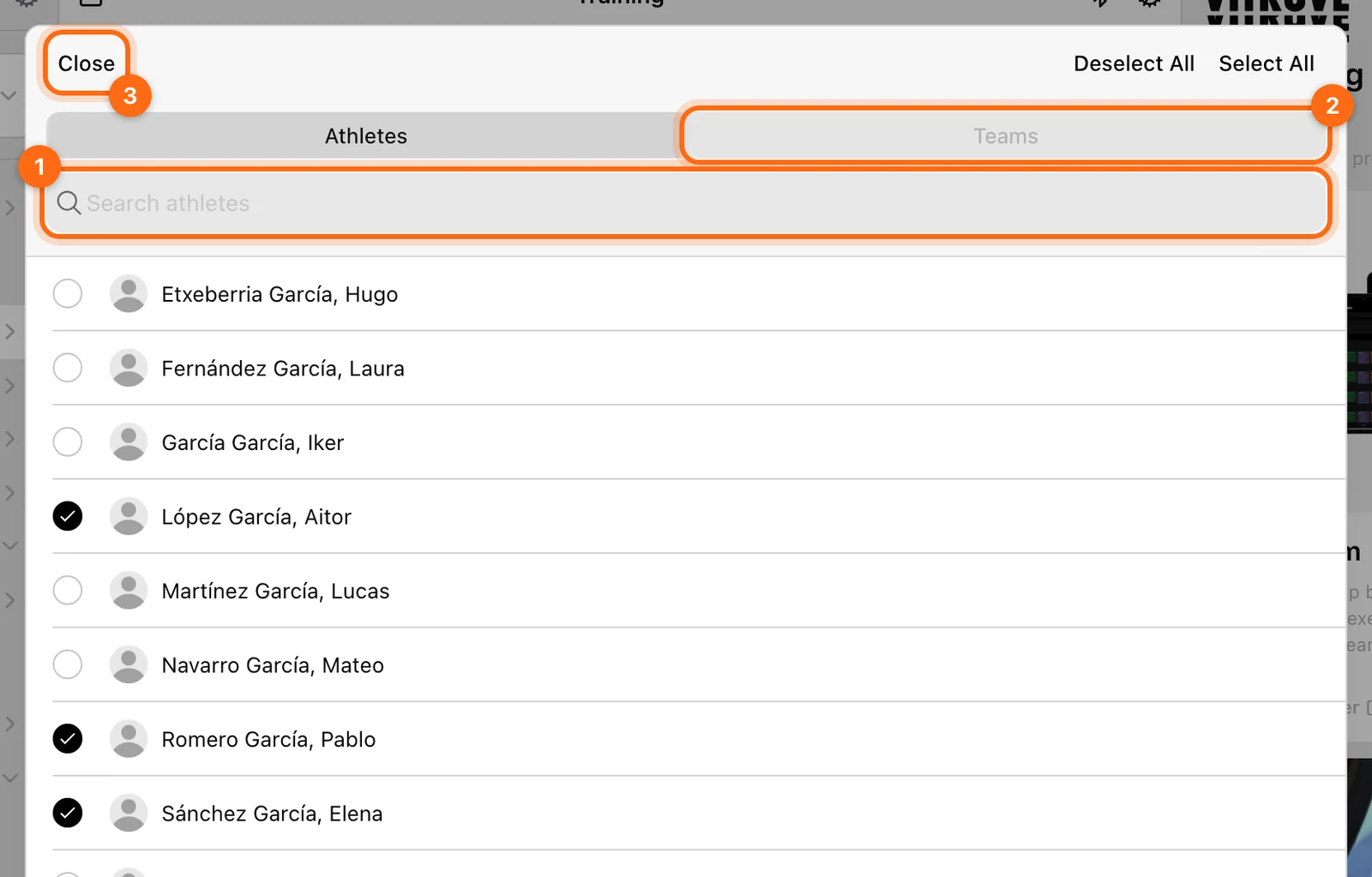
Then select the first athlete’s avatar. Your own account name (in the sidebar, or the installed app’s greeting) is not the next set’s owner.
Record and rotate
- Open the chosen workout flow.
- Verify the current athlete, exercise, units, load, and active device.
- Capture/complete the set.
- Save or resolve its recording display.
- Select the next athlete’s avatar.
- Recheck their exercise, load, body weight or duration/course context, then record.
Switching athletes changes the active workout being edited; it does not assign the already captured set to the person you selected afterward.
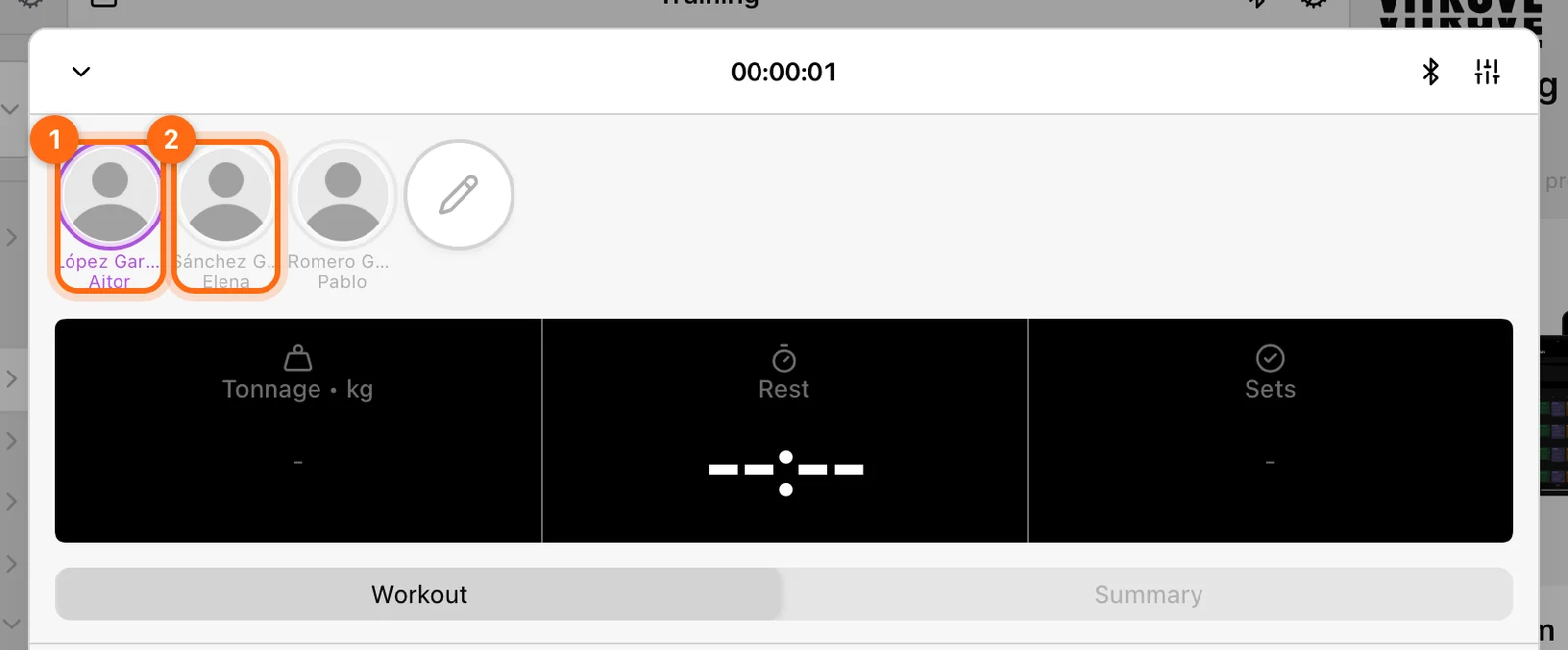
The current tab can stay on Workout/Summary as you rotate, but each athlete’s recorded content is independent. Check the athlete’s name before copying a load or marking a prescribed set complete.
Keep body weight and load athlete-specific
For jumps, verify the Body weight row after switching. The app updates its athlete context, but you should still check the displayed value. Load is the added vest/belt weight and may represent a retained setup, not that athlete’s body mass.
For VBT, check actual bar Load even if a percentage calculator shows a suggested value. For reaction, check Duration; for sprint, check course and external load.
Finish an athlete or the selected group
Select the workout footer’s Finish:
- Only this athlete: finish the active person’s workout.
- All athletes: finish selected athletes’ active workouts in the current recording flow.
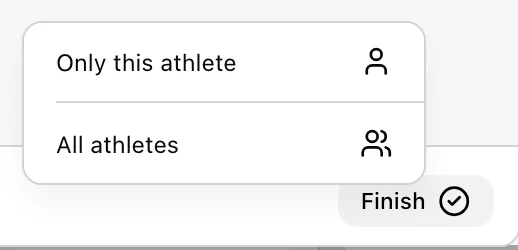
After confirming only one athlete, the coaching modal can remain open for the next person. All athletes is not a blanket finish of every active workout type in the organization.
The Discard footer uses the same scope choices but removes progress. Review the roster before any group discard.
Correct wrongly attributed work
While the workout is active, its Summary controls can copy an exercise to the correct athlete’s workout. Verify the pasted data before deleting the incorrect original. See Review and correct work for the complete process.
Multiple recording stations
At each station, keep athlete selection and active hardware clear. A shared app instance chooses one active encoder and one active Speed device for their respective families; connecting more devices is not an automatic independent-pane setup. To run two stations from one iPad or Android tablet, open two app windows side by side and connect one encoder in each. See Train several stations on one tablet.
For cloud monitoring of separate stations, open Coach Live and choose its own monitoring roster. Wait for uploads before relying on another station’s remote view.
Verify at the end
Allow processing, inspect Pending workouts on the recording devices, and check History for the intended athletes. Compare each person’s session, not only the last visible avatar.
Record body weight and height
Use Training → Measurements for dated body measurements and distinguish them from workout load, session body-weight overrides, and 1RM.
Train several stations on one tablet
Use Split View, Slide Over, extra windows, or Android dual apps to run two Vitruve windows side by side, each with its own encoder.