Organize athletes into teams
Create useful groups, manage membership, understand No Team, and select a team’s athletes for programs or results.
A team groups existing athletes inside an organization. Use it for a squad, position group, training level, or temporary training group, such as “U19 Basketball” or “Powerlifting Group”. It does not create a separate organization or move the athletes’ data.
Teams help you:
- Start group training sessions faster by selecting a whole squad at once.
- Assign collective programs and follow group progress in History, Leaderboards, and Labs (including TeamSight).
- Track and manage athlete progress by squad instead of one athlete at a time.
Before you begin
Enable Coach Mode, check your team-management access, and add athletes to the roster first. Teams are available on team plans (Lite, Basic, Elite, and Professional) for Owners and Coaches. Creating the athletes beforehand makes team assignment quicker.
Create a team
- Open Management → Teams. On web it is in the left sidebar; on mobile, tap More (three-dot icon at the bottom right) and open Teams in the management area.
- Select +.
- Enter a short, recognizable Name.
- Optionally select the athletes to add.
- Save and open the team to verify its membership.
While the request is being sent, the team can appear under Pending team creation requests. An empty list shows “No teams yet”; create the first team with +.
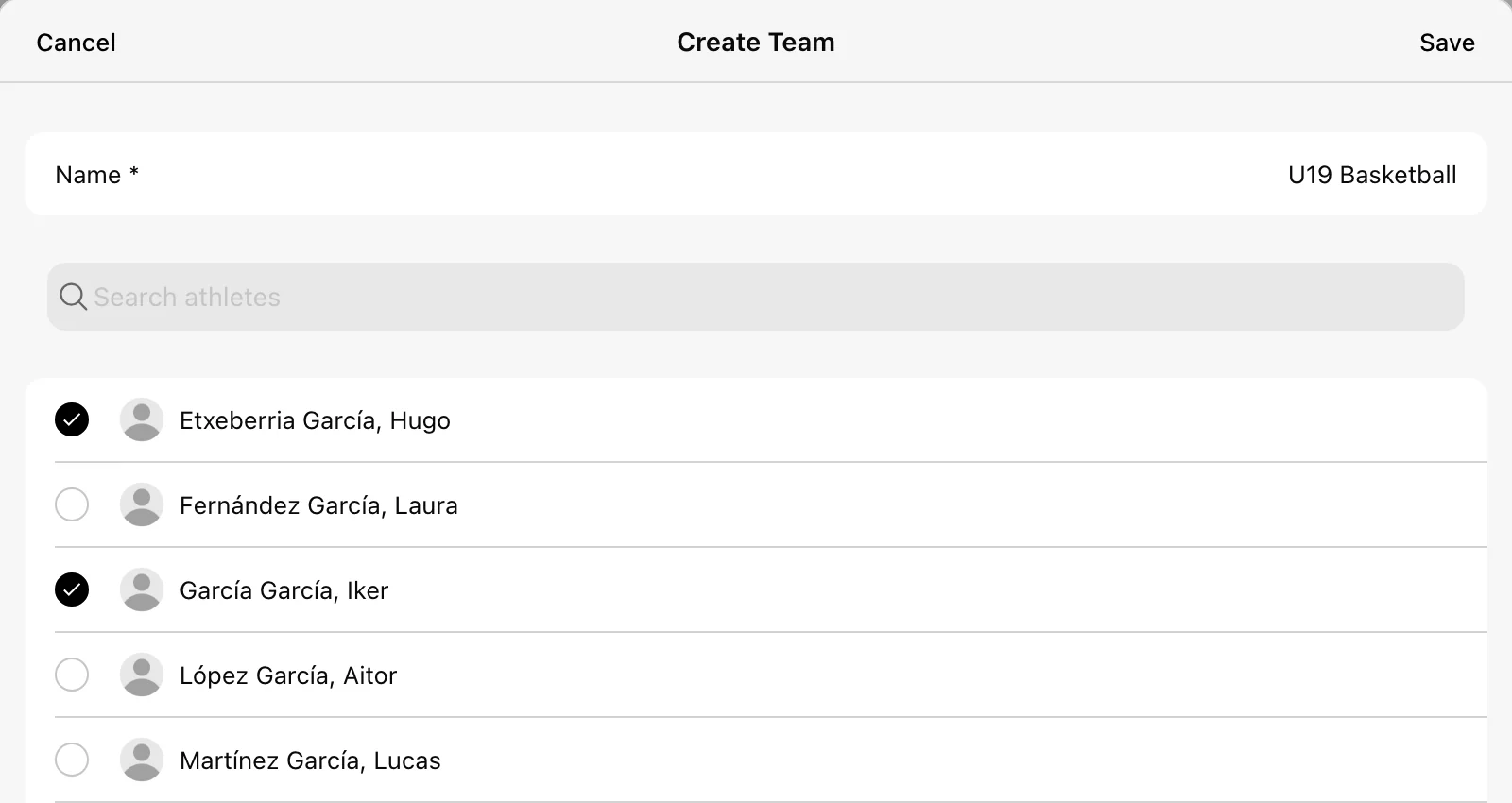
Change membership
- Open the team from the Teams list.
- Use Search athletes to find people.
- Select the checkbox next to a name to move it between Team Members and Other Athletes.
- Select Save.
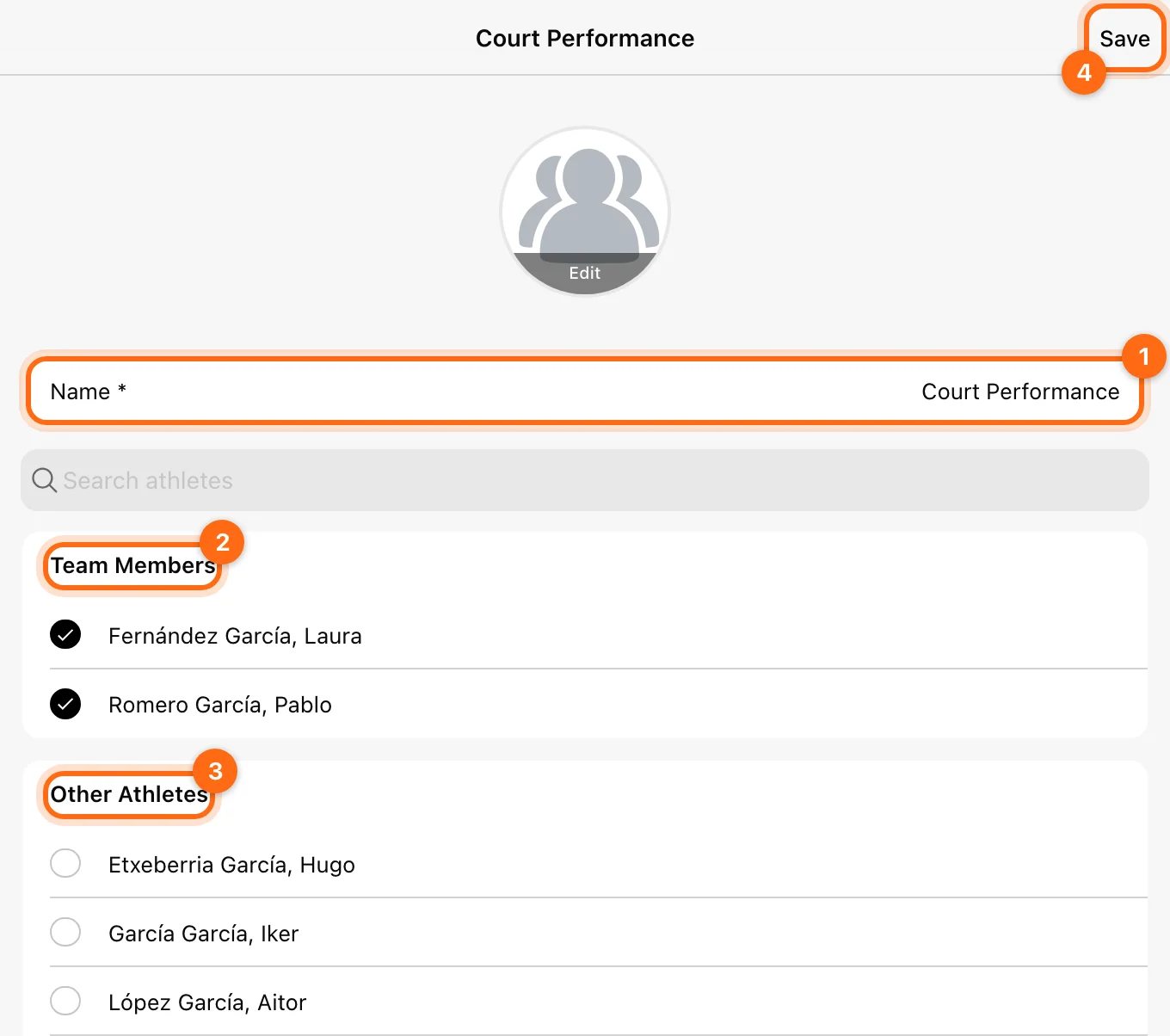
You can also rename the team in Name before saving. The Teams list header’s Manage Team Members control provides a broader membership view across teams, including athletes in No Team.
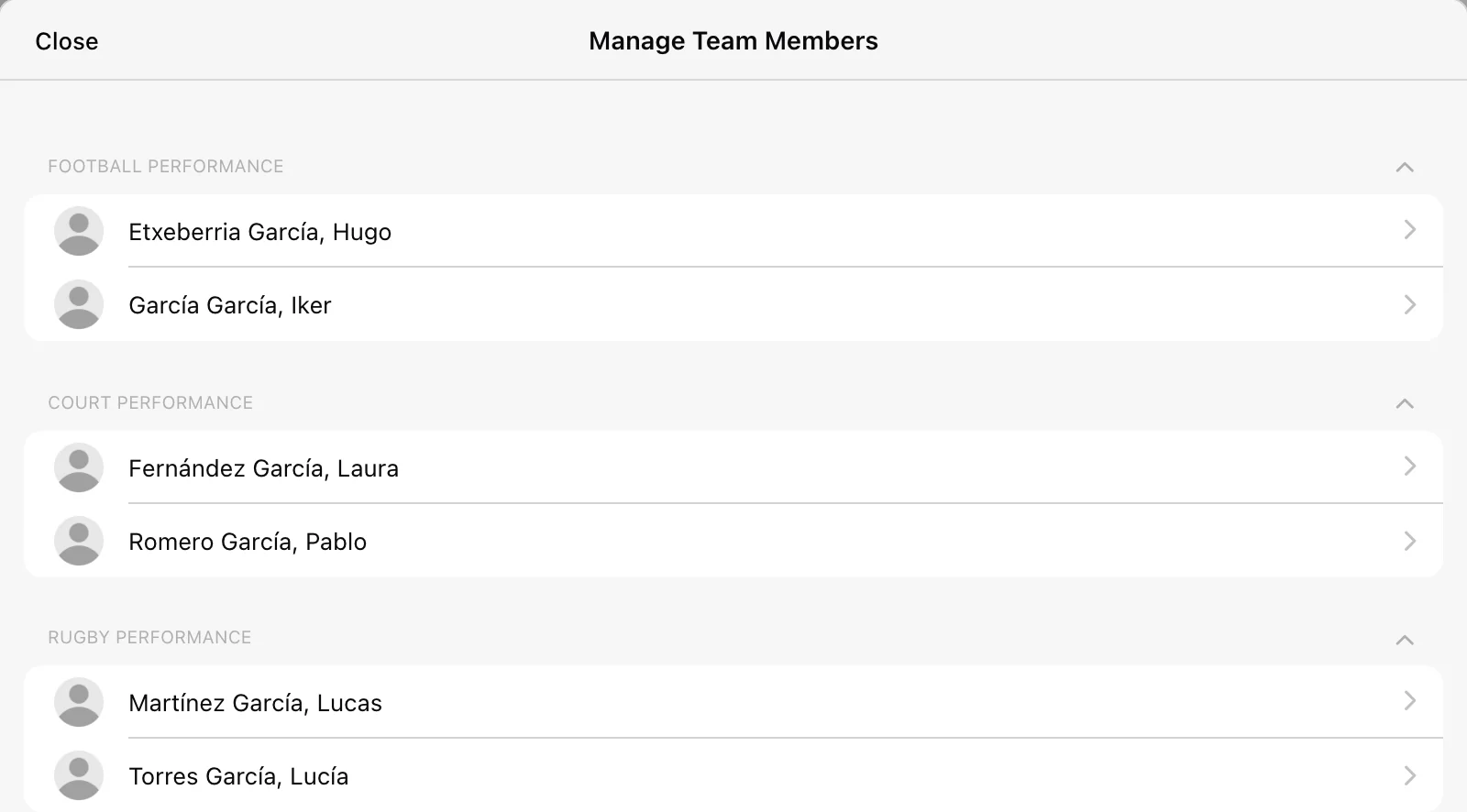
Review the saved membership rather than assuming a checkbox in an open editor already updated every filter elsewhere in the app.
What “No Team” means
No Team groups athletes who do not currently have a team assignment. It is not a second organization, and it does not mean those athletes have no training history or cannot use the app.
Add the relevant athletes to a team if you want them included in that team’s filter. A new athlete does not automatically belong to the group you intended just because you created the profile while thinking about that squad.
Use a team to select people
The athlete selector used in Coach Mode has Athletes and Teams tabs. Choose Teams to pick a whole squad, then check the selected of total count. Team filters help you choose athletes in training, History, live-program assignment, and results workflows.
The History search bar matches workout names, not team names. To review a squad’s past sessions, select the team in the athlete selector and then open History.
In a Live Program:
- Open the athlete selector.
- Filter to the team.
- Select the intended athletes, or Select all within the filtered group.
- Verify the selected names.
Team membership and live-program assignment are separate. After adding a new athlete to a team, check the live program’s athlete list rather than assuming a previous selection expanded automatically.
Remove a person or delete a team
- Remove from team: clear the athlete’s checkbox in the team and save; the athlete remains in the organization.
- Delete team: open the team, scroll to the bottom, select Delete, and confirm Delete in Confirm deletion. The team grouping and its team data are removed and this cannot be undone, but the athletes are not deleted or removed from your organization.
- Remove/delete athlete: a separate roster action with different consequences. See Delete versus Remove.
If a team filter looks incomplete
Check saved membership and your coach’s visibility restrictions. You can only select athletes your role and assignments allow you to see. Use Coach assignments or Access troubleshooting if the roster differs between staff members.
Add, invite, and manage athletes
Choose the right athlete-onboarding method, import a roster, manage invitations, and understand Delete versus Remove.
Invite coaches and control athlete access
Add staff to your organization, manage assigned athletes, change a staff email, and remove staff access without deleting their account or programs.