Getting started
Set up your coaching workspace, understand staff access, and prepare a roster for your first supervised session.
Start with a small, complete coaching workflow: one organization, a usable roster, a dated workout, and a saved session you can review.
What Vitruve does
Vitruve (also called Vitruve Hub) is a strength and conditioning platform for athletes, coaches, and organizations. It grew out of the original Vitruve velocity-based training (VBT) app and goes beyond VBT. It is the same product, not a separate app. Its work is organized into four areas:
| Area | What you do there |
|---|---|
| Builder | Plan, design, and organize training with templates and the calendar, then assign workouts to individuals or teams. See Builder. |
| Training | Log and run workouts, velocity-based or traditional, while tracking performance, wellness, and daily readiness. See Training. |
| Labs | Analyze training, performance, and health data to see team insights and long-term progression. See Labs analytics. |
| Management | Manage athletes and coaches, roles and permissions, organization settings, and the exercise library. See Team management and Account and settings. |
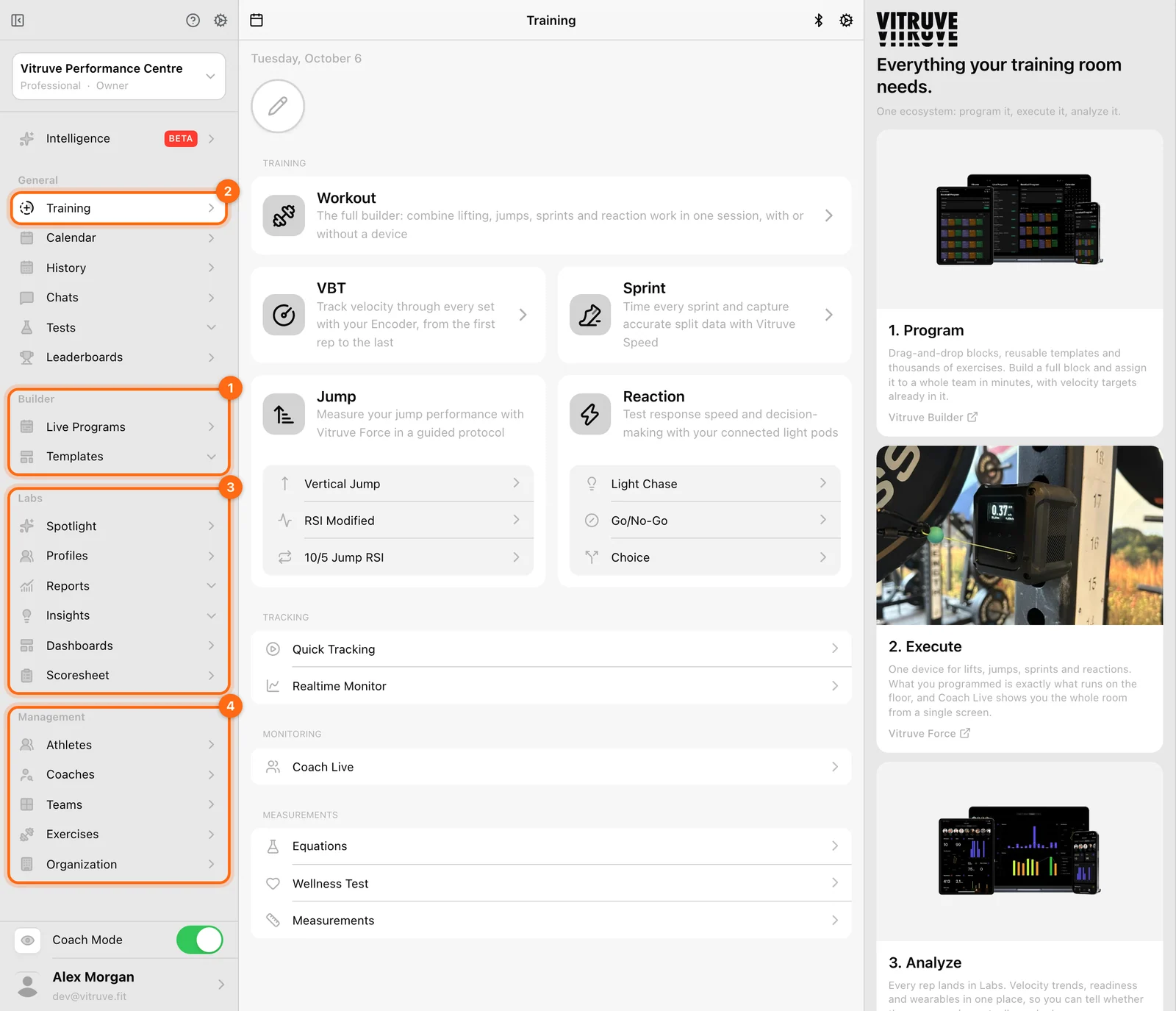
Your athletes have their own Athlete documentation. Send them that link for independent training; use the guides here for programming, roster management, and supervised recording.
Set up the essentials
- Download the app and check compatibility.
- Create an account or accept an invitation.
- Find your way around web and mobile.
- Understand what an organization is.
- Compare Owner, Coach, and Athlete roles.
- Use Coach Mode and athlete selection.
Choose where to work
Use the web app at app.vitruve.fit for comfortable program editing, roster management, and reviewing results on a larger screen; the Windows and macOS desktop app shows the same web app in its own window. Use the installed mobile or tablet app for training on the floor and Bluetooth measurement.
Web Bluetooth pairing is also available in compatible browsers through Training → Bluetooth → Scan. Browser support varies; use the installed app if the browser reports that Bluetooth is unavailable.
Signing in with the same account does not automatically mean you are viewing the same data: check that the same organization is selected on both devices.
Your first milestone
A first session is complete when you have selected Finish workout and can find the result in History. A live readout in Quick Tracking does not create that record. Follow Record your first workout when you want to keep the data.