Set up a Labs board
Use Setup to choose the date window, team, athletes, athlete filters, and metrics, save and manage presets, and refresh, export, or ask the Assistant.
Every squad board in Labs (Comparison, Trend, Ranking, Distribution, Relationship, Benchmarks, and Scoresheet) is driven by the same Setup. Learn it once and every page works the same way.
On a screen 1200 px or wider, open Setup with the panel button at the right of the page header. On narrower screens, the Setup controls sit at the top of the page.
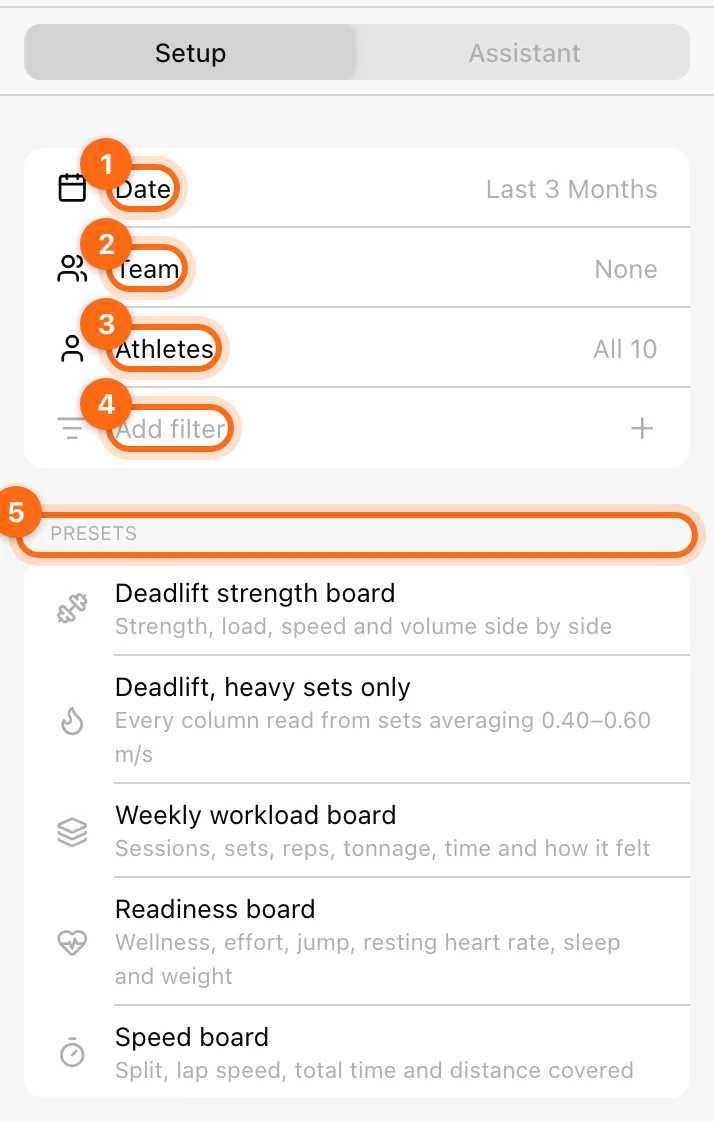
Choose the date window
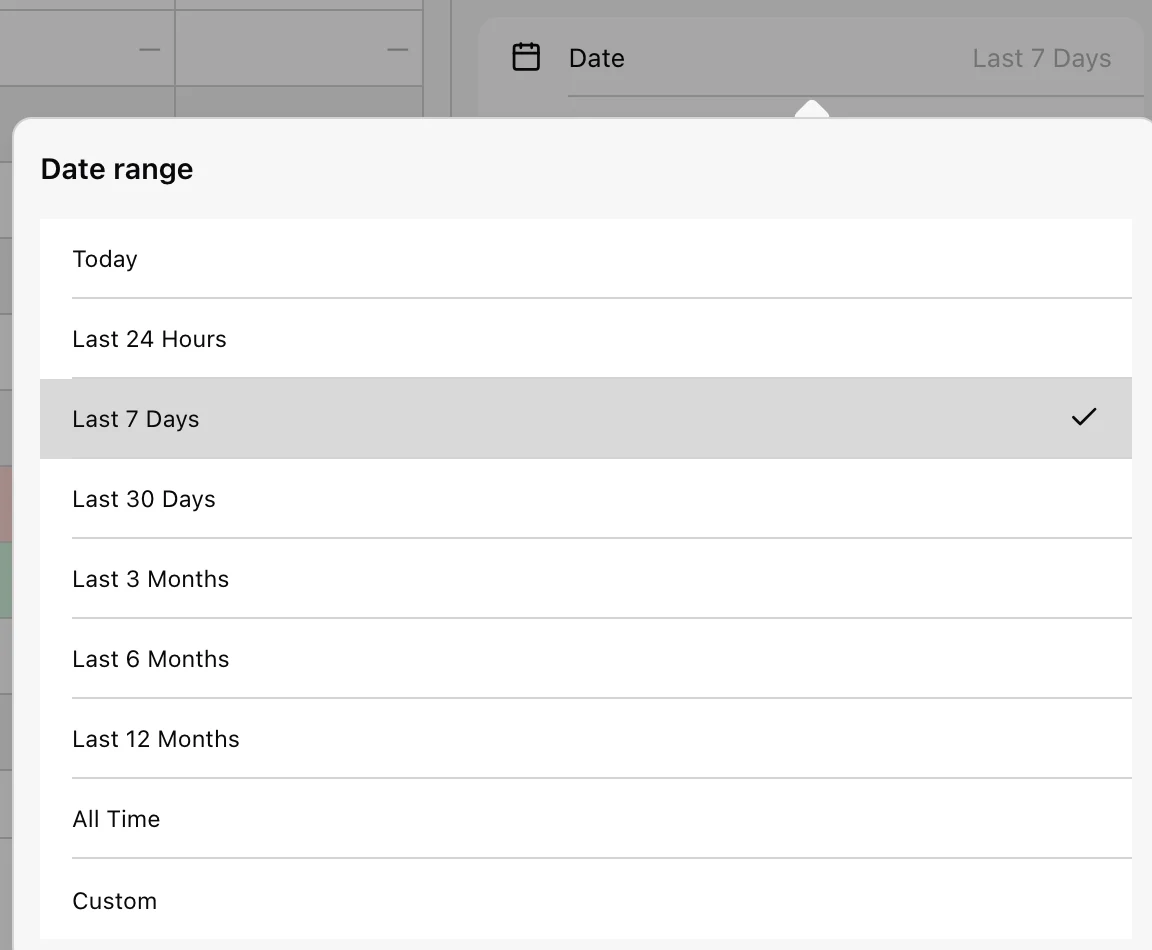
Select Date and choose a preset or Custom:
| Preset | Needs plan history of |
|---|---|
| Today, Last 24 Hours, Last 7 Days, Last 30 Days | Any Labs plan |
| Last 3 Months | 3 months |
| Last 6 Months, Last 12 Months | 12 months |
| All Time | Unlimited |
Presets your plan does not include are shown but disabled. Last 7 Days is the default on the squad boards. A preset rolls forward each day; a Custom range stays fixed on the dates you chose. Choose Custom, pick the start and end on the calendar, and select Apply.
Choose the athletes
- Team: choose All teams or one team (each shows its number of athletes). Choosing a team replaces any hand-picked athletes. The row is hidden if the organization has no teams.
- Athletes: search, tick athletes, or use Select all / Unselect all on the current search results. The selection applies when the list closes. Choosing athletes clears the team. Selecting nobody means everyone on the roster.
- Add filter: narrow the roster by Sport, Position, Level, Squad, Sex, or Dominant side.
- Ticking several values in one filter matches any of them (Sport is Football or Rugby).
- Several filters must all match (Football and Female).
- An athlete with nothing recorded for that attribute never matches a filter on it. Complete athlete profiles in Athletes for filters to work.
- A filter with nothing ticked does not narrow anyone. Remove a filter with its remove icon.
Choose the metrics
Below the roster, each board has its metric settings: Metrics (Comparison, Ranking, Benchmarks), Metric (Trend, Distribution), or X axis and Y axis (Relationship). Each metric is a block:
- Select Add metric and pick from the catalogue: training, jump, sprint, reaction, workload, wellness, body, and health metrics.
- Open the block to change Metric, Calculation, and Exercise, and to Add filter (data source, repetition phase, or a value range on another metric).
- Close the block. Its summary line shows exercise, phase, source, and calculation. Remove it with the trash icon.
A metric measured per exercise needs an Exercise. Its block stays open, showing Choose in amber, until you pick one, and the board waits for it. Details are in Metrics and calculations.
Use presets
Setup lists Presets (curated starting points, each with a one-line description) and My presets (ones you saved). Presets belong to one page: Comparison presets are not offered on Trend.
- Apply: select a preset. A green check shows on every preset the board currently matches.
- Change it: applying a preset replaces the metrics and board options. It keeps your date window, and keeps your team and athletes unless the preset names its own.
- Save your own: set up the board, then select Save as preset, enter a Name, and Save. A saved preset keeps the metrics, athlete filters, and board options, but not the date range or the team and athletes, so it works for any squad.
- Manage the applied preset: select it again for a menu: Reset to preset (after you changed something), Save changes (your own presets only), and Rename. Curated presets cannot be overwritten; save your own copy instead.
- Delete: use the trash icon on one of My presets and confirm.
If saving or renaming does nothing, the name is empty or already used on this page (names are compared ignoring case). Choose another name.
Presets are stored in this browser on this device. They do not appear on another computer or browser.
Curated presets that read sprint or reaction metrics appear only when your organization has the Timing Gates feature. Presets built on a specific exercise, such as the deadlift boards, show data only if your athletes recorded that exercise; swap the exercise to match your program.
An older preset may name athletes or a team that no longer exist. The panel then says it “is reading what is left”. Reselect the roster and save the preset again.
Refresh, export, and the Assistant
- Refresh reruns the page’s analysis and moves a rolling window (such as Last 7 Days) up to now. Labs keeps results for a few minutes and does not update open pages by itself, so refresh after new workouts upload.
- Download CSV exports the table as you see it, in its current sort, with the athlete ID, name, and teams. File names include the page and the date window. It is a summary of the analysis; for raw workout data, use Export data.
- Assistant is the AI assistant docked next to Setup. It receives a summary of what the page shows, including athlete names, so you can ask, for example, “who dropped the most this month?”. It is available to Owners on Professional plans; for everyone else the tab does not appear. Check its answers against the board.
Where your setup is kept
Each page keeps its own setup, in this browser:
- Changing the window or metrics on Comparison does not change Trend.
- Closing and reopening the page brings your setup back.
- Another browser, device, or colleague starts from the defaults.
- Sharing a link opens the page with the recipient’s own setup.
Dashboards are saved to your account and follow you across devices. See Dashboards.
Use Labs in your coaching week
Three practical coaching routines for daily readiness, weekly training review, and an end-of-block athlete conversation.
Understand Labs metrics and calculations
What each calculation means, why Count is a total, how metric direction drives colors and ranks, and how exercise, source, phase, and value filters narrow a metric.