Train offline and sync your workouts
Prepare for poor connectivity, understand Pending workouts, and resolve a session that ended on another device.
Bluetooth measurement and internet access are separate. A connected encoder can keep supplying data while the app is offline. Cloud updates, fresh page data, and another device’s view still need internet access.
What you see when you go offline
- A round cloud badge with an alert mark appears in the bottom-right corner. Tap it to read You are offline. Some features may be unavailable.
- When you save a change offline, a notice says You are offline. Changes will be saved until you get back online.
- A page whose data was never loaded on this device shows You are offline with Connect to the internet to access this page.
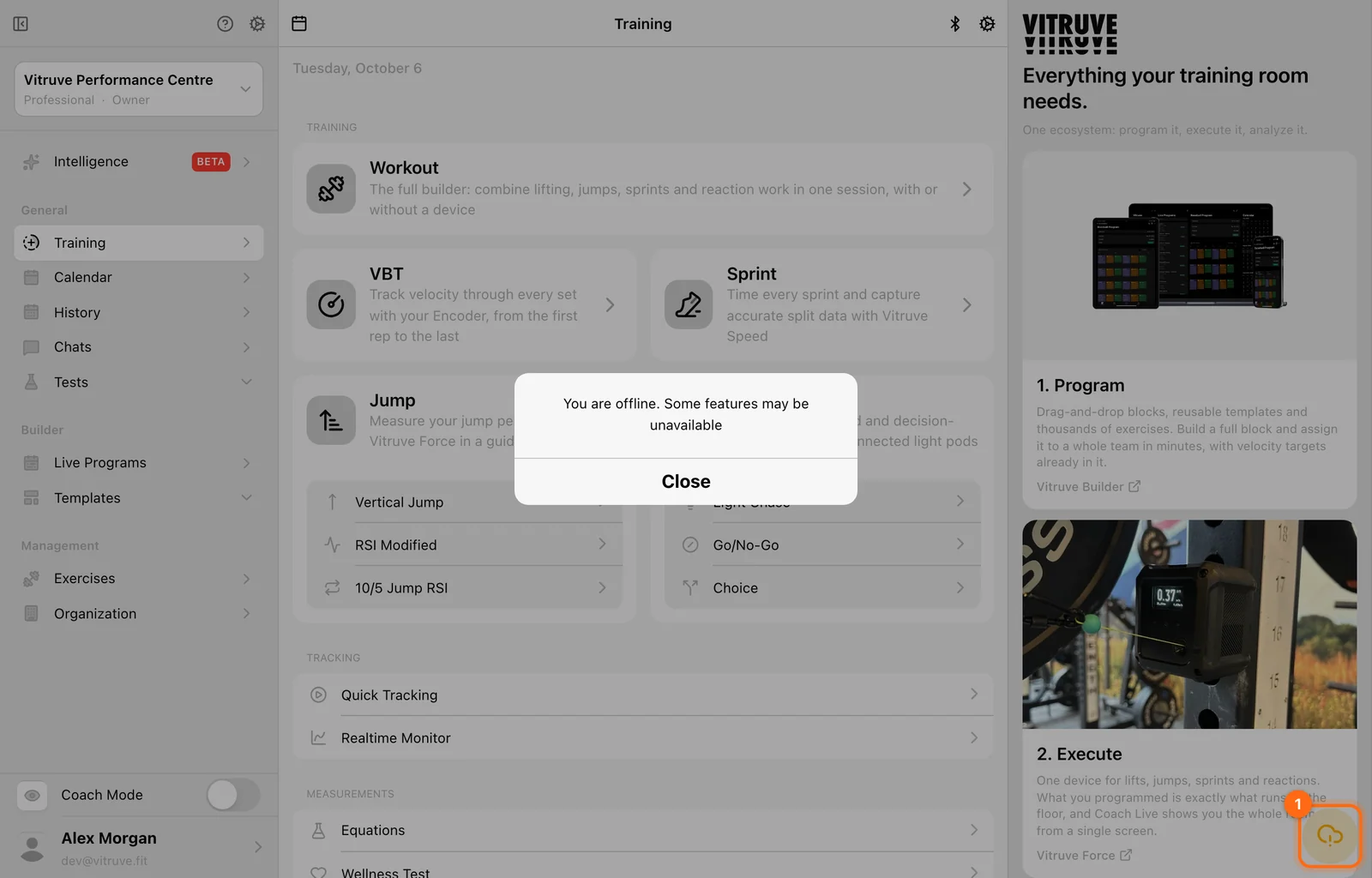
Training can continue. You can still record VBT workouts with exercises you have already opened while online.
What works offline
| Works offline | Limited or unavailable offline |
|---|---|
| Starting and finishing VBT workouts | Real-time leaderboards are not updated. |
| Exercises you used before on this device | Inviting athletes or coaches waits until you reconnect. |
| Real-time velocity and power from a connected encoder | Sessions saved on other devices cannot be viewed. |
| Saving the session, which syncs later | Equations and the exercise list show only items opened before. |
| Athlete profiles can be edited only if you opened them before going offline. |
Prepare before losing connectivity
- Sign in and select the correct organization while online.
- Load the workout, exercises, and athlete roster you will need.
- Connect and test the recording device.
- Check the local/cloud training settings you intend to use.
Previously cached information may remain available offline. Do not assume an unopened exercise library, new invitation, or uncached calendar will load without a connection.
Record and finish offline
Record your workout normally using the prepared content. An offline indicator means some connected features are unavailable; it does not by itself mean every recorded rep has been lost.
You can finish a workout while offline. The app keeps a pending record on that device and retries the upload when connectivity returns. Discards can also be queued.
Keep the recording device’s data intact
Until the session is visible in History and no longer pending, avoid signing out, clearing app storage, uninstalling the app, or clearing browser site data. The only complete copy may still be on that device.
Check Pending workouts
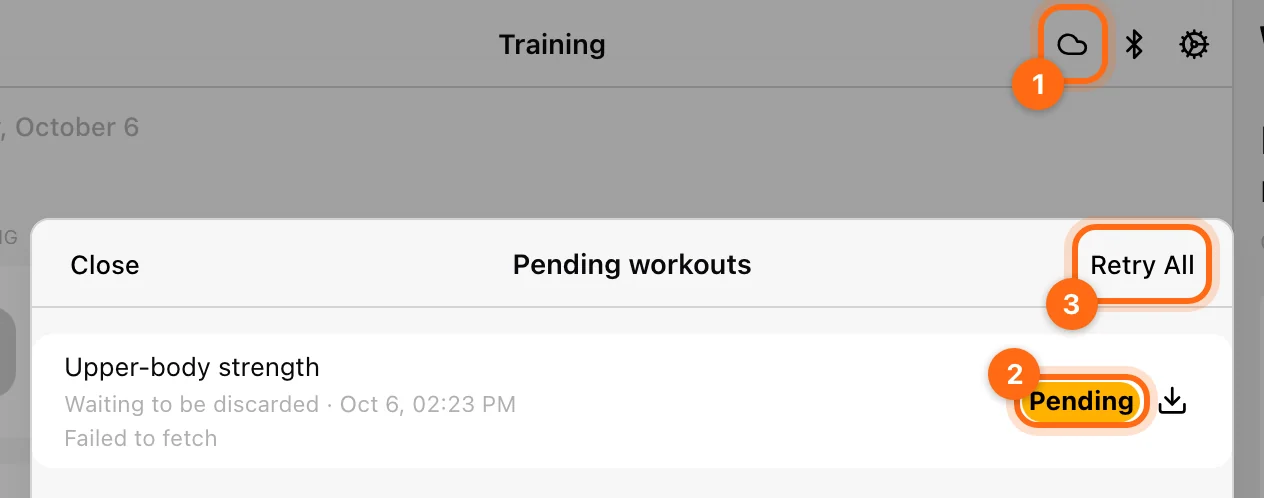
When pending records exist, a cloud or cloud-alert button appears in the Training header. Open it to see Pending workouts.
| Label | Meaning |
|---|---|
| Waiting to be saved | A finished workout has not yet reached the server. |
| Waiting to be discarded | A discard has not yet reached the server. |
| Pending | The record is waiting for upload/retry. |
| Needs attention | A blocked record needs a decision or investigation. |
Reconnect to a reliable network and select Retry All if necessary. The button shows Uploading… while the drain runs. Read any error beside the individual workout instead of retrying blindly.
Resolve “Workout ended on another device”
This message means another device finished or discarded the same session while this device still has unsaved progress. The app asks what to do with your copy:
- Decide later: keep the blocked local record so you can investigate.
- Save as new workout: preserve this copy as a separate workout. Check for overlapping data afterward.
- Discard my copy: remove this device’s copy after your explicit choice.
Before deciding, check History for the other device’s completed result. The two copies are not automatically merged, and saving as new can create overlapping sessions.
Preserve a blocked record
In Pending workouts, use Download as JSON on the affected row. This downloads the stored record for recovery or support investigation; it is different from a normal History CSV export.
If you are unsure how to resolve the record, save that file, keep the local copy, and contact support. Include the error message and device on which you recorded it.
When you are back online
- Offline workouts and changes sync automatically.
- Pending invitations are sent.
- Leaderboards and progress views update with the latest results.
Verify successful sync
Check that the session disappears from Pending workouts and appears in History under the correct organization and athlete. Then check it on another signed-in device if you need to confirm cross-device availability.
For a missing record, start with Find a missing workout.