Invite coaches and control athlete access
Add staff to your organization, manage assigned athletes, change a staff email, and remove staff access without deleting their account or programs.
Only an Owner can invite or remove coaches and manage their athlete assignments. Coach invitations require an eligible organization plan: Elite allows up to 3 coach invitations and Professional up to 30. Turn on Coach Mode to use the coaching-staff area.
Invite a staff member
- Open Management → Coaches. On mobile, tap More (three-dot icon at the bottom right) and select Coaches.
- Select Invite in the top-right corner.
- In Invite Coach, enter the staff member’s email (for example
coach@example.com) and send the invitation. - Review the pending invitation.
- Ask them to accept using that email and select your organization.
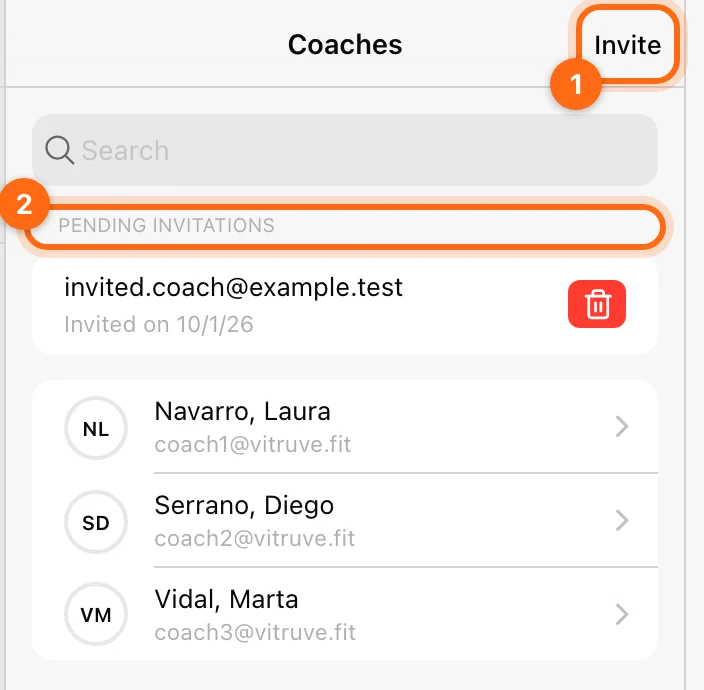
The coach receives an email with instructions to set up their account. They can also find the invitation in the app under Invitations in their account; see Accept an invitation.
This workflow invites the Coach role. It does not offer a role dropdown for Owner. Ownership is handled separately in Organization settings.
The plan’s coach limit applies to invitations. If you reach the limit, review the staff roster and the plan before sending repeated invites.
Pending invitations
Invitations that have not been accepted yet appear under Pending invitations at the top of the Coaches screen, with their Invited on date. To withdraw one, select its delete control and confirm; this cannot be undone. Invite the address again if you need a fresh invitation.
Set athlete visibility
Open the coach’s profile, find Assigned athletes, and choose Edit. Search, filter by team, or select the intended athletes, then select Close to save the list.
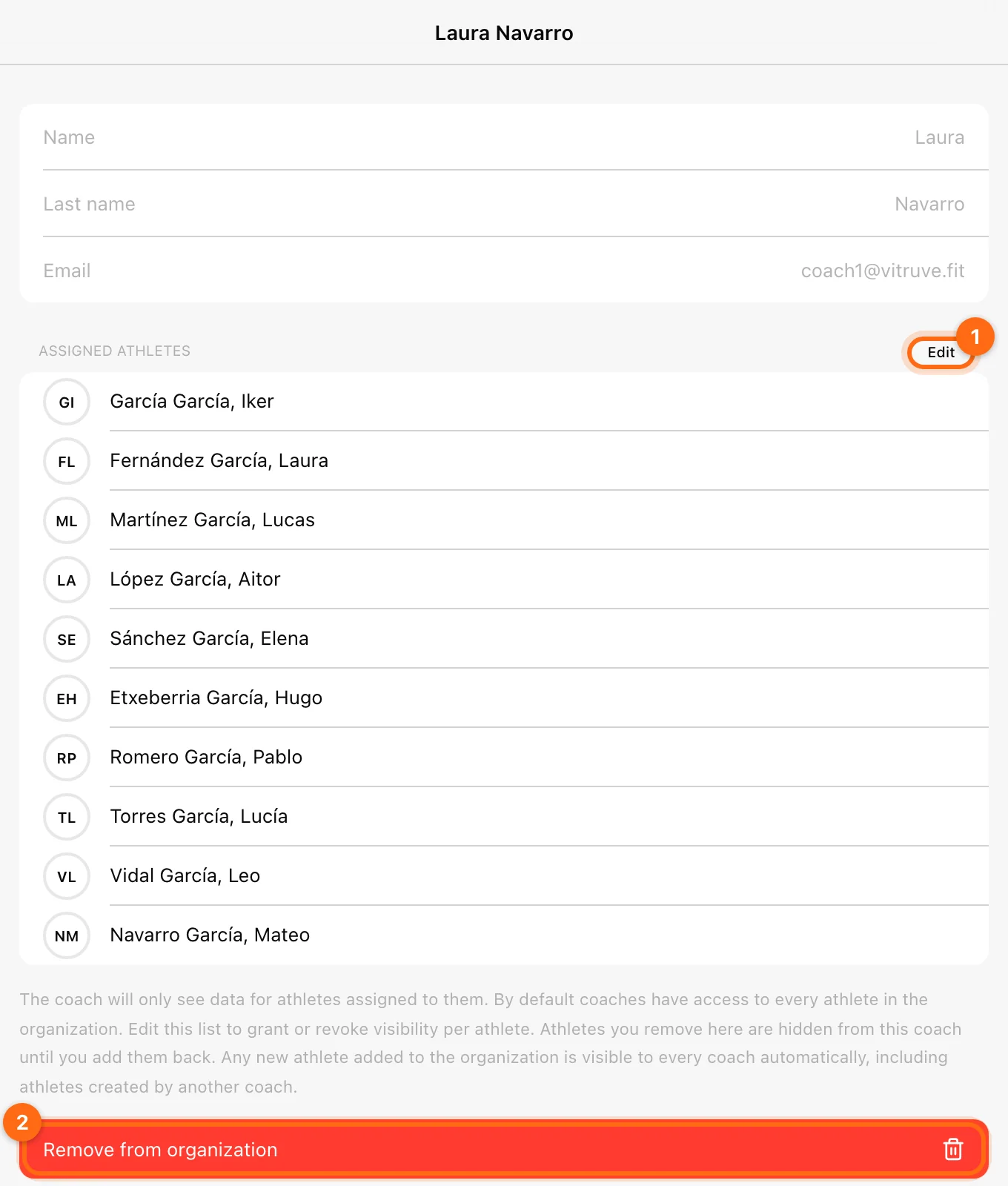
By default, coaches can see every athlete in the organization; assignments let the Owner restrict visibility. Once a coach has an assigned list, they see data only for the athletes on it. Removing an athlete from a coach’s assigned list hides that athlete from that coach until you add them back. It does not remove the athlete from the organization or delete their sessions.
Review access after roster changes. Any new athlete added to the organization is visible to every coach automatically, including athletes created by another coach, so do not treat an old restricted list as a substitute for checking new membership behavior.
Coach-athlete assignments require Elite or Professional.
What the Coach role provides
Once invited and accepted, a coach can, within the organization’s enabled features:
- View and manage visible athletes and teams.
- Build planning content such as templates and programs.
- Run coached and group training sessions.
- Review athlete data, History, leaderboards, and analytics.
- Customize shared team or athlete settings where permitted.
Organization administration, coach invitations, ownership, and owner-only API/export integrations remain Owner tasks.
Setting someone’s personal Profession to Coach does not grant organization membership or the Coach role. See Roles and permissions.
| Action | Where | Who |
|---|---|---|
| Invite a coach | Management → Coaches → Invite | Owner, on Elite or Professional |
| Remove a coach | Coach profile → Remove from organization | Owner |
| Edit assigned athletes | Coach profile → Assigned athletes → Edit | Owner, on Elite or Professional |
| Accept an invitation | Invitations in the invited account | The invited coach |
Remove a coach
- Open Management → Coaches and select the coach.
- Select Remove from organization.
- Confirm.
Their access to this workspace, including its athlete data and programs, ends immediately. The coach’s personal account remains active, and planning material created in the organization is not deleted by that removal. They can be added back later: invite the appropriate account again.
Change a coach or Owner email
The account email is not editable in the profile. To move a staff role to a different email address:
- Create a Vitruve account with the new email address, for example in the iOS or Android app.
- Sign in with the current Owner account and invite the new email to the organization from Management → Coaches → Invite.
- Sign in with the new email and accept the invitation, so the new account is part of the organization.
- Email contact@vitruve.fit saying you want the coach or Owner email changed to the new address.
Vitruve’s team makes the change and confirms once everything is updated. If the Owner only needs to hand administration to another existing member, use Transfer ownership instead; see Transfer ownership.
Troubleshoot a staff invitation
- Invite action missing: check Owner role, Coach Mode, and staff-invitation plan access.
- Invitation not received: verify the email and pending invitation; check spam. Delete and resend the invitation if needed.
- Coach sees no athletes: check their organization, Coach Mode, athlete selection, and assigned-athlete list.
- Needs a different email: follow Change a coach or Owner email above, or see Account guidance.
Continue with Roles and Coach Mode or Missing access.