Build your first program
Go step by step from exercise templates to supersets, blocks, workouts, phases, and a program, then assign it so athletes see it in their calendar.
By the end: you will have a complete multi-phase program built from reusable pieces, assigned to athletes, and showing in their calendar.
Builder organizes training from the smallest piece to the largest:
Exercises → Supersets → Blocks → Workouts → Phases → Programs
Each level is a template you can reuse in the next one up. This guide builds bottom up, one level at a time. If you prefer, you can also start with a program and fill it in top down. See Programs and phases.
Before you begin
- You need the Owner or Coach role and a plan that includes Builder.
- Open Builder → Templates in the web sidebar, or More → Builder → Templates on mobile.
- Make sure the movements you need exist in the exercise library. Builder templates use movements from the library. They do not create new movements.
Step 1: Create exercise templates
An exercise template is one movement with a prescription: its sets and targets.
- Go to Builder → Templates → Exercises and review your existing list.
- Select + in the top-right corner.
- Answer How do you want to call your exercise template? with a clear name, for example "Back squat 4 × 5 at 0.6 m/s".
- Choose the movement and set up the prescription: sets, reps, load or % 1RM, RPE, rest, and velocity targets as needed. If the movement list does not open by itself, choose the movement with the exercise's ⋯ → Switch exercise.
- Set the chip next to the exercise name to VBT for velocity-based work, and add technical notes for the athlete.
- Save.
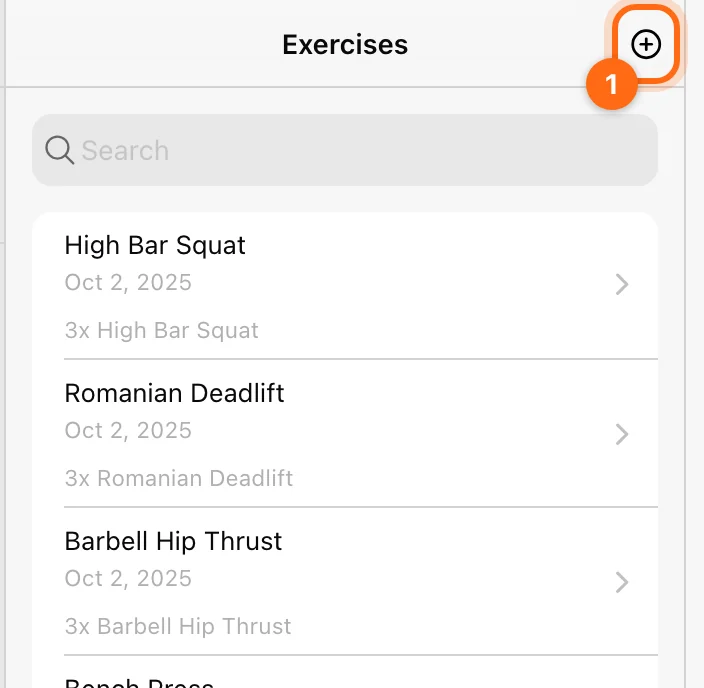
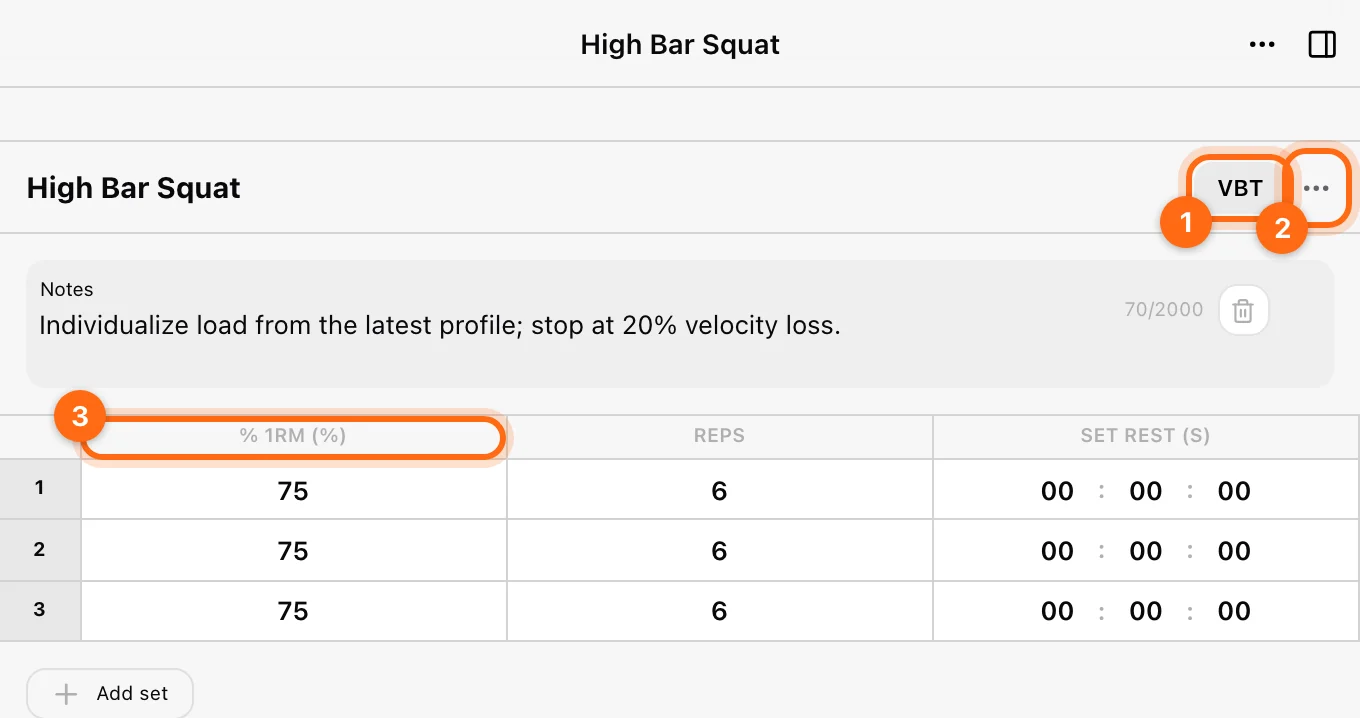
You can rename, copy (Create a copy), or delete an exercise template later from its ⋯ menu. See Prescriptions for every column and target type.
Step 2: Combine exercises into supersets
A superset is two or more exercises performed back to back. You can mix VBT and non-VBT exercises, for example squats paired with jumps.
- Go to Builder → Templates → Supersets.
- Select +, pick the first exercise, and replace the default name Superset.
- Add the exercises you want to pair with Add superset.
- Adjust their order, rest times, and instructions.
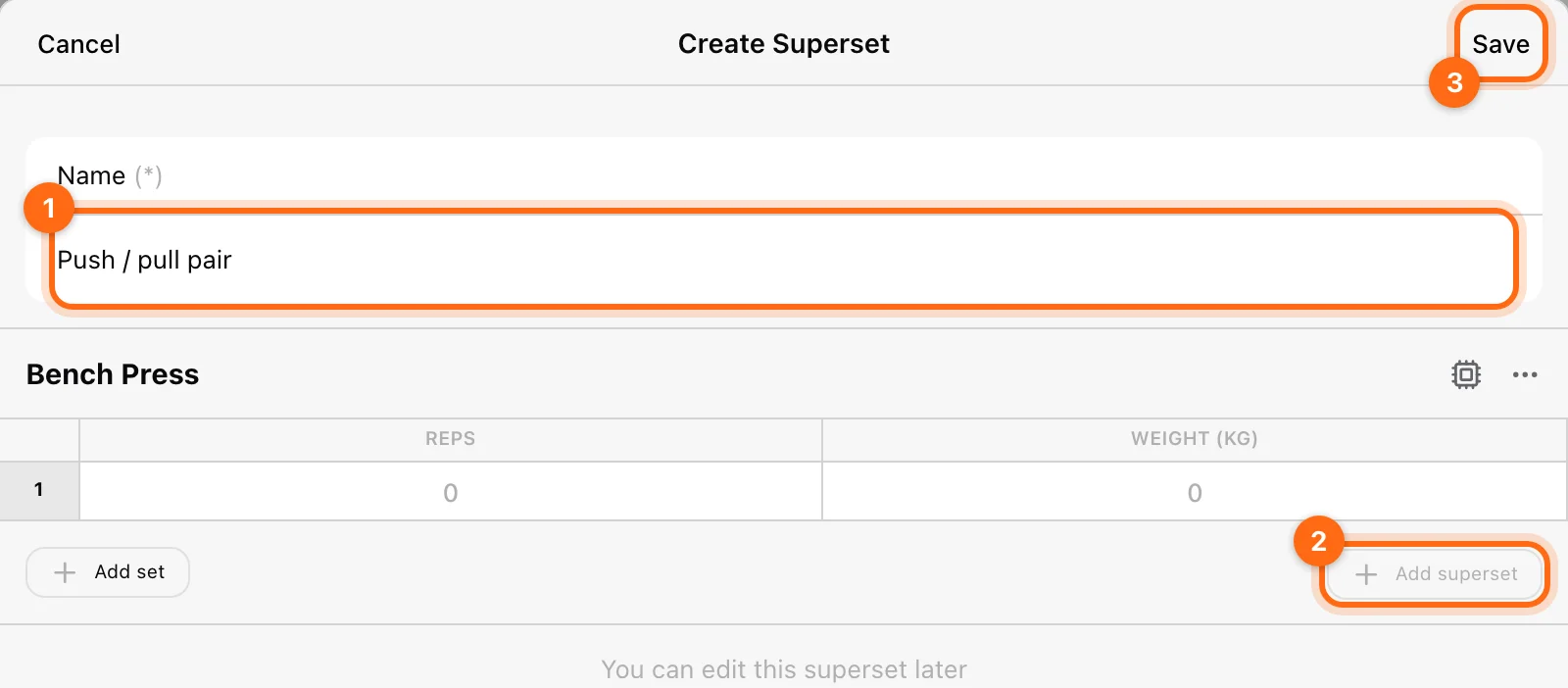
Supersets work well for complementary movements and efficient circuits.
Step 3: Build a block
A block groups exercises or supersets around one goal or body area, for example "Lower Strength Block" or "Upper Power Block".
- Open Builder → Templates → Blocks.
- Select + and answer How do you want to call your block template?
- Add exercises or superset templates.
- Save it for later use.
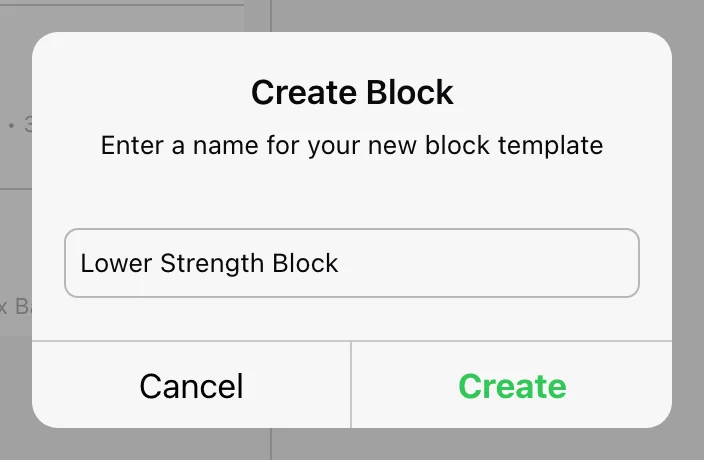
Blocks let you program in modules and reuse a section, such as a warm-up, across many workouts.
Step 4: Create a workout
A workout is one complete training day.
- Go to Builder → Templates → Workouts.
- Select + and name your workout.
- Add blocks with Add block → Add new block or Add block template. You can also add single exercises and supersets inside a block.
- Add warm-ups, accessory work, rest details, and notes.
See Build workouts, blocks, and supersets for the full editor.
Step 5: Design a phase
A phase spreads workouts over several weeks, for example:
- Hypertrophy phase, weeks 1–4
- Strength phase, weeks 5–8
- Power phase, weeks 9–12
- Go to Builder → Templates → Phases.
- Create a new phase and name it.
- Set the number of weeks.
- Select a day and add a workout. Choose the Schedule days, Repeats on weekdays, and a Color for it.
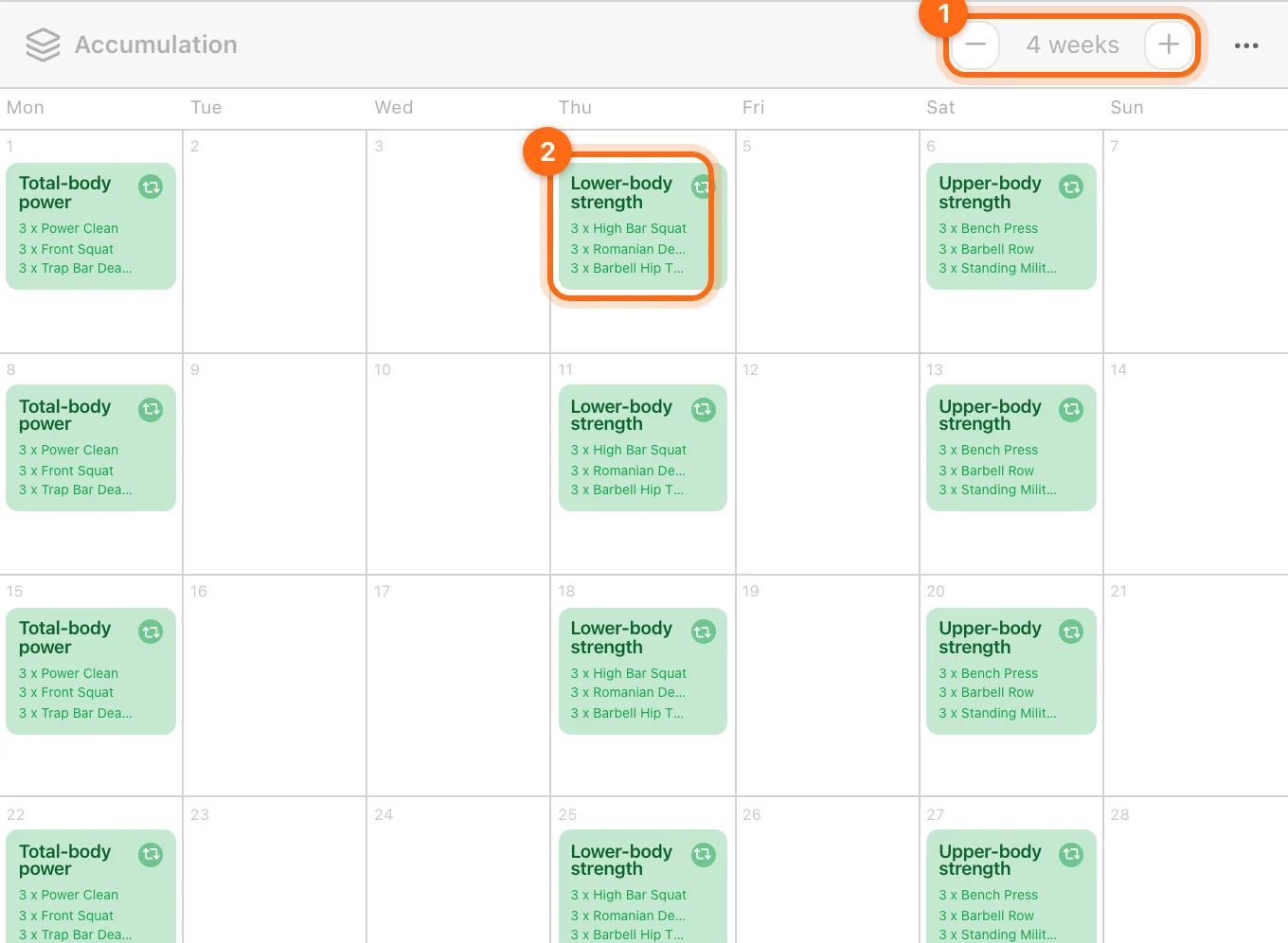
You can adjust each phase's length, volume, and intensity on its own. See Programs and phases.
Step 6: Build the program
- Open Builder → Templates → Programs.
- Select + to start your new program.
- Add one or more phases with Add phase, either new or from a phase template, and put them in order.
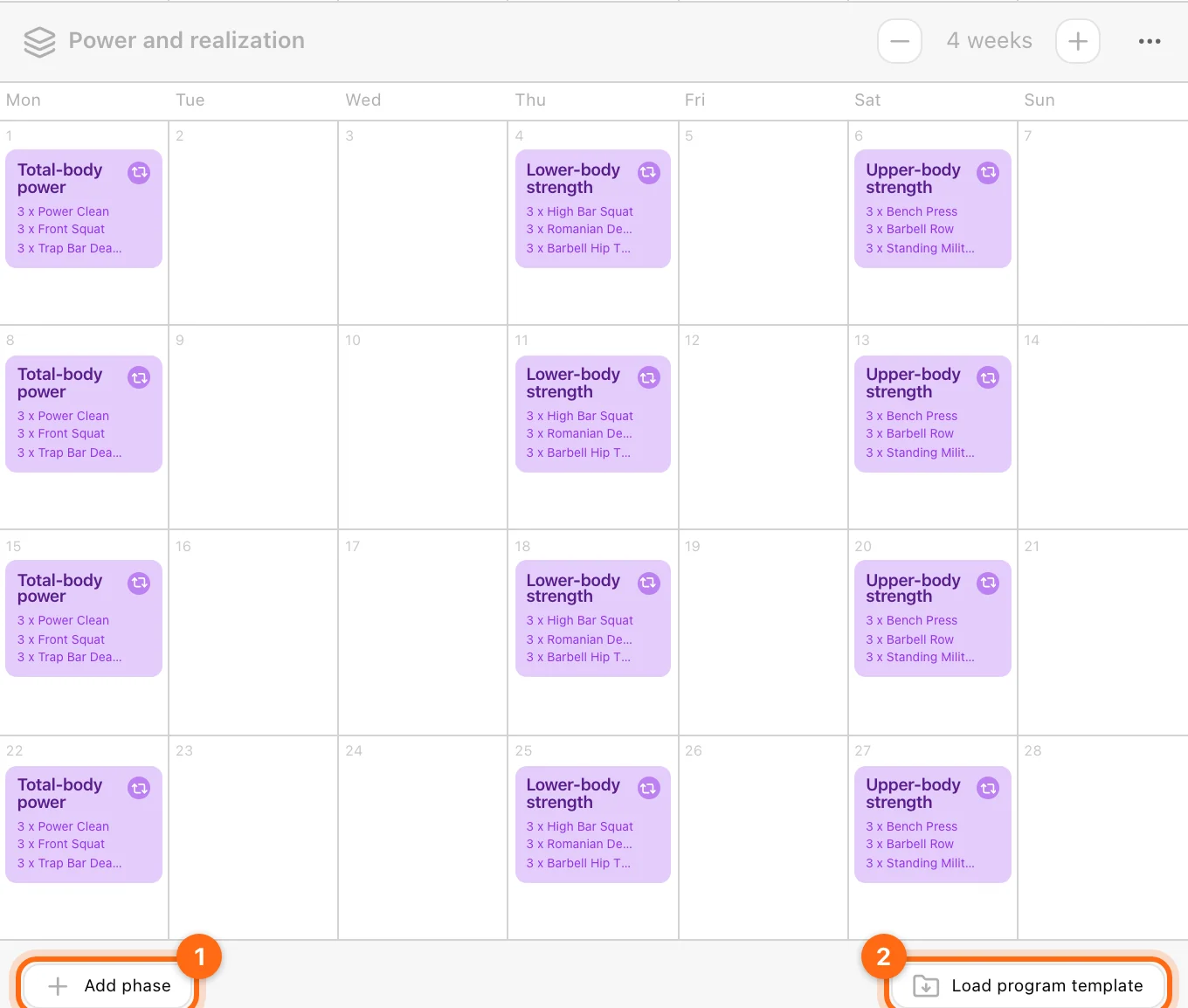
The program is the highest level of the plan. Everything you built below connects here.
Step 7: Put the program into use
A program template has no dates and no athletes. To deliver it:
- Open Builder → Live Programs, select +, and enter a name.
- Load your program template with Load program template.
- Choose a Start Date, which must be a Monday.
- In Coach Mode, assign the athletes. You can filter by team and use Select all.
Once the live program is set up, every assigned athlete sees their workouts in their calendar automatically, and can start them from Training → Workout. See Assign and manage live programs.
Check your work
- Open Calendar, select one of the assigned athletes, and move to the start month. The program's name and its scheduled workouts should appear on the expected days.
- Open one scheduled workout and check that it lists exercises. An item marked This workout is empty has no exercise content yet.
- If nothing appears, see Scheduling troubleshooting.
From single exercises to full multi-phase plans, you can keep reusing, repeating, and changing these pieces as your training evolves.