Export workouts and measurement data
Export a History date range, download one workout, email one set, or save a continuous monitor CSV without confusing their scopes.
Choose an export based on what you need. A bulk History export, a single workout, a single set, and a Realtime Monitor capture have different scopes and delivery methods.
| You need… | Use… | Delivery |
|---|---|---|
| Many workouts for selected athletes and a date range | History bulk export | Email (CSV or Excel) |
| One completed workout | The workout’s Download as | File download or email |
| One set or series | The workout’s Export series | |
| The last 30 seconds of live curves | Realtime Monitor Download | Immediate CSV |
| Data sent automatically to another platform | An export integration or the API | Continuous, see below |
Export a date range from History
This workflow is for the selected athletes and History timeframe, subject to export access. The ranges you can choose are the History windows your plan allows; a greyed-out range is a plan limit.
- Open History in the correct organization.
- In Coach Mode, select the intended athletes.
- Choose the permitted timeframe: 30 Days, 3 Months, 12 Months, or All Time.
- Select the Download icon.
- Choose CSV or Excel.
- In Send CSV to email or Send Excel to email, check the recipient address.
- Select Send.
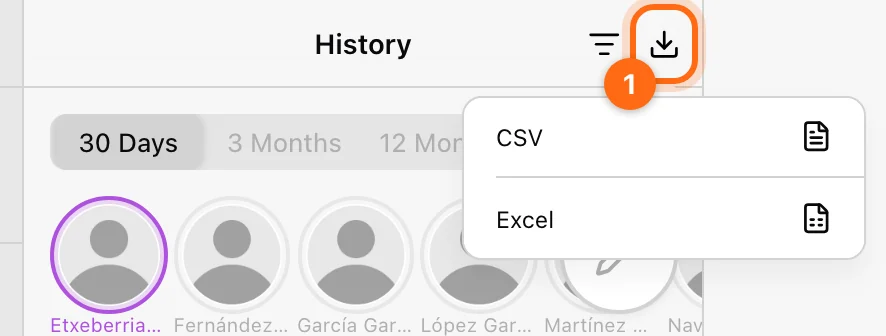
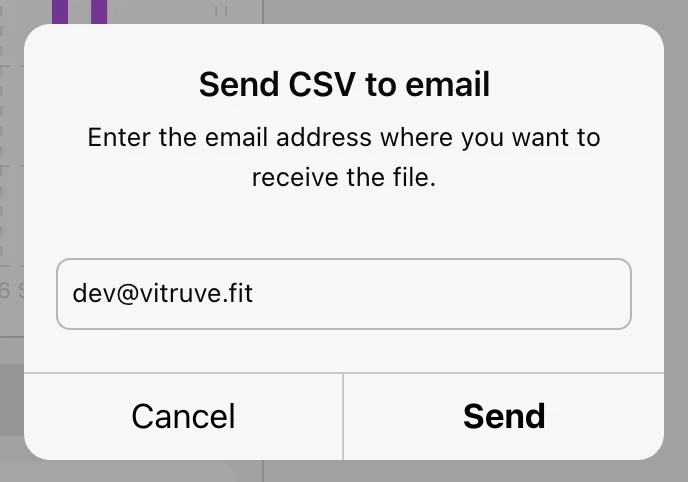
The current bulk workflow is email delivery. The app confirms that the process can take from a few seconds to a few hours depending on the number of workouts. It does not immediately download the bulk file to your computer.
List filters do not narrow the bulk export
The workout-name search and exercise filter are not passed to this export. Its scope is the selected athletes and timeframe. Use a single-workout export when you need a specific session.
Export one completed workout
Open the session in History, then ⋯ → Download as → CSV / Excel. The available action sheet provides Download File and Send to Email. Exports include rep-level data, such as load, velocity, power, and session duration, for the metrics that were recorded.
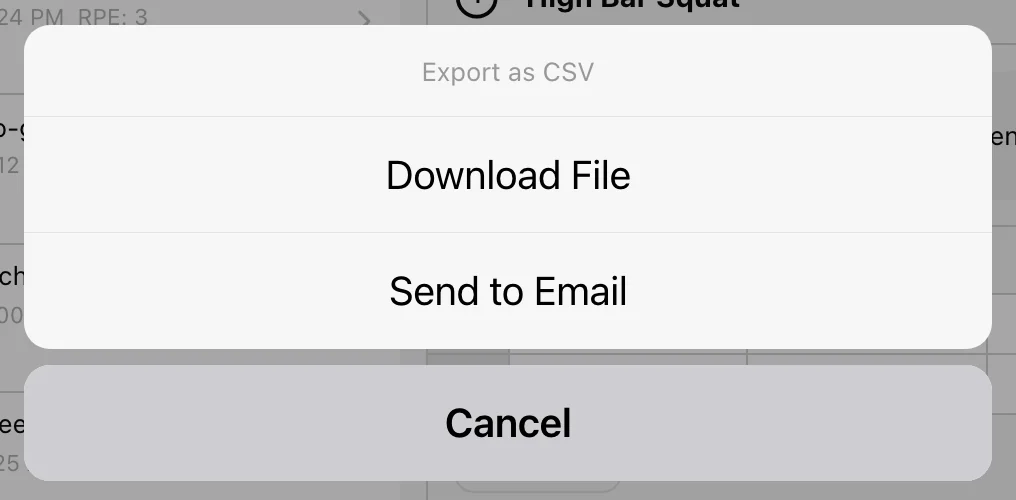
- On web, direct download opens the generated file URL in a new tab. Allow that tab/download if the browser blocks it.
- In the installed app, the file is saved/opened through the device’s file workflow.
- Email delivery may be asynchronous; the app confirms “Your workout will be sent to your email when it's ready”. Check the destination inbox.
- If you see “Failed to generate download link. Please try again.”, retry, or use Send to Email instead.
Older help articles describe a Safari “Save as page source” workaround and an Athlete app limited to one exercise per day. The current app’s Download File and Send to Email actions replace both.
Export one set or series
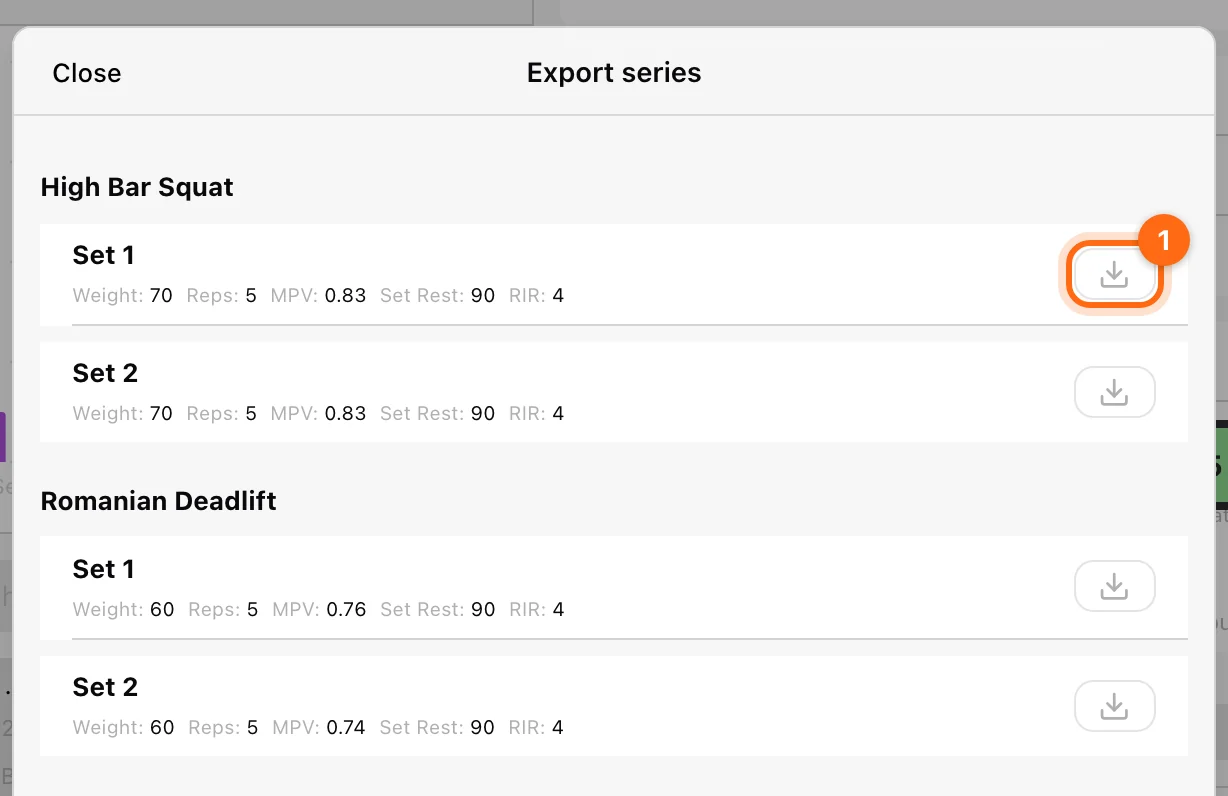
Use the workout’s ⋯ → Export series. Find the exercise and set, then use that set’s download control. This flow emails the selected series; it is not a direct local-file download just because the control has a download icon.
Export Realtime Monitor curves
In Realtime Monitor, use Download to write the most recent 30 seconds of position, velocity, acceleration, power, and force data to CSV immediately. Its charts show the latest ten seconds. This is a rolling continuous window, not the full workout or a bulk History export.
For a pending or blocked workout recovery file, use Pending workouts → Download as JSON instead. That file preserves the queued record for recovery and is not the same format as a reporting CSV.
Check the file before using it
Verify the athlete names, date range, timezone context, units, and available metric columns. A manually logged session cannot contain encoder measurements that were never recorded. Inspect the actual headers rather than assuming every modality has every metric.
If nothing arrives
- Confirm the export was submitted without an error.
- Check the recipient email you entered, including spam/junk.
- Allow time for processing, especially for a large roster and range.
- Confirm there were completed workouts in the selected context.
- For direct single-workout downloads, check browser pop-up/download controls.
- Avoid repeatedly submitting the same large export while it is still processing.
If the request still fails, send the format, selected athletes, timeframe, request time, and exact error to support.
Send data to other platforms automatically
Instead of exporting files by hand, an Owner can let another system read the organization’s training data. Set it up from Settings; see Integrations for the steps.
- Export integrations (Owner, Elite or Professional): in Settings → Integrations → Export, choose a certified partner such as RockDaisy, TeamBuildr, or FYTT, select Create to generate its integration key, and paste that key into the partner platform’s API settings. Data from Vitruve then reaches that platform without manual exports. To request a platform that is not listed, contact support@vitruve.fit.
- API Access (Owner, Professional): in Settings → API Access, select + to create a key with a Name and optional Description. Developers can then retrieve completed workouts and organization users to build custom dashboards, tools, or automations. Every request must include the key in the
X-API-Keyheader, and each key only reaches the organization that issued it. The book icon opens the API Documentation, with the host, endpoints, and parameters to use.
Revoking a key disables it immediately, and systems still using it stop working. For help with the API, contact support@vitruve.fit. Full setup steps are in API access.
To ask questions about your data in Claude, ChatGPT, or another AI assistant instead of moving it, use AI connectors (Owner or Coach, Professional).