Use Coach Mode and athlete selection
Separate your membership role, coaching context, selected roster, active athlete, and Coach Live monitoring list.
Coach Mode lets an eligible Owner or Coach work with athletes in the organization instead of their own personal training context. It changes the current working context; it does not change your membership role or upgrade the organization’s plan.
It is built for coaches who also train. Instead of keeping two accounts, you switch: Coach Mode on to manage your athletes' training, off to track your own workouts.
Check eligibility
You need a coaching role and organization access to Coach Mode, such as an eligible team plan.
| Requirement | Eligible |
|---|---|
| Your role in the organization | Owner or Coach |
| The organization's plan | Lite, Basic, Elite, Professional, or an active trial |
| Not available | Free and the individual One plan |
Athlete membership and individual Free/One contexts do not provide team coaching just because your Account profession is Coach.
When switching organizations, the selection flow can enable coaching context for an eligible workspace and disable it in another. Recheck your context after each switch.
Enable or leave coaching context
- Finish or save any workout in progress.
- On web, find the Coach Mode toggle in the sidebar footer. On mobile, open More and find the Coach Mode toggle.
- Tap the toggle to turn it on or off. The app adjusts its views and features straight away.
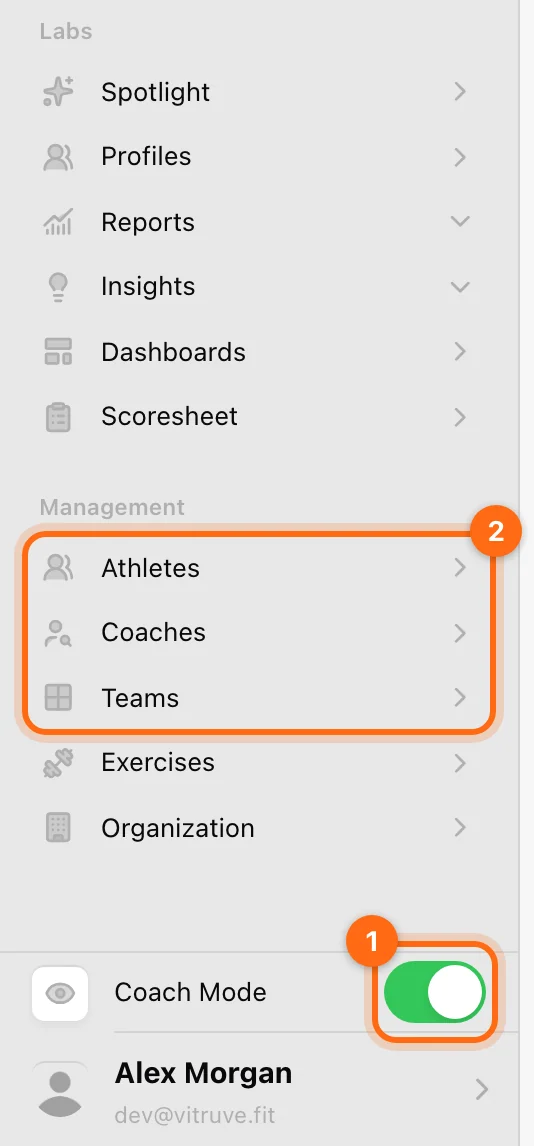
- On (coach view): manage your athletes, view their progress, assign training, train with them, and use the coaching tools. Coaching pages and results operate on selected athletes where permitted.
- Off (athlete view): track your own workouts, see your personal progress, and manage your own training. Recording and review use your personal context in that workspace.
Save active workouts before switching
Changing Coach Mode can delete all active workouts, and the switch does not ask for confirmation. Finish or save any ongoing session first, and check Pending workouts for anything not yet uploaded.
Finish and sync current work before changing modes. Check the recording person afterward rather than assuming the most recently visible athlete still receives the next set.
Selected roster versus active athlete
The athlete strip has two jobs:
- Pencil: choose the roster you want to work with. Search, the Teams tab, and Select All help build that selection; select Close to apply it.
- Avatar: choose the active person inside that roster.
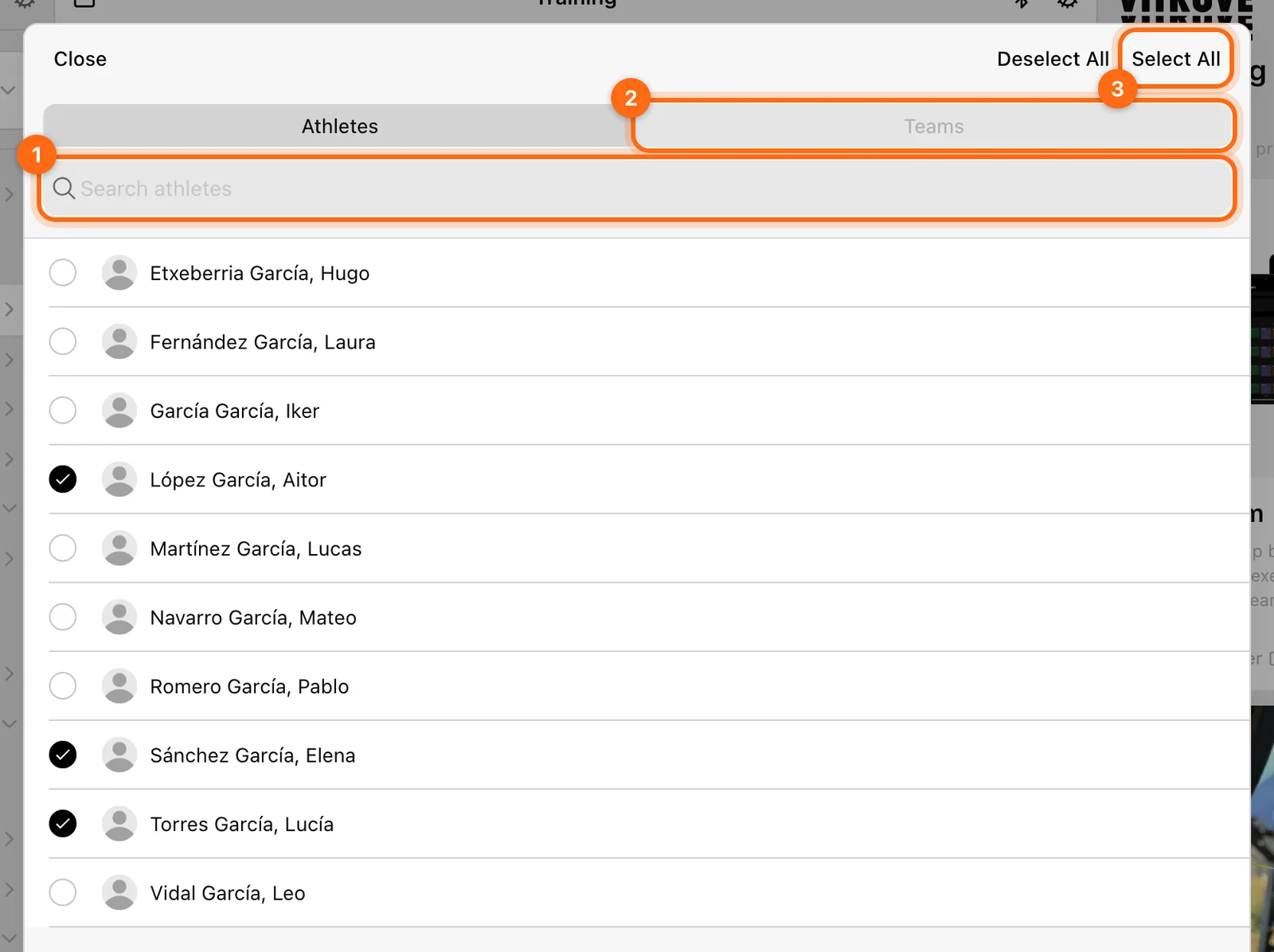
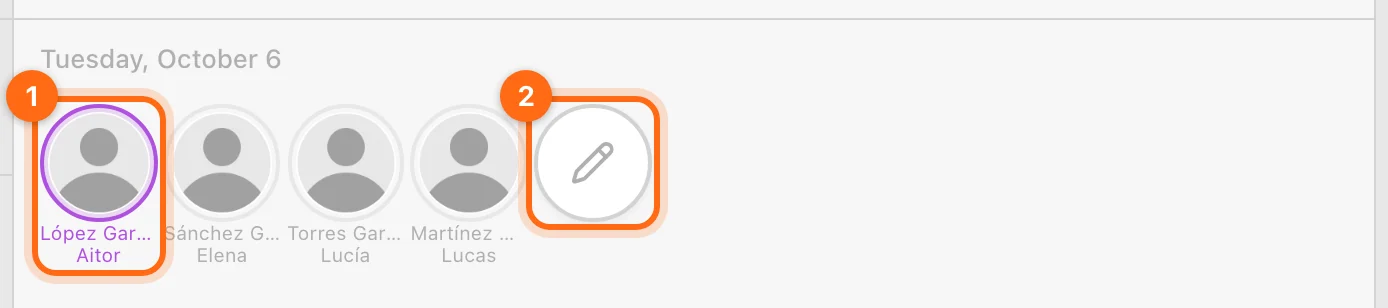
Selecting ten athletes does not make a single set belong to all ten. Only the active athlete receives the recording you are currently making.
The Training page’s greeting can still show your account name. Use the actual athlete strip and session context to verify ownership.
What happens when you switch avatars?
The app changes to that athlete’s active workout in the current flow. Their exercise/set history is independent of the previous athlete’s. A focused screen can maintain the current tab while replacing its athlete content.
Finish or resolve the recording display before switching. Then check the new athlete’s exercise, actual Load, jump Body weight, reaction Duration, or sprint course context. Retained settings are not proof that every athlete should use the previous person’s values.
If work landed under the wrong athlete, use the active-workout correction workflow. Changing the avatar afterward is not a retroactive transfer.
No athletes selected
Use the pencil to choose a roster. If the intended athlete is not in the list, check organization membership, filters, and the Owner’s assigned-athlete restrictions for your Coach account.
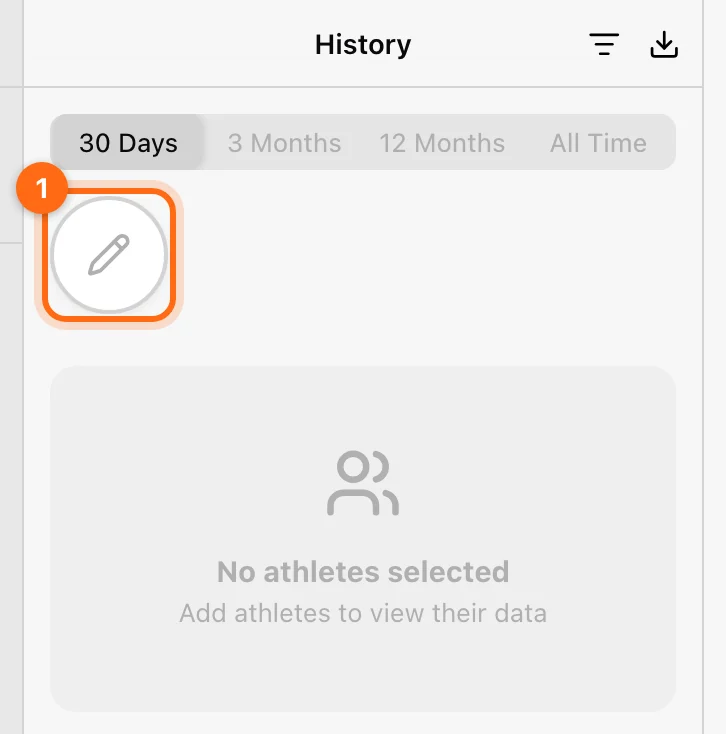
Do not create another profile merely because the training selection is empty.
The Coach Live list is separate
Coach Live maintains its own organization-specific monitoring selection. The athletes monitored remotely are not automatically the same as those selected for recording at your current station.
Use Coach Live to understand its roster, latest-active-workout refresh, preview, and Finish all behavior.
Bulk actions need a scope check
Inside a recording workflow, the footer’s Finish/Discard offers Only this athlete or All athletes. All athletes operates on that selected group’s active workouts in the current flow.
In Coach Live, Finish all uses the monitoring selection against cloud-active sessions. These are distinct contexts; verify the list before confirming either.
Related guides
User roles · Group training · Coaching staff assignments · Missing access
Understand Owner, Coach, and Athlete roles
See what each organization role can do, how invitations assign roles, and why profession, Coach Mode, and subscription are separate.
Organizations, roles, and Coach Mode
Understand which workspace owns your data, what each role can do, and when to turn on Coach Mode.