What is an organization?
Understand your Vitruve workspace, how accounts and teams relate to it, where workouts live, and when to switch organizations.
An organization is a separate Vitruve workspace: the place where you keep people, plans, training records, and shared configuration. It can represent a club, school, facility, independent coach, or your own personal training.
The word does not mean you must be a large company. Even one person can use an organization as their personal workspace. Think of it like a sports club: it has athletes, coaches, and an owner, and it has its own subscription plan.
When you create an account, an organization is created for you automatically, even if you train alone. Every account belongs to at least one organization, never zero.
Account, organization, team, and athlete are different things
| Term | What it means | Example |
|---|---|---|
| Account | Your login and personal identity. | The email you sign in with. |
| Organization | The workspace you are currently using. | A club workspace or Personal. |
| Role | Your membership responsibilities inside that workspace. | Owner in Personal, Athlete in a club. |
| Team | A grouping of existing athletes inside one organization. | First squad, U18s, or rehab group. |
| Athlete profile | The person whose work is being recorded. | A registered user or coach-managed profile. |
| Workout | A recorded session for an athlete in the selected context. | That athlete’s VBT, jump, sprint, reaction, or mixed session. |
A team is not another login or organization. Adding an athlete to a team changes how you group/select them; it does not create a new workspace.
What belongs to the workspace?
Within an organization, you work with its:
- Athlete roster, teams, and coaching staff.
- Custom movement library and shared exercise configuration.
- Reusable templates and assigned live programs.
- Workout history and available measurements.
- Shared training settings and default measurement system.
- Subscription, feature access, and supported integrations.
Your personal Account fields—such as name and password—belong to the login. Organization settings such as default units or staff access belong to the workspace. A personal unit override can change your display without changing the default for everyone else.
One login can belong to several organizations
You can use the same account in multiple workspaces. Your role and available features can differ in each.
For example, you might be:
- Owner of your personal organization.
- Coach in the club’s organization.
- Athlete in a different organization whose coach programs your own training.
It works like being a member of several sports clubs, with different responsibilities in each. Switching to the club does not bring your personal Owner permissions with you. Likewise, joining the club does not merge your previously recorded personal workouts into the club’s dataset.
Choose or switch the organization
Use the app’s Organizations selector: on web, select the organization card at the top of the sidebar; on mobile, open More and tap the organization card. The selection view lists the workspace name, subscription information, and your role. Select the intended entry to access its workspace.
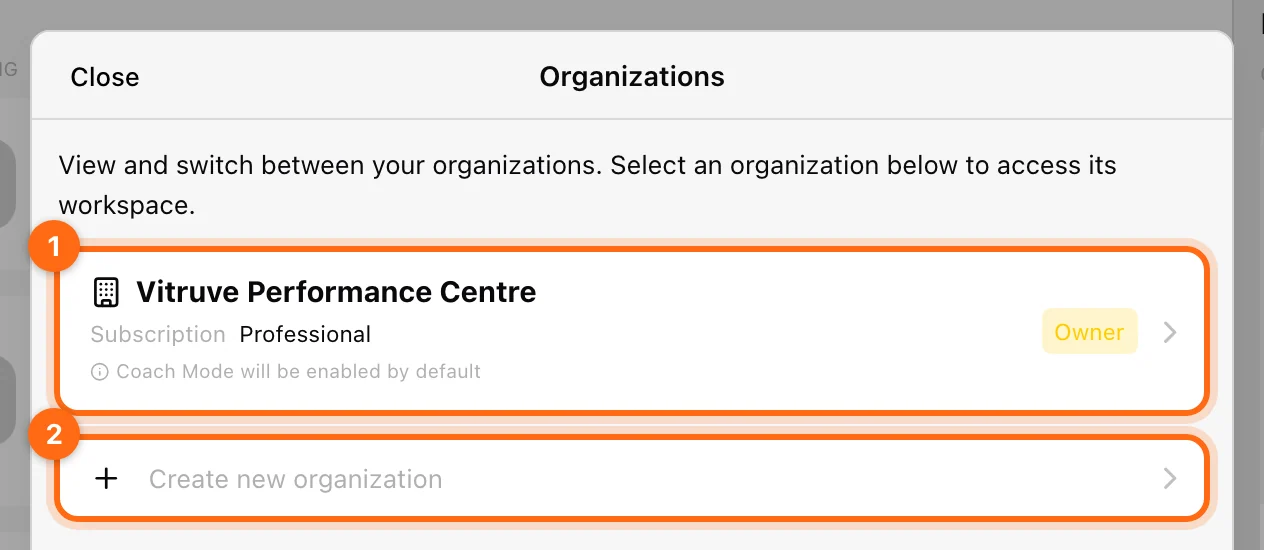
When opening an eligible coaching organization, the selection flow can enable Coach Mode by default. In an Athlete or individual Free/One context, it disables coaching context instead. Recheck the active athlete after switching.
Before changing workspaces, finish/sync work you intend to keep. A workout remaining only on one device should be handled through its original context and Pending workouts.
Create a workspace or join an existing one?
Create when you are establishing your own personal or team workspace. During setup, the current choices are Athlete and Team. Athlete creates the personal-use context; Team leads into team organization setup.
Join when a coach or Owner already runs the organization you should use. Accept their invitation with the invited email. Creating another organization with a similar name will not connect you to their roster or program.
The Organizations selector also provides Create new organization where available. Review name, category, and measurement system in its form; a similarly named workspace is still independent.
How does the plan work?
The organization’s subscription determines which features and limits are available in that workspace. Your role determines which of those features you can use or manage. A Timing Gates feature or other enabled capability can also be required.
When you belong to several organizations, you use the features of the organization you are currently working in, not your own plan elsewhere:
- You own a Professional organization: your team uses all Professional features inside it.
- You coach in an Elite organization: you get Elite features while working there, even if your own organization is Professional.
- You train as an athlete in a Basic organization: you get Basic features while training there.
The support site groups the plans as Free (solo athletes), Basic (small teams), Elite (growing organizations), and Pro (large teams and gyms). In the app, Pro is called Professional, and there are also the individual One plan and the team Lite plan. See Plan and access for what each one includes.
The individual One plan can provide personal planning/analysis while still having no team roster or Coach Mode. Owner membership by itself does not turn a personal plan into a team plan.
See User roles and Plan and access for those two sides of access.
Why is a workout visible in one place but not another?
Training data is stored in the organization where you trained. For example, if you log a workout at Power Pro Gym and later switch to Elite Fitness Club, the Power Pro Gym workout does not appear in Elite Fitness Club. Switch back to Power Pro Gym to see it.
Check the organization, athlete, and recorded flow first. A result in Personal will not automatically appear in a club workspace. A coach who selects several athletes is still recording each set for the active avatar, not for their own greeting name or the whole roster at once.
Use Find a missing workout before creating another athlete or repeating the session.
Leaving, removing, and deleting
- Leave organization: you stop accessing that workspace; your personal login survives.
- Remove a registered member: an administrator ends that membership; it is not personal-account deletion.
- Delete an unregistered athlete: deletes a coach-managed profile and its associated work.
- Delete organization: an Owner’s destructive workspace action, distinct from leaving or deleting a team grouping.
For administration and ownership changes, use Manage the organization.
Find your way around the app
Understand the web sidebar, mobile More tab, Training cards, and the two different Exercises menus.
Understand Owner, Coach, and Athlete roles
See what each organization role can do, how invitations assign roles, and why profession, Coach Mode, and subscription are separate.