Connect wearables and external services
Use Import for athlete wearable connections, Export for partner platforms such as RockDaisy, TeamBuildr, and FYTT, and API Access for owner-managed keys.
An integration is two platforms sharing data automatically, so nobody has to copy it by hand. Vitruve has two kinds:
- Import: pull an athlete's wearable data (sleep, recovery, HRV, activity, and more) into Vitruve.
- Export: send your organization's training and performance data from Vitruve to a partner analytics or coaching platform.
Open Settings → Integrations: on web or desktop, the sidebar cog; on mobile, More (...) at the bottom right, then Settings. The page has Export and Import tabs, with different purposes and access requirements. The Integrations entry only appears when your organization's plan includes at least one of them.
Import: supported wearables and sources
| Source | Data it imports |
|---|---|
| Oura | Sleep and recovery data from the Oura Ring. |
| Polar | Workout and heart rate data. |
| Whoop | Strain, recovery, and sleep data. |
| Fitbit | Activity, sleep, and heart rate data. |
| Garmin | Workout and health data. |
| Withings | Weight, sleep, and activity data. |
| Dexcom | Glucose monitoring data. |
| Apple Health | Health data collected in Apple Health (iPhone). |
| Google Fit | Fitness and health data from Google Fit. |
| Health Connect / Android | Health and fitness data from Android devices. |
The provider options shown in the app are the ones currently available for your platform and organization. A phone-based source such as Apple Health or Health Connect may only be offered on a compatible installed device.
Connect an athlete’s wearable
- Open Integrations → Import.
- In Coach Mode, select the intended athlete. Until you do, the page shows Select an athlete to import data from.
- Choose the available provider. Each one shows Authorized or Not Authorized.
- Select Connect.
- Sign in to that provider’s authorization flow and allow the intended data access.
- Return to Vitruve and check that the provider now shows Authorized.
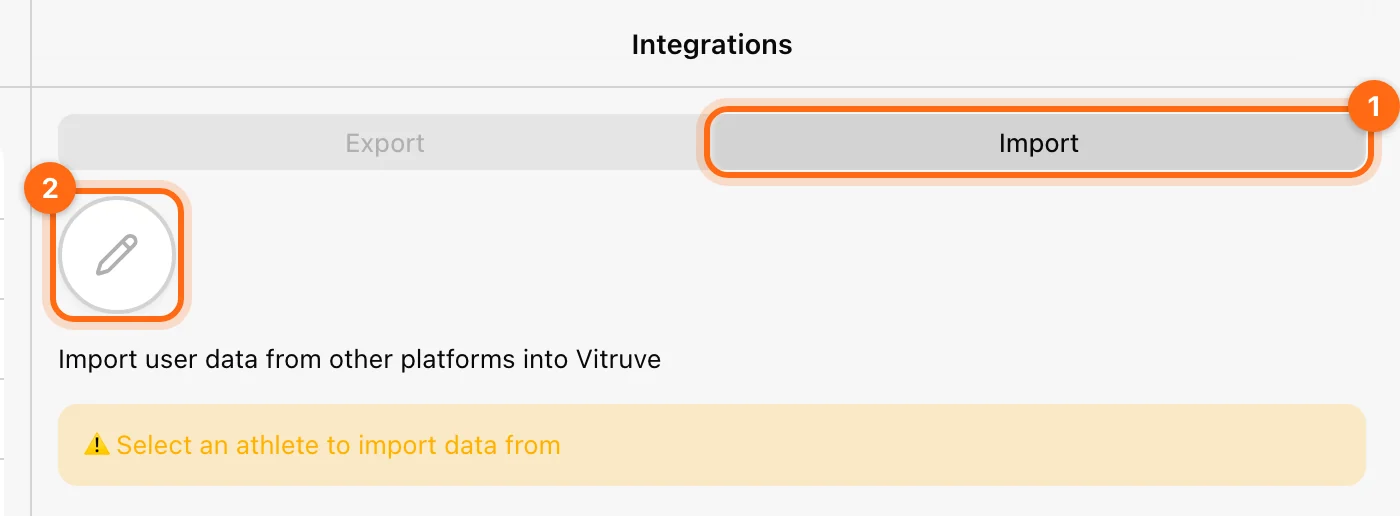
Use the wearable account belonging to that athlete. Authorizing a coach’s account while a different athlete is selected can put the connection in the wrong context.
Once connected, the athlete's daily data syncs to Vitruve automatically. Imported metrics cover physical activity, body composition, sleep, cardiovascular, mental wellness, and nutrition data, depending on what the provider supplies. They become available in Labs, for example alongside wellness, effort, jump, resting heart rate, sleep, and weight. See Analyze wellness, sleep, and wearable data in Labs.
How many connections your plan allows
| Plan | Wearable connections |
|---|---|
| Free | Not included. |
| One | 1 |
| Lite | Up to 15 |
| Basic | Up to 200 |
| Elite | Up to 500 |
| Professional | Up to 1,000 |
Athletes, coaches, and owners can all connect wearables when the plan includes Import. Platform-specific sources may only be offered on a compatible installed device. Not every wearable exposes the same categories or history, so verify what that provider actually supplies.
Disconnect a wearable
Select Revoke next to an authorized provider and confirm with Revoke Access. Vitruve stops importing from it; to import from that source again, connect it again.
If wearable data is missing
Check the selected athlete, provider connection state, granted permissions, and whether data exists in the provider’s own app. Allow the provider’s synchronization process to complete; authorization alone does not guarantee an immediate historical backfill.
If the Connect link does not appear, the organization may have used all of its plan's connections. Use reconnect/disconnect controls deliberately. Repeatedly connecting different provider accounts is not a way to merge athletes’ histories.
Export: supported partner platforms
Export integrations let certified partners access your organization's data, so it flows to them without manual exports. For example, you collect training data in Vitruve and analyze performance in RockDaisy: Vitruve's data is sent to RockDaisy and both stay in sync.
Current partners:
- RockDaisy
- TeamBuildr
- FYTT
Vitruve is working with more partners; new ones appear in the list automatically when they are ready. To ask for a specific platform, write to support@vitruve.fit.
Enable a partner export
Export integrations require Owner access and an eligible plan, currently Elite or Professional (or an active trial). Only the organization owner can create or manage them. Older support articles describe Export as Professional-only; the current app also includes Elite.
- Open Integrations → Export.
- Find the provider you want in the list. Each one shows Active or Inactive.
- Select Create to generate its integration key.
- Copy the key with the copy button next to API Key.
- Share the key with the partner: paste it into the integration field on the partner's side (for example RockDaisy's API settings), or send it to them as their connection instructions ask.
- Verify the data on the partner's side.
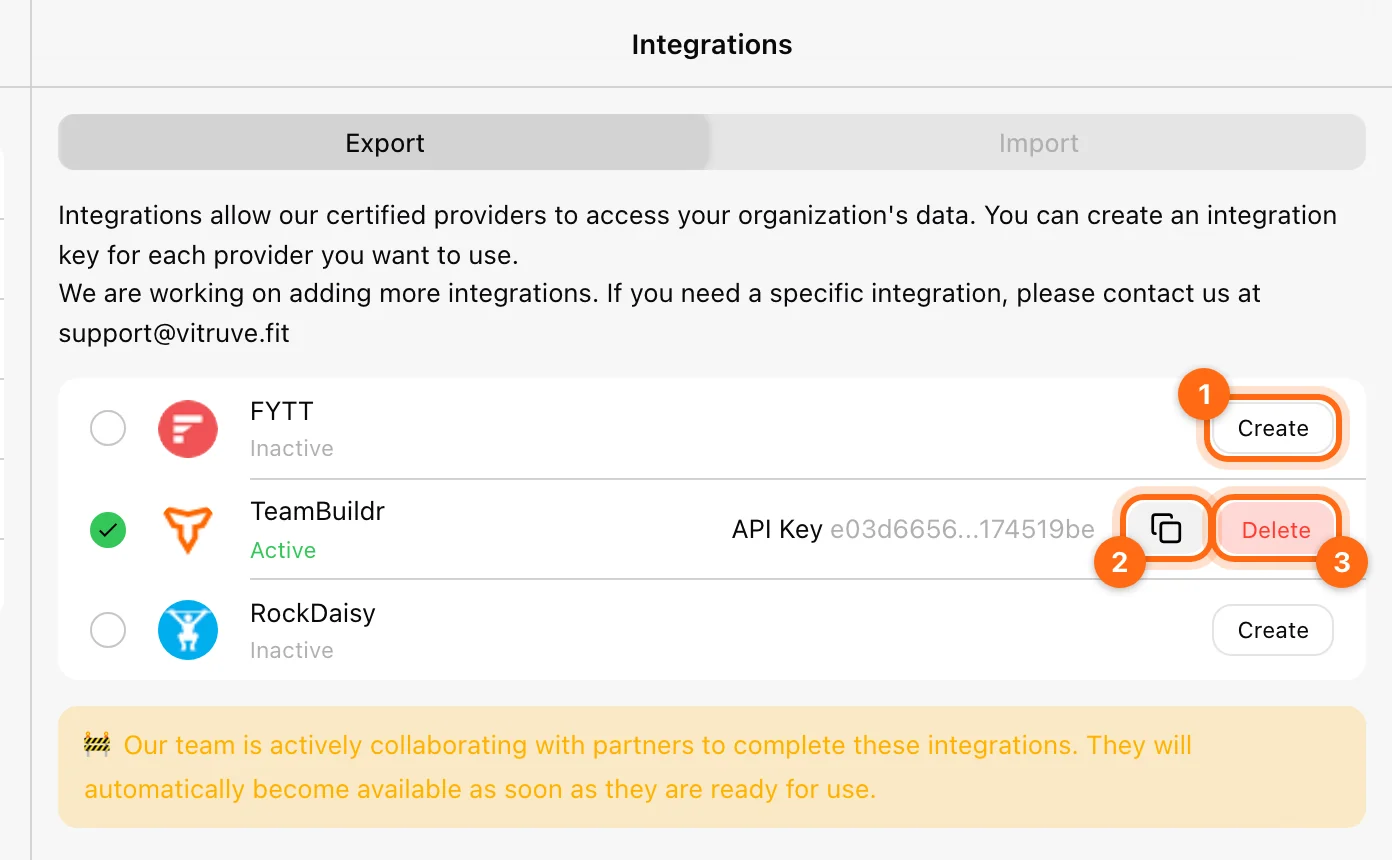
The provider shows Active once its key exists. An unavailable provider is not unlocked by creating a general API key for a different service.
The key works only for that partner. Its access works only from the partner's own approved systems, so the key does nothing if it is used anywhere else. To read your data with your own tools, create a key in API Access instead. Developers at partner platforms will find their technical guide in Partner integrations.
The key grants partner access to organization data; share it only with that partner. If the organization's plan stops including export integrations, the partner stops receiving data until the plan is restored. To stop an integration, select Delete and confirm with Revoke Key. The key is disabled immediately and any partner still using it stops receiving data.
Manage API keys in the app
Settings → API Access is for Owners on an eligible plan, currently Professional. Create a key using +, a Name, and an optional Description. Use the key’s revoke control to remove its access.
The book/documentation icon links to the Vitruve API documentation. Use that reference for endpoints and implementation details. For the full steps, the request header, and the available methods, see Create and use Vitruve API keys.
AI assistants such as Claude or ChatGPT do not use API keys: connect them from Settings → AI connectors. See Connect AI assistants.
Recording workouts uses the device manager
Jump, sprint, and reaction recording use compatible Vitruve hardware through the Bluetooth device manager. They are not import connections for third-party force plates or timing systems.
For exporting a file without a connected service, see Export workouts.