Manage your account
Update personal details, change your password or login email, record body measurements, accept invitations, sign out, or delete your account.
Open Account from the web sidebar’s avatar/footer row or the account card on mobile More. Account settings belong to your personal login, not to a team’s exercise template.
Update personal details
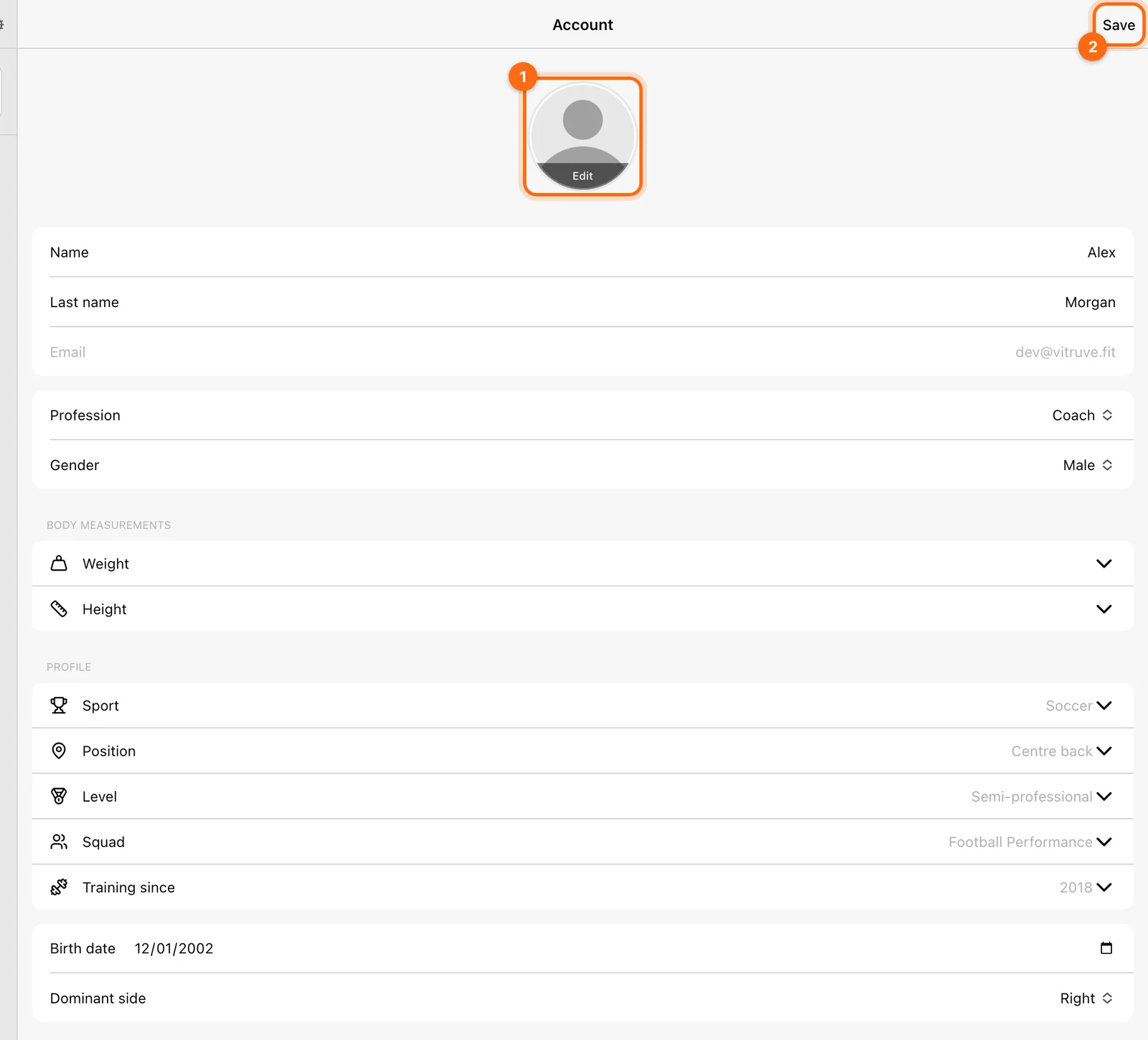
- Tap the profile picture to add or change your photo, or remove it to go back to the generic avatar.
- Edit the fields you need:
- Name (required) and Last name.
- Profession: Athlete, Coach, Physio, or Other.
- Gender: Male, Female, or Other.
- Profile: Sport, Position, Level, Squad, and Training since (starting year).
- Birth date.
- Dominant side: Not specified, Left, or Right.
- Select Save at the top of the page. Changes are not kept until you save.
Your profession is descriptive; selecting Coach here does not grant the Coach role in an organization.
Your email is shown but is not editable on this page. To use a different login email, see Change your login email below. Do not delete the current account as a way to rename its email.
Change your password
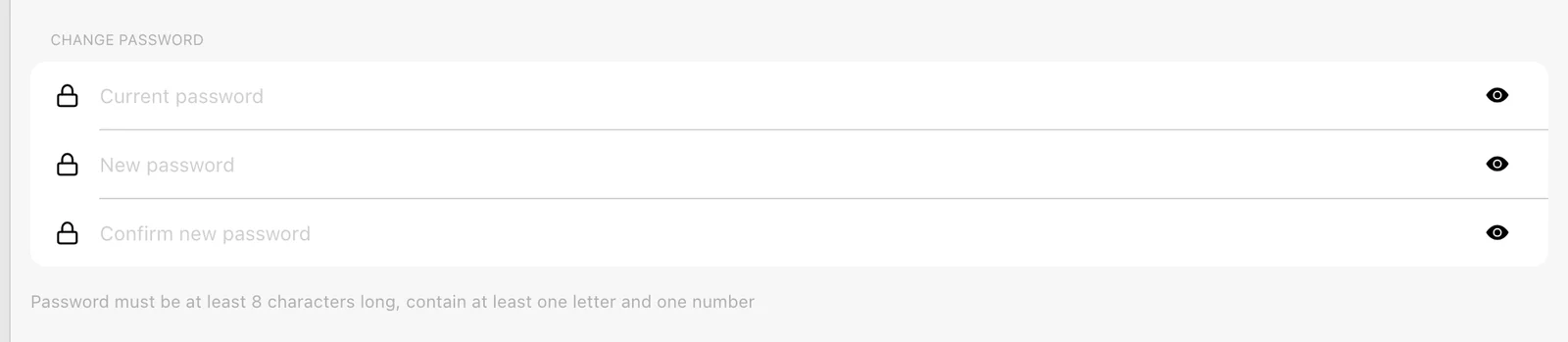
Use Change password and enter Current password, New password, and Confirm new password. The new password must be at least 8 characters long and contain at least one letter and one number. Confirm the new values match, then select Save at the top of the page.
If you cannot sign in, open Forgot password? on the sign-in screen and follow the recovery flow for your account email. This is different from changing a known password inside Account.
Record body measurements
Use Body Measurements for weight and height: Add weight and Add height ask for the value in kg or lbs and cm or inches, following your unit setting. Check the unit and date, then add the measurement. Review its chart/entries and delete only an incorrect entry if needed.
These measurements can support body-weight-related outputs. They are not an exercise 1RM; use manual 1RM or equations for that. See also Body measurements.
Set personal units
Under Override organization’s defaults → Metric System, choose Metric (kg, cm) or Imperial (lbs, ft/in). Clear the override to inherit the organization’s default again.
Theme, language, name order, layout, and keep-awake settings live in Settings → Display & Appearance, not Account. See Units and appearance.
Accept an invitation
Open Invitations, review the organization and role context, and select Accept for the invitation you want. Then select that organization before looking for its programs and sessions.
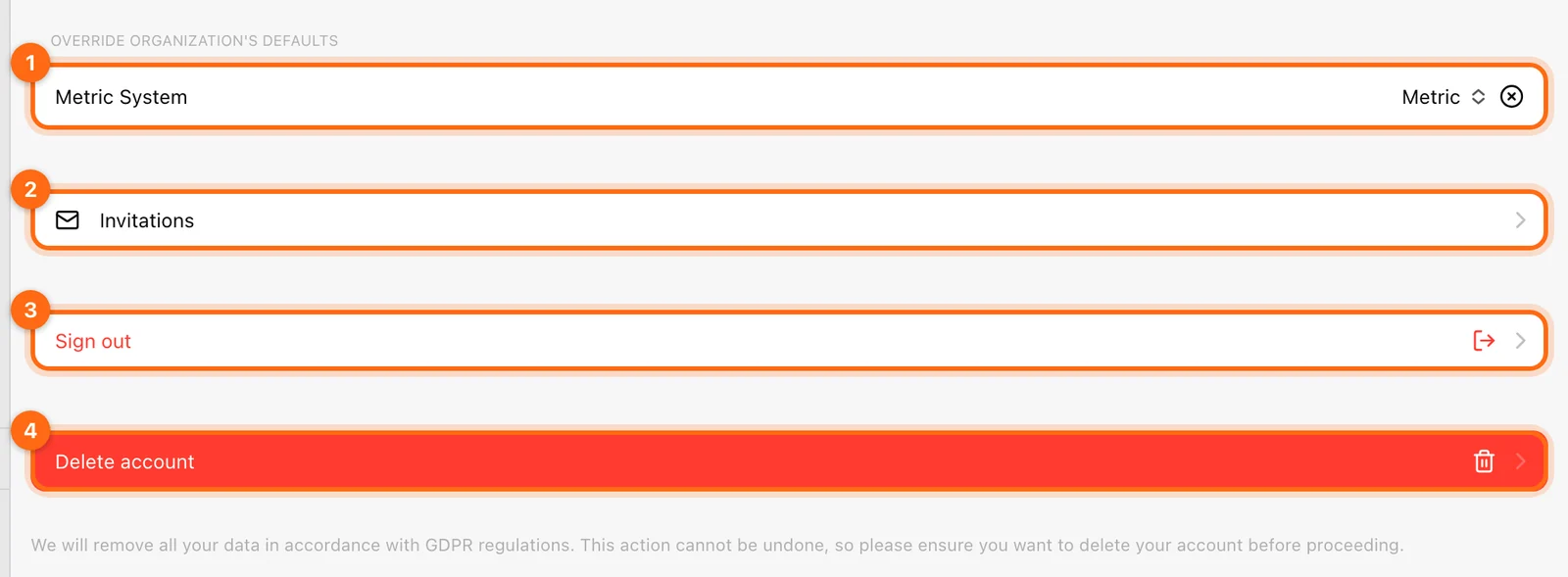
Invitations are listed here even if you never received the invitation email. Once accepted, you join with the role assigned to you (Athlete or Coach) and get the features of that organization's plan. Use the Organizations selector to switch between organizations afterward.
An invitation does not merge your previous personal training into the new organization.
Change your login email
The email of an existing account cannot be edited. To move to a new email, you create a new account and bring it into your organization.
- Create an account with the new email. Sign up in the Vitruve app or at app.vitruve.fit and verify the new address. See Create an account.
- Invite the new email. Signed in with the current account, invite the new email to your organization: from Coaches for a coach, or from Athletes for an athlete. Inviting coaches needs an Elite or Professional plan, and inviting athletes needs a team plan (Lite or above). If your plan offers neither, skip to the support route in step 4.
- Accept the invitation while signed in with the new account (Account → Invitations → Accept).
- Finish the change:
- If you are the Owner: signed in with the old account, use Organization → Transfer ownership and pick the new account. The old account becomes a Coach; it can then use Leave organization if you no longer need it there. See Transfer organization ownership.
- If you are a Coach, or want support to handle it: once the new email is a member of the organization, write to contact@vitruve.fit or support@vitruve.fit. Say which organization it is and that you want to replace the coach/owner email with the new one. The team makes the change and confirms when it is done.
Workouts recorded for the old account's own athlete profile are not moved by an invitation or an ownership transfer. Mention it in your message to support if you need them kept with the new email.
Sign out
Before Sign out, finish sessions you want to keep and check Pending workouts on this device. Once your data is uploaded, use the sign-out control at the bottom of Account, confirm, and sign in again when needed.
Delete the account
The bottom of Account provides Delete account and requires your password. This permanently deletes your personal account and associated data in line with GDPR. It cannot be undone. It is different from leaving a team organization, removing a coach’s access, or clearing a local cache.
If your goal is to leave one workspace, use Leave organization instead. Export any records you need to retain before deliberately deleting the account.
For sign-in problems, use Account troubleshooting.
Account and app settings
Find the right place for personal details, organization administration, appearance, training preferences, security, and integrations.
Set units, language, and appearance
Understand organization defaults and personal unit overrides, then customize theme, language, name order, layout, and keep-awake behavior.