Finish, discard, or resume a workout
Separate closing a screen, finishing a recorded set, reviewing Summary, saving the whole workout, and waiting for upload.
A session moves through several states: prepared, active, finished locally/pending upload, and completed in History. Closing a modal is not a shortcut through all those states.
Four actions with different scopes
| Action | Scope | Result |
|---|---|---|
| Exercise chooser Finish (number) | The selected exercise list. | Loads/applies the chosen structure. |
| Recording-display Finish | The current set/run/game. | Commits captured work to the active workout. |
| Workout-footer Finish | The whole athlete workout, or selected group scope. | Keeps the workout and queues/saves completion. |
| Workout-footer Discard | The whole active workout in the chosen scope. | Removes its progress after confirmation. |
Finish and keep your workout
- Resolve the current recording display so the last set is committed.
- Select Summary.
- Review the Name, Perceived Exertion (RPE), Overview, and recorded sets.
- Select Finish in the workout footer.
- In Coach Mode, select Only this athlete or All athletes.
- Read the confirmation and select Finish.
- Allow background processing and verify the result in History.
The current tabs are Wellness when enabled, Workout, and Summary. Summary reviews the session; the footer contains the finishing action.
In personal mode the modal normally closes after confirming. In Coach Mode, finishing only the current athlete can leave the modal open so you can continue with someone else. Remaining on the screen is not by itself a failed save.
Understand All athletes
In a recording workflow, All athletes operates across the selected athletes’ active workouts for that flow. A VBT group finish is not a command to finish every unrelated jump/sprint/builder session in the organization.
Check both the selected roster and open workout type. The active athlete’s current in-memory work is handled before the rest of the selected group’s sessions.
Discard deliberately
Choose the footer Discard only when you want to remove the active workout. In Coach Mode, choose Only this athlete/All athletes and read the scope before confirming Discard.
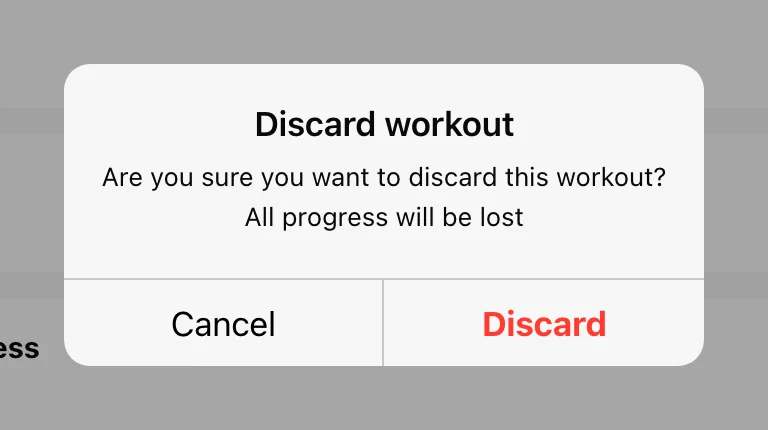
A live display’s Discard recorded events prompt concerns the current unfinished set. The footer Discard removes the whole active workout. Keeping earlier valid sets usually means discarding only the unwanted current capture.
Close or pause without finishing
The workout header’s down-chevron closes the modal. Reopen the same Training card with the same organization/athlete to continue its active session.
Where provided, VBT Pause stops recording; Play resumes. It does not finish the workout. Jump/reaction readiness or an empty focused screen does not necessarily create an active record until real content is committed.
Resume after reopening the app
Use the same recording device and keep its storage intact. Select the same organization, athlete, and flow, then review the restored work before continuing.
Each flow maintains its own active context. If you recorded through Jump → RSI Modified, check that option rather than expecting it to appear as a new blank Workout or a Vertical Jump session.
Handle an active workout in History
Open History → Active Workouts → ⋯:
- Finish: choose Completion time, then finish the session.
- Delete: discard the unfinished workout after confirmation.
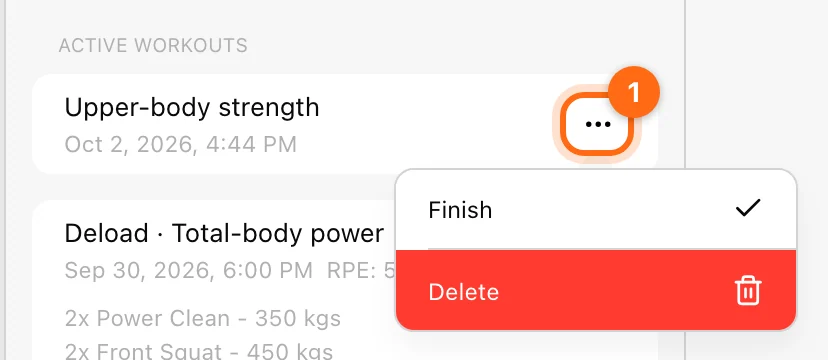
Check the original recording station before remotely ending a session that might still have unsaved progress.
Wait for processing and uploads
The Training page can show a bottom-right processing spinner. Its message asks you not to close the app while processing continues. A cloud button can then expose Pending workouts for outstanding or blocked records.
A failed durable save/queue operation leaves the workout for recovery and reports the failure. Inspect the error and pending state instead of clearing storage or recording the whole session again.
Follow Offline and sync for Retry All, JSON recovery, and another-device conflicts, or Find a missing workout if the completed record is still absent.
Monitor workouts with Coach Live
Choose a monitoring roster, read latest active workouts, preview a session, and understand individual or batch finishing.
Train offline and sync your workouts
Prepare for poor connectivity, understand Pending workouts, and resolve a session that ended on another device.