Manage the organization
Set workspace identity and default units, review the subscription, transfer ownership, or understand leaving and deletion.
Open Management → Organization on web or the Organization option under More/Management in the installed app. The entry can be visible even when particular administrative controls are not available to your role.
Update workspace details
The Owner manages the organization’s Name, Category, Phone number, and Metric System. Select the category that best describes the organization (College & University, High School / Secondary, Professional Team / Club, Federation / NGB, Private Facility / Performance Center, Independent Coach / PT, Clinical & Rehab, Tactical, Individual Athlete, or Academic / Research) and select Save. The app confirms with Organization updated.
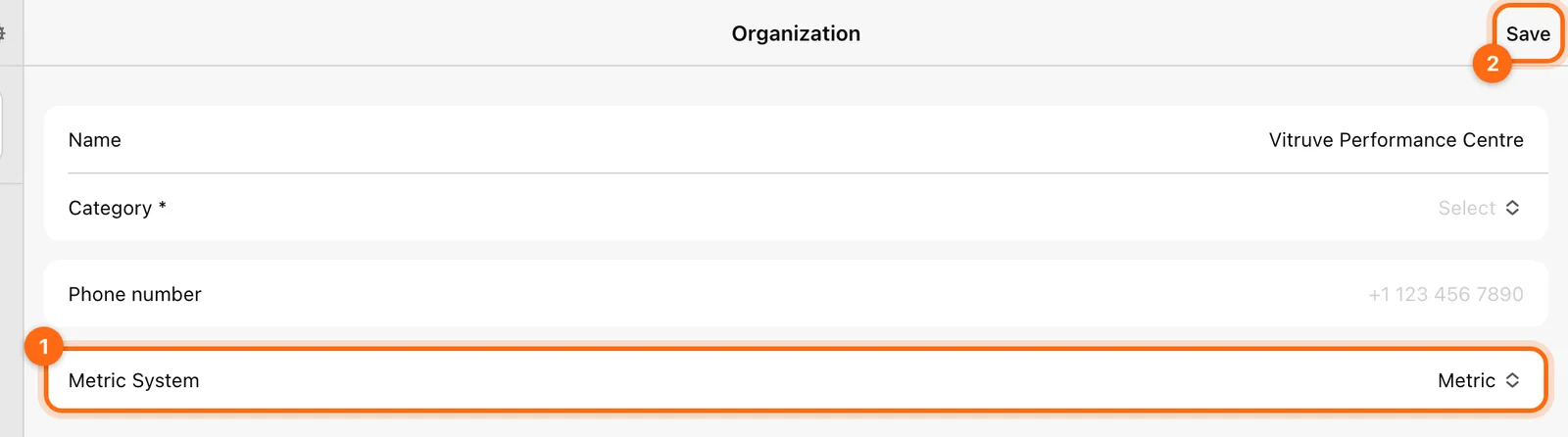
The default Metric System applies to people who have not set a personal override. If one athlete sees pounds while the team default is metric, check their Account override before changing the whole organization.
Review the current subscription
The Subscription area shows the plan Type, Started at, and Ends at dates. The organization’s subscription level determines which features and integrations are available to everyone working in it. The web page is not a universal in-app plan checkout: renewal or sales controls may open the store or contact flow, while native purchases use the available in-app purchase flow.
Use Plan and access to distinguish a plan limit from a role or Coach Mode issue.
Transfer ownership
Only the current Owner can transfer ownership:
- Open Transfer ownership.
- Choose an eligible verified member of the organization.
- Continue and review the confirmation.
- Confirm only when you intend that person to take administrative control.
The full steps, requirements, and recovery guidance are in Transfer organization ownership.
Your role becomes Coach after transfer. This is not an ordinary coach invite and is not an in-app way to create multiple owners for day-to-day staff use. Do not use it simply to give an assistant coach roster access.
Leave an organization
Leave organization ends your access to that workspace and all its data, while keeping your personal account. The app asks you to confirm with Leave. Check you are leaving the intended organization, and save/sync any training you want to keep first.
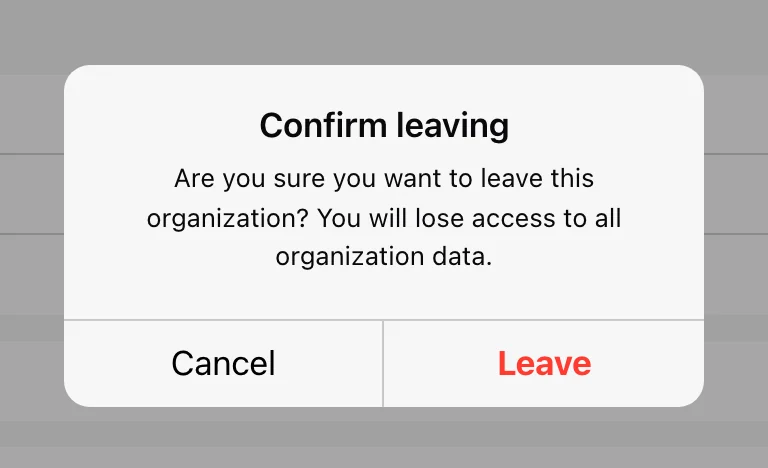
If you need access again, an appropriate administrator can invite you. Creating a similarly named organization afterward does not reconnect the old workspace’s data.
Delete an organization
The Owner can use Delete organization, which requires password verification. This permanently removes the organization and its data. It is different from leaving it or deleting a team grouping.
Export required records and review the exact workspace name before confirming. For a rename or staff change, use the corresponding edit/invitation controls rather than deleting the workspace.
If you cannot change a field
Check your role in this organization. Being an Owner in a personal organization does not make you Owner in a club workspace. Follow Access troubleshooting if the controls differ between devices.
Use the passcode and manage app storage
Protect selected screens on a shared device and understand when clearing local app storage is appropriate.
Transfer organization ownership
Hand full administrative control of your organization to another registered member, and know what changes for you afterward.