My device will not connect
Fix Bluetooth permission, discovery, handshake, active-device, and reconnect problems in a sensible order.
Start here when: an encoder or Vitruve Speed device is absent, stuck connecting, or linked without measurements. Keep any current workout intact while checking the connection.
1. Check the pairing platform
In the installed app, open Training → Bluetooth or More → Settings → Devices.
On web, use a Web Bluetooth-compatible browser, such as supported Chrome or Edge, then Training → Bluetooth → Scan. Safari and Firefox do not provide this flow. Browser discovery requires your action in the chooser; it does not behave like background mobile scanning.
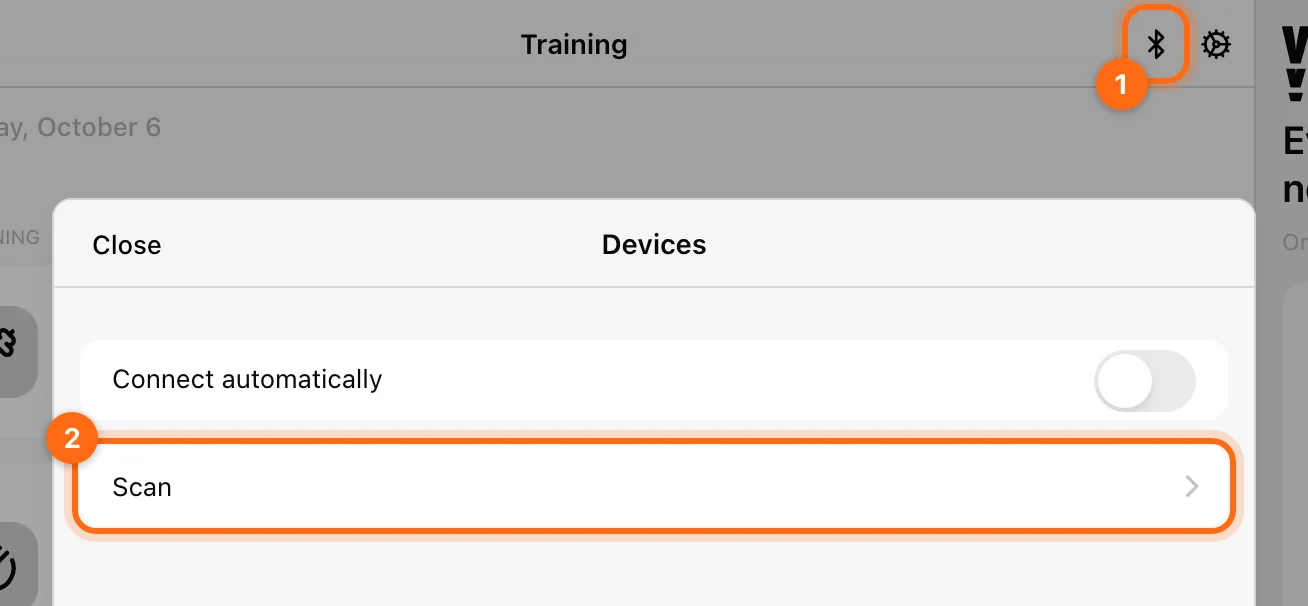
If the message says Web Bluetooth is unavailable, switch to a compatible browser or the installed app. Repeated scanning in an unsupported browser will not fix it.
2. Check Bluetooth and permission
| App message | What to do |
|---|---|
| Bluetooth is disabled | Turn it on. Android may offer Turn on Bluetooth; iOS directs you to settings. |
| Bluetooth isn’t available. Allow Vitruve to use Bluetooth… | Open system settings and allow the app’s Bluetooth access. |
| Browser permission/chooser problem | Use Scan, allow the chooser, and select the intended device. |
After changing a permission, return to the app and scan again.
3. If the device does not appear
- Switch it on and keep it nearby.
- Check that it is ready for Bluetooth discovery and is not being used by another recording device.
- Select Scan if native discovery has timed out.
- On web, reopen the chooser and pick the device, especially after a page reload.
- For older encoders, check the startup mode: if the screen shows WIFIXXX instead of BTXXX, switch it back to Bluetooth.
- If the encoder is paired in your phone or tablet's own Bluetooth settings, remove it there, then pair it from the Vitruve app.
Do not expect a remembered name in the list to prove the current device is reachable. The current app connects over Bluetooth only, so an original Speed4lifts encoder that works only over Wi-Fi will never appear.
4. If it appears but connection fails
Read the exact error:
- Didn’t accept the handshake: restart the device and try again.
- Disconnected while connecting: retry with it nearby and ready.
- Couldn’t connect: confirm it is switched on, in range, and available.
- Only … devices can stay connected: disconnect an unused device, then try again.
- That device isn’t supported: confirm the model is compatible with the recording flow you selected.
Select the row to retry. If a stale remembered entry continues failing, forget it with the row’s swipe/trash control, then scan and select it again.
5. If it is Connected but nothing records
Check the Use this device checkbox and Active group. A connection can be open without that device driving the current set.
Then check the exercise/modality and its readiness messages. A VBT-capable older encoder is not automatically a compatible jump or continuous-monitor device. For VBT, a restrictive ROM filter can also hide reps after a successful connection.
6. If it disconnects during training
Keep the app in the foreground and the device near the recording station. The manager may show Reconnecting…. Wait for recovery or select the row to retry.
Use Stop reconnecting if you deliberately want to stop the attempts. Selecting another device changes the active recording source; finish or preserve the current set before doing that.
You are ready when
The intended device is Connected, marked Active, and a short test produces measurements in the appropriate recording display.
If it still fails, send the device identifier/model, phone/computer model, OS, app/browser version, exact message, and which step failed to support.
Troubleshooting
Fix an older Vitruve Encoder that is missing from Bluetooth, records eccentric reps instead of concentric, or restarts its rep count.
Report a broken or faulty device
Rule out setup causes, then report a broken or malfunctioning encoder or Vitruve Force with the details that help support decide on a repair or replacement.